Build Your Second Brain in Notion
Discover how to build a second brain notion in Notion with PARA. Actionable steps to organize life, boost productivity, and master your knowledge.
So, what exactly is a Second Brain in Notion? Think of it as a personal digital system designed to capture, organize, and connect all your thoughts, ideas, and knowledge in one central hub. It's built to act as an external extension of your mind, freeing you from the mental strain of trying to remember everything. This lets you focus on what really matters: creativity and getting things done.
How A Second Brain In Notion Can End Digital Chaos
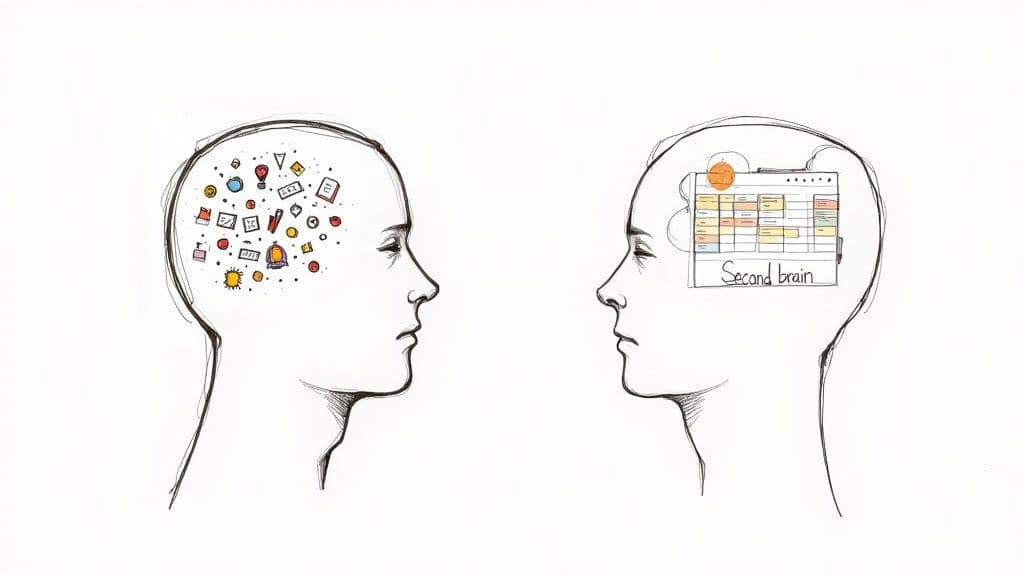
If you've ever felt buried under an avalanche of digital notes, endless bookmarks, and half-formed ideas, you know the feeling of information overload. It’s not just a vague sense of stress; it's a genuine cognitive drain. Every open browser tab, stray PDF, and saved article demands a little piece of your mental energy, leaving you feeling scattered and unproductive.
This is precisely the problem a Second Brain is designed to solve. The concept, which was brought into the mainstream by Tiago Forte, is based on a simple truth: our brains are fantastic at having ideas, but they’re pretty terrible at storing them long-term. We can only juggle a few thoughts in our active memory at once, making it incredibly difficult to keep track of project details, research, and random sparks of inspiration all at the same time.
For a deeper dive into this foundational idea, Forte’s own overview of the BASB methodology is the best place to start.
Why Notion Is The Ideal Platform
Notion's incredible blend of flexibility and power makes it the perfect home for this kind of external system. Unlike more rigid note-taking apps, Notion gives you a blank canvas. You can build a digital headquarters that’s perfectly wired for the way you think.
It’s an all-in-one workspace that eliminates the need to constantly switch between different tools.
Let’s quickly look at the core components that make a Notion Second Brain work so well.
Core Components Of A Notion Second Brain
This table breaks down the fundamental pillars of the system. Understanding these pieces is the first step to building a setup that truly works for you.
| Component | Purpose In Notion | Primary Benefit |
|---|---|---|
| Capture Inbox | A single, designated database to quickly save any idea, note, or link without friction. | Prevents ideas from getting lost and reduces decision fatigue. |
| PARA Databases | Four core databases (Projects, Areas, Resources, Archive) to organize information by actionability. | Creates a clear, intuitive structure for everything you store. |
| Project & Task Hub | A central dashboard to manage active projects and their associated tasks. | Provides a focused view of what needs to be done right now. |
| Resource Library | A database for storing articles, research, and reference materials with robust tagging. | Makes it easy to find and resurface relevant information when you need it. |
| Note-Taking System | A dedicated space for meeting notes, brainstorming, and daily journaling. | Connects fleeting thoughts to actionable projects and long-term knowledge. |
These components work together to turn a chaotic pile of information into a structured, searchable knowledge base you can rely on.
This holistic approach transforms information from a source of anxiety into a valuable, organized asset. You’ll stop asking yourself, "Where did I save that?" and start spending your time connecting ideas and producing your best work. For those wanting to explore the platform's potential further, our comprehensive blog about Notion is packed with more insights and tutorials.
A Second Brain isn't about hoarding information. It’s about creating a trusted system that lets you offload mental clutter, freeing up your cognitive bandwidth for deeper, more creative thinking. It turns chaos into clarity.
If you're interested in the broader concepts behind organizing a digital life, it helps to understand the principles of knowledge management systems. A Second Brain is really just a personal application of these powerful ideas, designed for you, not a massive corporation.
Designing Your Digital Filing Cabinet with PARA
Before we start throwing notes, links, and ideas into our new Notion setup, we need a solid structure. Think of it like setting up a physical filing cabinet. If you just start shoving papers in without any folders or logic, you’ll end up with a useless, chaotic mess.
For our second brain in Notion, we're going to use a simple but incredibly effective system called PARA. It’s a method for organizing any kind of digital information based on one key question: how actionable is this for me right now?
PARA stands for Projects, Areas, Resources, and Archives. These four categories become the main "drawers" of your digital filing cabinet. The entire point is to get away from endless, messy folders and build a dynamic system where information lives based on the outcome you need from it. This isn't just about storage; it's about setting yourself up for action.
Let's dig into what each of these actually means in the real world.
Projects: The Finish Line
A Project is anything you're working on that has a clear, tangible goal and a deadline. It has a beginning, a middle, and most importantly, an end. When you hit the goal, the project is done. This is the most active, hands-on part of your entire system.
Here are a few real-world examples of what belongs in your Projects database:
- "Launch New Website": A classic project with a defined outcome and a target launch date.
- "Plan Q3 Marketing Campaign": A specific initiative that's finished once the plan is finalized.
- "Complete Client X's Final Report": A task-driven goal that's over and done with upon delivery.
- "Organize Family Vacation to Italy": It has a clear end-point—the trip itself.
The key takeaway here is that projects aren't ongoing. They are the things you are actively doing right now, with a finish line in sight.
Areas: The Horizon
Areas are the different hats you wear in life—the roles and responsibilities that require your continuous attention. Unlike projects, they don't really have an end date. Instead, they have a certain standard you're trying to maintain over the long haul.
An Area is any part of your life where your performance matters. For example:
- Health & Fitness: This is a constant effort. Managing workouts, meal plans, and appointments never truly "ends."
- Personal Finances: Budgeting, saving, and investing are ongoing responsibilities, not one-off projects.
- Client Management: If you're a freelancer, maintaining good relationships with all your clients is a constant Area.
- Content Creation: Your blog or YouTube channel is an Area; a specific article or video is a Project that lives within that Area.
Crucially, every single project should connect to an Area. Your "Launch New Website" project probably falls under your "Business Growth" Area. This little link is powerful because it ensures your short-term hustle is always pushing your long-term goals forward.
Resources: The Library
Resources are all the topics, subjects, and interests that you want to keep tabs on but aren't directly tied to a project or area right now. This is your personal reference library, a collection of things you might want to learn about or use later. It’s the "someday/maybe" drawer of your digital life.
You might have Resource folders for things like:
- AI Developments: Interesting articles and tutorials about artificial intelligence.
- Gardening Tips: How-to guides for a hobby you enjoy.
- Favorite Recipes: A running list of meals you want to try.
- Productivity Systems: Notes on methods like GTD or Zettelkasten.
The information here is passive. You're not actively working on it, but you want to keep it around. As you build your system, having a smart way to capture these tidbits is key. For some great ideas on how to structure this, checking out a well-designed note-taking template for Notion can give you a major head start.
Archives: The Basement
Finally, the Archives is where everything from the other three categories goes to retire. It's your digital cold storage. This includes completed projects, areas you're no longer involved in, and resources that just aren't relevant anymore.
- Once the new site is live, the "Launch New Website" project gets moved to the Archives.
- If you sell your car, the "Car Maintenance" Area gets archived.
- Notes on a hobby you've moved on from can be shifted here from Resources.
The beauty of the Archive is that you almost never have to delete anything. Hitting 'delete' can be scary—what if you need it someday? Archiving just moves it out of sight. It keeps your active workspace clean and focused, but you can always search for and pull up old information if you ever need to. This simple act of tidying up is what makes the PARA system so sustainable in the long run.
Building a Frictionless Capture Habit
A fancy digital filing system is useless if you don't actually use it. The best second brain in Notion is one you consistently feed with ideas, notes, and bits of inspiration. To make that happen, capturing new information needs to be so effortless it becomes second nature.
The real goal here is to kill any friction between having a thought and getting it saved. If you have to open three different apps, navigate confusing menus, or overthink where something belongs, you'll eventually just stop doing it. A truly frictionless capture habit is what makes your Second Brain a living, breathing part of your workflow.
Your Central Inbox: The Digital Landing Strip
Every single piece of information—every article, stray thought, or meeting note—needs one trusted place to land before you worry about organizing it. This is your central ‘Inbox’ database.
Think of it as a digital catch-all. It’s the temporary holding area for everything you want to keep. An article you want to read later? Inbox. A random business idea on your morning walk? Inbox. An important email you need to act on? Inbox.
By creating one designated spot, you completely remove the burden of making a decision in the moment. You don't have to figure out if that article is a Resource or part of a Project; you just save it. The sorting comes later. This approach is absolutely critical for building momentum and making capture feel easy.
Mastering Your Capture Tools
To make this inbox work, you need to connect it to the tools you’re already using every day. It's all about creating simple pathways that funnel information into your Notion workspace with as little effort as possible.
Here are the capture methods I consider non-negotiable:
- The Notion Web Clipper: This browser extension is a must-have. It lets you save any webpage or article directly into your Inbox database without ever leaving the page you're on. You can even add a quick note or tag right then and there.
- The Notion Mobile App: Ideas don't just show up when you're sitting at your desk. The ‘Share’ function on the mobile app is your best friend for capturing links, photos, or thoughts on the go. I highly recommend creating a shortcut on your phone’s home screen that opens a new Inbox entry with a single tap.
- Email Forwarding: A ton of our tasks and information still comes through email. Instead of letting important messages get buried, you can use services like Zapier or Make.com to set up a dedicated email address that automatically forwards messages into your Notion Inbox.
Integrating these tools builds a net that catches valuable information from every corner of your digital life.
The Power of the Weekly Review
An inbox without a regular clean-out session will quickly become a digital junk drawer. This is where the weekly review comes in. It is, without a doubt, the single most important routine for keeping your Second Brain clean, organized, and actually useful.
Just set aside 30-60 minutes once a week to go through every single item in your inbox.
For each item, you’ll ask one simple question: "What is this, and where does it belong?" From there, you just move it from the inbox into its proper home—Projects, Areas, Resources, or Archives.
This diagram shows exactly how that flow works, moving information from capture to its final destination.
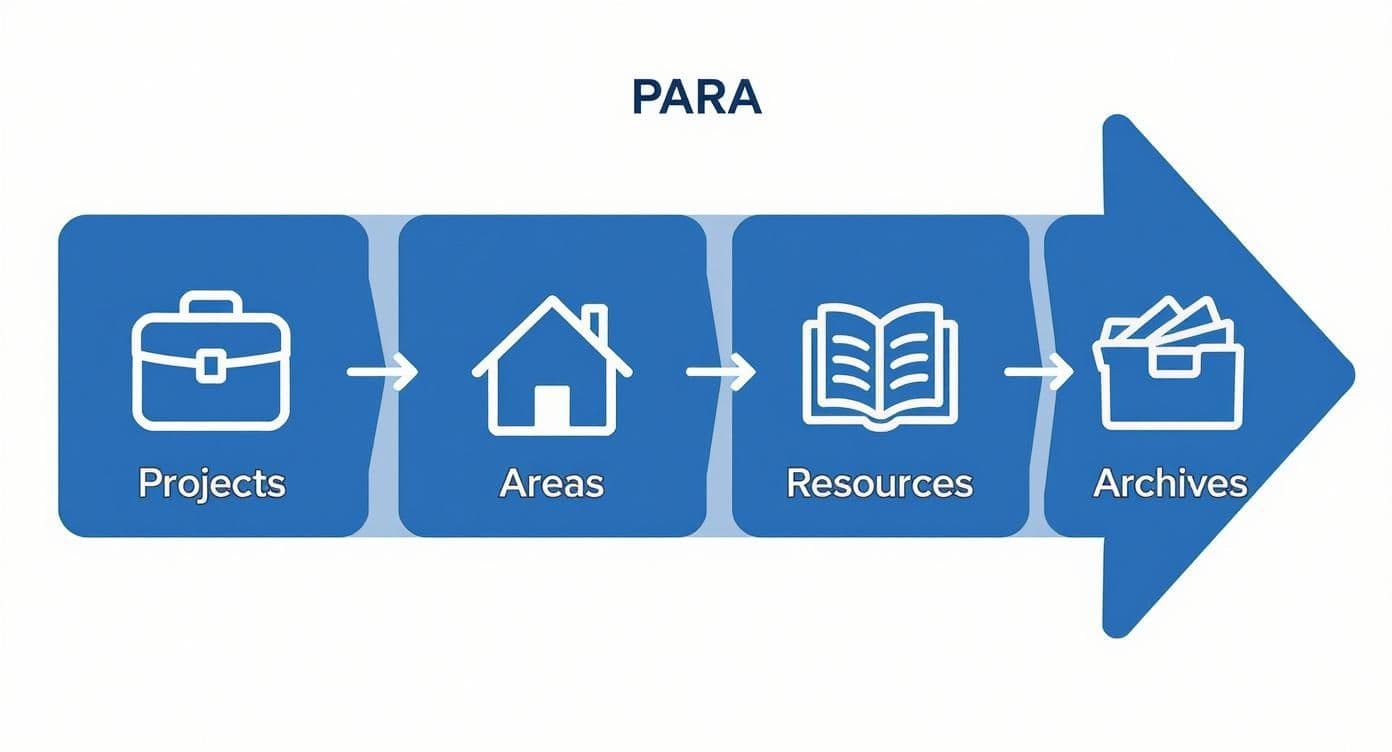
As you can see, the system sorts information based on how actionable it is, from immediate tasks in Projects all the way to long-term storage in Archives. This simple habit ensures your system stays relevant. If you need help making it stick, our guide on creating a habit tracker in Notion can get you started.
Connecting Ideas with Relational Databases
Alright, you've got your PARA structure down and you’re consistently capturing new information. This is great, but so far, it's basically a fancy digital filing cabinet. Now we get to the fun part—the real magic of building a second brain in Notion. This is where we start building a dynamic web of interconnected knowledge.
We're going to turn your static collection of notes into a powerful tool for generating new ideas and insights. The key to this entire transformation is a feature called Relational Databases.
Instead of having your projects, notes, and tasks living in their own separate, walled-off lists, we’re going to link them together. This simple shift allows you to see the real context behind every piece of information and spot connections you’d almost certainly miss otherwise.
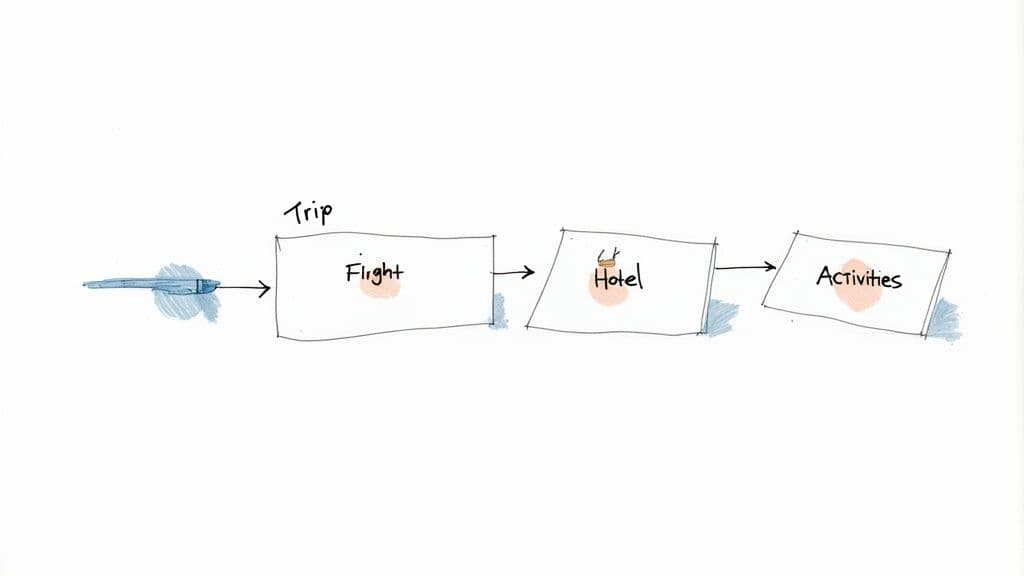
This might sound a bit technical, but in practice, it’s incredibly intuitive. Think of it like this: it's the difference between having a shoebox full of random receipts versus a detailed budget where every single expense is neatly linked to a specific spending category.
From Simple Lists to a Web of Knowledge
Let’s walk through a real-world example: planning a vacation. Without relations, you might have separate Notion pages for your flight info, hotel research, and activity ideas. Sure, the information is there, but it’s scattered. Finding everything for your "Italy Trip" means searching for three different documents and mentally piecing them together.
Relational databases change the game completely. You can have a single master "Projects" database and create one entry called "Italy Trip." From there, you can link every related item directly to it.
- Your flight confirmation PDF, saved in your Resources database.
- A page of notes on potential hotels in Rome, living in your Notes database.
- Specific to-dos like "Book Colosseum Tickets" from your Tasks database.
Each one of these items can be directly connected to the "Italy Trip" project page using a Relation property. Now, when you open that single project page, you see a tidy dashboard with every piece of related information right there. This contextual linking is the engine that makes a Notion second brain actually work.
Establishing a Master Tag Database
One of the most common ways any organizational system falls apart is with messy, inconsistent tagging. You might tag one article "marketing," another "content marketing," and a third with the abbreviation "mktg." This kind of fragmentation makes it impossible to pull up all your notes on a single topic.
The fix is to create a dedicated Master Tag Database. It’s a simple database with one job: to house every single tag you use across your entire workspace. From now on, instead of using Notion's basic "Multi-select" property for tags, you’ll use a Relation property that points to this master list.
This small change has two massive benefits:
- Consistency: It forces you to use the exact same tag every time. No more typos or variations.
- Context: You can add properties to your tags. For instance, you could add a "Category" property to group your tags (e.g., the "SEO" tag belongs to the "Marketing" category). This allows for much more powerful and granular filtering later on.
By centralizing your tags, you're not just tidying up your notes—you're building a personal ontology. You're defining the relationships between concepts in your world, making your knowledge base exponentially easier to navigate and far more powerful.
Creating Powerful Filtered Views
Once you have your databases connected and your tags are clean, you can finally unlock the true power of Linked Views. A linked view is essentially a live, filtered snapshot of one of your master databases that you can place anywhere you want in your Notion workspace.
This is where your Second Brain goes from being a storage system to a personalized, actionable dashboard.
Imagine starting your workday. Instead of staring at a massive, overwhelming to-do list, you click on your "Today" dashboard. On this page, you can pop in a linked view of your master "Tasks" database that’s been filtered to only show you items where:
- The Status is "In Progress"
- The Due Date is "Today"
- The related Project is "Q4 Client Report"
That filtered view gives you a laser-focused list of exactly what you need to do right now, without any of the noise. You can create dozens of these views for different contexts: a view for personal errands, another for high-priority tasks from your boss, or one that shows all the articles you’ve saved with the "Artificial Intelligence" tag.
This is how you surface the right information at precisely the right time, turning your Notion workspace into a proactive assistant that works for you.
Making Your System Work For You Through Automation
<iframe width="100%" style="aspect-ratio: 16 / 9;" src="https://www.youtube.com/embed/5JaGJBPC0Q8" frameborder="0" allow="autoplay; encrypted-media" allowfullscreen></iframe>Once you have your Notion architecture built, the real magic begins. A well-structured Second Brain is great, but a system that proactively works for you is a game-changer. We're talking about moving beyond manual organization and into the world of automation.
This is all about eliminating the small, repetitive tasks that drain your mental energy and time. The goal is to make capturing, processing, and acting on information as frictionless as possible. Think about the things you do over and over again—creating a new project page, setting up the same client checklist, saving articles. These are prime candidates for a little automation TLC.
Build Powerful Template Buttons
One of Notion’s most deceptively powerful features is the Template Button. It’s so simple, yet it can save you an incredible amount of time. This little block lets you bundle a whole set of pages, database entries, and checklists into a single, clickable button.
Instead of manually creating a new project, adding all the right properties, and then typing out your standard task list, you can do it all in a single click.
A freelance designer, for instance, could have a "New Client Project" button that instantly generates:
- A main project page with properties for deadlines, budget, and contact info.
- A pre-filled task list with onboarding steps like "Send Welcome Packet" and "Schedule Kickoff Call."
- Dedicated sub-pages for meeting notes, creative briefs, and mood boards.
This isn’t just about speed. It’s about building your best practices directly into your workflow, ensuring you never miss a critical step.
Connect Notion To The Outside World
Your digital life doesn’t just happen inside Notion. You're constantly getting important emails, finding insightful articles, and scheduling meetings in other apps. A truly integrated Second Brain needs automated pipelines to funnel all that external information directly into your Notion inbox without you lifting a finger.
This is where you bring in some outside help from integration tools.
By connecting your favorite apps to Notion, you create a capture system that works for you 24/7. Your Second Brain starts to fill with valuable information in the background, even when you're not actively "working."
Tools like Zapier and Make.com are the glue that connects Notion to thousands of other services. You can set up simple "if this, then that" recipes to automate your information flow.
- Never Lose an Email: Create a workflow that sends any email you "star" in Gmail straight to your Notion Inbox database.
- Capture Social Media Gold: Set up an automation to save any tweet you "like" from a specific thought leader into your Resources database.
- Sync Your Calendar: Have a new entry automatically appear in your "Meeting Notes" database every time a new event is added to your Google Calendar.
For those who use their Second Brain to fuel their creative work, you can even explore tools to automate content creation that can link your organized knowledge base directly to your output.
Automating data capture is a critical step in building a seamless Second Brain. Below is a quick comparison of some popular tools that can help you connect Notion to the rest of your digital ecosystem.
Recommended Automation And Integration Tools
| Tool | Primary Use Case | Example Automation |
|---|---|---|
| Zapier | Connecting thousands of web apps with no-code "Zaps." | Star a Gmail message → Create a new page in a Notion database. |
| Make.com | Building complex, multi-step visual workflows. | New Google Calendar event → Create a meeting notes page in Notion & send a Slack reminder. |
| Notion Automations | Simple, native automations within Notion. | When a task status is "Done" → Move the task to an "Archive" database. |
| Readwise | Syncing highlights from Kindle, articles, and podcasts. | Highlight text in an article → Automatically sync it to a dedicated Notion database. |
These tools range from simple and native to incredibly powerful, allowing you to build an automation stack that perfectly fits your workflow and technical comfort level.
Create A Personal Command Center
With all this information flowing in automatically, the final piece of the puzzle is creating a single dashboard that gives you a clear, actionable overview of your entire system. This is your Command Center—the one page you open at the start of your day to see exactly what's on your plate.
Using Linked Views of your master databases is the key here. You're not creating new databases; you're simply pulling in filtered, live snapshots of your information from across the entire workspace.
A great Command Center might include:
- Today's Priorities: A filtered view of your master task list, showing only items due today.
- Active Projects: A gallery view of your projects database, showing only those with a status of "In Progress."
- Inbox Triage: A simple list view of your central inbox, reminding you to process new notes and links.
This kind of setup drastically reduces the mental effort needed to figure out what to work on. The impact is huge; productivity studies show that people using a well-organized Second Brain can improve their knowledge retention by up to 30-40% and cut down the time they spend searching for information by 20-25%. You can learn more about these Second Brain findings and see how they apply in the real world.
Got Questions About Building a Second Brain in Notion?
When you start building a Second Brain in Notion, it's natural to hit a few roadblocks. The jump from theory to actually doing it brings up some practical questions. Let's tackle some of the most common sticking points I see, so you can build your system with confidence and sidestep the usual frustrations.
Just remember, the goal isn't perfection on day one. It's about getting a functional foundation in place. This system is meant to grow and change right along with you.
So, How Long Does This Actually Take to Set Up?
Honestly, it can be anything from a couple of focused hours to a full weekend. It all comes down to what you're trying to achieve right out of the gate. If you're aiming for a minimalist setup with the basic PARA framework (Projects, Areas, Resources, Archives) and a few core databases, you can get that running surprisingly fast.
But if you’re dreaming up intricate relational databases, custom-built dashboards, and a bunch of automations from the get-go, you'll need to set aside more time. My best advice? Start simple and let complexity emerge over time. This is a marathon, not a sprint.
Should I Use One Giant Database or Lots of Little Ones?
This one's easy: for your most important information—your projects, notes, tasks, and so on—it's almost always better to build a few large, "master" databases. This centralized approach is what makes Notion so powerful in the first place.
Think about it. Having one master database for all your "Resources" means you can create filtered, linked views of that information anywhere you need it. If you split your notes across dozens of disconnected little databases, you create digital silos. You'll never be able to spot the hidden connections between your ideas.
A centralized database structure is the engine of a functional Second Brain. It’s what powers the relational links and filtered views that transform a pile of notes into a true web of knowledge.
What's the Real Difference Between an Area and a Resource?
This is probably the single most common point of confusion with the PARA method, but getting this right is essential for keeping your system from turning into a mess.
- An Area is a sphere of your life you're actively managing. It's an ongoing responsibility with a standard to maintain. Think "Health & Wellness," "Personal Finances," or "Household Management." These things don't really have an end date.
- A Resource, on the other hand, is just a topic you're interested in. It’s for learning and reference. Examples could be anything from "Artificial Intelligence" and "Classic Films" to "Sourdough Baking."
Here's the acid test: ask yourself, "Does this require active work from me?" If the answer is yes, it’s an Area. If you're just collecting information for future reference, it’s a Resource.
How Do I Keep This From Becoming a Digital Hoarder's Paradise?
Your beautiful new Notion system can quickly devolve into a digital junkyard without a little upkeep. The single most important habit you can build to prevent this is the consistent weekly review.
Seriously, just set aside 30-60 minutes each week to go through your inbox. Process those new notes, file away interesting links, and check in on your active projects. This simple routine is what keeps the system clean, current, and—most importantly—trustworthy. Without it, even the most elegantly designed setup will eventually collapse under its own weight.
Feeling inspired but want to skip the setup grind? Flowtion offers a full suite of professionally designed templates that let you deploy a complete, battle-tested Second Brain in Notion with a single click. Start organizing your life and work in minutes at https://theflowtion.com.