Notion To-Do List Templates to Master Your Tasks
Discover the best Notion to do list templates. This guide shows you how to find, customize, and integrate templates to build a powerful productivity system.
Let's be honest, a simple checklist just doesn't cut it anymore. Today's work is complex and interconnected, which is why so many people are ditching static lists for dynamic Notion to-do list templates. Think of them less as a list and more as a smart database, built to manage your tasks with all the context, priority, and connections you actually need. It’s a huge leap from just jotting down notes to building an active, intelligent system for getting things done.
Why Notion To-Do List Templates Beat Simple Checklists
If you're still wrestling with a basic checklist app or a paper notebook, you've probably felt its limits. Your tasks are just floating in a void, completely disconnected from the bigger projects they belong to. It’s a flat, one-dimensional view of your work that gets messy fast.
Notion completely flips that on its head. Instead of just a checkbox you tick off, every task becomes its own page—a rich entry in a much larger system. This is the fundamental difference between a passive list and an active database.
Moving Beyond Simple Checkboxes
A traditional checklist tells you what to do. A Notion to-do list template can tell you the what, why, when, and even how. This is all thanks to customizable properties, which are the secret sauce of any Notion database. You can layer in all the context a simple list could never handle.
For example, you can add:
- Priority Levels: Tag tasks as High, Medium, or Low. Instantly, you know where to focus your energy.
- Due Dates: Give tasks a deadline. Now you can see everything on a calendar and plan your week or month without guessing.
- Status Indicators: Track where every task stands with labels like "Not Started," "In Progress," and "Completed." It gives you a bird's-eye view of your entire workflow.
- Project Relations: This is a game-changer. You can link a task directly back to its main project, creating a clear line between your daily to-dos and your big-picture goals.
The Power of a Centralized System
Once you start adding this kind of context, your to-do list transforms into a central command center—a true "life OS." Everything is connected. You no longer have to jump between your calendar, your project plans, and your task list because it's all in one place.
Using Notion to-do list templates helps you align your daily work with proven best practices for time management and seriously boost your output. The numbers speak for themselves: in 2023 alone, Notion reported that over 1.2 million users grabbed a to-do list template to get organized. You can check out some of the most popular Notion template categories on their official site.
The real magic of a Notion template is that it lets you see the same tasks from different angles. You can switch from a simple list view to a Kanban board organized by status, or a calendar sorted by due date—all without re-entering a single piece of information.
Ultimately, this all-in-one approach helps you build a system that’s not just organized, but insightful. If you're ready to see what else is possible, exploring other Notion productivity templates can open your eyes to even more ways to manage your entire life in one powerful workspace.
How to Find the Perfect Template for Your Workflow
https://www.youtube.com/embed/cYbcgtK0v_Q
Diving into the world of Notion to-do list templates can feel a bit like walking into a massive buffet—everything looks good, but you have no idea where to start. The trick is to resist the urge to grab the first shiny template you see. Instead, take a moment to figure out what you actually need. A great template should bend to your workflow, not the other way around.
So, where do you begin? Start by asking one simple question: What’s my single biggest task management headache right now?
Maybe you're a freelancer struggling to keep client projects from bleeding into one another. Or perhaps you're a student drowning in a sea of assignment deadlines. For a team lead, the pain might be a lack of visibility into who’s doing what. Your answer is the compass that will point you in the right direction.
As of late 2025, the official Notion Marketplace is home to over 785 different to-do list templates. That explosive growth shows just how many people are looking for better ways to get organized. This variety is a huge plus, but only if you know what to look for. You can browse the massive collection of Notion to-do list templates on their official website to get a feel for what's possible.
Assess Complexity and Core Features
Next up, be honest with yourself about the level of complexity you need. It’s easy to get seduced by a massive, all-in-one "life OS" template that promises to organize every facet of your existence. In my experience, these often become overwhelming and end up gathering digital dust. Sometimes, a simple, focused system is far more effective.
A good way to judge a template is by looking at its core database properties. At the very least, you’ll want to see these essentials:
- Status: A way to see where a task is at a glance (e.g., "Not Started," "In Progress," "Done").
- Due Date: This is non-negotiable for planning your time and prioritizing what’s next.
- Priority: A simple way to flag what needs your immediate attention (e.g., High, Medium, Low).
From there, think about your specific world. A freelancer will likely need a "Client" or "Project" property to connect tasks to specific jobs. A content creator might want a "Publish Date" or "Content Type" tag. Pinpoint the data that would make your life easier and hunt for templates that already include it.
The goal is to find a system that gives you just enough structure to feel in control, without so many bells and whistles that it becomes a chore to maintain. Simplicity almost always wins.
This decision tree gives a great visual for that first crucial step—deciding whether you can get by with a basic checklist or if it’s time to level up your system.
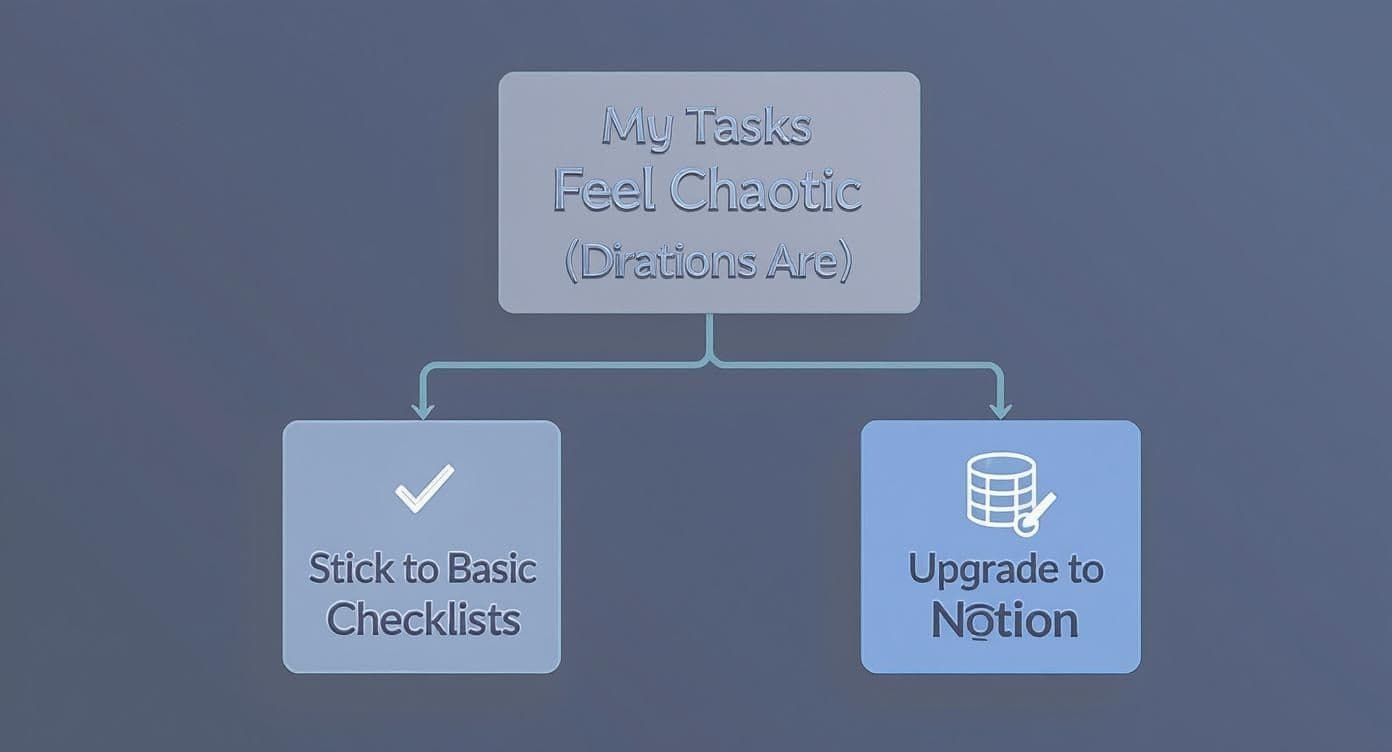
As the flowchart shows, if your current method is pure chaos, making the jump to a dynamic tool like Notion is the logical next move for getting things under control.
Evaluate Different Template Styles
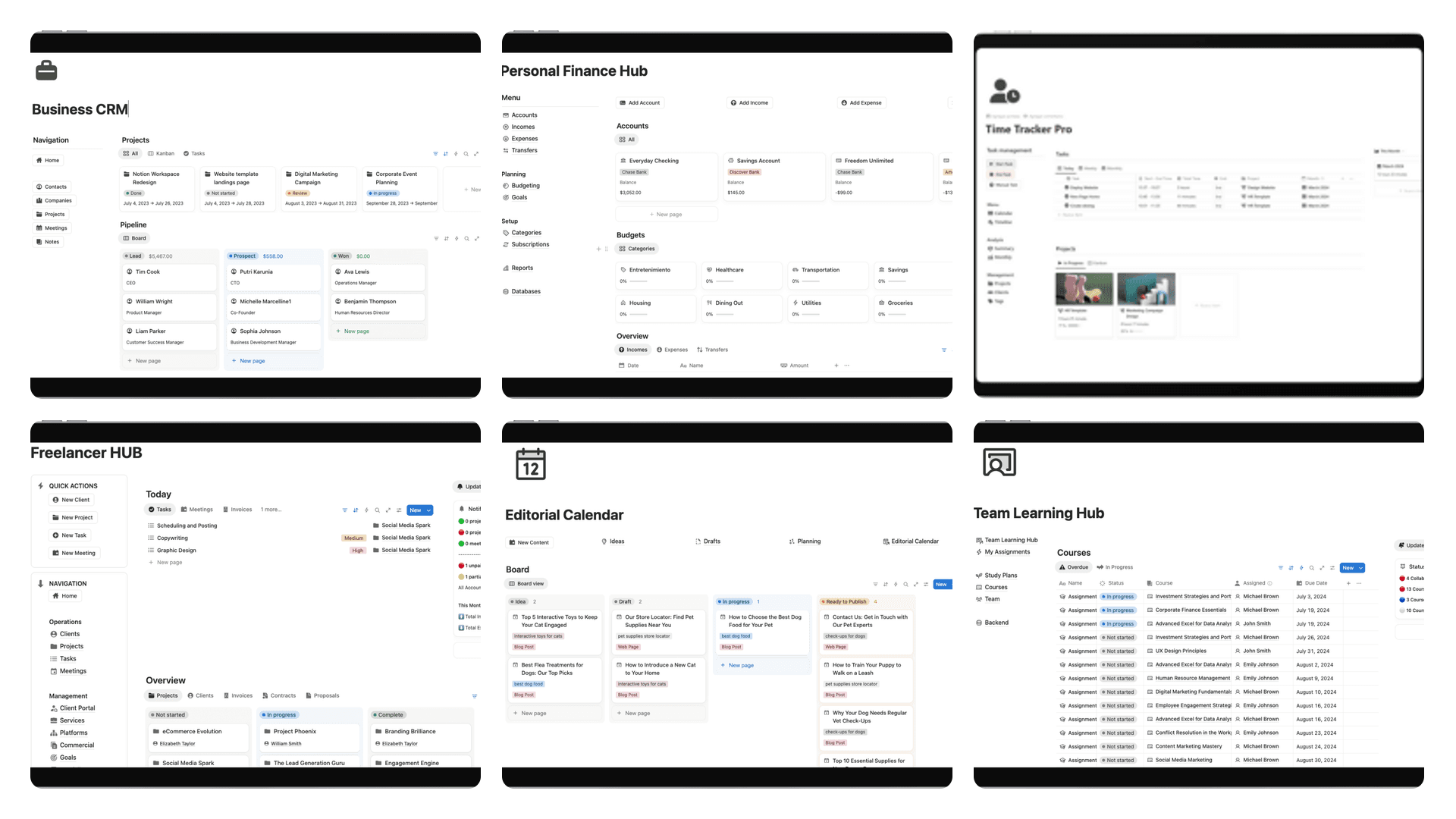
It’s important to remember that not all Notion to-do list templates are created equal. Some are basic, clean checklists, while others are full-blown project management dashboards. Knowing the main styles helps you choose the right tool for the job.
To help you narrow it down, here’s a quick look at the most common template types and who they’re best for.
Which Notion To-Do List Template Style Is Right for You?
| Template Type | Best For | Key Features |
|---|---|---|
| Simple Task List | Individuals with straightforward daily tasks. | Clean interface, minimal properties, focuses on quick entry. |
| GTD System | Users familiar with the "Getting Things Done" methodology. | Inbox for brain dumps, contexts, and project breakdowns. |
| Project Tracker | Freelancers, agencies, and teams managing multiple projects. | Gantt charts, timelines, and relations to client databases. |
| Weekly Planner | Students and professionals who organize work week-by-week. | Calendar views, daily priority sections, and habit trackers. |
Ultimately, picking the right style comes down to matching the template’s structure to your own planning horizon. Do you think in terms of days, weeks, or entire project timelines? Answering that question will lead you straight to a template that feels natural from the moment you start using it.
Getting Your New Template Up and Running in Under 10 Minutes
So, you’ve found a Notion template that looks promising. Great! Now, let's make it your own. This initial setup is quick—we're talking 10 minutes or less—but it's the most important part of turning a generic download into a productivity system you'll actually use.
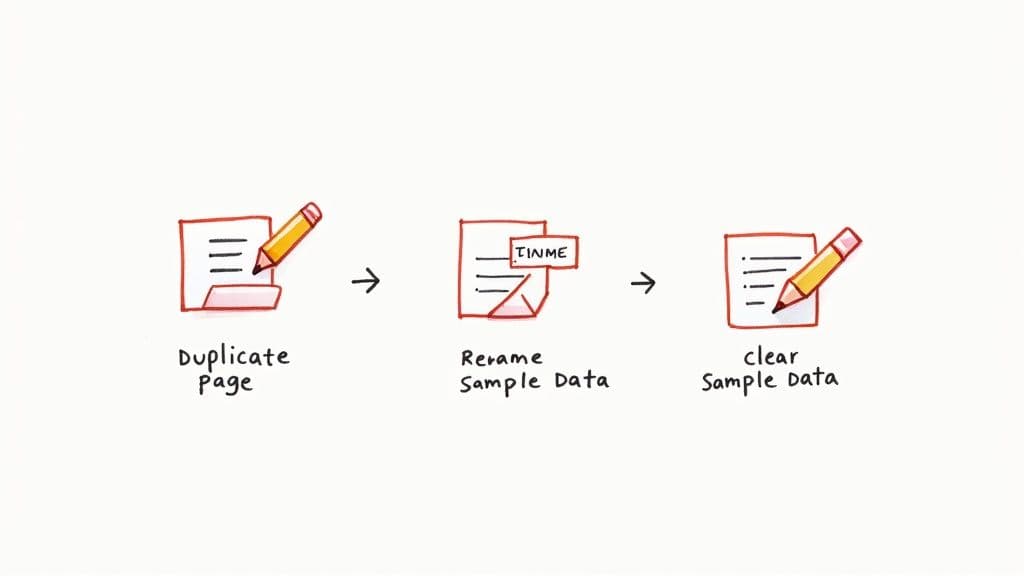
First thing's first: hit the "Duplicate" button, usually tucked away in the top-right corner of the page. Notion will ask which workspace you want to copy it to. Just select yours, and it’ll create a private, editable version for you to play with.
This simple duplication process is how millions of people get started. The availability of diverse Notion to do list templates has completely blown up; the number available in Notion’s official marketplace has shot up by more than 300% since 2020. It's a clear sign of how many of us are looking for better digital organization. You can explore a huge variety of to-do list templates on Notion.com to see what's out there.
First Critical Adjustments
Once the template is in your workspace, your first instinct might be to start dumping all your tasks into it. Hold that thought. A few minutes of housekeeping now will save you a ton of confusion later.
Start by giving the page a new name. Something generic like "Daily Task Tracker Template" doesn't feel personal. Change it to "My Daily Task Tracker" or "Q3 Project Dashboard." This simple act makes it feel like it's truly part of your system, not just some file you downloaded.
Next, you'll want to clear out any sample data. Most templates come pre-filled with examples to show you the ropes, which is helpful at first but becomes clutter once you're ready to start.
- Select all the sample tasks. In a table view, just click the checkbox at the top of the list. On a board, you can click and drag to highlight multiple cards.
- Delete them all. A quick tap of the delete key or a click on the trash can icon and you're good to go. Starting with a clean slate is the only way.
Here's a pro tip I've learned from experience: always check the database filters. A template might come with a filter like "Show tasks due this week." If you add a task for next month, it'll seem to vanish. Before you panic, just click the "Filter" button and tweak the rules to fit how you work.
Rename Your Databases for Clarity
This is the step everyone skips, and it's a huge mistake if you plan on using Notion for more than one thing. The template's main database might be called "Tasks." That’s fine if it's the only task list you'll ever have, but what happens when you have three projects?
Give it a specific name, like "Freelance Client Tasks" or "Personal Goals DB." This becomes incredibly important later when you start using linked databases to pull information from one page to another. Clear naming ensures you’re always connecting to the right source. It's a foundational principle, much like the ones you'd find in good guides for Notion weekly planning.
By making these small tweaks upfront, you’re building a system that's clean, intuitive, and ready for whatever you throw at it.
Taking Your Template to the Next Level with Advanced Customizations
A great template is never the finish line; it’s the starting line. The real magic of using Notion to-do list templates kicks in when you start bending and shaping that foundation until it feels like a natural extension of your own brain. This is where we go beyond the basics and start making a template truly yours.
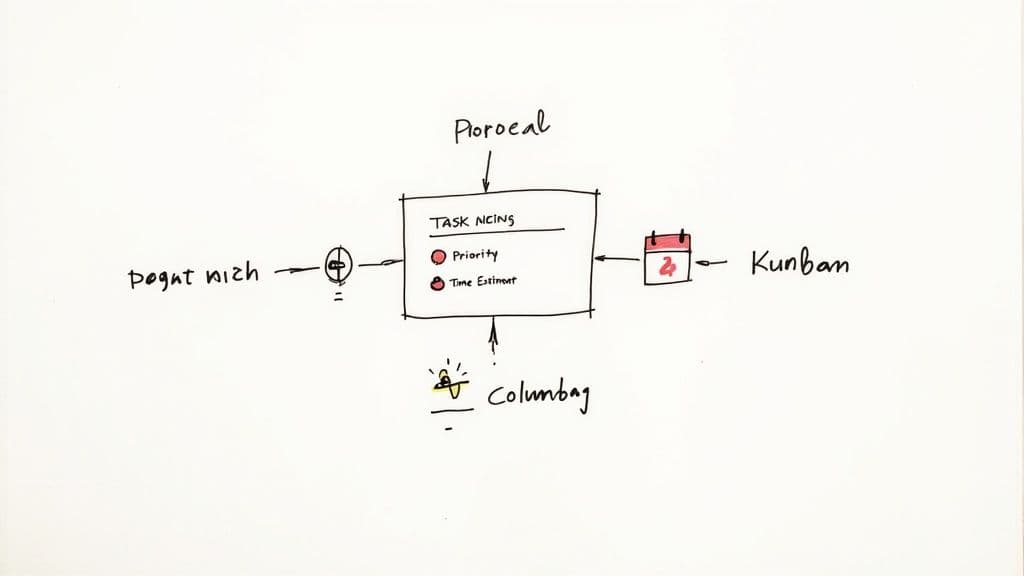
It’s all about adding your own unique layers of information and building fresh ways to see your tasks. This is how you transform a generic list into a high-powered productivity engine that actually works for you.
Beef Up Your Task Database with Custom Properties
Most templates will give you the standard stuff: a status, a due date, and maybe a priority level. But what other details are genuinely critical to your workflow? Adding new properties is the first and most powerful step you can take.
Think about adding a few of these to get started:
- A "Time Estimate" Number Property: Call it "Time Estimate (Hours)" and use it to guess how long a task might take. This is a simple reality check that helps you stop overbooking your days.
- A "Task Type" Select Property: Create a "Type" property with tags that make sense for your work, like "Admin," "Deep Work," "Meeting Prep," or "Client Call." This lets you filter your list and batch similar jobs together for maximum focus.
- A "Relation" Property to Connect Databases: This one is a game-changer. If you keep your projects or clients in a separate database, you can use a Relation property to link every single task back to its parent project. Suddenly, everything is connected.
Even adding just one or two of these gives you so much more data to play with, which is the key to unlocking better ways to organize your work.
Build Custom Views to See Your Tasks from New Angles
Once you have more data points, you can create custom views to look at your workflow in ways a simple checklist never could. A "view" is just a different lens for looking at the exact same tasks. You're not adding more work, just gaining new perspectives.
Here are a few essential views you can build in minutes:
- The Classic Kanban Board: This is perfect for tracking progress visually. Just create a new Board view and tell Notion to group it by your "Status" property. Now you can literally drag tasks from "To Do" to "In Progress" and finally to "Done." So satisfying.
- A Crystal-Clear Calendar View: If your life revolves around deadlines, a calendar is a must. Create a Calendar view that uses the "Due Date" property to plot everything out. Your whole month becomes instantly visible.
- A Filtered "Today" View: This is my personal favorite for fighting overwhelm. Create a new List view called "Today's Focus" and add one simple filter: show only tasks where the "Due Date" is "Today." Boom. You now have a clean, distraction-free list of what matters right now.
The most effective productivity systems aren't the ones with the most bells and whistles; they're the ones that give you clarity. Custom views cut through the noise so you only see what's relevant in that moment.
Automate Your Insights with Simple Formulas
Don't let the word "formula" scare you. You don’t need to be a developer to make them work. Think of a formula as just another property you add to your database, but one that calculates things for you automatically.
Here’s a super practical example: a formula that tells you exactly how many days are left until a task is due.
- Create a new property in your database and choose "Formula" as the type.
- Give it a name, like "Days Remaining."
- Paste in this simple line:
dateBetween(prop("Due Date"), now(), "days")
Just like that, you'll have a new column showing the countdown for every task. It’s a tiny automation that adds a healthy sense of urgency and helps you prioritize on the fly, turning your static list into a dynamic dashboard.
Connecting Your To-Do List to Your Digital Workspace
A to-do list sitting by itself is a wasted opportunity. The real magic happens when you weave it into the fabric of your entire Notion workspace, turning it from a simple checklist into a genuine command center for your life and work.
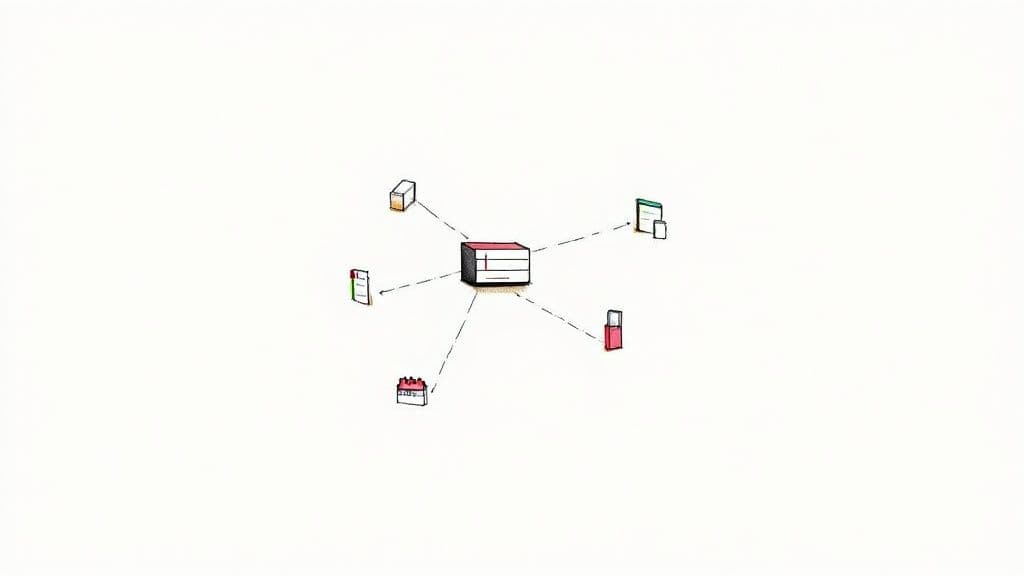
This is how you graduate from just managing tasks to building a system where nothing ever gets lost. The feature that makes this all possible is called Linked Databases.
Give Your Tasks Context with Linked Databases
Think of a Linked Database as a live, filtered copy of your main task list. You can drop this copy anywhere you need it—a project dashboard, meeting notes, or your weekly planner. It's the same core information, just viewed through a different lens.
For instance, let's say you're managing a big website launch. Instead of just having a link to your massive to-do list, you can embed a linked view of that database directly onto the project's main page. Then, you simply filter it to show only the tasks related to the website launch. Just like that, your to-dos have context.
Here are a few ways I put this into practice:
- Project Dashboards: I drop a linked view on each project's homepage, filtered to show only tasks tagged with that specific project.
- Meeting Notes: After a team call, I'll embed a linked view in the notes and filter it to display the action items we just assigned.
- Weekly Planners: My weekly agenda page always has a linked view filtered to show all tasks due in the current week.
A task without context is just noise. Linked Databases put every to-do exactly where you need to see it, turning abstract lists into focused, project-specific action plans.
Building Out Your Second Brain
This interconnected approach is the very foundation of what people call a "second brain." The whole point is to get all the tedious tracking and organizing out of your head and into a system you trust. When your tasks, notes, and project files are all talking to each other, your mind is free to focus on the creative, high-impact work.
To really get this right, you should think about integrating your Notion to do list templates with broader knowledge management best practices. This ensures your entire digital life stays organized.
The impact isn't just theoretical. Notion's own 2024 surveys found that 72% of users who connect their to-do lists this way reported a significant boost in productivity. What's more, a deep dive into these Notion productivity findings showed that 45% of those users managed to reduce missed deadlines by at least 30%. If you want to learn more about setting up an all-in-one system like this, our guide on building a Notion second brain is a great place to start.
Syncing with Your Other Tools
Your Notion setup doesn't have to be an island. To get everything perfectly in sync, you can connect your task database to the other tools you rely on every day, with Google Calendar being one of the most popular integrations.
Using an automation tool like Zapier or Make.com, it’s pretty straightforward to create a workflow. For example, you can set it so that any new task in your Notion database with a due date automatically pops up as an event on your Google Calendar. This creates a seamless bridge between your deep planning space in Notion and the daily schedule you glance at on your phone.
Answering Your Top Notion To-Do List Questions
Getting started with a new Notion template always brings up a few questions. Even with a great system, you're bound to hit a snag or two. Let's tackle some of the most common issues I see people run into so you can get back to what matters: getting things done.
Master Database or Separate Lists?
One of the first big decisions you'll face is how to structure everything. Should you dump all your tasks—work, personal, side projects—into one giant master database? Or should you create separate, smaller lists for each part of your life?
Honestly, there's no single "right" way, but I almost always recommend starting with a single master database.
This keeps everything centralized, giving you a bird's-eye view of all your commitments at once. You can then use filtered views (what Notion calls "Linked Databases") on different pages to see just your work tasks on your work dashboard or your personal errands on your weekly planner.
If that main database starts to feel sluggish after a few months of heavy use, that's the time to think about splitting it up. But starting simple is usually the best bet.
"Help! My Tasks Disappeared!" (And Other Common Problems)
It’s a classic scenario: you add a task, and it vanishes. You panic, thinking the template is broken.
I can tell you that in 99% of cases, this isn't a bug. It's a filter working exactly as it was designed to. Many templates come with pre-set filters, like a view that only shows tasks due "This Week." If you add a task for next month, it won't appear in that specific view, making it seem like it's gone.
Before you do anything else, check the filters. Just click the "Filter" menu at the top-right of your database and see what rules are in place. You can easily tweak them to fit your needs, maybe changing a rule from "Due Date is within the next week" to "Due Date is on or after today."
What about when your list gets so long it starts to lag? If your to-do list has thousands of entries and feels slow, it’s time to archive. A simple way to do this is to add a "Completed" checkbox. Then, just add a filter to hide any task where that box is checked. Your active workspace will feel snappy again.
Why This Is a Global Thing
The massive popularity of Notion templates for managing tasks isn't just a niche trend—it's a global phenomenon. In fact, data shows that the United States, India, and the United Kingdom are responsible for nearly 60% of all template downloads.
This highlights just how adaptable these tools are for people everywhere. You can dive deeper into Notion's template gallery to see the sheer variety for yourself. The best part about this huge community is that if you ever get stuck, someone, somewhere, has probably already found a solution.
At Flowtion, we create battle-tested Notion templates so you can skip the setup and jump straight into being productive. Find the perfect system for your workflow by exploring our full catalog at https://theflowtion.com.