Master Your Notion Note Taking Template
Discover how to find, customize, and integrate the perfect note taking template in Notion. Boost your productivity for meetings, study, and creative work.
A good note-taking template gives you a ready-made structure for capturing information, which means you can stop wasting time designing layouts from scratch. Think of it as a cognitive offload—it handles the organization so you can focus purely on ideas and insights. The end result? Your notes become far more consistent, searchable, and genuinely useful.
Why a Template Will Transform Your Note Taking
Staring at a blank page is a momentum killer. We’ve all been there—in a fast-paced meeting or a dense lecture, trying to figure out how to organize our thoughts on the fly. That mental energy is better spent actually capturing the information, and this is where a well-designed note-taking template is an absolute game-changer.
This is more than just about keeping things tidy; it’s a system that automates the whole organizational process. Imagine walking into a client meeting and, instead of scrambling to create sections for attendees, agenda items, and action points, you just open a template where those fields are already waiting for you.
From Chaos to Clarity
Without a template, our notes often end up as a chaotic stream of consciousness. Brilliant ideas get jumbled up with mundane reminders, making it nearly impossible to find what you need a week later. A structured approach brings immediate clarity and purpose to every note you take.
This simple shift helps you build a reliable system for managing information. It ensures every important detail has a designated home, so finding it later is quick and painless. Adopting this one tool can genuinely create a ripple effect of productivity across your entire digital life. You can learn more about building these kinds of powerful systems over at our blog: https://theflowtion.com/blog/notion.
The Power of a Systematized Approach
There's a reason so many people and teams are turning to templates. Recent surveys show that businesses using them have seen a 35% improvement in team collaboration and a 25% reduction in time spent just organizing information.
But this isn't just a corporate trend. The same principles work wonders for personal productivity, academic research, or creative brainstorming. A template provides the scaffolding, freeing you up to focus on the actual building blocks of your ideas.
A great note-taking system isn't about having the fanciest tools. It's about reducing friction between thought and capture, and a template is the ultimate friction-reducer.
To really get the most out of this, it helps to combine a great template with effective note taking strategies. When you pair proven methods with a ready-made framework, you create a powerful engine for learning and retaining information.
Finding the Right Notion Template for You
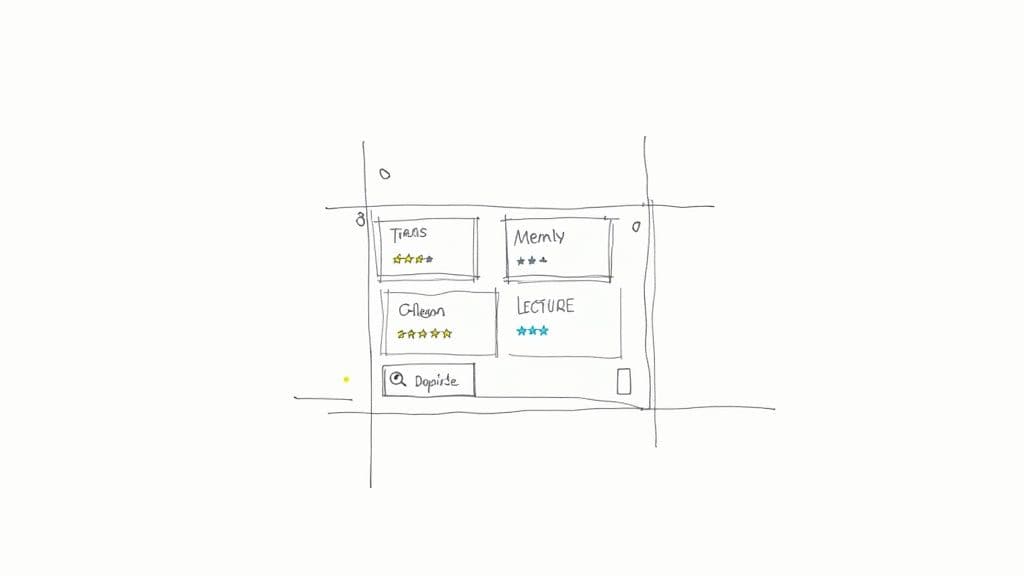
Let's be honest, the sheer number of Notion templates out there can be a little much. Picking the right note taking template that actually clicks with your workflow is the key. A good template should feel like an extension of your brain, not another system you have to fight with.
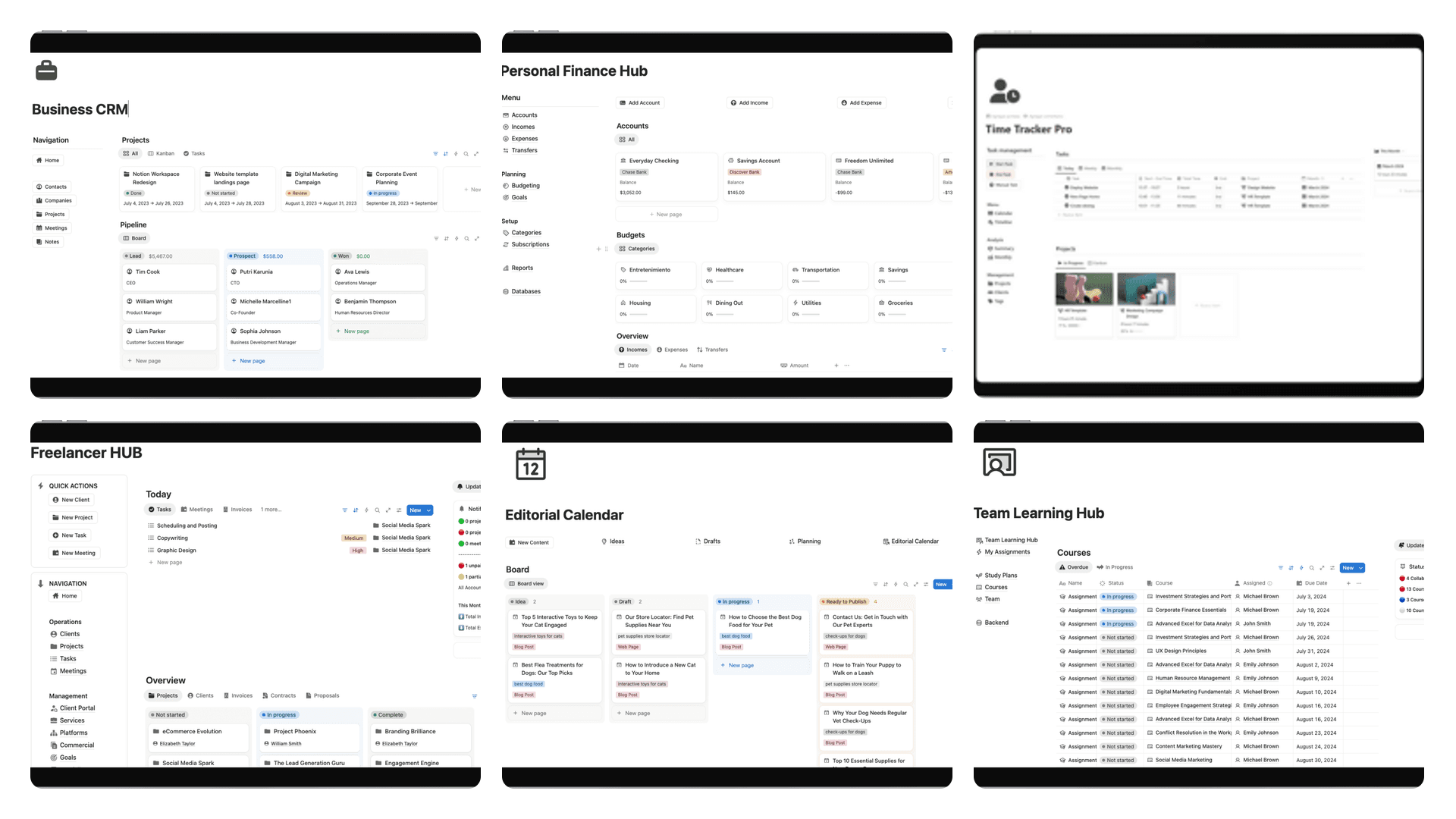
Your first stop should be Notion's own Template Gallery. It’s a huge, community-driven resource with options for just about anything you can think of. For more niche or powerful setups, check out creators on Gumroad or dive into communities like Reddit’s r/Notion, where people share some amazing free and paid templates.
What Makes a Template Great
When you're trying out a template, look past the pretty icons and sleek layouts. The real magic is in the structure. A truly solid template has a few non-negotiable qualities that make it genuinely useful long-term.
Here’s what I always look for:
- Database Structure: Is everything built on one core database? This is critical. A single, powerful database lets you create different views and link your notes to projects, tasks, or anything else. If you see multiple disconnected databases for notes, that’s a red flag for future chaos.
- Ease of Use: How quickly can you capture a new thought? It should be almost instant. If adding a simple note takes more than a couple of clicks, you’ll eventually just stop using it.
- Adaptability: A template is just a starting point. Can you easily add new properties, like a "Status" tag or a "Due Date," without breaking the whole thing? A rigid system is a useless system.
A great workspace often combines several functions. As you set up your notes, think about how you might build a habit tracker in Notion to create a more integrated personal dashboard.
Duplicating Your Chosen Template
Found one you love? Getting it into your own workspace is dead simple.
Whether you're in the official gallery or on a creator's page, look for a "Duplicate" button, usually hanging out in the top-right corner.
Clicking "Duplicate" is like hitting a copy-paste button for the entire system. It instantly creates a private, identical version of the template—databases, views, and all—right inside your Notion workspace. This new copy is all yours. You can rename it, move it, and start tweaking it to fit your exact needs immediately.
Making Your Template Work for You
A good note-taking template isn't a one-size-fits-all solution; it's a starting point. Duplicating a template gets you in the game, but the real advantage comes when you start tweaking that structure to fit exactly how you think and work. That’s how a generic tool becomes a personalized system, feeling less like software and more like an extension of your own mind.
This very idea of personalization is a huge part of why the note-taking software market is expected to hit $4.5 billion. The data backs it up, too. Studies show that when people use templates they've customized, they can see a 30% reduction in administrative grunt work and find information about 20% faster. It just works.
Let's walk through how to adapt a basic template for three completely different, real-world situations.
Customizing for Meeting Notes
Meetings are all about what happens next. A standard, unstructured notes page is where action items go to die, lost in a wall of text. The fix is to add a few key database properties to keep track of the important stuff.
Start by adding these three properties to your notes database:
- Attendees (Person Property): This lets you tag everyone who was in the room right from your Notion workspace. It’s perfect for seeing who was involved at a glance.
- Meeting Date (Date Property): Seems basic, but it’s crucial for keeping your notes organized chronologically.
- Action Items (Checkbox Property): This is the most important one. A simple checkbox to flag any meeting that produced follow-up tasks. It’s a game-changer for visibility.
Once those are set up, you can create a new database view called "Meetings with Actions." Just apply a filter to show only the notes where the "Action Items" box is checked. Instantly, you have a dashboard of every meeting that needs your attention. Nothing will slip through the cracks again. For an even more powerful setup, check out our detailed guide on building a template for meeting notes with action items.
Optimizing for Lectures and Studying
When you're taking notes for a class, the goal is totally different. You need a structure that helps you absorb complex information and makes it easy to review later. For this, toggle blocks and linked databases are your secret weapons.
Inside the body of your lecture note template, start using Notion's toggle blocks to organize your thoughts.
Pro Tip: Create a toggle for each major theme or complex idea from the lecture. Tuck all your detailed notes, definitions, and key examples inside. This keeps the main page incredibly clean and scannable, letting you dive into the details only when you need to.
To really level this up, create a second, simple database for "Course Materials." This is where you'll keep syllabi, reading lists, and lecture slides. Then, use a Relation property in your notes database to link each lecture note back to the right course. Come exam time, you can open any note and have one-click access to all the related course materials without ever having to hunt through your files.
Creating a Space for Creative Brainstorming
Creative work needs room to breathe. For brainstorming sessions, you want to ditch the rigid structure and create something more visual and free-flowing. The idea is to remove any friction that might get in the way of a good idea.
First things first, change the default database view from a table or list to a Gallery View. This simple switch turns each note into a visual card, which is far more inspiring for creative projects. Make sure to set the card preview to "Page Content" so you can see a sneak peek of the ideas inside.
Next, gut the template's interior. Get rid of most of the predefined sections and properties. Instead, leave a big, open canvas for you to type, sketch, or drop in images. You can even embed a Miro or Whimsical board directly into the note for more visual mind-mapping. This transforms your template from a data form into a true playground for your ideas.
Connecting Notes to Your Productivity Hub
Let’s be honest, isolated notes are where good ideas go to die. The real magic of a great note taking template in Notion isn't just about capturing information—it's about weaving that information into the fabric of your entire productivity system. When your notes are just sitting in a folder, they're static. When they're connected, they become living, breathing parts of your workflow.
Think of it like this: a central template can branch out to manage everything from team meetings to creative sparks, all without getting messy.
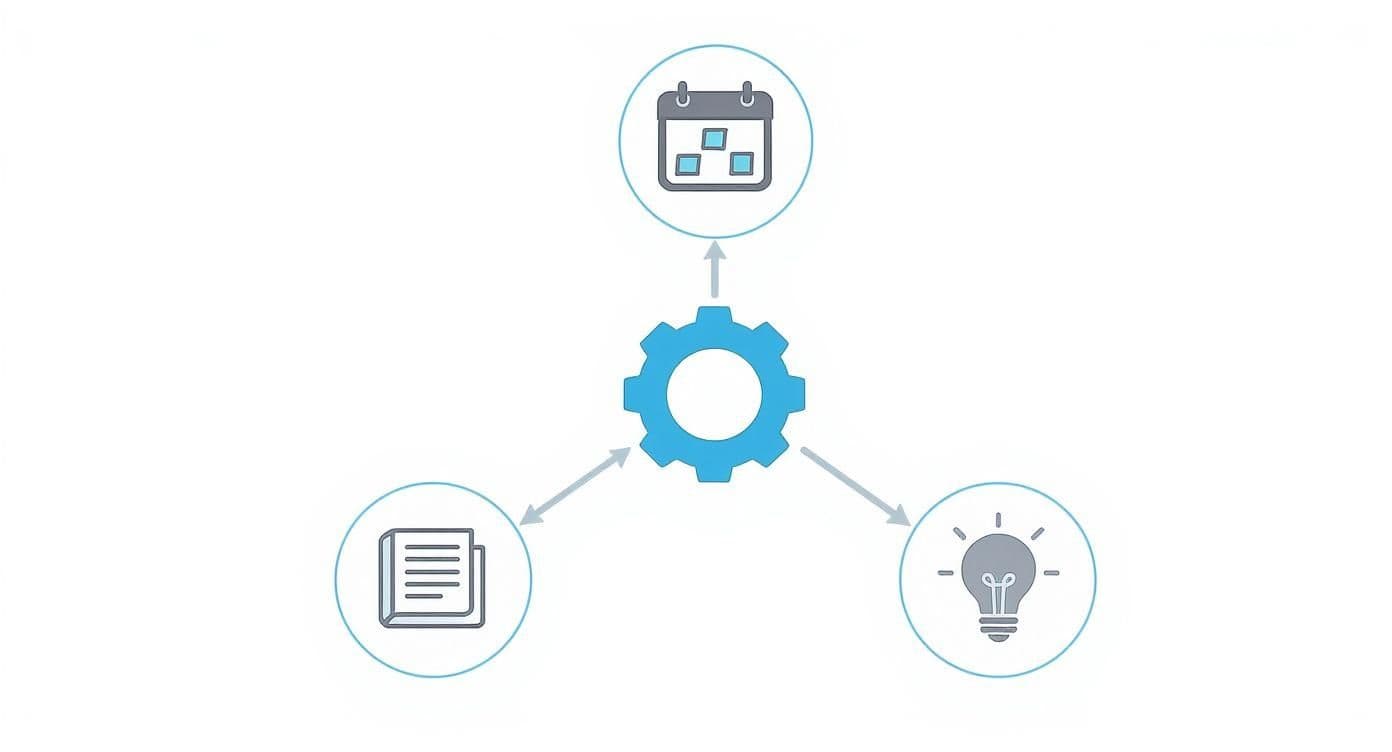
This interconnected approach is what separates a simple digital notebook from a powerful command center for your life and work.
The Magic of Relations and Rollups
The secret sauce here is Notion’s Relation and Rollup properties. I think of them as digital threads that stitch your different databases together into a cohesive web of information. This completely gets rid of redundant data entry and makes it nearly impossible for important details to slip through the cracks.
A Relation property is your basic link. It connects an entry in one database to an entry in another.
- Real-world example: I always link a "Meeting Note" directly to its corresponding "Project" in my project tracker. This means when I’m looking at the note, I’m one click away from the entire project scope. And when I’m in the project, I can see all the related meeting notes instantly.
A Rollup property takes that connection and pulls information across. It's a game-changer.
- Real-world example: After linking my meeting note to a project, I use a Rollup to display the project's "Deadline" and "Status" right at the top of the note. This way, I have all the critical context I need without ever having to switch pages.
This is how you stop collecting digital files and start building an intelligent, interconnected system. By linking notes to tasks, projects, and contacts, you’re well on your way to creating what many call a "second brain." If that concept piques your interest, you can dive deeper into how to build a Notion second brain and truly master your knowledge.
Creating a Centralized Action Hub
Here’s a practical scenario I see all the time. You wrap up a week of meetings, and your action items are scattered across a dozen different notes. Trying to hunt them all down is a painful, manual process.
With a connected system, you can solve this in under five minutes.
- Identify Action Items: Inside each meeting note, I just create a simple "Action Items" section with checkboxes for anything that needs to be done.
- Link to a Master Task List: I then use a Relation property to link these tasks directly to my central "To-Do" database. Each task becomes its own entry, but it’s still tied to the original note.
This simple workflow creates a single source of truth for every single commitment. You get one centralized task list that automatically pulls in every to-do from every meeting, brainstorm, or lecture, and each one has a direct link back to the note where it was born.
This is how your note-taking template evolves from a simple place to jot things down into the central nervous system of your entire workflow.
Building Habits for Organization and Retrieval
<iframe width="100%" style="aspect-ratio: 16 / 9;" src="https://www.youtube.com/embed/m5cQ5bWLi2A" frameborder="0" allow="autoplay; encrypted-media" allowfullscreen></iframe>Look, a great note taking template gives you a head start, but it's the habits you build around it that really make the difference. Without a consistent system, even the most beautifully designed setup can turn into a digital junk drawer, leaving you unable to find anything when you actually need it. The real goal is to make finding your notes feel second nature.
It all starts with a simple rule that I consider non-negotiable: nail down a consistent naming convention. This might sound like a minor detail, but a uniform naming system is the foundation of any searchable workspace. Think about how you'd naturally search for something and build your naming pattern from there.
For my own notes, I stick to a [Date] - [Topic] - [Context] format. A real-world example would be 2024-10-28 - Q4 Project Kickoff - ClientName. This kind of consistency is what makes Notion’s search and sorting features so powerful, letting you pull order from the chaos of hundreds of notes.
Using Tags for Strategic Filtering
Beyond a solid title, tags are your best friend for slicing and dicing your database of notes. The secret here is to be strategic, not just comprehensive. You have to fight the urge to create a new tag for every little thing. Instead, think in broad, functional categories that actually mean something to your workflow.
Here are a few essential tags I’ve found work in just about any note-taking system:
- Status: Simple tags like
Idea,In Progress, andArchivedhelp you see where a note is in its lifecycle. - Context: These are the big buckets of your life. Think
Work,Personal,Learning, orSide Project. - Priority: A basic
High,Medium,Lowsystem is often all you need to know what to focus on.
Once you have these in place, you can create incredibly useful filtered views on a dashboard. Imagine having a view that only shows Work notes with a High priority, or another that pulls together everything you’ve tagged with Learning. This is how you turn your database from a passive dumping ground into a dynamic, active workspace.
The Power of Archiving
As you add more and more notes, your main views will inevitably get cluttered with things that are done or no longer relevant. A common mistake is just deleting old notes, but that's like throwing away institutional knowledge. A much better approach is archiving.
Create a dedicated "Archive" status or just add a simple checkbox property to your template. When a project is done or a note is no longer active, just check the box. Then, set up your main database view to filter out anything marked as archived.
This one habit keeps your day-to-day workspace clean and focused on what's current, but you never lose a thing. Every note is still safe in your master database, easily found with a quick search. It’s these small, foundational habits that ensure your system keeps working for you years down the line.
Common Questions About Notion Note Taking
It's one thing to get a powerful new note taking template set up, but it's another to make it fit into your daily life. As you start to weave it into your existing habits and tools, a few questions always seem to pop up. It's a totally normal part of the process.
Let's walk through some of the most common sticking points people run into when they first start using Notion for their notes. Think of this as a quick FAQ to clear those hurdles so you can get back to what matters.
What Is the Best Note Taking Template for Students?
For students, I almost always recommend a template built around the Cornell Note-Taking System. There's a reason it's a classic—the method is designed from the ground up for actually learning and remembering information, not just transcribing it.
The best versions of these templates have those distinct, pre-formatted sections ready to go: a main area for notes, a narrower "cues" column for keywords and questions, and a summary box at the bottom.
But the real game-changers are the templates that integrate a few extra features specifically for student life. Look for these:
- Linked Databases: The ability to tag each note to a master "Courses" database is a must. This keeps everything from your History 101 and Chem 203 lectures perfectly separated but easy to find.
- Review Tracking: A simple "Date" property can be used to schedule your next review session, making spaced repetition a breeze.
- Easy Embeds: A layout that lets you drag and drop lecture slides, PDFs, or images right next to the notes you're taking on them.
How Do I Move My Notes from Evernote or OneNote?
Thinking about migrating all your old notes can feel like a huge project, but it’s more manageable than it looks. Notion has a fantastic built-in importer that plays very nicely with Evernote. It can pull your notebooks and notes over directly, keeping most of the formatting intact.
OneNote is a bit more of a manual process. You'll typically need to export your pages as Word documents or PDFs, import those files into a Notion page, and then copy and paste the content into your new database template. My best advice? Don't try to move everything at once. Start by migrating one or two of your most important notebooks to see how it works before committing to the full move.
Can I Use One Template for Work and Personal Notes?
You absolutely can. In fact, it's a great way to keep your entire life organized in one central hub. The secret to keeping it all from turning into a chaotic mess is to use a "Select" or "Multi-select" property to categorize every single note. I usually label mine "Area" or "Context."
Just create tags like 'Work,' 'Personal,' 'Side Project,' and 'Learning.' Then, on your main dashboard, you can set up different linked views of your master notes database. Create one view that's filtered to only show notes where the "Area" is 'Work,' and another filtered for 'Personal.' This gives you a clean, focused view for whatever you're doing, while everything still lives in one unified database behind the scenes.
Ready to stop building from scratch and start organizing? The templates at Flowtion are designed to give you a powerful, pre-built productivity system with a single click. Explore our collection and find the perfect workflow for you.