Habit Tracker Notion: Build Lasting Goals
Unlock a habit tracker notion in Notion with powerful databases, formulas, and views to keep you on track and hit goals.
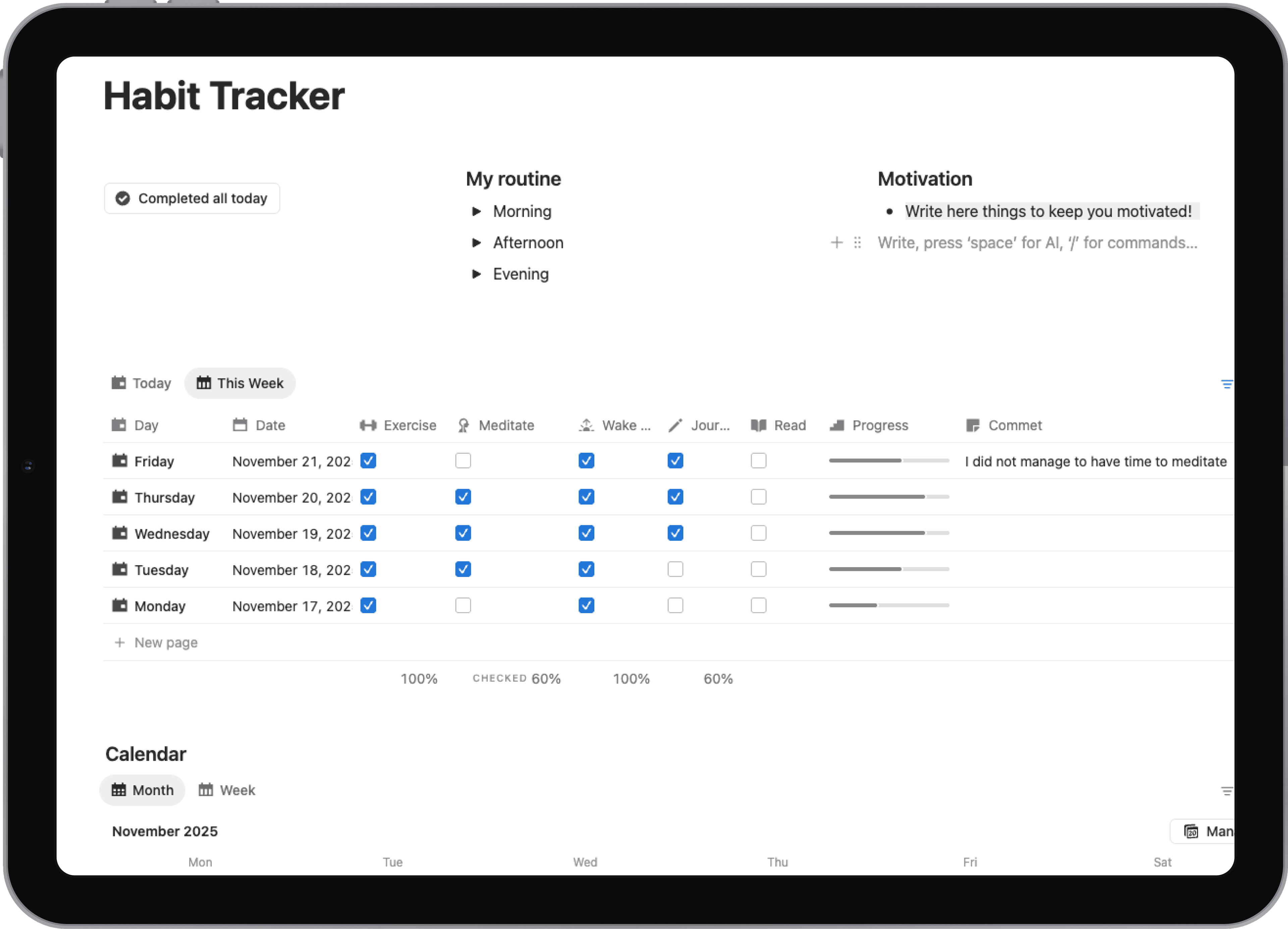
So, what exactly is a habit tracker in Notion? At its core, it's a personalized system you build yourself using databases and properties. It's designed to monitor your daily or weekly goals, but it offers a level of customization that standalone apps simply can't match. You can track your habits, see your progress unfold with custom formulas, and tie everything directly into the workspace you already use every day.
Why Use Notion for Habit Tracking
Before we get into the nitty-gritty of building one, it helps to understand what makes Notion such a great tool for this. Most habit-tracking apps are rigid—they lock you into their way of doing things. Notion, on the other hand, is a blank canvas. You're the architect, and that freedom is its biggest advantage.
You can track anything from "drink 2L of water" to "review weekly project milestones" side-by-side. This ability to mix personal and professional goals in one place means you don't have to juggle multiple apps. Everything lives in one spot, creating a single source of truth for your progress and cutting down on digital clutter. This all-in-one philosophy is a huge reason for its meteoric rise.
Think about it: the platform's user base shot up from just 1 million in 2019 to over 30 million by 2024. That's a massive 2,900% increase, which really shows how much people value this kind of flexible, unified system.
Go Beyond Simple Checkmarks
This is where a Notion habit tracker really shines. You're not just ticking off boxes; you're building a data-driven system for self-improvement.
- Custom Properties: You can add unique fields to capture more context. Track your mood, location, or energy level when you complete a habit to start seeing patterns you'd otherwise miss.
- Dynamic Formulas: Want to see your daily completion score? Or automatically calculate your current streak? Formulas make this possible and provide that little kick of motivation from visual feedback.
- Filtered Views: Slice and dice your data however you want. Create a "Today" view for your daily check-ins, a "Weekly Review" board to check your consistency, or a "Monthly Calendar" to get the big picture.
A well-crafted Notion habit tracker is more than a to-do list; it’s a dynamic system that provides deep insights into your behaviors, helping you understand why you succeed or struggle with certain goals.
Full Integration with Your Life OS
Your habits don't exist in a bubble. They're tied to your bigger projects, long-term goals, and daily tasks. In Notion, you can link your habit tracker directly to these other parts of your life. For instance, you could connect your "read 30 minutes daily" habit entry to your "Finish 12 Books This Year" goal, which lives in a separate goals database.
This creates a powerful, interconnected web where every small action contributes to a larger ambition. Every checkbox you tick becomes a small vote for the person you want to be, reinforcing your identity with each win. For more inspiration on building an integrated system, you can explore our other posts on the benefits of using Notion for productivity. This approach helps guarantee that your daily efforts are always pulling you toward your long-term vision.
Building the Engine: Your Core Habit Database
The foundation of any good habit tracker in Notion is its database. Think of this not just as a table, but as the central engine that will power everything else—your streaks, your progress reports, and your daily motivation. Let's get our hands dirty and build this thing from the ground up.
First, pop open a new page in Notion. A quick /database command and selecting "Database - Inline" will get you started. I like to call mine something like "Habit Hub" or "Daily Log," but you can name it whatever makes sense to you. This inline database is where every single entry will live.
With the shell in place, it's time to define the properties. These are the columns that will hold all your data, and getting them right is the difference between a simple to-do list and a truly dynamic tracking system.
The Essential Properties You Can't Skip
Every tracker needs a few non-negotiables to work properly. We need to know what we did and when we did it.
The Date property is obviously crucial. When you create a database, Notion gives you a default "Name" property (a Title property type). Let's rename that to something more useful, like "Daily Entry." Then, click the + button to add a new property, choose "Date," and name it "Date." This is where you'll log the day for each entry.
Next, let's get organized. To prevent your tracker from turning into a messy, endless list, we'll add a "Select" property called "Category" or "Focus Area." This lets you tag habits with themes like ‘Health,’ ‘Work,’ or ‘Mindfulness.’ For instance, you could group ‘Go to the Gym’ and ‘Drink 2L Water’ under your ‘Health’ category, which makes filtering and creating focused views a breeze later on.
A little organization upfront goes a long way. Setting up clear categories from the start lets you build specific dashboards, like a "Work Productivity" view, that only show you what's relevant in that moment.
Now that the basic structure is solid, we can add the habits themselves.
Turning Goals into Actionable Checkboxes
This is where your ambitions meet reality. For every single habit you want to track, we're going to create a "Checkbox" property. The simple checked-or-unchecked format is perfect for daily tracking and, more importantly, it's exactly what we need for the powerful formulas we'll set up later.
Let's say you want to track three core habits to start:
- Read 10 Pages
- Meditate for 5 Minutes
- Go for a Walk
You'd just click the + icon three times to add three new columns. Name them after your habits and make sure to set their property type to "Checkbox." Just like that, every new day you log in your database will have a neat little checkbox waiting for each of your key activities.
This method is incredibly flexible. Want to add a new habit next month? Just add another checkbox column. Decided to drop a habit? You can just hide or delete that property without breaking anything. It's this scalability that makes a habit tracker in Notion so powerful.
To make this crystal clear, here’s a quick breakdown of the essential properties you should have at this point.
Essential Properties for Your Notion Habit Database
This table outlines the crucial database properties we've just set up. Think of these as the minimum requirements for a functional and scalable tracker.
| Property Name | Property Type | Primary Function |
|---|---|---|
| Daily Entry | Title | Gives each daily log a unique, clickable name. |
| Date | Date | Records the specific day the habits were tracked. |
| Category | Select | Groups entries into themes like 'Health' or 'Work' for easy filtering. |
| [Your Habit 1] | Checkbox | A simple yes/no tracker for a specific daily habit, like "Read 10 Pages." |
| [Your Habit 2] | Checkbox | Tracks completion for another habit, like "Meditate 5 Mins." |
These properties form the skeleton of your system. With this solid foundation in place, you’ve built a structured database that's ready for the fun part: adding formulas and custom views to truly bring your habit data to life.
Taking Your Tracker to the Next Level with Formulas
A database full of checkboxes is a good starting point, but let's be honest, that's just a digital to-do list. The real magic happens when you let Notion do the heavy lifting with formulas. This is how you transform a simple log into an intelligent system that gives you instant feedback and keeps you motivated.
We're moving beyond just ticking boxes. We’re building a tracker with a brain—one that automatically calculates your daily score, visualizes your progress, and tracks those all-important streaks. Instead of just a record of what you did, you’ll get a dynamic dashboard showing you how well you’re doing in real-time.
If you're interested in making your entire workspace more efficient, checking out how content automation works can offer some great ideas that go beyond just habit tracking.
Calculating Your Daily Completion Score
One of the best ways to get a quick snapshot of your day is with a daily completion percentage. It’s incredibly motivating to see a single score that sums up your effort, rather than just a row of checks.
To get this set up, you'll need to add a new "Formula" property to your database. I like to call mine "Daily Score." In the formula editor, you'll write a simple rule that counts how many habits you completed and divides it by the total number of habits for that day.
Let’s say you’re tracking three habits: "Read 10 Pages," "Meditate 5 Mins," and "Go for a Walk." Here’s what the formula would look like:
(prop("Read 10 Pages") ? 1 : 0) + (prop("Meditate 5 Mins") ? 1 : 0) + (prop("Go for a Walk") ? 1 : 0) / 3
This formula uses a basic if logic for each checkbox. In plain English, (prop("Habit Name") ? 1 : 0) just means, "If this box is checked, count it as 1; if not, count it as 0." Then, it adds those 1s and 0s together and divides by the total number of habits—which is 3 in our example.
Just remember to update that final number if you add or remove habits! Once you save the formula, edit the property and set it to display as a "Percent." It looks so much cleaner that way.
Adding Visual Progress Bars
Numbers are cool, but our brains love visuals. A progress bar that fills up as you check off your habits provides a much more satisfying and immediate sense of accomplishment.
Let’s add another "Formula" property and call it something like "Progress Bar." You can paste this handy formula directly into the editor to get a great-looking bar right away:
slice("██████████", 0, round(prop("Daily Score") * 10)) + slice("░░░░░░░░░░", 0, 10 - round(prop("Daily Score") * 10)) + " " + format(round(prop("Daily Score") * 100)) + "%"
Here’s the quick breakdown of what’s happening here: it takes your "Daily Score" from the previous formula and uses it to "slice" a string of solid blocks (█) and empty blocks (░). The result is a bar that visually represents your percentage, with the exact number displayed right next to it for clarity. It’s a small touch that makes your tracker feel much more alive.
A progress bar turns an abstract number into a tangible achievement. Watching that bar fill up throughout the day provides a small but consistent dopamine hit that reinforces positive behavior and encourages you to complete that last habit.
The diagram below shows the basic database structure that these formulas rely on. You have to get the foundation right before you can build the cool stuff on top.
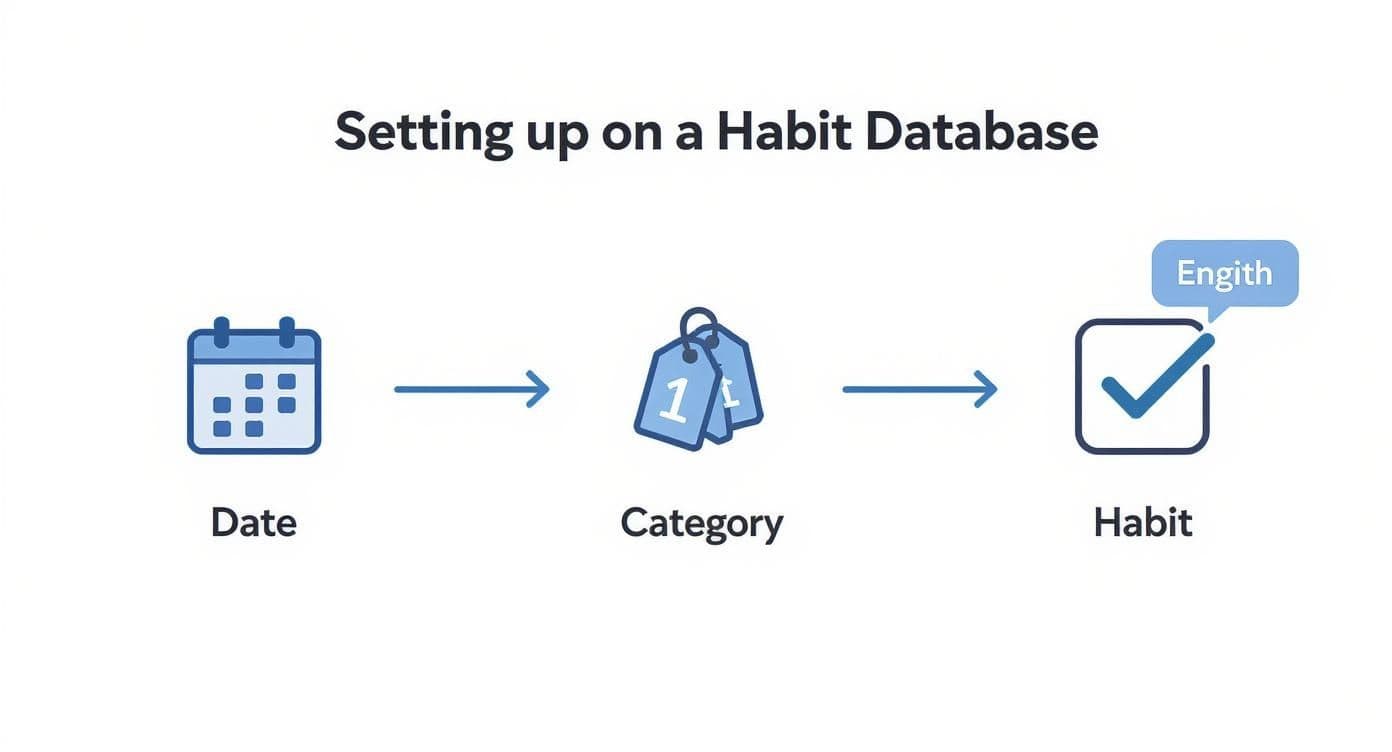
As you can see, linking a date to specific, categorized habits is the core of the system. Once that’s solid, automation becomes possible.
Tracking Habit Streaks
Alright, this is the big one. Tracking streaks is probably the single most powerful motivator for sticking with a habit. The setup in Notion is a bit more involved because it requires relations and rollups, but I promise the payoff is huge.
First, we need a way for each day's entry to "talk" to the entry from the day before.
- Create a Self-Relation: Add a new "Relation" property to your database. Here's the key: in the setup window, select the very same database you're working in. This is called a self-relation. Name it something like "Previous Day."
- Link Your Days: This part is manual but crucial. For each new day you add, you have to link it to the previous day. So, your "January 2" entry will link to "January 1" in the "Previous Day" property.
With that connection established, we can now pull data from the previous day and calculate the current streak.
- Add a Rollup: Create a "Rollup" property and call it "Previous Streak." Set it to use the "Previous Day" relation you just made. You'll tell it to pull the "Current Streak" property (which we're creating next) and set the calculation to "Show Original."
- Write the Streak Formula: Now for the final piece. Add a "Formula" property named "Current Streak." This formula will check if a specific habit's checkbox is ticked for today. If it is, it grabs the "Previous Streak" value and adds 1. If the box is unchecked, the streak resets to 0.
Here’s the formula for a habit called "Meditate 5 Mins":
if(prop("Meditate 5 Mins"), prop("Previous Streak") + 1, 0)
Once these pieces are in place, your habit tracker is no longer just a passive checklist. It becomes an active partner in building your habits, celebrating your consistency, and motivating you to not break the chain.
Designing Views for Actionable Insights
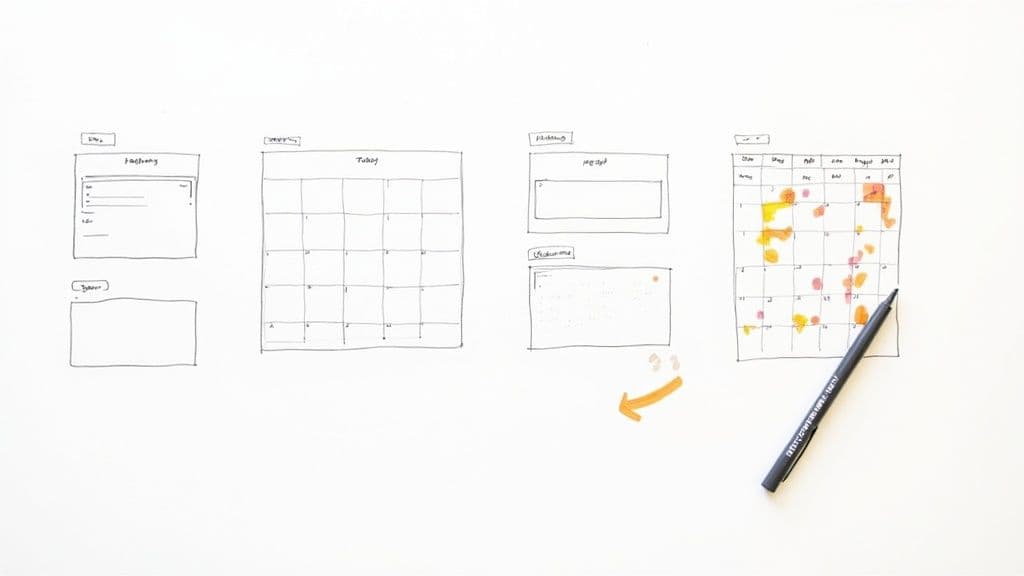
Having a database packed with data and clever formulas is great, but that raw information isn't very useful by itself. The real magic happens when you turn that data into something you can actually act on. This is where Notion's database views shine, letting you slice and dice your tracker to support your specific goals.
Instead of getting lost in an endless table of past entries, we're going to build a few custom dashboards. Each one will show you exactly what you need to see, right when you need to see it. A well-designed view is the difference between feeling overwhelmed by data and feeling empowered by it.
This move toward personalized, data-driven self-improvement isn't just a niche trend—it's a massive market. Valued at USD 1.7 billion in 2024, the global habit tracking app market is projected to hit USD 5.5 billion by 2033, thanks to a growing focus on productivity and wellness. Custom systems like a habit tracker in Notion are at the heart of this, offering a level of flexibility that off-the-shelf apps just can't match. You can dive deeper into the growth of the habit tracking market on straitsresearch.com.
Crafting a Focused Daily View
Your daily check-in should be quick and clean. You don’t want to see yesterday's results or what’s coming up next week—you just need to know what’s on your plate for today. A dedicated "Today" view is perfect for this, acting as your daily command center.
To set this up, head to your main habit database and click the + icon next to your existing views. I'd recommend a "List" or "Gallery" layout for a cleaner look, and name it something simple like "Today." The crucial step here is the filter.
- Filter Condition: Set a single filter where the
"Date"property is"Today". - Property Visibility: Hide anything you don't need for the daily check-in, like streak formulas or category tags. Just show the habit checkboxes and maybe your progress bar.
This simple setup gives you a distraction-free space to log your habits in just a few seconds. It makes your habit tracker in Notion feel like a genuinely helpful tool, not just another chore.
Building a Weekly Review Board
Consistency is everything when it comes to habits, and a weekly review is the best way to see how you're really doing. For this, a "Board" view grouped by the day of the week gives you a fantastic visual overview.
Create another new view, but this time, choose the "Board" layout and call it "Weekly Review."
- Grouping: Jump into the view's settings and choose to group the board by the
"Date"property. Then, a little deeper in that setting, change the "Group by" option from "Day" to "Day of the week." - Filtering: Add a filter to only show entries from the last seven days. A simple
Where "Date" is "Past week"filter does the trick. - Visible Properties: Make sure your cards are showing the good stuff. Configure them to display your "Daily Score" or "Progress Bar" property so you can instantly see which days were your strongest.
This board layout makes it incredibly easy to spot patterns. You might realize your productivity always dips on Thursdays, or that you're great with your health habits over the weekend. These are the kinds of insights that lead to real, meaningful adjustments.
A weekly board view transforms your raw data into a narrative. It tells the story of your week, highlighting your wins and showing you exactly where you have opportunities to improve.
Visualizing Progress with a Monthly Calendar
For that big-picture perspective, nothing beats a calendar. It helps you visualize your momentum over an entire month, making long-term progress feel much more tangible. If you want to go even deeper, you can check out our guide on creating a powerful Notion calendar template.
To get this going, create a new view and select the "Calendar" layout, naming it "Monthly Overview." By default, Notion just shows the page title on each day, which isn't very useful for us. The key is to make your progress visible at a glance.
Go into the calendar's ... settings and click on "Properties." From there, just toggle on the "Daily Score" or "Progress Bar" property you made earlier. Now, each day on your calendar will show its completion score, instantly highlighting your most successful days. It's incredibly rewarding to see that visual feedback and appreciate the cumulative effect of your daily efforts.
Weaving Your Tracker Into a Master Dashboard
<iframe width="100%" style="aspect-ratio: 16 / 9;" src="https://www.youtube.com/embed/GKOdQ3RNnxA" frameborder="0" allow="autoplay; encrypted-media" allowfullscreen></iframe>A great habit tracker is powerful on its own, but it becomes truly indispensable when you stitch it into the fabric of your daily life. The whole point is to make your habits visible and actionable, not to hide them away on a separate page.
By connecting your tracker to a central dashboard, you put it right alongside your daily tasks, notes, and projects. This turns a simple tracking tool into a core part of your productivity system, creating a single source of truth that keeps your priorities front and center. It’s about making your habits impossible to ignore.
Embedding Your Tracker with Linked Databases
The simplest and most effective way to do this is with Notion’s Linked Database block. It lets you create a live, synced copy of your original tracker and place it anywhere you want. For a master dashboard, the best use case is almost always embedding your "Today" view.
Picture this: you open your main dashboard every morning. At the top, you see your priority projects, your to-do list, and right next to them, the handful of habits you need to check off for the day. No extra clicks, no navigating away.
- How it works: On your dashboard page, just type
/linked view of databaseand choose your main habit tracker database. - Pick the right view: Once the block is in place, you can select the "Today" view you already built. It will pull in the exact filters and sorting you set up earlier.
- The benefit: This keeps your daily check-in right in your line of sight. When you tick off a habit on the dashboard, it instantly updates the original database.
This isn't just a matter of convenience; it's a powerful psychological nudge. Placing your habits next to your daily tasks gives them equal weight, framing them as non-negotiable parts of your day.
This kind of integration is fundamental to building a truly comprehensive digital workspace. If you're serious about organizing your life in Notion, this is a core principle of creating a Notion second brain, which helps you connect all your different systems seamlessly.
Connecting Habits to High-Level Goals with Rollups
Ready to take it up a notch? You can directly link your daily actions to your big-picture ambitions using Relations and Rollups. This is how you watch a goal’s progress bar fill up automatically every time you complete a related habit.
First, you’ll need a separate database for your "Goals." It can be simple, with properties for the Goal Name, a Target (like a number), and a "Relation" property that connects to your habit tracker.
With that set up, you can link each daily habit entry to its parent goal. For example, your "Read 10 Pages" habit could be related to your "Read 12 Books This Year" goal.
The real magic happens back in the Goals database. Add a "Rollup" property, and you can pull in data from all the linked habit entries to automatically calculate your progress. It’s incredibly motivating to see the direct impact of your small, consistent efforts.
Notion’s flexibility is a huge reason why it’s become a go-to for productivity. It reflects a bigger trend, too—the global habit tracking app market is projected to hit USD 13.06 billion in 2025, with an expected CAGR of 14.41% through 2034. Features like this are exactly why people are so invested.
And if you want to take your master dashboard even further, you can turn Notion into a website to share your progress or create a public resource hub. It’s a great way to transform a personal system into something more.
Common Habit Tracker Questions
As you get your hands dirty building and tweaking your habit tracker in Notion, you're bound to run into a few snags. It’s totally normal. Maybe a formula isn't cooperating, or you're trying to figure out how to track a goal that isn't a daily thing.
Let's walk through some of the most common questions that pop up. Getting these little details right is what makes a tracker truly work for you in the long run, turning it into a tool you actually want to use instead of just another chore.
How Do I Add a New Habit to My Tracker?
Good news—adding a new habit to your existing setup is pretty simple. All you have to do is add a new property to your main database.
Just head over to your database, find the header of the last checkbox column, click on it, and select "Insert Right." This pops a new, empty column into your table. Go ahead and name it after your new habit—something like "Read 10 Pages"—and make sure to set its Property Type to Checkbox. That’s it! The new habit will now show up for all your daily entries, both old and new.
Crucial Reminder: If you're using formulas for things like a daily completion score or a progress bar, you must update them. Your formulas won't know about the new habit otherwise, and all your calculations will be off. Just edit the formula and add the new property to the logic.
What Should I Do If My Streak Formula Is Not Working?
Ah, the dreaded broken streak formula. It's a powerful motivator when it works, but it can be a real headache when it doesn't. When a streak isn't calculating correctly, the problem almost always comes down to one of three things.
First, take a hard look at your self-relation property, the one we called "Previous Day". Every single daily entry needs to be correctly linked to the one right before it. If there's even one broken link in that chain, the whole streak calculation will fall apart.
Second, double-check your Rollup property. Its entire job is to pull the streak count from the previous day's entry. Make sure it's actually looking at the "Previous Day" relation and pulling the "Current Streak" property from it.
And finally, carefully scan the formula syntax itself. Typos or incorrect property names are the usual suspects. A single missing parenthesis or a misspelled property name can break the entire thing. Honestly, the safest bet is often to copy the formula directly from a trusted source to sidestep those tiny, frustrating errors.
Can I Track Habits That Are Not Daily?
Absolutely. This is where Notion’s flexibility really shines. You can easily track habits that happen weekly, monthly, or a few times a week. The cleanest way to handle this is by adding a Select or Multi-select property to your database. I like to call mine "Frequency."
Inside this property, you can create tags like 'Daily', 'Weekly', or 'Monthly'.
Once that’s in place, you can build dedicated database views for each frequency. It keeps everything neat and focused.
- Weekly View: Create a new view and set up a filter to only show entries where the 'Frequency' property is tagged 'Weekly'.
- Monthly View: Do the exact same thing for your monthly goals, filtering for entries tagged 'Monthly'.
What about habits you do multiple times a week, like "Go to the gym 3x"? For those, I'd recommend using a Number property instead of a simple checkbox. This way, you can log exactly how many times you completed the habit, not just a simple yes or no.
How Can I Archive Old Entries Without Deleting Them?
After a few months, your tracker can get pretty cluttered with old entries. You don't want to delete that valuable data—it's great for spotting long-term patterns—but you don't need to see last February's log on your dashboard today.
The solution is a dead-simple archiving system.
Start by creating a new Checkbox property in your database and name it something intuitive like "Archive." At the end of a month or quarter, filter your database to show all the entries from that period. Then, you can use Notion's bulk-editing feature to check the "Archive" box for all of them in one go.
The final, magic step is to update your main, active views (like your "Today" or "Weekly Review" dashboards) with one more filter condition: "Archive is Unchecked." This instantly hides all those old entries from your daily workspace, but keeps the data safely stored in your database whenever you want to look back.
Ready to skip the setup and jump straight into a powerful, pre-built system? The templates from Flowtion give you a fully optimized habit tracker and productivity suite with just one click. Explore the complete collection and start tracking your goals today.