A Practical Guide to Notion Time Tracking
Unlock peak productivity with our complete guide to Notion time tracking. Learn practical methods for setting up, automating, and analyzing your time.
You can absolutely track your time directly in Notion, and honestly, it’s one of the best ways to get a real-world picture of where your hours are actually going. By using a good template and Notion's own database magic, you can build a system that keeps your projects, tasks, and time logs all connected in one clean workspace.
Why Track Your Time Directly in Notion
Let's be real—flicking between a separate time tracking app and your project board in Notion is a great way to forget to start a timer or log your hours correctly. The best time tracker is the one you actually use consistently, and building it right into your main workspace is the secret to making that happen.
This isn't just about saving money on another subscription. It’s about removing the mental friction of app-switching.
When your time log sits right next to your project brief and your to-do list, you never lose context. You get a live, honest view of where your most valuable resource—your time—is being spent. Suddenly, time tracking stops feeling like a chore and becomes a genuinely useful part of your workflow.
The Benefits of an Integrated System
Keeping everything under one roof in Notion gives you a few major wins:
- A Single Source of Truth: Your tasks, project notes, and time data are all linked. This gives you a complete story for every project without having to piece things together from different apps.
- Less Hassle: Starting a timer or adding an entry takes seconds when it’s already part of the screen you're working in. No more excuses.
- Complete Customization: You can design a system that fits exactly how you work. Whether you need a simple manual log or a complex dashboard with automated reports, Notion can handle it. For more ideas on tailoring your setup, check out our insights on the Notion ecosystem.
The core idea is simple: the closer your time tracking is to your actual work, the more accurate and effortless it becomes. Notion makes this proximity possible.
Notion's growth has completely changed the productivity game. Its user base exploded from just 1 million in 2019 to over 30 million active users in 2024. This isn't just hype; users consistently report getting more done compared to other tools. This massive adoption proves its power as a central hub for everything work-related, which absolutely includes notion time tracking.
Building Your First Time Tracking Dashboard
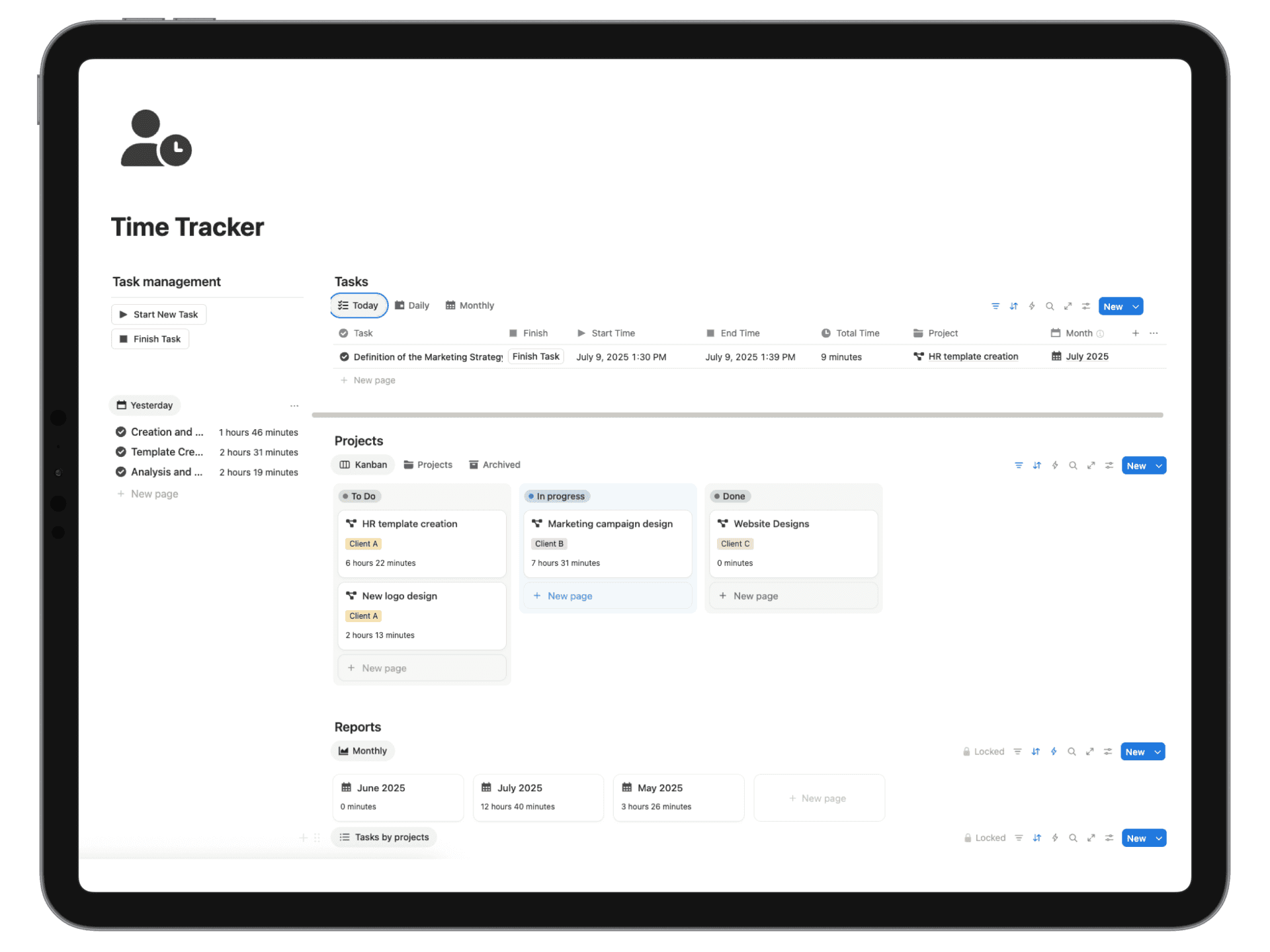
Alright, let's get our hands dirty and build your actual Notion time tracking system. The absolute fastest way to get up and running is to find a solid template and duplicate it. Don't think of this as just copying someone else's work; it's more like getting a pre-built engine that you can then tune to fit exactly how you operate.
We're going to create a system that hinges on three interconnected databases:
- Projects: This is for your big-picture client work or major internal initiatives.
- Tasks: These are the specific, actionable steps that live inside each project.
- Time Log: This is where every single time entry gets recorded.
The magic happens when we connect these databases using Notion's Relation property. It’s what ensures every minute you track is tied to a specific task, which is itself tied to a bigger project. This relational structure is what unlocks all the powerful reporting we'll get into later.
This setup pulls everything together, moving you from juggling a bunch of different apps to having a single, unified view of your work.
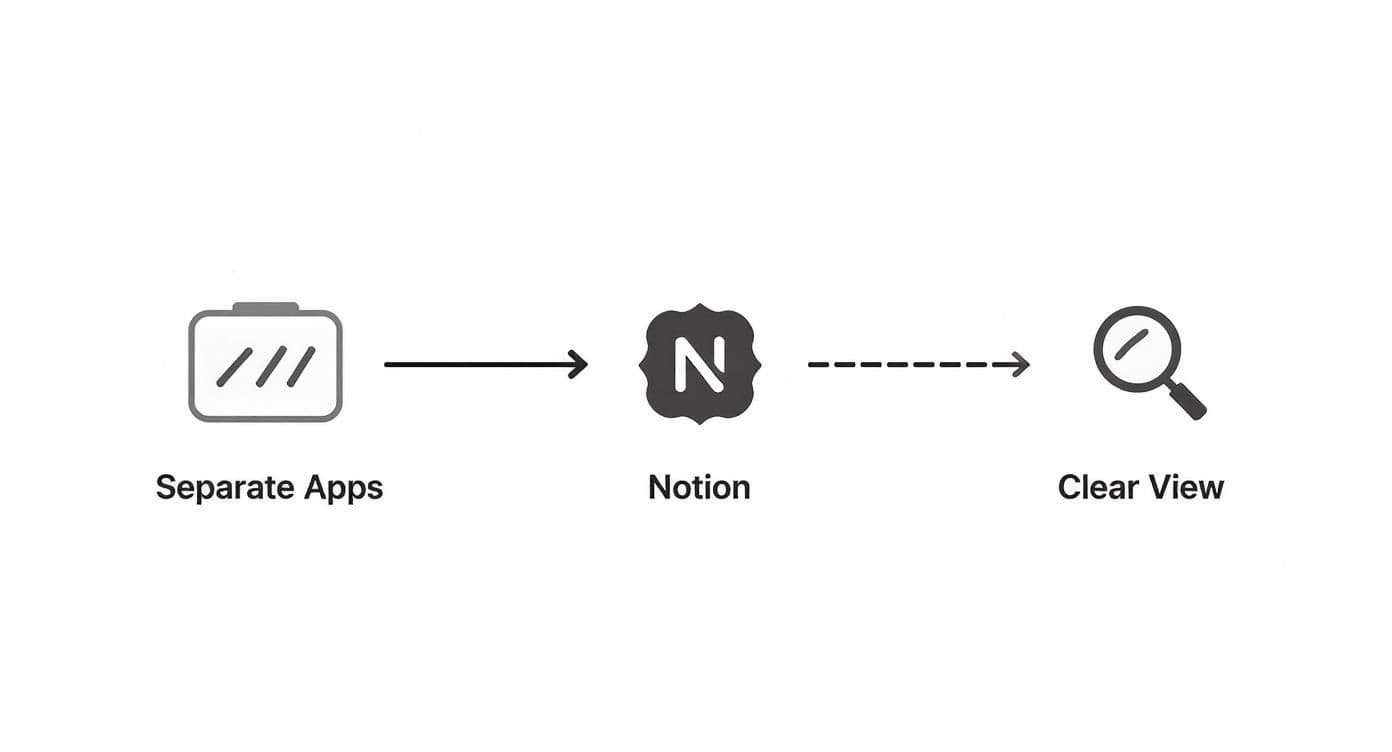
It’s all about eliminating that constant app-switching that messes with your focus and leads to inaccurate time logs. Everything lives in one place, making analysis so much cleaner.
Setting Up Your Core Databases
First things first, you need a template that feels right for you. While Notion's official gallery is a decent place to start, I've found that templates from specialized creators are often much more powerful right out of the box. Once you hit "Duplicate," you'll see the three core databases pop into your workspace.
Your immediate job is to start tweaking the properties inside each one. Pop open your Projects database. You’ll want properties for Client, Project Status (I use things like Active, Paused, Complete), and, of course, a Relation linking to your Tasks database. This gives you that high-level structure you need to keep everything organized.
Next, jump into the Tasks database. Make sure you have the basics covered: Due Date, Priority, and Status (To Do, In Progress, Done). The most critical properties here are the two Relation fields—one pointing back up to the Projects database and another connecting down to your Time Log.
Your Time Log is the heart of this entire system. Every single entry must be linked to a Task. This is non-negotiable. If you don't enforce this link, you'll end up with "orphan" time entries that you can't bill for or properly analyze.
Customizing Properties for Better Data
Once the basic framework is there, the real power comes from refining your properties. In the Time Log database, for instance, you'll obviously have the Relation to Tasks, but you'll also want Date, Duration (Hours), and maybe a Formula property that automatically calculates the end time for you. Small tweaks like that save a surprising amount of time.
Here's a pro tip: add a simple "Billable" Checkbox property. This one little addition is a game-changer for freelancers and agencies. When it's time to invoice, you can just create a report that filters for and sums up only the hours from entries marked as billable. It's incredibly simple and effective.
That's just one small example of how a well-thought-out setup can save you from hours of boring admin work down the line. If you want to see how far you can take this, check out some of these powerful Notion dashboard ideas for inspiration. Investing a little extra time now to build a solid foundation with smart properties will pay off big time when you start analyzing your data.
How Will You Actually Log Your Time?
Okay, with your databases all set up and connected, it's time for the rubber to meet the road. We need to figure out how you're actually going to get your time entries into Notion.
This is a critical step, and there's no single right answer. The best method is the one you'll actually stick with. If it's too clunky or complicated, you'll find excuses not to use it, and your data will be useless. Let’s look at a few different ways to tackle this, from the dead simple to the fully automated.
The Straightforward Manual Approach
The most basic method is exactly what it sounds like: you just do it by hand. When you finish up a task, you pop over to your Time Log database, hit "New," link it to the right task, punch in the date, and type in how long it took.
It's fast, requires absolutely zero extra setup, and it's great for those one-off tasks that seem to appear out of nowhere. If you're the type to spend a solid three hours writing a report, a single manual entry is all you need. The downside? If your day involves jumping between a dozen small tasks, this gets old fast and becomes incredibly easy to forget.
Creating "Start" and "Stop" Buttons in Notion
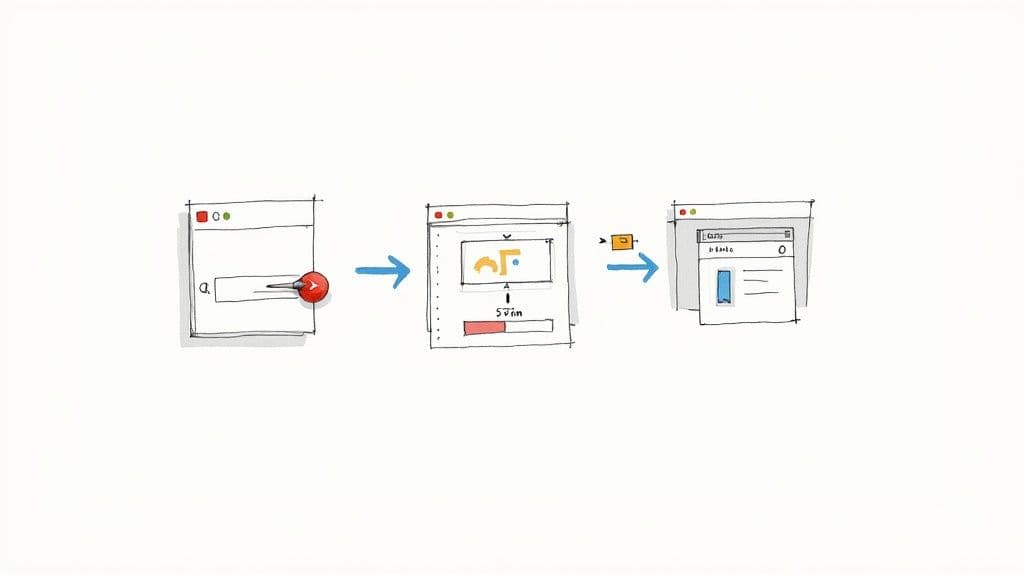
What if you could start a timer with a click, right from your task page? You can, using Notion's built-in Buttons feature. It's a game-changer.
You can set up a "Start Timer" button that, when you click it, instantly creates a new entry in your Time Log. It automatically links it to the task you're on and stamps the current time in a "Start Time" property. Then, you can have a "Stop Timer" button that finds that running entry and fills in the "End Time." A simple formula property does the math to calculate the duration for you.
This button-based method is the sweet spot for a lot of folks. It gives you that dedicated timer app feeling without ever having to leave Notion, which makes you far more likely to actually track your time consistently.
Automating Time Entries with Integrations
For a truly hands-off system, you can connect Notion to an automation tool like Make.com or Zapier. This is where things get really powerful, with workflows running in the background so you don't even have to think about it.
Here’s a perfect real-world example for a busy consultant:
- A client books a 60-minute call on your Google Calendar.
- Make.com sees this new calendar event and springs into action.
- It automatically creates a new, pre-filled entry in your Notion Time Log. The entry is already linked to the correct client, the duration is set to one hour, and the task description is pulled right from the calendar event.
This kind of automation is a lifesaver for capturing all those billable hours spent in meetings that often slip through the cracks. It takes a bit more work to set up initially, but for busy freelancers and agencies, the time it saves and the revenue it recovers are massive.
Comparing Time Entry Methods in Notion
Choosing your method comes down to balancing ease of use with accuracy and setup effort. Here's a quick breakdown to help you decide which path is right for your workflow.
| Method | Best For | Setup Effort | Accuracy Level |
|---|---|---|---|
| Manual Entry | Logging long, uninterrupted work blocks or one-off tasks. | None | Good, but relies on memory. |
| Notion Buttons | People who want a one-click timer inside Notion. | Low to Medium | Excellent, captures precise start/stop times. |
| Third-Party Integrations | Automatically logging scheduled events like meetings. | Medium to High | Excellent, but only for predefined triggers. |
Ultimately, you might even use a mix of these. Manual entry for quick fixes, buttons for deep work sessions, and automation for all your calendar events. The key is to build a system that feels natural to you.
Integrating with Dedicated Time Tracking Apps
<iframe width="100%" style="aspect-ratio: 16 / 9;" src="https://www.youtube.com/embed/yyBdc38vm5E" frameborder="0" allow="autoplay; encrypted-media" allowfullscreen></iframe>Notion is powerful on its own, but sometimes you hit a wall. Maybe you need automated activity logging or want to generate polished, client-ready invoices with a single click. This is where dedicated time tracking apps come in, giving you professional-grade tools without ever having to leave your main workspace.
Think of it as adding a turbocharger to an already great engine. All your core project management stays right where it is—in Notion. But the heavy lifting of time tracking gets passed to a tool built specifically for that job. Apps like Clockify, Toggl Track, and Timely are designed to plug right into your Notion databases, giving you features you just can't build from scratch.
This hybrid approach really does offer the best of both worlds. You keep the incredible flexibility and all-in-one project view of Notion, but you gain the pinpoint precision and automation of a specialized time tracker.
When an Integration Makes Sense
So, when should you look beyond Notion's native functions? An integration is a game-changer if you’re a freelancer who needs to create detailed invoices or part of an agency juggling multiple client projects with tight budgets. These tools excel at delivering the granular data that clients and managers need for transparent billing and resource planning.
Take Timely, for instance. It uses AI to quietly monitor your activity across all your different apps. It then automatically suggests time entries and ties them to your Notion tasks, saving you from the tedious work of manual logging. You'd be surprised how many billable minutes you can capture this way.
The real win with integrations is automation and accuracy. They eliminate the hassle of starting and stopping timers and catch all that "in-between" time that often gets missed, like short emails or quick research tasks.
This is especially true for teams with highly specific needs, like development agencies that use dedicated developer time tracking software to get a clearer picture of productivity on coding tasks.
Top Time Tracking Tools for Notion
The ecosystem of tools that connect with Notion is growing fast, bringing powerful features that boost both productivity and billing accuracy. As of 2025, the average price for top-tier Notion time tracking integrations hovers around $6.20 per user per month, which is a steal for features you'd normally see in tools costing $15 or more.
Here are a few of the most popular choices I've seen teams use successfully:
- Toggl Track: Famous for its dead-simple interface. Toggl can add a timer button directly onto your Notion pages, making it ridiculously easy to start tracking time without breaking your focus.
- Clockify: This is a fantastic option for teams. It offers solid reporting, lets you set user roles, and makes it easy to mark time as billable for painless invoicing.
- Timely: As I mentioned, its AI-powered automatic tracking is the killer feature. If you want a completely hands-off logging experience, this is the one to check out.
Picking the right tool really just comes down to your specific workflow. To help you sort through the options, we put together a detailed time tracking software comparison that breaks down what these leading apps have to offer.
Getting these integrations up and running is usually pretty simple. Most work through a browser extension or an automation platform like Zapier or Make. Once connected, your time entries from the external app will automatically sync back to your Notion time log, keeping everything centralized and current. It’s the ultimate setup: powerful, specialized tracking with a single, unified view of your work.
How to Analyze and Visualize Your Time Data
Tracking your time is one thing, but making sense of it is where the real magic happens. If you're not analyzing the data, you're just doing glorified data entry. The goal here is to turn all those time logs into clear, actionable insights that help you make smarter decisions. Let's build your reporting dashboard right inside Notion so you can see exactly where every minute is going.
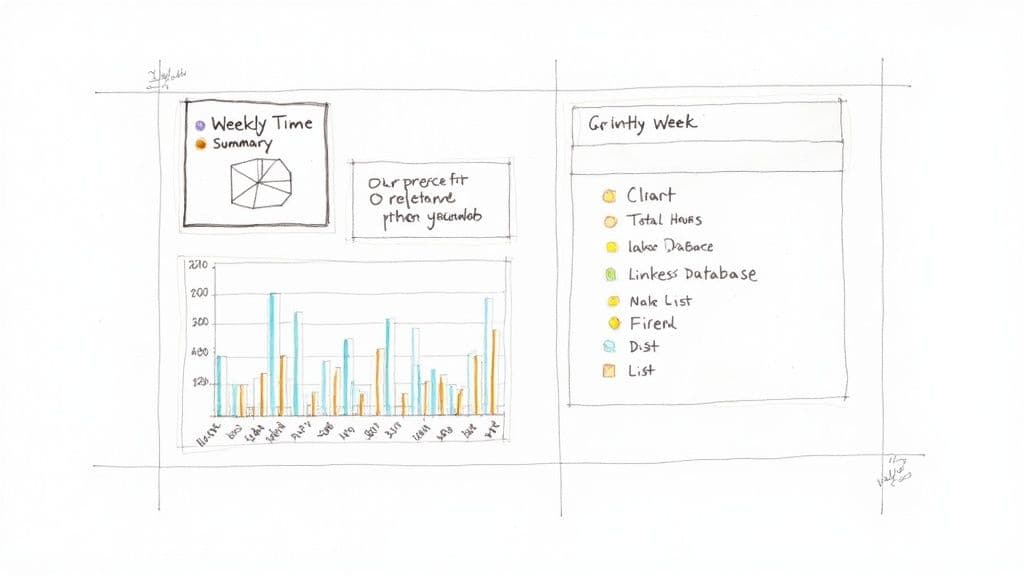
The secret sauce for building a great dashboard is using Linked Databases and clever filters. You’ll create a brand-new page dedicated to your reports, then pull in filtered views of your existing Projects, Tasks, and Time Log databases. This is a fantastic way to slice and dice your data in endless combinations without ever touching or messing up your original records.
Building Your Core Dashboard Views
First things first, let's create a few high-impact views that give you immediate answers. We're not just making charts for the sake of it; each report should answer a specific question about your productivity, profitability, or focus.
Here are a few essential views you can build in just a few minutes:
- Weekly Time Summary: This gives you a bird's-eye view of your week. Create a linked view of your Time Log, filter it to show entries where the "Date" is "This Week," and then group the results by "Project." Instantly, you'll see a clean breakdown of where your focus has been.
- Client Billables View: A non-negotiable for any freelancer. Filter your Time Log for a specific client and for entries where your "Billable" checkbox is ticked. The best part? Use the "Calculate" option at the bottom of your duration column to get an instant Sum of billable hours. No more manual math.
- Project Budget Tracker: This one is a game-changer. Head over to your Projects database and add a Rollup property. This incredibly powerful feature can reach into your Time Log, grab all the related hours for a project, and sum them up for you. You'll see, in real-time, exactly how much time you've sunk into a project.
With just these few views, your notion time tracking setup goes from a simple logbook to a dynamic business intelligence tool. You can finally see which projects are eating all your time and which clients are actually paying the bills.
From Raw Data to Actionable Insights
Once your dashboard is humming along, you can start asking the tough questions. Are you constantly blowing past your estimates for design tasks? Is one client taking up 80% of your time but only providing 20% of your income? The numbers don't lie.
This level of deep engagement is a big reason why Notion has become such a titan in the productivity world. As of July 2025, notion.so clocked over 134 million visits, with users sticking around for an average of over 9 minutes. A tiny bounce rate of just 25.05% proves that people aren't just dropping by—they're actively building and refining systems just like this one.
Your goal isn't just to see where time went; it's to understand why it went there and what you can do about it next week. Use your dashboard to guide your planning and quoting processes.
To get even more sophisticated, you can start digging into trends. For a deeper dive, a few simple ways to improve work efficiency can help you spot patterns in your workflow, pinpoint your most productive days, and make data-backed changes to your entire schedule. Your Notion dashboard is the launchpad for achieving that kind of operational clarity.
As you start building your time tracking setup in Notion, you’ll probably run into a few questions. It happens to everyone. Let's walk through some of the most common ones I hear so you can get your system running without a hitch.
Can I Actually Track Time on the Notion Mobile App?
Yes, absolutely. The beauty of building this in Notion is that everything is cloud-based. Whatever you set up on your desktop—your databases, buttons, and dashboards—works just as well on the mobile app.
This means you can add a new time entry, hit your "Start" and "Stop" buttons, or check on a project's progress while you're on the go. While I'd recommend doing the initial heavy lifting of building the system on a computer, the day-to-day tracking on your phone is a breeze.
How Does This Work for a Whole Team?
Notion really shines when it comes to team time tracking. The trick is to add a "Person" property to your main Time Log database. This simple addition lets you tag every single time entry with a team member, so there's never any confusion about who logged what.
Once you have that in place, you can create some really powerful dashboard views. Imagine filtering your main dashboard to see just one person's logged hours, or creating a team-wide view to see who's working on what. It keeps everything transparent and puts project management and time tracking in the exact same place. No more jumping between tools.
A proper team setup means you can instantly answer questions like, "Who's working on the website redesign?" or "How many hours has the design team logged this week?" without pulling a separate report.
How Can I Add Up Billable Hours for Invoices?
This is where the magic happens, and it’s surprisingly simple. All you need are two smart properties.
First, add a "Checkbox" property to your Time Log database and call it something like "Billable." This gives you a quick way to mark which time entries you’re actually charging for.
Next, jump over to your Projects database and add a "Rollup" property. You'll set this rollup to look at all the time entries linked to that project, but you'll add a filter: only sum the "Duration" for entries where the "Billable" box is checked. Just like that, you have a live, running total of billable hours for every project, ready to go when it's time to create an invoice.
While Notion itself won't spit out a PDF invoice for you, it completely gets rid of the headache of manually adding up hours from a messy spreadsheet.
Ready to stop wrestling with manual calculations and clunky spreadsheets? The Flowtion Time Tracker Pro template gives you a powerful, pre-built system to manage your projects, clients, and time logs with professional clarity. Duplicate it in one click and start tracking your time like a pro today.