Your Ultimate Notion Weekly Planning Template
Discover how to build a dynamic Notion weekly planning template from the ground up. This guide covers databases, views, and automations for peak productivity.
A Notion weekly planning template is far more than just a digital to-do list. Think of it as a powerful, customizable system built to organize your tasks, track your goals, and manage your time, all from a single, connected dashboard. It’s what bridges the gap between your daily actions and your long-term ambitions.
Why a Notion Planner Transforms Your Weekly Workflow
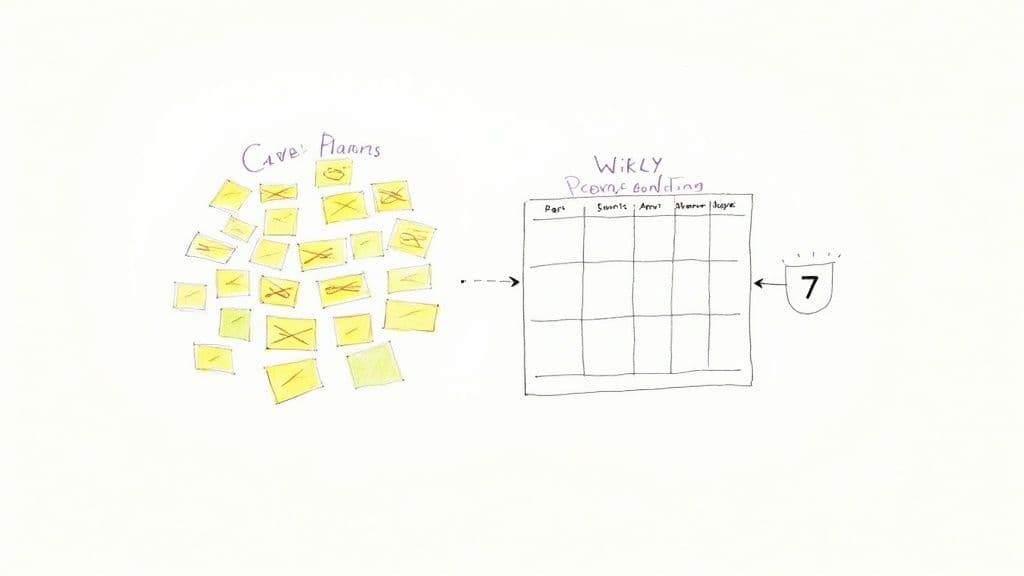
If you're trying to manage your week with a mix of sticky notes, random apps, and a packed calendar, you know the feeling. You're constantly busy but not always productive. Deadlines get missed, important projects stall, and those big, meaningful goals seem to get further away. This scattered approach just creates friction and makes it nearly impossible to see how your daily grind connects to the bigger picture.
This is where a well-structured notion weekly planning template changes the game. It’s not about just listing tasks; it's about building an integrated system where every item has a purpose.
Gain Clarity and Control
The biggest win from moving your weekly plan into Notion is creating a single source of truth. When you centralize everything, you finally get a complete, cohesive view of all your commitments, from major work projects to personal errands.
This isn't just about getting organized; it's about making better decisions. When you can see your entire week laid out clearly, you can allocate your time and energy to the things that actually move the needle.
A great planner doesn’t just tell you what to do; it shows you why you’re doing it. It connects your immediate tasks to the quarterly objectives and annual goals you've set for yourself.
With remote work becoming the norm, these kinds of digital tools are essential. It's no surprise that Notion now offers over 663 dedicated weekly planner templates, a testament to the massive shift toward integrated digital planning. Many of these templates come with built-in modules for habit tracking and goal setting, with some users reporting task completion improvements of up to 35%.
This adaptability is what makes Notion so effective—it gives you a clear overview that sharpens your time management. You can explore a ton of great community-built options on Notion's template gallery to see how others are structuring their weeks.
Ultimately, by building this system, you’re not just making lists. You're designing a personalized framework for intentional productivity.
Building Your Master Tasks Database
Every great Notion weekly planner is built on one thing: a rock-solid Master Tasks Database. Think of this as the brain of your entire system. It's not just another to-do list; it’s the central hub where every single task, project, and idea will live. If you get this part right, the rest of the process becomes incredibly powerful and flexible.
First things first, create a new page in Notion and choose the "Table" database option. I like to call mine "Master Tasks," but "All Tasks" works just as well. The key is to have one single source for everything, which stops you from scattering tasks across a dozen different pages—we’ve all been there, and it’s a recipe for chaos.
Defining Your Core Properties
Properties are what turn a simple list into a dynamic planning tool. They’re the tags and data points that let you slice and dice your tasks in any way you want. My advice? Start simple. You can always add more later, but nailing the essentials is what really counts.
Here are the four properties I believe are non-negotiable for any task database:
- Date: This is your bread and butter. Use Notion’s
Dateproperty to set deadlines or schedule work. It's the magic ingredient for creating those weekly and daily views we’ll build later. - Status: A
SelectorStatusproperty is fantastic for tracking where things stand. I stick to a simple "To Do," "In Progress," and "Done." Seeing that visual progress is a huge motivator. - Priority: When you’re staring at a long list of tasks, you need to know what matters most. A
Selectproperty with "High," "Medium," and "Low" options helps you instantly cut through the noise. - Category: This is how you separate "work you" from "home you." Use a
SelectorMulti-selectproperty with tags like "Work," "Personal," "Learning," or "Appointments." This makes it easy to filter your view and focus on one part of your life at a time.
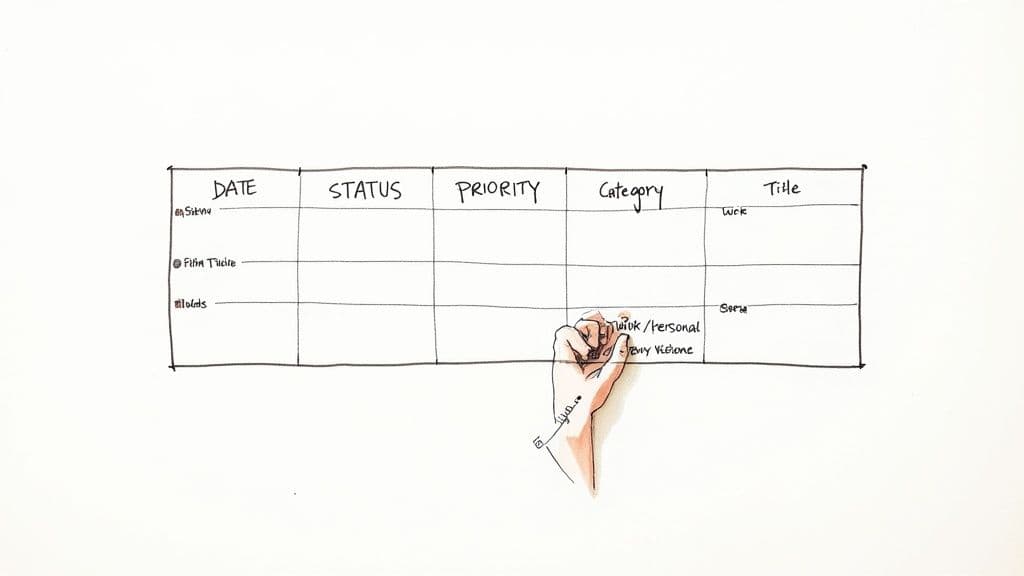
Once these properties are set up, every task you add is instantly organized and packed with useful information.
The Logic Behind a Centralized Database
So, why put everything in one giant database? Because centralization is the secret sauce. Instead of juggling separate lists for your job, your side hustle, and your personal life, you dump it all into one place. Then you use properties to sort it all out. This way, you always have a true, complete picture of your workload without bouncing between pages.
A single, well-organized database is the difference between a simple digital checklist and a dynamic, fully-integrated productivity system. It’s the single source of truth for everything you need to accomplish.
For example, a task like "Draft Q3 Report" gets a Date for next Friday, a Status of "In Progress," a Priority of "High," and a Category of "Work." It's a simple, elegant structure that just works.
If you really want to go down the rabbit hole on this, our guide on Notion tasks management covers some more advanced strategies. But honestly, getting this foundation right is what makes building the intuitive weekly and daily views in the next steps possible. You're turning raw data into a planner you'll actually want to use.
Designing Your Perfect Weekly and Daily Views
Okay, the heavy lifting of building the database is done. Now for the fun part: turning that raw data into a dashboard you'll actually want to use every day. This is where we take our "Master Tasks" database and give it life using linked views.
We're going to set up three core views. Think of them as different lenses for looking at the same information. Each one is designed to show you exactly what you need to see, precisely when you need to see it, without any of the clutter.
Crafting a Bird's-Eye Weekly Dashboard
First up is your command center: the weekly dashboard. This view gives you that crucial Monday-to-Sunday overview of everything on your plate.
A Board view is absolutely perfect for this. Go ahead and create a linked view of your Master Tasks database and switch the layout to "Board." The real magic happens in the "Group by" settings. Set it to group by your "Date" property, and then, within those options, choose to group by "Day." Just like that, your tasks will neatly organize themselves into columns for each day of the week.
What I love about this setup is how intuitive it is for drag-and-drop planning. Did a meeting get bumped from Tuesday to Wednesday? Just grab the card and slide it over. It's a fantastic, visual way to balance your workload and see where you might be overcommitted before the week even starts.
Zeroing In with a Today's Focus View
Let's be honest, staring at an entire week's worth of tasks can be overwhelming when you just need to know what to tackle right now. This is why a dedicated "Today's Focus" view is a non-negotiable part of my own system. It's all about cutting out the noise.
For this, create another linked view, but this time pick the "List" layout. It’s clean, simple, and easy to scan. The power here comes from the filter. You’ll want to add one simple filter: "Date" is "Today."
Pro Tip: I always add a second filter to keep things tidy: "Status" is not "Done." This ensures that once you check something off, it disappears from your active list, leaving only what still needs your attention.
This simple, filtered list is your daily action plan. It's the view you'll probably have open most of the day, giving you a clear, focused path forward. If you want to get even more granular with structuring your day-to-day, our guide on the perfect Notion daily planner dives into more advanced setups.
Building Your Upcoming Agenda
Finally, you need a way to look ahead so deadlines don't sneak up on you. An "Upcoming Agenda" view is perfect for this. The "Calendar" layout is the natural choice here, offering that familiar monthly grid of all your scheduled tasks, appointments, and deadlines.
The setup couldn't be simpler. Create one more linked view and just select the "Calendar" layout. Notion will automatically use your "Date" property to plot everything correctly.
Once you have your weekly rhythm down, the next step is always execution. To explore other approaches, it can be helpful to see how different platforms handle strategies for effective daily planning.
Here's a quick recap of the views that will form the backbone of your new weekly planner.
Essential Views For Your Notion Weekly Planner
| View Name | Recommended Layout | Primary Purpose & Benefit |
|---|---|---|
| Weekly Dashboard | Board (Grouped by Day) | Provides a high-level, visual overview of the entire week. Perfect for balancing workload and drag-and-drop rescheduling. |
| Today's Focus | List (Filtered for Today) | Creates a clean, actionable to-do list for the current day, eliminating all other distractions for maximum focus. |
| Upcoming Agenda | Calendar | Offers a traditional monthly calendar view, making it easy to see future deadlines and commitments at a glance. |
These three views—the Weekly Dashboard, Today's Focus, and Upcoming Agenda—work together to create a complete and flexible planning system. You can effortlessly zoom out to see the big picture or zoom in to focus on the immediate task at hand, making sure nothing ever falls through the cracks.
Make Your Workflow Effortless with Templates and Recurring Tasks
If you’re manually typing the same task details over and over, you're losing valuable time and momentum. The real power of a Notion weekly planner isn't just listing tasks—it's about making the system do the heavy lifting for you. Let’s get into how you can automate the grunt work.
First up: database templates. These are essentially pre-filled blueprints for tasks you do all the time. Instead of building a task from zero, you click a button, and poof—Notion instantly fills in the properties, checklists, and notes you need.
Imagine you're a project manager. You could create a "New Client Onboarding" template that automatically sets the priority to High, assigns it to the Work category, and even includes a ready-to-go checklist with items like "Send welcome email," "Schedule kickoff call," and "Create shared folder." One click, and it's all there.
Setting Up Recurring Tasks
The other side of the automation coin is mastering recurring tasks. Notion’s built-in "Repeat" feature is brilliant for building consistency. You can set up tasks to automatically appear on your planner every day, week, or month, so you never have to think about adding them again.
This is a lifesaver for all those routine responsibilities and habits:
- Weekly: A task to "Submit Timesheet" pops up every Friday.
- Monthly: "Pay Rent" shows up on the 1st of the month, no exceptions.
- Daily: "Morning Stand-up Prep" is ready for you every single weekday.
Once you set these up, you offload the mental burden of remembering them. Your planner goes from being a static to-do list to an active partner in keeping you on track.
This is where having different views really shines. You can see your automated tasks alongside your one-off projects, seamlessly moving from a high-level weekly plan to a focused daily agenda.
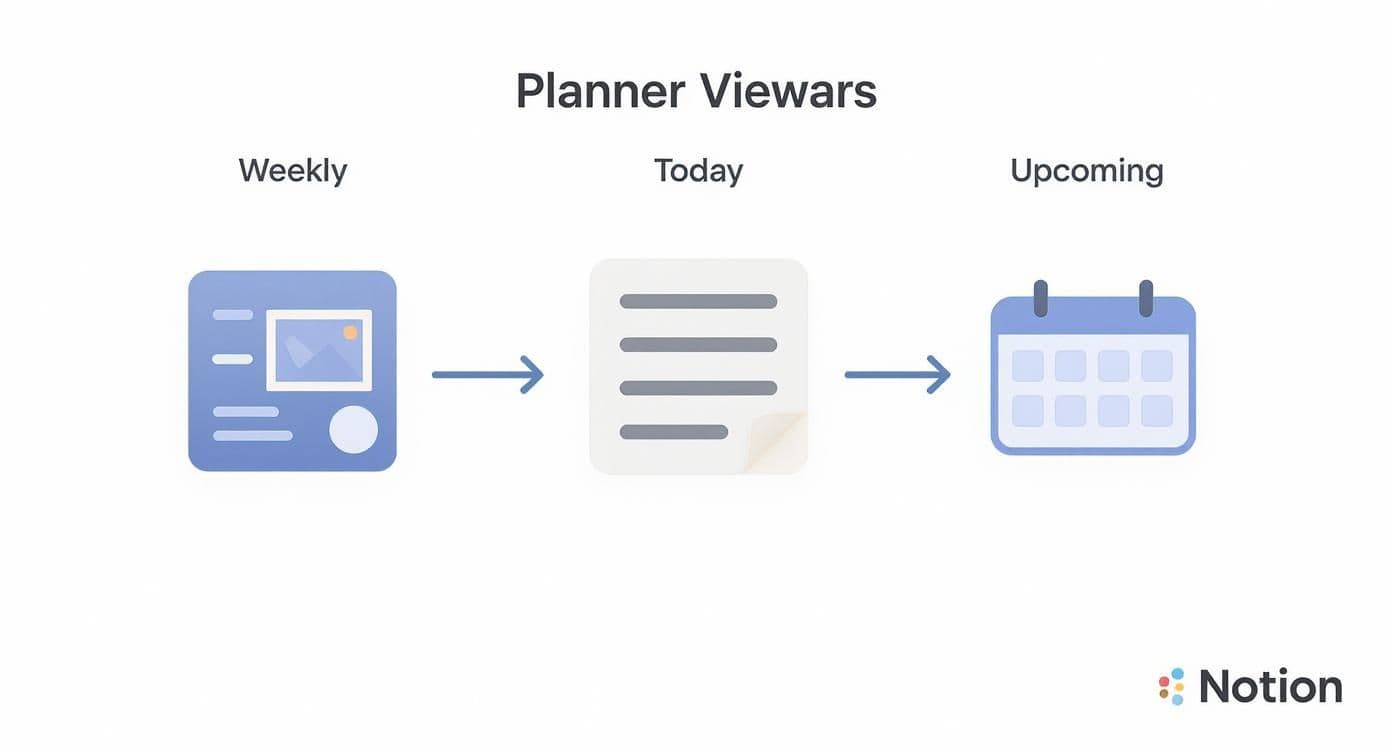
As the graphic shows, each view gives you a different perspective, letting you zoom in or out depending on what you need to focus on at that moment.
Advanced Automation and Integrations
Ready to take it a step further? You can hook your Notion planner into other apps to create some seriously powerful workflows. For example, if you manage a content calendar, you could explore how to automate content with Postiz and Notion to sync your social media schedule directly with your weekly tasks.
When you automate the predictable parts of your week, you’re not just saving time—you’re freeing up mental energy for the work that actually matters. Your planner becomes less about data entry and more about driving real progress.
This kind of system-driven approach is what separates a basic to-do list from a true productivity hub. If you’re hungry for more ways to streamline your setup, take a look at our collection of battle-tested Notion productivity templates. This is how you make your planner truly work for you.
Connecting Your Weekly Plan to Long-Term Goals
https://www.youtube.com/embed/zLY6nET2wKg
A great Notion weekly planner does more than just list your to-dos. It should be the bridge connecting what you're doing right now to where you want to be in the future. If your daily tasks are just a random collection of items, you'll feel busy but never truly productive. Let's fix that and turn your planner into a real goal-achievement system.
The magic happens when you create a clear, functional link between your work this week and your ambitions for this year. This connection provides the 'why' behind the work, which is crucial for staying motivated when things get tough.
First, Create Your Goals Database
To get started, you'll need a new, clean database just for your high-level objectives. Call it something like "Quarterly Objectives" or "Annual Goals." This isn't the place for small tasks; it’s for the big, meaningful wins you're chasing.
Inside this new database, a few simple properties are all you need:
- Goal Name: A short, clear title for what you want to achieve (e.g., "Launch New Website").
- Target Date: A
Dateproperty to set your deadline. - Status: A
StatusorSelectproperty to see progress at a glance (e.g., Not Started, In Progress, Completed).
Think of this database as your north star. It holds the major outcomes that should drive all your weekly planning.
Now, Link Your Tasks to Your Goals
With your goals set, it's time to connect them to your day-to-day work. Head back to your "Master Tasks" database and add a new property.
This time, choose the Relation property type. When Notion asks you to select a database, find and choose your "Quarterly Objectives" database.
That one simple step creates an incredibly powerful link. Now, every single task you create can be tied directly to a bigger goal. For example, tasks like "Design Homepage Mockup" or "Write About Us Page" can both be linked back to the "Launch New Website" objective. Suddenly, there’s a clear line from today's work to tomorrow’s success.
By linking individual tasks to your big-picture goals, you ensure every ounce of effort is intentional. You can see exactly how the work you're doing today is building the future you want.
Track Your Progress Automatically with Rollups
Once the connection is made, you can put progress tracking on autopilot using the Rollup property.
Go into your "Quarterly Objectives" database and add a new Rollup property. You'll configure it to look at the related tasks coming from your "Master Tasks" database.
Set the rollup to calculate the percentage of related tasks that have a Status of "Done." This instantly creates an automatic progress bar for every goal. As you check off tasks in your weekly plan, you'll literally watch the completion percentage for that goal climb higher. It’s a fantastic motivational boost.
This kind of dynamic feedback is what makes a Notion weekly plan so effective. In fact, research shows that visual elements like progress bars can increase daily user interaction by 30%. You can dig deeper into how features like this boost engagement by checking out some insights on the rise of digital planners on Otterstacks.com.
Your Top Notion Weekly Planner Questions, Answered
Once you start using your new weekly planner day in and day out, you're bound to run into a few practical questions. A truly great Notion setup isn't something you build once and forget; it's a living system that needs to adapt as you do.
Let's walk through some of the most common snags people hit and how to solve them, so your system stays perfectly tuned to your workflow.
A classic problem is figuring out what to do with rescheduled tasks. That "must-do" you had slated for Tuesday gets pushed. Now what? For a short delay, you can just drag the task card to a new day in your weekly board view. Easy.
But if it's pushed out indefinitely? Simply clear the date property. This will send the task to a "no date" column on your board, which acts as a perfect holding area until you're ready to slot it back into your schedule.
How Do I Keep My Workspace From Getting Cluttered?
After a few productive weeks, that "Done" column can start looking like a graveyard of past accomplishments. It's satisfying, sure, but it also creates a ton of visual noise and can even slow down your database. Archiving is the answer.
You don't need some complex, multi-step process for this. Here’s a super simple and effective way to do it:
- Add a new "Checkbox" property to your Master Tasks database. Call it "Archive."
At the end of your week (maybe during your weekly review), just follow this quick two-step cleanup:
- Go to your main database view and filter it to show only tasks where the Status is "Done."
- Select all of them at once, and with a single click, check the "Archive" box for the entire batch.
The final piece of the puzzle is to update your main planner views (your Week, Today, and Agenda views) with one more filter: hide any task where the Archive property is checked. This keeps your active workspace sparkling clean, but you never actually delete anything. All that data is still safe in your master database if you ever need to look back.
Your weekly planner should be a tool for forward momentum, not a museum of past accomplishments. A clean, focused view is critical for reducing cognitive load and making decisive plans for the week ahead.
What If My Planning Needs Change?
Your system should work for you, not the other way around. The planner that was perfect for you as a student might not cut it six months from now when you're managing a small team. That's the whole point of using Notion—it can change right along with you.
Never hesitate to tweak your setup. Feel like you're juggling too many big initiatives? Add a "Project" relation property to link tasks to their parent projects. Constantly waiting on feedback from others? Create a new "Waiting On" status to track those blocked items.
The key is to check in with your system every so often. Your weekly review is a great time to ask, "Is this still serving me perfectly?" If the answer is no, make a small change. Your notion weekly planning template is meant to be a living document, not something set in stone.
Ready to skip the setup and jump straight into a perfected system? Flowtion offers a suite of battle-tested Notion templates, including comprehensive planners designed for immediate productivity. Get your pre-built, fully optimized weekly planner today and start organizing your life in minutes.
Explore the templates at https://theflowtion.com.