Build Your Own Notion Daily Planner From Scratch
Tired of generic templates? Learn how to build a custom Notion daily planner that fits your workflow, tracks your goals, and boosts real productivity.
A custom Notion daily planner is an absolute game-changer. Why? Because it’s built by you, for you. It bends to your unique workflow, unlike those rigid, pre-made planners that never quite fit. You’re essentially building a personal command center that ties your day-to-day to-do list directly to your biggest goals.
Why Build a Custom Notion Daily Planner
Let's be honest, most off-the-shelf templates and generic task apps try to shoehorn you into someone else's idea of productivity. It can feel like you’re spending more time fighting the tool than actually getting things done. Before we get into the nuts and bolts of building your own, it's helpful for understanding why traditional task lists can be ineffective and how a personalized system sidesteps those common traps.
The real magic of building your own planner in Notion is its limitless flexibility. You're not just making a glorified checklist; you're designing a dynamic dashboard that truly reflects what’s important in your world.
Here’s where a custom setup really shines:
- You're in complete control. You get to decide exactly what to track. Project milestones, client deadlines, personal habits, random creative sparks—if it matters to you, it has a place.
- Everything connects. Link your daily tasks to bigger projects, your weekly goals to quarterly objectives, and your meeting notes to actionable follow-ups. It all works together in one cohesive system.
- It grows with you. Your needs aren't static, and your planner shouldn't be either. A custom build can evolve whether you're launching a new product, picking up a new hobby, or bringing a new team member into the fold.
A personalized Notion planner isn’t just a tool for organizing tasks—it’s a space for intentionality. It forces you to get clear on what really matters each day and gives you a roadmap to make it happen, turning vague goals into concrete actions.
This kind of customization is exactly why Notion has exploded in popularity. The platform went from just 1 million users in 2019 to over 30 million by early 2024, which says a lot about its power as an all-in-one workspace.
By putting in a bit of time upfront to build your own system, you’re creating a sustainable productivity engine that’s perfectly tuned to your life. You'll stay focused on what actually moves the needle.
Establishing Your Core Databases
The real secret to a powerful Notion daily planner isn't the fancy page designs; it's the interconnected databases working behind the scenes. This is the engine of your whole system, transforming a bunch of scattered to-do lists into a single, cohesive workflow that actually makes sense. We're going to build this engine from scratch, starting with three foundational databases.
Think of these less like spreadsheets and more like smart containers for specific types of information. Each one has its own job, but the real power is unlocked when they start talking to each other. This is the foundation for building what some call a "second brain" in Notion. If you're curious, you can dive deeper into the concept of a Notion second brain.
The Master Tasks Database
First up, let's create a new full-page database and call it "Master Tasks." This is going to be your central hub for every single task, big or small. Don't stress about organizing it perfectly right now—the immediate goal is to have one single place to dump everything that comes to mind.
To get started, we'll add a few essential properties to this database:
- Due Date: Use the
Dateproperty so you can assign deadlines. - Priority: A
Selectproperty is perfect for this. I like to use "High," "Medium," and "Low" to help with triage. - Status: Create another
Selectproperty with tags like "Not Started," "In Progress," and "Done." This is crucial for tracking where things stand.
Even this simple setup gives you a surprisingly powerful way to sort and filter your entire workload.
This is all about connecting your high-level goals with the small, daily actions you take. When your system is set up right, you can see a direct line from a daily habit to a major project milestone.
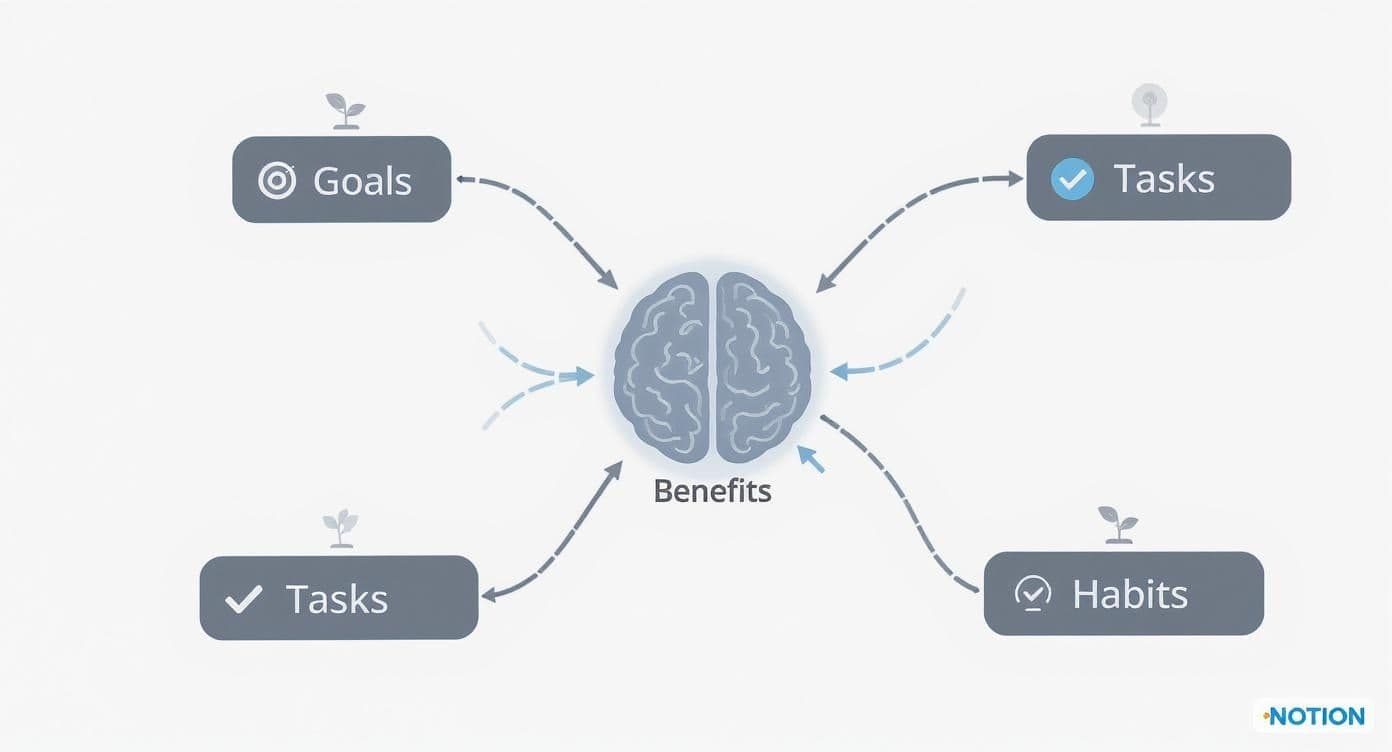
As you can see, when these components are all linked together, every small task you complete is a step toward your bigger ambitions.
Projects and Daily Journal Databases
With our task hub in place, we'll create two more databases: "Projects" and "Daily Journal."
Your Projects database is for the big-picture stuff—things like "Launch New Website" or "Q3 Content Plan." Give it a Status property (I use "Planning," "Active," "Completed") and a Timeline property so you can visualize how long each project will take.
The Daily Journal is where you'll do your day-to-day planning, reflections, and progress logs. For now, it really only needs one property: Date. This simple page will become the canvas for your daily routine.
The key is to start simple. Don't get bogged down creating dozens of complicated properties you think you might need. Stick with the essentials first. You can always add more complexity later as your system evolves with you.
Tying It All Together with Relations
Now for the fun part. The single most powerful feature for your notion daily planner is the Relation property. This is what lets you connect entries from one database to another, creating that interconnected system we've been talking about.
Head back into your "Master Tasks" database and add a new property. Choose the Relation type, and when prompted, connect it to your "Projects" database. Just like that, you can now link every single task directly to the project it belongs to. No more wondering why you're doing something.
Let's do it one more time. Create another Relation property, but this time connect your "Daily Journal" database to your "Master Tasks" database. This is the game-changer. It allows you to pull a filtered list of today's tasks right onto your daily journal page. This simple connection transforms your planner from a static checklist into a dynamic dashboard that shows you exactly what you need to do and why it matters.
Designing Your Dynamic Dashboard
Alright, now that you've got your core databases built, it's time for the fun part: creating the central hub where you'll start and end each day. A truly great Notion daily planner isn't just about cramming every possible piece of information onto one page. It’s about intelligently surfacing the right information at the right time.
This is where your system stops being a simple collection of lists and becomes a clean, intuitive, and genuinely motivating workspace. I’ve seen so many people fall into the trap of over-designing their dashboards, spending more time fiddling with layouts than actually getting work done. We're going to sidestep that completely by focusing on a handful of high-impact views that deliver maximum clarity with minimal clutter.
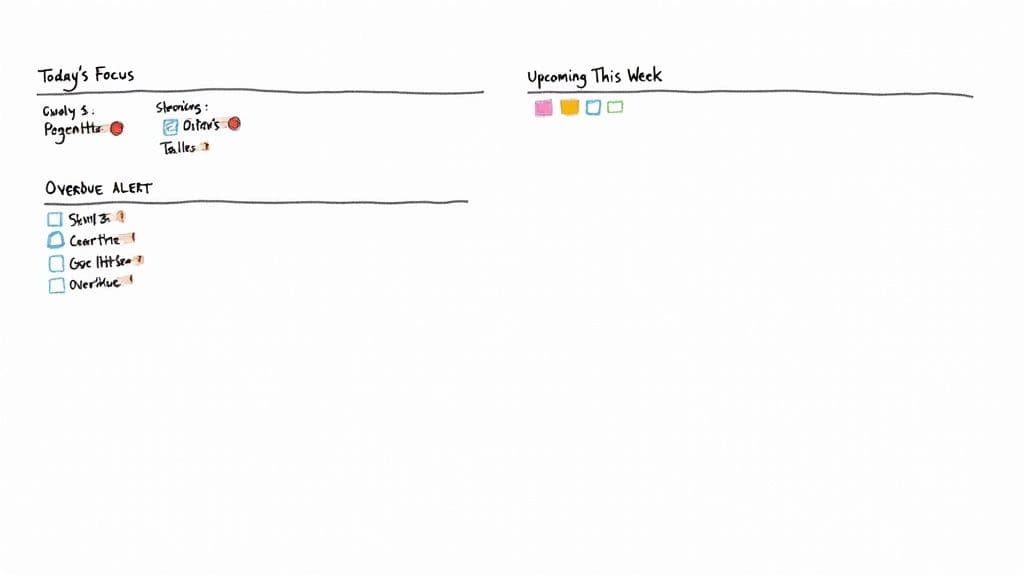
The secret weapon here is using linked database views. Instead of trying to move your actual databases around, we'll create live, filtered "windows" that pull specific data right onto your dashboard.
Creating Your Core Dashboard Sections
Let's get this dashboard structured for daily action. I've found a simple two-column layout works wonders for keeping things scannable. We'll put your immediate, must-do items on the left and your weekly overview and journal on the right.
To get started, just type /column on your new page and choose the "2 columns" option. Now you have a clean canvas.
In that left column, create a heading called "Today's Focus." Right underneath it, type /linked view of database and point it to your "Master Tasks" database. This is where the magic happens—we'll apply two crucial filters:
- Due Date is Today: This instantly narrows the view to only show tasks with today's deadline.
- Status is not Done: As you check items off, they'll vanish from this view, keeping your list fresh and focused.
This one simple, filtered view becomes the beating heart of your daily workflow. It cuts through all the noise and shows you exactly what needs to be done right now.
Next up, let's create an "Overdue" section right below that. Repeat the process—create another linked view of "Master Tasks," but this time, set the filters to show tasks where the Due Date is before Today and the Status is not Done. This creates a powerful, can't-ignore alert for anything that's slipped through the cracks.
Your dashboard should actively prevent things from getting lost. By creating separate, highly visible views for 'Today' and 'Overdue,' you’re building a system that forces you to confront priorities and holds you accountable.
To build an effective dashboard, you'll rely on a few key building blocks. Each one serves a different purpose, from displaying filtered data to creating a clean visual structure.
Essential Notion Blocks for Your Dashboard
| Block Type | Primary Use Case | Pro Tip |
|---|---|---|
| Linked View | Displaying filtered, sorted, or grouped data from an existing database. | Create multiple views of the same database (e.g., Today, Overdue, This Week) without duplicating data. |
| Heading (H2, H3) | Organizing sections visually to create a clear information hierarchy. | Use a consistent heading structure (H2 for main sections, H3 for sub-sections) for scannability. |
| Toggle List | Hiding less-critical information (like archives or reference notes). | Place long lists or secondary views inside a toggle to reduce initial clutter. |
| Callout Block | Highlighting key reminders, goals, or motivational quotes. | Change the icon and color to make it stand out. I use a "🔥" for my top weekly goal. |
| Columns | Creating side-by-side layouts for different types of information. | A two-column layout is perfect for separating daily tasks from weekly planning or quick links. |
| Synced Block | Replicating content across multiple pages (e.g., a navigation menu). | Put your daily startup/shutdown checklists in a Synced Block to use them on every daily journal page. |
Mastering these blocks is the key to turning a blank page into a powerhouse of productivity.
Visualizing Your Week and Journal
Now, let's turn our attention to the right-hand column for a broader perspective. Here, create another linked view of your "Master Tasks" database. But this time, switch it to a Board view and group it by your "Priority" property.
Then, add a filter to show only tasks where the Due Date is within the next week. This gives you a fantastic, Kanban-style overview of what’s coming down the pipeline, making it easy to plan ahead and rebalance your workload.
Finally, just below your weekly board, pop in a linked view of your "Daily Journal" database. For this one, the Calendar view is perfect. It embeds a full calendar right on your dashboard, giving you a quick way to look back at past entries or jump straight to today’s journal page with a single click.
If you're looking for more inspiration on how to arrange your space, check out these awesome Notion dashboard ideas.
By combining columns, clear headers, and these smart, filtered views, you've just built a dashboard that serves up information contextually. It's clean, it's actionable, and it’s ready to guide your day without overwhelming you.
Automating Your Workflow with Templates and Buttons
https://www.youtube.com/embed/JGT7PSXHXaM
The real magic of a custom Notion daily planner kicks in when you start automating the little things. Manually recreating your journal page every single morning is a perfect example of the kind of friction that can kill a good habit before it takes root. This is exactly where we can put Notion's automation features—templates and buttons—to work for us.
Instead of facing a blank page, we're going to build a blueprint for your ideal day. This not only keeps things consistent but gets you right into planning instead of wasting energy on setup.
Crafting a Reusable Daily Template
First up, let's create a template right inside your "Daily Journal" database. Find the blue "New" button at the top-right of your database view, click the little dropdown arrow next to it, and hit "+ New template." This gives you a blank canvas that will become your daily foundation.
Let's call this template "New Daily Entry." Here, you can pre-load all the sections and prompts you want to see every day. Think of it as pre-building your routine so you can just show up and fill in the blanks.
Here are a few things I always include in my own daily templates:
- Top 3 Priorities: A simple heading with three checkboxes. It’s a powerful way to force yourself to focus on what truly matters.
- Gratitude Log: A quick prompt like, "What are three things I'm grateful for today?"
- End-of-Day Reflection: Two clear sections: "Wins for the Day" and "Areas for Improvement."
Once you've saved the template, every new page you create can instantly have this structure, making sure you never skip a beat.
The One-Click Start Button
Ready to take it a step further? Let's add a button to your main dashboard that does all the work. On your dashboard page, just type /button and choose the "Button" block. I like to name mine something encouraging, like "☀️ Start My Day."
Now, you'll configure what the button does. For the action, select "Add page to" and then pick your "Daily Journal" database from the list. The most important part is the template field—make sure you select the "New Daily Entry" template you just created.
From now on, one click is all it takes to generate a fresh, perfectly structured journal page for the day.
This simple automation is a powerful behavioral trigger. By removing the tiny bit of effort it takes to set up your page, you make it infinitely easier to stick with your daily planning habit. It’s less about saving 30 seconds and more about building a system that’s almost effortless to maintain.
This kind of slick, user-friendly functionality is a huge reason why the personal productivity market is booming. The daily planner app market was valued at around USD 4.5 billion in 2023 and is expected to more than double by 2033, driven by our collective desire for tools that make organizing our lives simpler. You can read more about the daily planner app market growth. By creating this button, you're basically adding a pro-level feature to your own personalized planner.
Once your core dashboard is running smoothly, it's time to add some more powerful features. This is where we can integrate habit and time tracking to get real insights into your daily routines and productivity, all without making your workspace feel cluttered.
The trick is to build these features directly into the system you already have, so you aren't constantly switching between different apps. We'll start by building out a dedicated database just for your habits and then link it back to your daily journal for a seamless experience.
Building a Visual Habit Tracker
First things first, create a new full-page database and call it "Habits." This will be the central hub for every routine you want to build—think "Read for 20 minutes" or "Morning walk." You don't need much to get started; just a few basic properties for each habit will do.
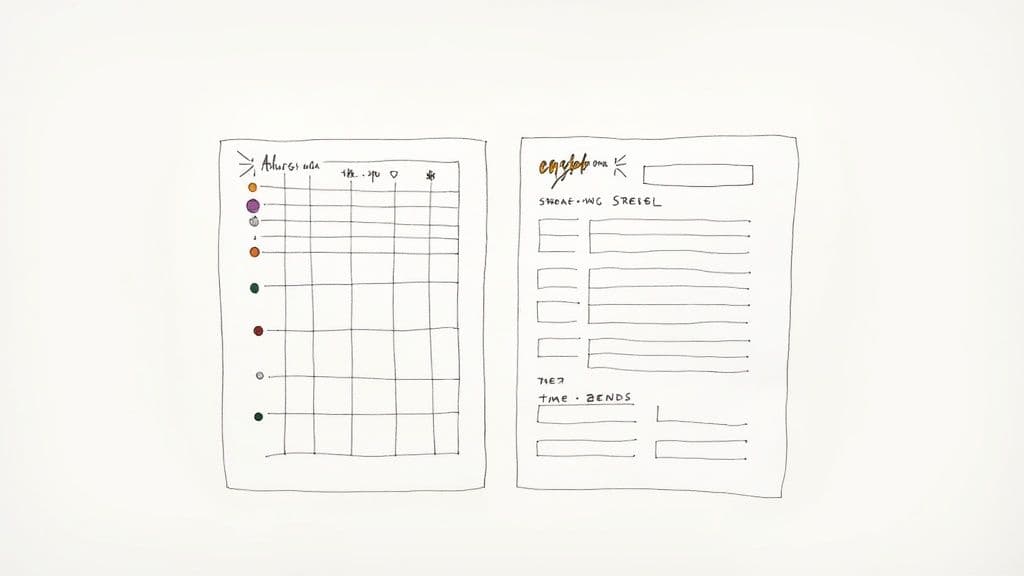
The real magic happens when you connect this to your "Daily Journal" database. Open your journal, add a new Relation property, and link it to your shiny new "Habits" database. This single connection is the key to the whole system.
Now, every morning when your "New Daily Entry" template populates, you'll see that "Habits" property waiting for you. Just click into it and select the habits you plan to tackle for the day. It functions like a daily to-do list but has so much more power under the hood.
By keeping habits in their own database, you're creating a single source of truth. This is what lets you track long-term consistency and streaks using advanced properties like Rollups—something a simple checklist just can't do.
To get that visual feedback, head back to your "Habits" database. Add another Relation property, this time linking back to the "Daily Journal." Then, create a Rollup property. You’ll want to configure it to use the "Daily Journal" relation, count the "Unique values," and—my favorite part—display it as a progress bar or ring. Instantly, you have a visual dashboard showing your consistency for every single habit.
If you want a deeper dive, our guide on building a habit tracker in Notion walks through this exact process step-by-step.
Methods for Effective Time Tracking
Knowing where your time actually goes is a game-changer for focus and productivity. Notion gives you a few different ways to track time right inside your "Master Tasks" database, from dead-simple manual entries to more integrated solutions.
The most straightforward way is to add two Date properties to your tasks: "Start Time" and "End Time." Just make sure you toggle on the "Include time" option for both. When you kick off a task, you log the start time. When you're done, you log the end time. Easy.
To see how long it took, you can use a Formula property. A simple formula like dateBetween(prop("End Time"), prop("Start Time"), "minutes") does the trick, showing you the total time spent in minutes. This is incredibly valuable data when you're trying to plan out future projects.
If manual entry isn't your thing, you can always embed a third-party timer. A lot of people I know use the /embed block to drop a timer from Toggl or Clockify right onto their dashboard. It keeps everything in one window, but fair warning: it doesn't automatically link the time you track to a specific task in Notion. Still, it's a fantastic option if you're already committed to one of those services and just want quick access without leaving your planner.
Got Questions About Your Notion Planner?
Once you start using your new Notion daily planner, you'll probably run into a few real-world questions. It's one thing to build a beautiful system, but it's another to make it a smooth, natural part of your daily grind. Let's tackle some of the most common hurdles people face and give you some straightforward fixes to keep your planner fast, functional, and actually useful.
Sometimes, it's easy to get caught up in customizing Notion for everything. Remember, the goal is to spend more time working, not just tweaking your setup. If you're looking for more general productivity strategies, you can find a lot of great advice on taskignite's blog, which covers tons of topics that are perfect for anyone serious about personal organization.
How Do I Handle Recurring Tasks?
Ah, the classic planning problem. Instead of manually typing "Weekly Team Sync" every single Monday morning, you can put it on autopilot with Notion's recurring templates. This is a game-changer.
Just head into your "Master Tasks" database and create a new template for the task you want to repeat. From there, you can set it to pop up on whatever schedule you need—daily, weekly, or even on specific days like the last Friday of every month. This is perfect for routine stuff like sending invoices, planning your weekly review, or scheduling workouts. They'll just appear on your to-do list right on time, no extra work required.
Can I Actually Use My Notion Planner on a Phone?
Absolutely, but you have to be smart about it. That beautiful, multi-column dashboard that looks amazing on your big monitor will be a nightmare to navigate on a small screen. The secret is to design a dedicated, simple page just for your phone.
I suggest creating a new page called "Mobile View" or something similar. Keep it to a clean, single-column layout. You can use linked views of your databases, but strip them down to the essentials. Usually, a view for "Today's Tasks" and a quick-capture inbox for new ideas is all you need. Pro tip: add a widget for this page to your phone's home screen for lightning-fast access.
So many people make the mistake of trying to squeeze their entire desktop setup onto their phone. Don't do it. Think about what you really need on the go—capturing a quick note or checking your top three priorities. Keep it simple and focused.
Help! My Notion Planner Is Getting Super Slow.
This is a classic growing pain, and the culprit is almost always the same: your main dashboard view is trying to load hundreds (or thousands!) of old, completed tasks. As you get more done, the database gets heavier, and things can start to feel sluggish.
Luckily, the fix is incredibly easy: an archiving system.
Just add a new checkbox property to your "Master Tasks" database and call it "Archive." When a task is 100% done and dusted, check that box.
Now, go back to your main views (like "Today's Focus") and add one more filter: "Archive is unchecked." This simple tweak tells Notion to completely ignore all those old items, making your daily workspace feel snappy and responsive again. All your data is still there, just hidden from view.
Ready to skip the setup and get straight to organizing? The Flowtion team has done the heavy lifting for you. Our collection of professionally designed Notion templates, including the all-in-one Complete Bundle, is ready to be duplicated into your workspace in seconds. https://theflowtion.com