Build a Notion Day Planner That Actually Works
Stop searching for the perfect template. Learn how to build a custom Notion day planner that organizes your tasks, projects, and goals in one dynamic workspace.
So, what exactly is a Notion day planner? Think of it less like a rigid app and more like a set of digital LEGO bricks you use to build your perfect daily command center. It's a completely custom planner you create right inside your Notion workspace, bringing together your to-do lists, calendar, notes, and goals into one unified dashboard.
Why Bother Building Your Own Notion Day Planner?
Ever feel like you're trying to cram your life into a planner that just wasn't designed for you? That's the problem with most off-the-shelf apps. A Notion day planner, on the other hand, is all about flexibility. You aren't just downloading another to-do list; you're building an operating system for your day that can change and grow right alongside you.
Most planning tools force you into their way of thinking. They keep your tasks in one box, your long-term goals in another, and your project notes somewhere else entirely. Notion breaks down those walls.
The real magic is in the connections. You can link a daily task directly back to its main project, connect it to a meeting note, or even tie it to a high-level goal. Suddenly, everything has context, something static planners just can't do.
It's More Than Just a Pretty Template
Starting with a pre-made template is a great way to get going, but the real power comes from building a system that's uniquely yours. You get to decide what matters most.
Want to track daily habits, log your workouts, or create a space for morning journaling? With Notion, you can build all of those features into a single, seamless dashboard. This level of personalization is a huge reason why Notion has seen such incredible adoption.
In fact, between 2019 and mid-2024, Notion's active user base exploded from roughly 1 million to over 30 million people. A huge chunk of those users are looking for exactly this: custom solutions like a day planner. You can read more about Notion's explosive growth on sqmagazine.co.uk.
When you build the system yourself, it's designed to fit how your brain works. That makes you far more likely to actually use it every single day. You're not just ticking off boxes; you're creating a space that genuinely helps you win the day.
Setting Up Your Core Productivity Databases
The secret to a truly powerful Notion day planner isn't just the pretty dashboard you see on the surface. It’s what’s running underneath—the interconnected databases that do all the heavy lifting. Before we even think about designing a daily page, we need to build the three foundational pillars of any solid productivity system: a master Tasks database, a Projects tracker, and a Daily Journal.
Think of this as pouring the foundation for a house. Getting this part right is what transforms a static to-do list into a dynamic planner that actually works for you. Each database will have its own job, but the real magic begins when we start connecting them.
This is all about building a system that’s flexible, powerful, and completely customized to you.
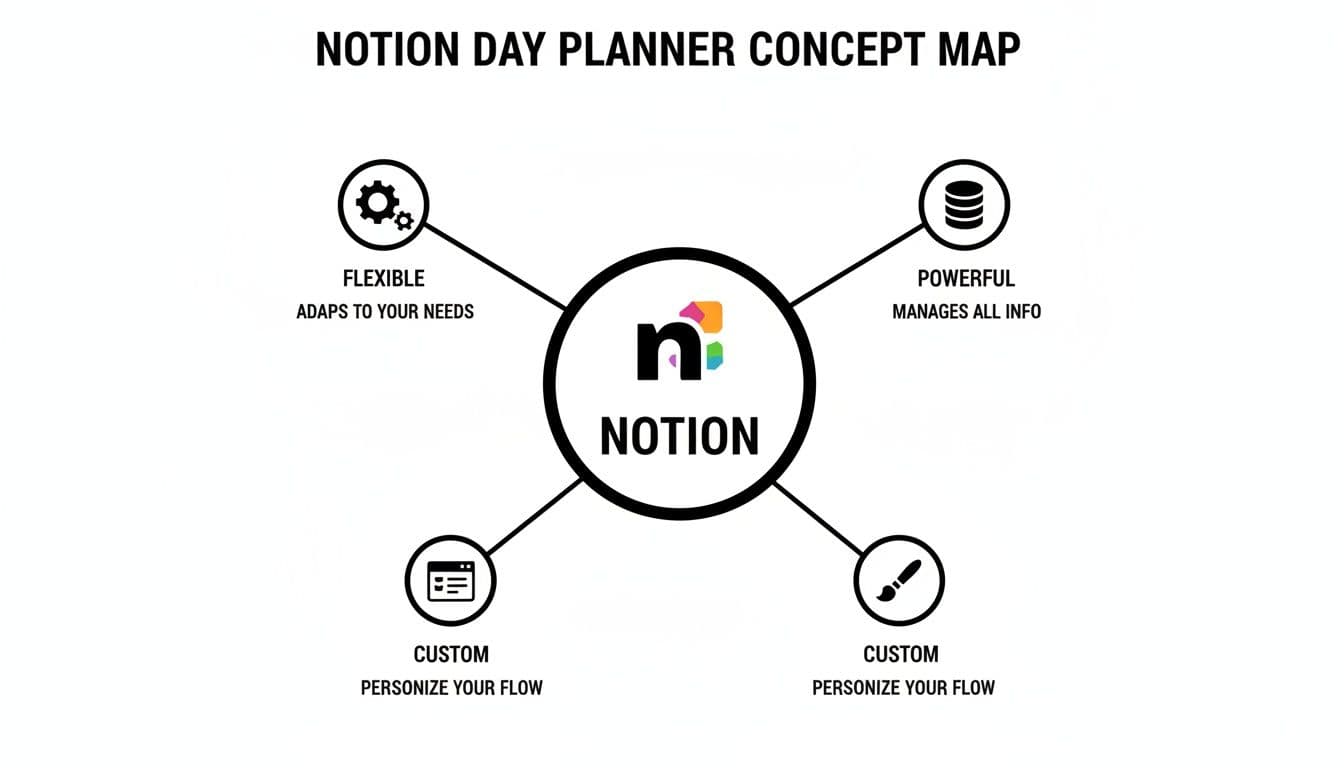
You’re not just listing things to do; you're creating a smart tool that adapts to your workflow. Let's get started.
Building Your Master Tasks Database
First things first, create a new full-page database and name it "Tasks." This is going to be your single source of truth for everything you need to get done, from tiny errands to major work assignments. It can be tempting to create separate task lists for every little thing, but trust me, a unified database is far more manageable in the long run.
Now, let’s add a few essential properties. These are the columns that will give your tasks meaning and context.
- Status: A
Selectproperty is perfect for this. I recommend starting with simple options like "Not Started," "In Progress," and "Done." This gives you a clear visual of your momentum. - Due Date: Use a
Dateproperty. This is non-negotiable, as it allows you to see your tasks on a calendar and get reminders. - Priority: Another
Selectproperty with "High," "Medium," and "Low" will be your best friend when you need to decide what to tackle first. - Context: For this, I like using a
Multi-selectproperty. It’s great for adding tags like "@work," "@home," or "@errands" so you can filter your view based on where you are or what mode you're in.
If you want to go even deeper with organizing your to-dos, we have a complete guide on Notion tasks management that covers some more advanced strategies.
Creating Your Projects Tracker
Next up, create another new database and call it "Projects." Think of your projects as the big-picture goals or "epics" that are made up of many smaller tasks. For instance, "Launch New Website" is a project, while "Write About Us page copy" is a task that belongs to it.
The most crucial step here is connecting this Projects database back to your Tasks database.
- In your Projects database, add a new property and select
Relation. - When the menu pops up, choose your "Tasks" database.
- Give the relation a clear name, something like "Related Tasks."
Now, whenever you open a project page, you'll see a neat, tidy list of every single task associated with it. This creates a natural hierarchy and ensures no small action item ever gets lost in the shuffle.
Setting Up the Daily Journal
Finally, let's create our third database: the "Daily Journal." This isn't just a place to jot down random notes; it's the glue that will hold your entire day together. Its most important property will be the Date, which you can set to automatically populate with the day an entry is created.
The real game-changer is adding one more Relation property here, this time linking back to your "Tasks" database. Call it something intuitive like "Today's Tasks." This simple link is what brings your planner to life.
Every morning, you can open a new journal entry and, using that relation, pull in the specific tasks you plan to conquer that day. This simple ritual creates an intentional, focused plan drawn directly from your master list, forming the beating heart of your new Notion day planner.
Designing Your Personal Command Center
Okay, you've built the foundational databases. Now for the fun part: bringing it all together into a single, cohesive dashboard. This isn't just another page in your Notion workspace; this is your command center. It's the one place you'll go every morning to get a clear, uncluttered view of your day.
The secret sauce here is one of Notion's most powerful features: linked databases. Instead of cluttering your dashboard with the raw, master databases, we'll create filtered views. Think of them as custom windows that pull in only the specific information you need, turning a mountain of data into a manageable, actionable plan.
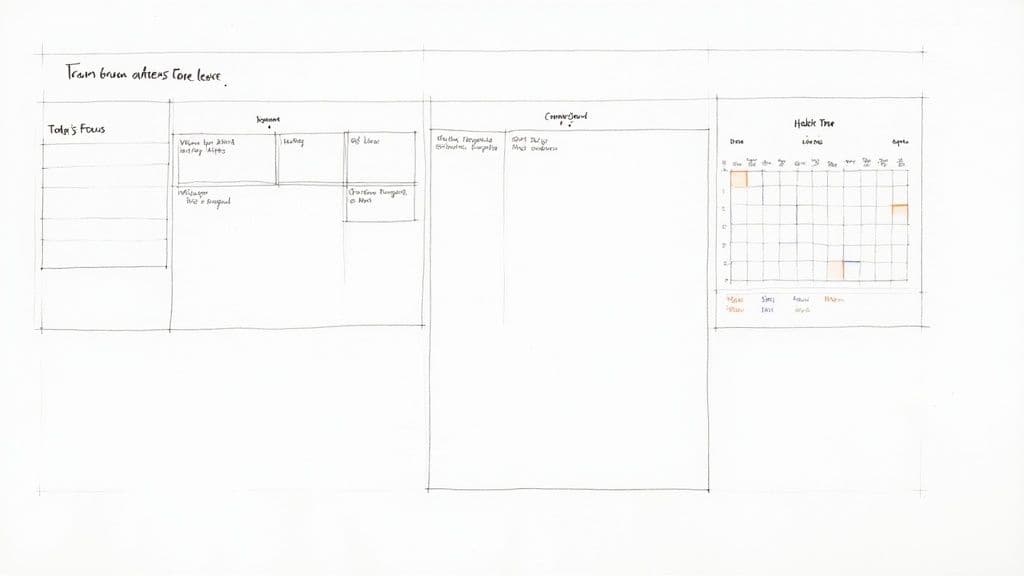
Crafting Your "Today" View
Let's be honest, the most important part of any daily planner is the section that answers the question, "What do I actually need to do right now?" This is your "Today" view.
To build it, create a new linked view of your "Tasks" database right on your dashboard page. From there, it’s all about applying a couple of simple but game-changing filters:
- Filter 1: Set the
Due Dateproperty to is Today. This instantly pulls in everything scheduled for the current day. - Filter 2: Add a second rule where the
Statusis not Done. As soon as you check something off, it vanishes from this view, keeping your focus on what's left. - Sort: Finally, add a sort by
Priorityin ascending order. This is a small tweak that makes a huge difference, ensuring your most critical tasks are always staring you right in the face at the top of the list.
This simple, filtered list cuts through the chaos of a master task list and gives you a clear set of priorities. If you're looking for more inspiration, you can find some great pre-built layouts in these helpful Notion dashboard templates.
Visualizing Your Week with a Calendar
Next to your daily task list, it's incredibly useful to see your week laid out visually. This is perfect for time blocking and spotting potential conflicts before they happen.
Create another linked view of your "Tasks" database. This time, switch the layout from a list to a Calendar. Just like that, you have an at-a-glance overview of your deadlines and appointments. The best part? You can just drag and drop tasks to new days to reschedule them on the fly. It's a much more flexible and strategic way to manage your time.
As you get deeper into personalizing your workspace, it's interesting to see how other tools are evolving. For instance, some people are watching how ClickUp challenges Notion with AI assistants to integrate even more functionality directly into their dashboards.
Integrating Daily Habits and Reflections
A great planner isn't just about work and tasks; it should also support your personal growth. This is where your "Daily Journal" database comes in. Carve out a small space on your dashboard for a filtered linked view of this database.
The only filter you need is simple:
Dateproperty is Today. This creates a dedicated spot for today's entry, giving you a gentle nudge to reflect, track habits, or practice gratitude.
This small addition makes your planner a more holistic tool. It serves as a daily reminder to check in with yourself, which is every bit as important as checking off another task.
Essential Views for Your Day Planner Dashboard
To pull this all together, here’s a quick breakdown of the essential linked database views you'll want to set up on your dashboard. Each one serves a distinct purpose, creating a balanced and functional command center.
| View Name | Database Source | Purpose and Key Filters |
|---|---|---|
| Today's Focus | Tasks | Shows what's due today, hiding completed tasks. Filter: Due Date is Today, Status is not Done. |
| Weekly Calendar | Tasks | Provides a visual layout for time blocking. Layout: Calendar view. |
| Daily Journal Entry | Daily Journal | A quick-access space for today's reflection. Filter: Date is Today. |
By combining these different views, you’re no longer just looking at a simple to-do list. You're interacting with a dynamic system you designed yourself—one that brings clarity and focus, making your Notion day planner an indispensable part of your daily routine.
Making Your Workflow Work for You with Automation
Alright, you've built a solid, well-designed Notion day planner. It looks good, it's organized, but now it's time for the fun part: making it work for you. We're going to turn this static page into a dynamic assistant that handles the boring, repetitive stuff so you don't have to.
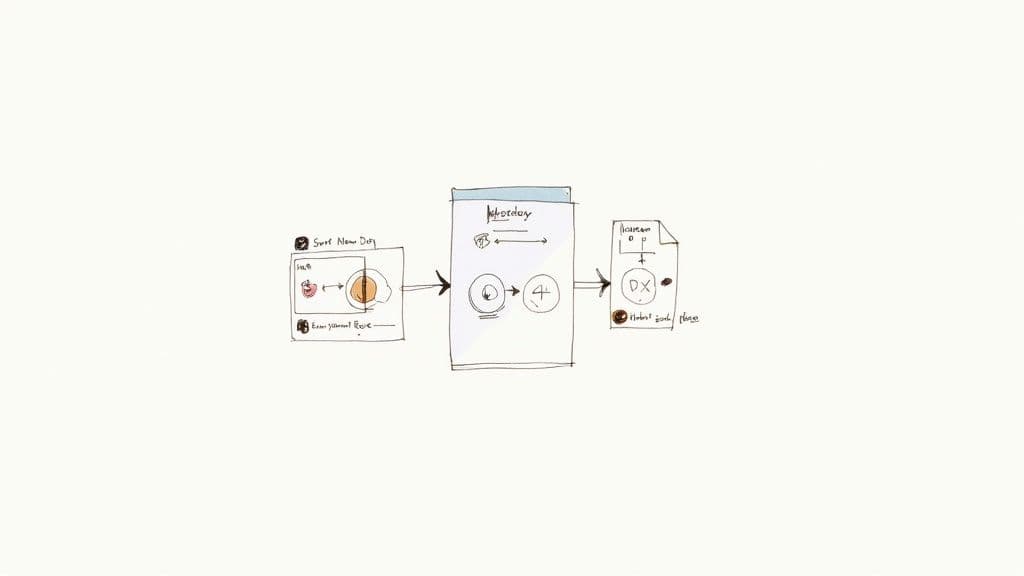
Automation is the secret sauce here. It’s what bridges the gap between a planner you have and a planner you actually use consistently. The goal is to remove every ounce of friction. Instead of manually setting things up every single morning, a few simple automations will do the heavy lifting, letting you dive right into what actually matters.
The "Start New Day" Button: A Game Changer
One of the first things I recommend to anyone building a Notion system is a "Start New Day" button. It's a simple idea with a massive payoff. Imagine this: you sit down with your coffee, click one button on your dashboard, and your entire daily journal entry is created and ready to go.
This little trick uses Notion's Template Button feature. It's incredibly easy to set up.
- On your main dashboard, just type
/buttonand choose the "Template button" option. - Give your button a name that makes sense to you, like "Start My Day".
- In the configuration area, you'll see a section to add an action. Tell it to "Add a new page to..." and then pick your "Daily Journal" database from the list.
That's it. Now, one click instantly generates a new, clean entry for the day, pre-filled with whatever structure you designed. This tiny automation has a huge impact on building a daily planning habit. If you want to get a better handle on these concepts, we have a whole guide explaining what is workflow automation.
Let Formulas Do the Thinking for You
Buttons are great for actions, but Notion's formulas are where your planner gets truly intelligent. Formulas let your databases talk to each other and surface important information automatically. They can run calculations, check for certain conditions, and show you dynamic data that helps you make decisions on the fly.
Here's a practical example I use all the time: an overdue task flagger.
You can use a simple
ifstatement in your "Tasks" database. The formula checks two things: is the due date before today's date, and is the status not "Done"? If both are true, it can display a red flag emoji (️) or some bold text like "OVERDUE".
This creates an instant visual cue that tells you exactly where to focus your attention. No more scanning through a long list of tasks, hoping you don't miss something critical. You could also create a formula to calculate the completion percentage of a big project based on how many of its linked tasks are marked as done. These dynamic pieces make your planner feel alive and responsive.
This push for smarter planning tools isn't just a niche trend. The global market for daily planner software was already valued at around $4.5 billion in 2023 and is expected to nearly double by 2033. This growth is all about features like AI suggestions and seamless integrations. By building these small automations, you're not just saving a few clicks; you're creating a modern productivity system that gives you back your most valuable resources: time and mental energy.
Making Your Planner a System You Can Actually Trust
Having a powerful Notion day planner is one thing, but actually using it consistently? That's the real challenge. The final, and arguably most important, step is to turn your shiny new dashboard into a reliable system that you’ll stick with for the long haul. This is all about making your planner a space you genuinely want to visit every single day.
<iframe width="100%" style="aspect-ratio: 16 / 9;" src="https://www.youtube.com/embed/qS3P4k3y35I" frameborder="0" allow="autoplay; encrypted-media" allowfullscreen></iframe>A system you can trust is built on reflection, not just planning. It's easy to get caught up in always looking ahead, but the real growth happens when you look back. I find that creating simple weekly and monthly review templates is a game-changer. Just set up a new database where you can pause, figure out what actually worked, and tweak your approach for the next week.
These reviews don't need to be some monumental task. For a weekly review, you could simply ask yourself, "What were my biggest wins?" and "What roadblocks got in my way?" This small habit transforms your planner from a glorified to-do list into a powerful tool for personal growth.
Connect Your Planner to the Outside World
Your Notion planner shouldn't feel like it's on a deserted island. To make it truly essential, it needs to talk to the other digital tools you lean on every day. While Notion's own integrations are getting better, third-party services can really bridge the gap, especially with tools like Google Calendar.
I use services like Zapier or Make to create simple automations that keep everything in sync without me lifting a finger. For instance, you can easily build a workflow that automatically adds a new task to your Notion database whenever a new event pops up on your Google Calendar. This way, you have one central place for all your commitments, and nothing falls through the cracks.
Make It Your Own and Find Inspiration
Finally, inject some personality into it. You might think aesthetics don't matter, but they absolutely do. Take a few minutes to personalize your planner. Add a cool cover image, find custom icons that resonate with you, and pick a color scheme that makes you feel motivated. You're much more likely to return to a space that feels good to be in.
And don't ever feel like you have to build this in a vacuum. The Notion community is incredibly vibrant and full of ideas. I’m constantly browsing YouTube and Reddit to see how other people are setting up their planners and managing their workflows.
You're not just building a tool; you're becoming part of a huge ecosystem. The Notion template economy is projected to be worth hundreds of millions, if not billions, by 2025. Top creators are already earning a serious income from their unique designs.
This community is an absolute goldmine. If you see a feature you love in someone else's Notion day planner, don't be afraid to try and build it into your own. Think of your planner as a living document—one that should constantly evolve to meet your needs and help you build a system you can truly count on.
Got Questions About Your Notion Day Planner?
As you get comfortable with your new Notion day planner, you're bound to have some questions pop up. That’s a normal part of the process. Building a system that truly works for you is all about trial and error, and it’s smart to wonder if there’s a better way to do things.
Let's dive into some of the most common questions I hear from people just getting started.
A big one is planner overload. It’s so easy to get carried away and build a massive dashboard with tons of different views, properties, and interconnected databases. It looks impressive, but it can quickly become too clunky to use every day.
Remember, the point isn't to track every single thing you do. It's about tracking the right things. I always tell people to start with the bare essentials—maybe just a simple to-do list and a daily note. Only add a new feature when you find yourself hitting the same wall over and over again.
This minimalist-first approach keeps you from falling into the trap of spending more time tinkering with your planner than actually getting stuff done.
Is Notion a Good Choice for ADHD?
Absolutely. I've seen firsthand how Notion can be a game-changer for people with ADHD. Standard planners are often too rigid, but Notion’s incredible flexibility means you can design a system that works with your brain, not against it.
- Make it Visual: You can pack your planner with icons, cover images, and colors to make it genuinely engaging and fun to interact with.
- Embrace Novelty: The constant ability to tweak, rearrange, and customize your dashboard can satisfy the craving for novelty, which keeps the system from feeling stale.
- Lighten the Mental Load: A simple "brain dump" database acts as an external hard drive for your thoughts. You can capture ideas and to-dos the second they appear, clearing up valuable headspace.
The trick is to lean into its modular design. Instead of one gigantic, overwhelming page, you can create smaller, focused dashboards for different parts of your life. Your Notion day planner becomes a tool that cuts through the chaos, instead of contributing to it.
Can I Actually Use Notion Offline?
You sure can. Notion’s desktop and mobile apps have solid offline support. Any pages you’ve opened recently are saved locally, so you can pull them up and make edits even without a Wi-Fi connection.
As soon as you’re back online, everything you changed will sync up automatically across all your devices.
This is a lifesaver for staying productive while traveling. You could be on a plane or a train and still be able to check off tasks, jot down notes, or map out your schedule. The sync is pretty seamless, so you can trust that your planner will always be current, no matter where you are.
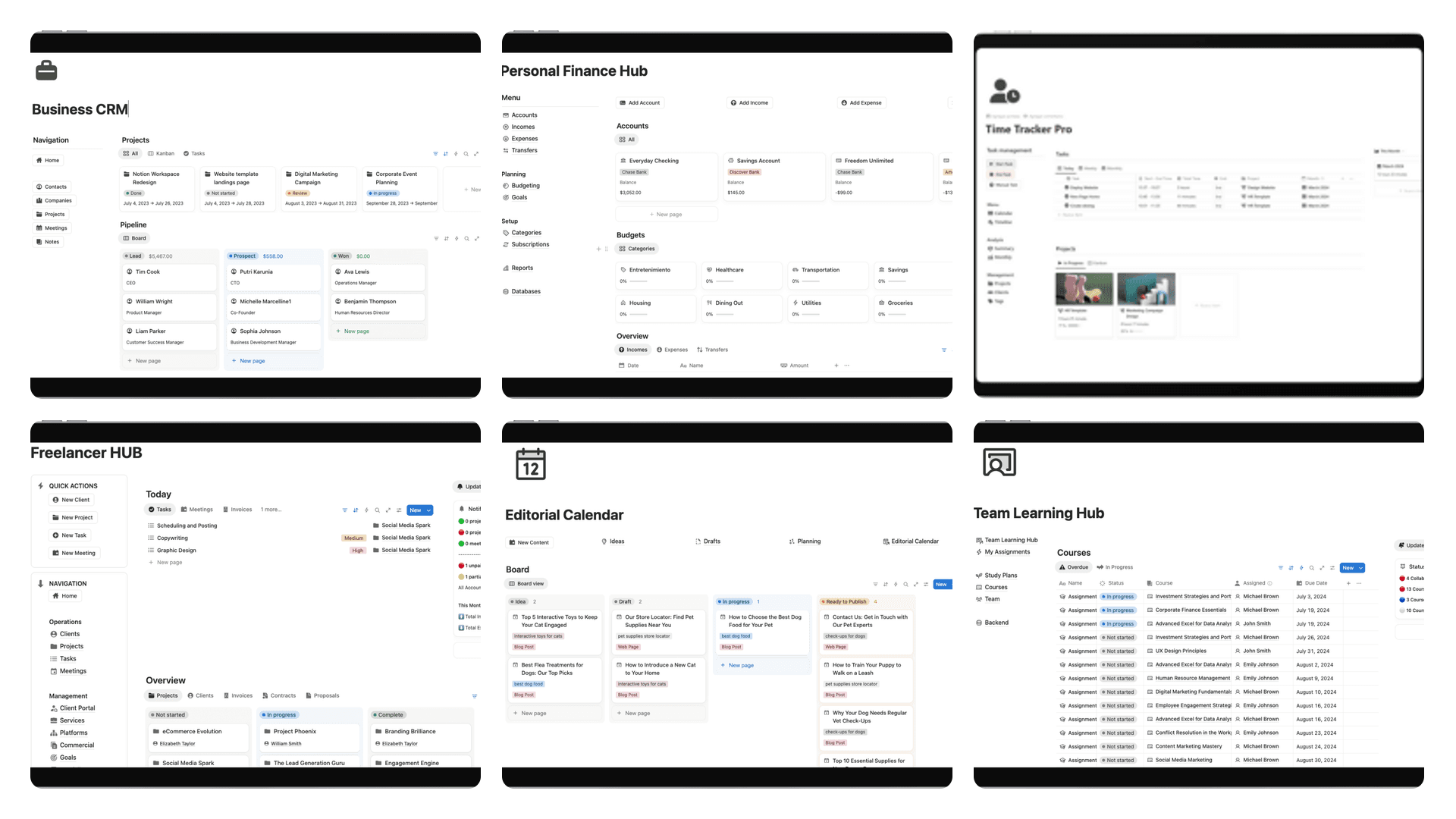
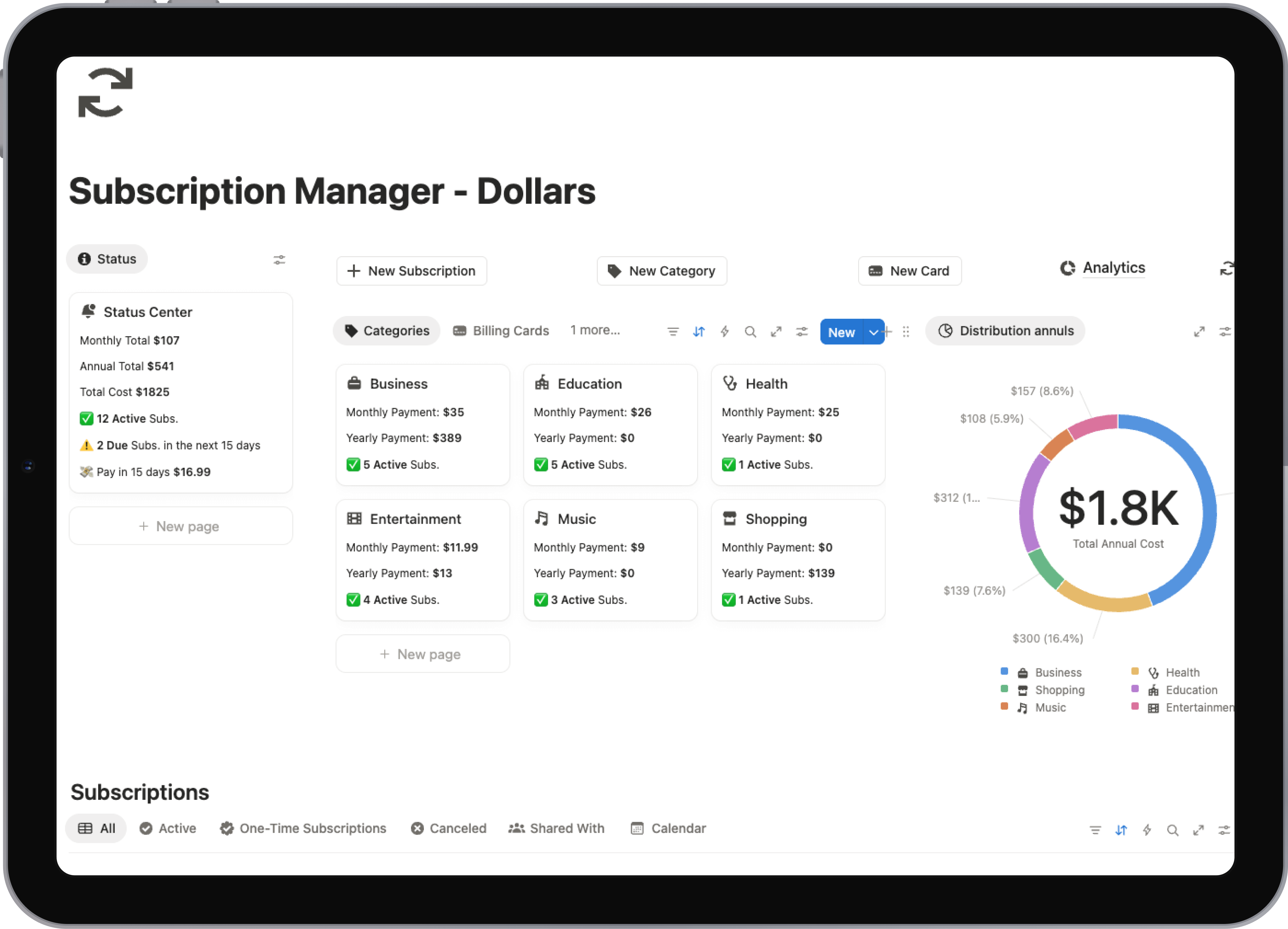
Ready to skip the setup and get straight to planning? Flowtion offers a collection of professionally designed Notion templates, including comprehensive planners that are ready to use in seconds. Find your perfect Notion template today and start organizing your life with a proven system.