Master Notion Tasks Management
Unlock productivity with our guide to Notion tasks management. Build a powerful, streamlined system using databases, relations, and automations today.
If you've ever felt like you're drowning in a sea of apps for your projects, notes, and to-do lists, I know the feeling. The real problem isn't the tasks themselves; it's that most traditional task managers rip your to-do list out of its context, leaving it stranded from the very documents and project plans it relates to.
This guide is all about fixing that. We're going to walk through building a powerful, unified Notion tasks management system that brings everything together.
Why Your Current Task Manager Probably Isn't Cutting It
The hunt for the perfect to-do list app is a familiar story. So many of us bounce between tools like Trello, Asana, and Todoist, hoping the next one will magically organize our lives. While each of these apps is great at what it does, they all share a fundamental flaw: they operate in a vacuum.
Your tasks live in one place, your project briefs in another, and your client notes are buried somewhere else entirely. This constant app-switching isn't just a time sink; it creates a ton of mental friction and makes it nearly impossible to see the big picture. Your tasks end up disconnected from the "why" behind them, which is a recipe for missed details and confusion.
The Problem With Disconnected Workflows
Think about a typical workflow. You might check a task in Asana, then hunt for the project brief in Google Docs, and finally dig through your email to find client feedback. Every switch is a new context, and the chance of something important falling through the cracks grows with every app you open.
This is where a tool like Notion completely changes the game. Instead of handing you a rigid, pre-built list, Notion gives you a blank canvas. It empowers you to build a custom workspace where your tasks live right alongside all the information that gives them meaning.
By integrating tasks directly with their related documents, project boards, and knowledge bases, you build a single source of truth. This holistic view is what takes you from just managing a list to truly orchestrating your work.
Escaping the Silo Effect
Many organizations that switch to Notion find they can dramatically cut down on the number of apps they use daily—a problem Notion calls 'tech bloat.' Teams can plan projects, delegate tasks, and track progress all in one shared space, which naturally boosts collaboration and efficiency.
Ready to see how a custom Notion system stacks up against the old way of doing things?
Traditional Task Managers Vs Notion Task Management
This table breaks down the key differences, showing why building your own system in Notion is so much more powerful than using a standard, off-the-shelf app.
| Feature | Traditional Task Managers | Notion |
|---|---|---|
| Customization | Limited to predefined layouts and features. | Fully customizable databases, views, and properties. |
| Context | Tasks are isolated from related documents and notes. | Tasks live alongside project plans, meeting notes, and wikis. |
| Flexibility | Rigid structure (e.g., lists, boards). | Dynamic views (Kanban, calendar, timeline, list) from one database. |
| Integration | Relies on third-party integrations for everything. | Natively connects all your information in one workspace. |
| Cost | Often requires multiple subscriptions for different needs. | A single subscription can replace several other tools. |
Adopting this unified approach transforms notion tasks management from a simple checklist into a dynamic, interconnected system that supports deep, focused work.
Of course, Notion's flexibility means it's not a silver bullet for every single workflow. For some highly specialized needs, other tools might still be a better fit. For instance, you can explore a deep dive into Notion's capabilities and limitations for developers. For the vast majority of us, though, bringing everything into one place is the first and most important step toward a more organized and productive way of working.
Building Your Central Tasks Database
The entire foundation of a rock-solid Notion task management system rests on one thing: a single, powerful "Master Tasks" database. Don't think of this as just another to-do list. It’s the command center for your entire workflow. Every single task, idea, or reminder you capture will live right here. Getting this part right from the get-go is what sets you up for some serious clarity and control down the road.
First things first, create a new full-page database in Notion and give it a clear name like "Master Tasks" or "My Actions." This one simple move is how you avoid the classic mistake of scattering tasks across dozens of different pages and projects, which is a surefire recipe for chaos. The goal is to create one undisputed source of truth for everything on your plate.
This is the journey we're on—moving from a messy, multi-app headache to a clean, unified system. That's exactly what a central database makes possible.
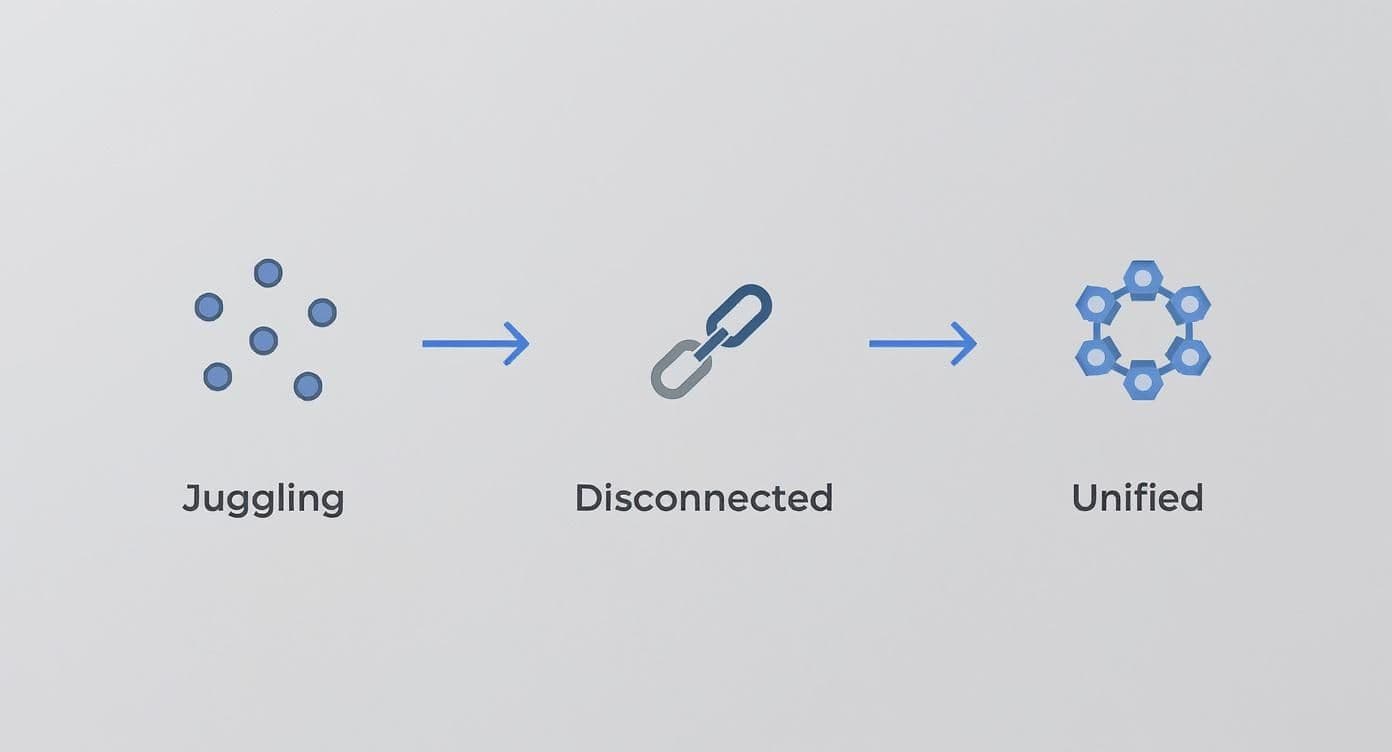
By bringing everything into one place, you stop juggling disconnected items and start operating from a single, organized hub.
Laying Down the Essential Properties
The real magic of a Notion database comes from its properties. These are the fields that turn a simple task name into a rich, sortable piece of data, giving it all the context it needs. Let's get the most critical ones configured.
First up is the Status property. I highly recommend using Notion's built-in Status property type over a standard Select. It comes pre-packaged with logical groups like "To-Do," "In Progress," and "Done" that Notion is designed to work with. Of course, you can customize these to match your personal workflow, maybe adding stages like "Backlog," "Next Up," or "On Hold." This property is the key to unlocking those visual Kanban boards we all love.
Next, you'll want a Priority property, and for this, the Select type works perfectly. This is how you'll quickly spot what truly needs your attention. I've found a simple system with emojis works wonders for scannability:
- P1 - High 🔥
- P2 - Medium 🟡
- P3 - Low ⚪
- P4 - Someday ☁️
Adding emojis and color-coding each option makes your high-priority items jump right off the page. It’s a small tweak that has a massive impact when you’re staring down a long list of tasks.
And finally, the absolute non-negotiable: the Due Date. Use the Date property for this. It lets you assign deadlines, which is essential for building out calendar views and a focused "Today" list. You can also use it to set reminders so nothing ever slips through the cracks.
My Two Cents: When you're just starting out, fight the temptation to add a dozen properties. A cluttered database is just as bad as a disorganized one. Stick with Status, Priority, and Due Date to begin with. You can always layer in more complexity, like an "Assignee" or "Area," as your system grows.
The rapid shift to Notion for task management speaks for itself. The platform's user base exploded from 25 million to 40 million in just one year leading up to 2025. What's more, productivity data shows that users with a structured system report an 87% higher task completion rate than those on more traditional tools.
Thinking Ahead with Connections
Even at this early stage, it pays to think about the future. One of the most powerful things you'll eventually do is connect your tasks to bigger projects. To get ready for that, go ahead and add a Project property now, using the Relation type.
You won't actually connect it to anything just yet, but having the property in place from day one is a huge time-saver. Later, when you build your "Projects" database, linking the two will be a breeze. This kind of foresight is what elevates a basic to-do list into a truly integrated notion tasks management system.
With these core properties—Status, Priority, Due Date, and a placeholder for Projects—your Master Tasks database is now a robust foundation. It's primed and ready to capture every task that comes your way, giving you all the data you need to build the focused, actionable views we'll tackle next.
Designing Views for Focused Work
Having a master tasks database is the engine of your system, but let's be honest—staring at a raw, unfiltered list is just overwhelming. The real magic of managing tasks in Notion happens when you create focused views that show you exactly what you need to see, right when you need to see it. This is how you turn a giant data dump into a calm, actionable dashboard.
Think of it this way: instead of drowning in a sea of hundreds of tasks, you're creating specific, purposeful windows into your database. Each view is just a different lens—a calendar, a Kanban board, or a simple to-do list—that filters and sorts your master list to answer a critical question, like, "What do I actually need to do today?"
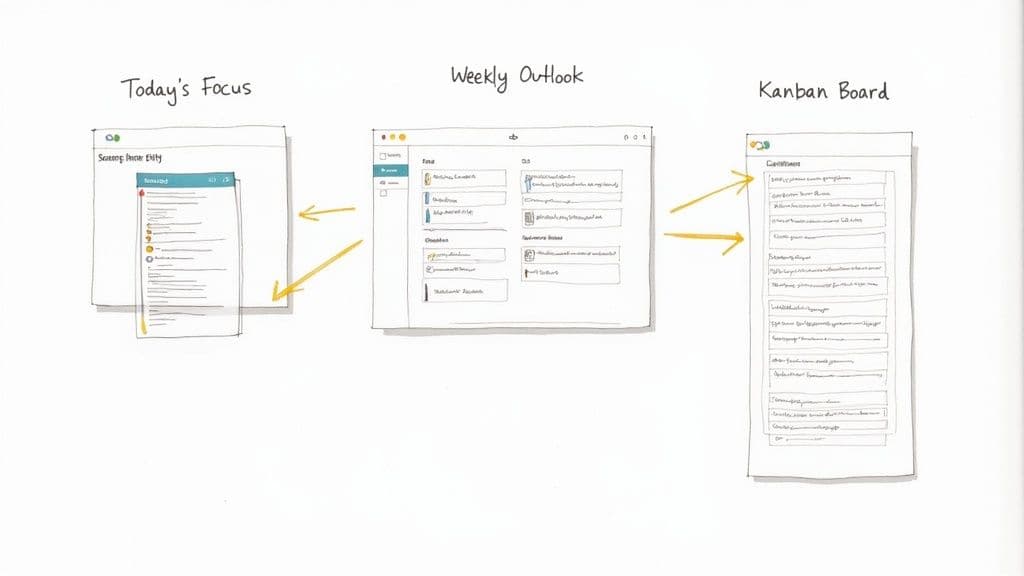
This approach is powerful because it lets you maintain a single source of truth while interacting with your tasks in whatever way makes the most sense at that moment. Let’s get our hands dirty and build out the three views I consider absolutely essential for daily productivity.
The Daily Focus View
Your most important view, without a doubt, will be your "Today" or "Focus" list. This is your command center for the day. It’s designed to cut through all the noise and show you only what's on your plate right now. The goal is to create a view so clean that you can open it first thing in the morning and know exactly where to start.
To build it, create a new linked view of your master tasks database and set the layout to List. From there, it's all about applying a couple of crucial filter and sort rules:
- Filter 1:
Due DateisToday. This is the core logic, pulling in only tasks with today's deadline. - Filter 2:
Statusis notDone. This is a non-negotiable step. As you complete tasks, they should vanish, keeping your list clean and forward-looking. - Sort:
PriorityisAscending. This automatically pushes your High Priority (P1) tasks straight to the top, ensuring you tackle what matters most first.
With this simple combination, you've created a powerful, dynamic to-do list that updates itself every single day. No more manually curating a daily plan.
The Kanban Board Workflow
While a list is great for daily execution, a Kanban board gives you that big-picture, visual overview of your entire workflow. It’s perfect for weekly planning sessions or just for tracking how tasks are moving through different stages. It answers the question, "Where does everything stand?"
Go ahead and create another linked view, but this time, choose the Board layout. The key is to group the board by your Status property. Notion will instantly create columns for "To-Do," "In Progress," and "Done." Now you can visually drag and drop tasks between stages—an act that is both incredibly intuitive and weirdly satisfying.
To keep this board effective, add one simple filter:
- Filter:
Statusis notDone.
This keeps your board from getting cluttered with completed items and focuses it squarely on active work. Some people like to see finished tasks for a day or so, but I find that hiding them by default creates a much cleaner and more motivating workspace.
A well-designed Kanban view does more than just track tasks; it tells a story about your momentum. Seeing tasks flow from left to right provides a powerful psychological boost and helps you spot bottlenecks before they become major problems.
The Weekly Outlook Calendar
Finally, you need a way to look ahead. A calendar view is essential for planning your week and seeing how deadlines are stacking up. It’s your early warning system, helping you spot busy periods and rebalance your workload before you get swamped. This view answers, "What's my week looking like?"
Create a third linked view and pick the Calendar layout. Notion will automatically use your Due Date property to place everything correctly. This gives you an instant, high-level perspective of your commitments. If you want to take planning a step further, you can explore a dedicated Notion calendar template that integrates events and meetings right alongside your tasks.
Here's a pro-tip to make this view even more useful: configure the properties shown on the calendar cards. I always recommend showing the Priority and Status properties. That way, you can see at a glance not just when a task is due, but also its importance and current stage, all without needing to click into the page.
With these three views in place—Today, Kanban, and Calendar—you’ve built a truly dynamic dashboard. You have a focused daily list for execution, a visual workflow for progress tracking, and a forward-looking planner. This setup, all powered by a single, organized database, is the core of an effective Notion task management system.
Connecting Tasks to Your Bigger Picture
A long list of tasks, even a neatly organized one, can start to feel like an endless stream of chores. It’s easy to lose sight of why you're doing them. The real magic happens when you connect those individual to-dos to their larger purpose, transforming your task list from a simple checklist into a genuine project management hub.
This is where Notion's superpower—relational databases—comes into play. By setting up a separate database for your "Projects" and linking it to your "Master Tasks" database, you add a layer of context that most task apps just can't match. Suddenly, every single action you take is clearly moving a bigger goal forward.
Creating the Projects Database
First things first, let's build that high-level view. Create a new full-page database and call it "Projects." This will be your command center for major initiatives. Don't overcomplicate it; you only need a few key properties to get started:
- Project Name: The title, like "Q3 Marketing Campaign" or "Website Redesign."
- Status: A
Selectproperty is perfect here. Use simple labels like "Planning," "Active," and "Completed." - Timeline: A
Dateproperty with an end date helps keep deadlines in sight.
With that in place, pop back over to your "Master Tasks" database. Find the Relation property we talked about earlier (or add a new one) and connect it to your new "Projects" database. This simple two-way link is the bridge between your daily grind and your strategic goals.
Now, when you add a task like "Draft ad copy," you can link it directly to the "Q3 Marketing Campaign" project. This small step creates a powerful, interconnected web of information. It's a foundational concept for building any robust knowledge management system, something we dive deeper into in our guide to creating a Notion second brain.
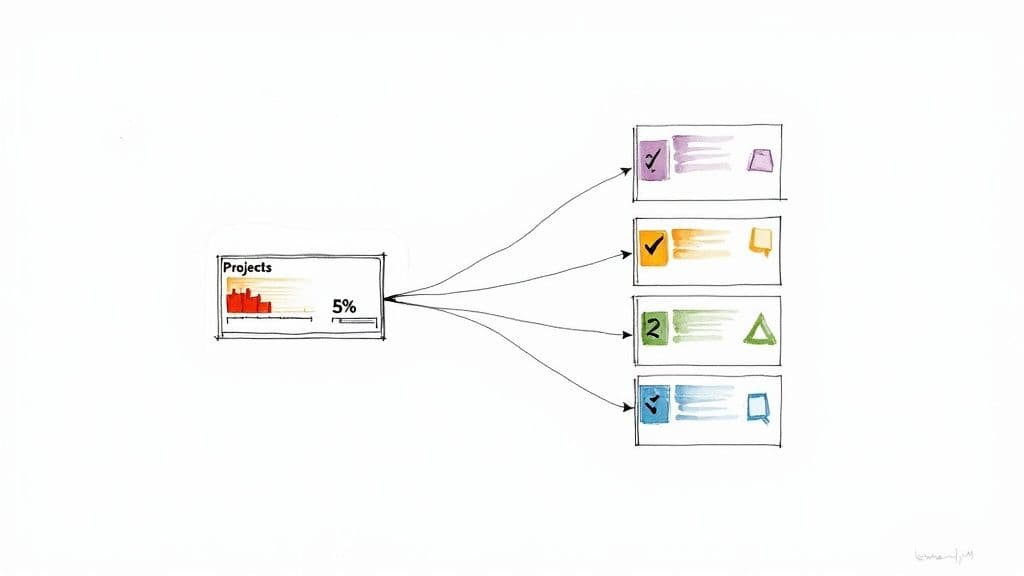
This Relation property makes your project pages dynamic. Instead of being static documents, they become live dashboards that automatically pull in every single related to-do.
Leveling Up with Rollups
Once the databases are linked, it's time to unlock another incredibly useful feature: Rollups. A rollup lets you pull data from a related database and perform calculations on it. For our purposes, this is how we'll create an automated progress bar for each project. No more manual tracking.
In your "Projects" database, add a new property and choose the Rollup type. You'll see a configuration menu. Here’s the exact setup for a live progress bar:
- Relation: Select your "Master Tasks" database.
- Property: From the list of task properties, pick "Status."
- Calculate: Choose "Percent per group," and then select "Complete."
Just like that, Notion will now look at every task linked to a project, see how many are marked "Done," and show you the result as a percentage. For an extra touch, you can edit the property's appearance to display it as a "Bar" for a clean, visual look at your progress.
This one rollup property transforms your Projects database from a static list into a living, breathing dashboard. It gives you an instant, at-a-glance understanding of how each project is progressing, so you can spot things that are falling behind without having to dig through dozens of individual tasks.
This kind of automated visibility is a total game-changer. Imagine seeing that your "Website Redesign" project is 75% complete just by glancing at a progress bar. You’re no longer guessing or manually tallying tasks. This is what turns a good task management system into a great one, giving you the clarity you need to stay on track.
Automating Your Workflow with Templates
<iframe width="100%" style="aspect-ratio: 16 / 9;" src="https://www.youtube.com/embed/GOy6uVrSjuA" frameborder="0" allow="autoplay; encrypted-media" allowfullscreen></iframe>A solid Notion task system isn't just about wrangling today's to-do list; it's about making your future self's job easier. The single best way to do that is by stamping out repetitive setup work. This is exactly where Notion's database templates and recurring task features shine, saving you a surprising amount of time and mental overhead.
Think about it. Instead of manually building out the same list of sub-tasks every time you start a new blog post or onboard a client, you can create a template that populates everything with a single click. This isn't just a time-saver—it builds consistency and quality control right into your process, ensuring no crucial steps get missed.
Creating a Practical Database Template
Let’s walk through a real-world example: managing new content ideas. Every idea probably follows a similar journey from a spark of inspiration to a published article. Building a template for this process ensures every piece of content gets the same thoughtful treatment.
Head into your "Master Tasks" database, click the little down-arrow next to the blue "New" button, and hit "+ New template." We'll call this one "New Content Idea."
Now, you can pre-configure the properties and even the page content.
- Set Priority to P3 - Low ⚪: Most new ideas aren't on fire just yet.
- Pick a memorable icon: A lightbulb 💡 works perfectly for instant recognition in your database view.
Inside the body of the template, you can lay out the entire workflow as a checklist. This becomes your standard operating procedure.
Content Production Checklist
- Research keywords and outline main points
- Write the first draft
- Find or create visuals (screenshots, graphics)
- Edit for clarity and grammar
- Final proofread before publishing
- Schedule for publication
- Promote on social media channels
And just like that, whenever you select the "New Content Idea" template, this whole structure appears instantly. You’ve standardized your workflow and nearly eliminated the chance of forgetting a step. You can dig into a pre-built Notion to-do list template at https://theflowtion.com/blog/notion-to-do-list-template to see how powerful these can be for daily planning.
Setting Up Recurring Tasks for Routine Duties
What about those tasks that pop up like clockwork every week or month? Manually creating cards for "Submit Weekly Report" or "Review Monthly Finances" is tedious and a recipe for forgetting something important. This is what recurring tasks were made for.
Truthfully, Notion’s native recurring tasks feature is still a bit basic. Simple repeats are easy enough, but for more complex schedules (like the "last Friday of every month"), many people turn to third-party tools like Zapier or Make.com. That said, Notion is always making improvements here.
A popular workaround I've seen—and used myself—is to create a "template button" on a dashboard page. You can configure this button to spit out a new task in your database with all the properties pre-filled. It’s not fully automated, but a one-click solution is a whole lot faster than starting from scratch.
Beyond standard templates, you can really level up by mastering Notion AI to supercharge your productivity. It can help you brainstorm task lists, write summaries, and even draft content, adding another powerful layer of automation to your system.
If you'd rather not build from the ground up, tons of creators offer advanced, plug-and-play templates. For example, some of the best Notion templates for project management you can find online include complete systems with project dashboards and sophisticated recurring task setups already built-in.
By combining database templates for your complex projects with a system for recurring duties, you're building a task manager that almost runs itself. It reduces the manual grind, keeps your work consistent, and frees you up to focus on the work that actually moves the needle.
Got Questions About Notion Task Management?
When you first dive into a tool as flexible as Notion, a few questions are bound to pop up. You start wondering if it can really do everything you need or what the "right" way to set things up is. Don't worry, that's part of the process.
Here are answers to some of the most common questions I hear from people building their own task management systems in Notion.
Can Notion Really Replace Apps Like Todoist or Asana?
For a lot of people, the answer is a definite yes. The magic of Notion is that your tasks don't live in a silo. They live right alongside the project notes, client briefs, and research documents they belong to. It creates this incredibly rich, all-in-one workspace where you have all the context you need.
Now, if your team is deeply embedded in a tool like Asana, you might miss some of its very specific, rigid project management features, like advanced workload reporting. But Notion's strength is its infinite flexibility. You get to build a system that works exactly the way your brain works.
The truth is, there's no "perfect" task management app. The best one is the one you actually stick with. Notion wins for people who want to build their own command center. Others might find the out-of-the-box structure of Todoist or Asana a better fit.
What's the Best Way to Handle Sub-Tasks in Notion?
This is a classic dilemma! You have two great options, and which one you choose just depends on how complex your task is.
For simple, multi-step tasks, just use a checklist block. I do this all the time for things like a "Publish Blog Post" task. I'll just drop in a checklist with items like "Write draft," "Find images," and "Schedule social posts" right on the task's page. It's quick, easy, and gets the job done.
But what about when your sub-tasks are more involved? Maybe they need their own deadlines or assignees. In that case, the best approach is to create a separate "Sub-tasks" database. Then, you can use a Relation property to link them back to the main "parent" task. This unlocks powerful Rollups that can, for example, show you a progress bar on the parent task as you complete its sub-tasks.
How Can I Share Just One Task Without Giving Away My Whole Workspace?
This is so important, especially when working with clients or freelancers. The good news is, Notion makes it incredibly simple and secure.
To share a single task, just open up its page, hit the "Share" button in the top right, and invite your collaborator by email. You can give them specific permissions—like view, comment, or full edit access—for that one page only. The rest of your Notion workspace stays completely private.
If you need to share a whole group of tasks for a project, here’s a pro tip: create a new page just for that client or project. Then, add a "Linked View of Database" and filter it to show only the tasks relevant to them. Share that single page, and they'll have a live, focused dashboard of everything they need to see, and nothing they don't.
Is It Possible to Sync My Notion Tasks with Google Calendar?
Absolutely. Getting your Notion tasks to show up on your Google Calendar is a game-changer for staying on top of deadlines.
The most popular way to do this is with an automation tool like Zapier or Make.com. You can easily set up a little workflow (or "Zap") that says, "When a new task with a due date is added to my Notion database, create an event in Google Calendar."
Some of these automations even support two-way sync, so updating the event on your calendar can update the task back in Notion. While Notion is always improving its own integrations, these third-party tools are currently the most reliable way to build that bridge between your to-do list and your schedule.
Want to skip the setup and jump straight into a professional-grade system? Flowtion offers battle-tested templates that transform Notion into a productivity powerhouse. You can duplicate a fully-optimized task management system with just one click. Start managing your tasks like a pro today at https://theflowtion.com.