Build Your Ultimate Notion Second Brain
Learn how to build a powerful Notion second brain from scratch. This guide covers architecture, databases, workflows, and templates to organize your life.
Think of a Notion "second brain" as your personal digital command center. It’s a system you build within Notion to grab, sort, and link all your ideas, notes, and project details. It becomes a reliable external memory, turning a messy pile of information into a knowledge base you can actually use.
Why You Need a Second Brain in Notion
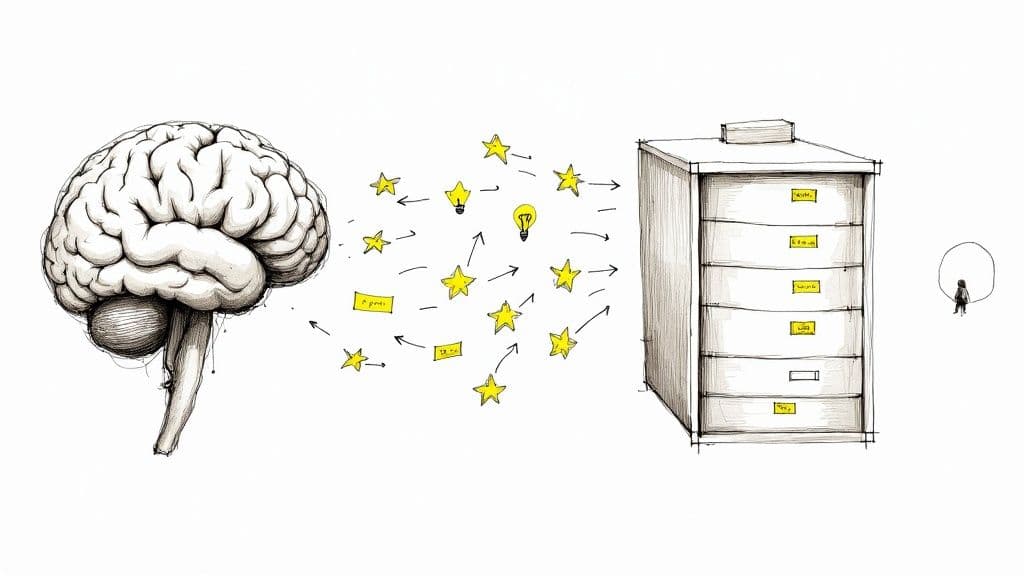
Does the constant firehose of information leave you feeling overwhelmed? You’re definitely not alone. Our brains are fantastic at coming up with ideas, but they're terrible at holding onto them long-term. We read articles, watch videos, and have those brilliant "shower thoughts" that disappear just as quickly as they came.
This isn't a personal flaw; it's just how our minds are wired. There's a well-known phenomenon called the 'forgetting curve,' which shows that most of us forget around 70% of new information within 24 hours if we don't revisit it. A Notion second brain is your defense against this, giving you a trustworthy place to store everything. You can read more about this on https://theflowtion.com/blog/notion.
Ultimately, building this system is about applying effective knowledge management strategies to get your digital life in order and learn faster. It's a dedicated space to offload all that mental weight, so your best ideas don't get lost in the noise.
From Digital Chaos to Organized Clarity
Before I fully committed to this, my digital life was a total mess. I had random notes in one app, project tasks in another, and a long list of bookmarked articles I never looked at again. It was pure chaos. The lightbulb moment for me was realizing that a second brain isn't about finding some magical, perfect app—it's about building a system that works for you.
Here’s what you gain from this approach:
- One Place for Everything: All your thoughts, notes, and to-dos live in a single, interconnected hub. No more jumping between a dozen different tools.
- A Creativity Boost: When you start linking seemingly unrelated ideas, you'll spot patterns and come up with new insights you would have otherwise missed.
- Less Mental Stress: By offloading information to a system you trust, you free up mental RAM. This lets you focus on deep thinking and creating, not just trying to remember things.
- Actionable Knowledge: Your notes stop being passive bits of text and become active building blocks for your projects, content, and personal development.
A second brain turns you from someone who just consumes information into an active architect of your own knowledge. It’s not about storage; it's about creating a living ecosystem where your ideas can connect and grow.
The whole point is to build a reliable partner for your mind. This guide isn't about abstract theory—it's a practical blueprint for building a digital extension of your brain that you'll actually use every day. This system has been the single biggest improvement to my own workflow, bringing a sense of calm and control I didn't have before.
Designing Your Core Architecture with PARA
Before you start dragging and dropping databases into your Notion workspace, we need to talk about the blueprint. Without a solid plan, even the most beautifully designed setup will eventually become a digital junk drawer. I've seen it happen time and time again.
The most reliable framework I've come across for building a Second Brain is the PARA method. It stands for Projects, Areas, Resources, and Archives, and it’s a game-changer.
Think of PARA less like a rigid filing system and more like a way to organize your digital life based on actionability. This simple shift is what makes it so powerful. It keeps what you're actively working on right in front of you, while everything else is neatly tucked away but still easy to find.
What’s a Project?
A Project is simply a series of tasks tied to a specific goal with a deadline. These are the most active items in your entire system—they have a clear finish line. Once the goal is met, the project is done.
This is where you'll be spending most of your time day-to-day. It’s the "doing" part of your Second Brain.
- For a freelance designer: This could be "Client Website Redesign for Company X," due June 30th.
- For a content creator: It might be "Produce Q3 YouTube Video Series," which is finished once the last video goes live.
- For a student: A classic example is the "Final Term Paper in History" due at the end of the semester.
These are all time-bound and have a defined outcome. You can see how to build these out into powerful dashboards in our deep-dive on using Notion for project management.
What’s an Area?
An Area is a sphere of your life or work that requires a certain standard to be maintained over time. Unlike projects, Areas never really end—they represent your ongoing responsibilities and bigger-picture interests.
Just think of them as the different hats you wear. Your health, your finances, your professional development—these are all Areas. They demand consistent attention but you never truly "finish" them.
Here’s the key difference: a Project has a finish line. If it has a specific end date and a clear goal, it’s a Project. If it's an ongoing part of your life you need to manage, it’s an Area.
Let’s look at how this plays out:
- Freelance Designer: "Business Development" is a classic Area. It involves ongoing work like networking and marketing that never really stops.
- Content Creator: "YouTube Channel Management" is an Area. This bucket holds recurring tasks like checking analytics and engaging with the community.
- Student: Their "Biology Major" is an Area of responsibility. Within that Area, specific projects (like that term paper) will exist.
What Are Resources?
A Resource is any topic or theme you’re interested in. This is your personal library, your digital bookshelf, the "thinking" part of your system. It's where you'll stash articles, book notes, cool links, and any other piece of information you want to keep for later.
This is probably the most passive of the active categories. You're not taking direct action on these things right now, but you’re collecting and curating them for future projects or just for your own learning. Your Resource database is what will fuel your creativity for years to come.
For example, you might have a Resource for "Digital Marketing" where you save SEO articles and social media case studies. Another could be "Woodworking," filled with project plans and technique tutorials. It's a collection of knowledge on things that just pique your curiosity.
The PARA Method Explained
To see how these pillars work together for different people, here’s a quick breakdown.
| Pillar | Definition | Example for a Freelancer | Example for a Student |
|---|---|---|---|
| Projects | A task or series of tasks with a defined goal and deadline. | Website build for Client Y | Essay on Roman History |
| Areas | An ongoing sphere of responsibility with a standard to maintain. | Finances | Computer Science Major |
| Resources | A topic of ongoing interest that isn't tied to a specific project. | Copywriting examples | Notes on Python |
| Archive | Completed or inactive items from the other three categories. | Completed projects from Q1 | Notes from last semester's classes |
This structure ensures your workspace stays focused on what's active and relevant right now.
What’s the Archive?
Finally, we have the Archive. This is the final resting place for any inactive items from the other three categories. Completed projects, Areas you're no longer involved with, and Resources that just aren't relevant anymore—they all go here.
Don't think of the archive as a trash bin. It's more like cold storage. You don't need these items cluttering up your active workspace, but you also don't want to delete them forever. Archiving them keeps your Notion clean and focused while making sure you have a complete record of your past work. This is the secret to building a notion second brain that lasts.
Laying the Foundation: Your Core Notion Databases
Now that we have the PARA method as our blueprint, it's time to roll up our sleeves and build the digital foundation. The engine of a powerful Notion Second Brain isn't some ridiculously complex web of pages—it’s actually just a handful of smart, interconnected databases. We're going to build the five core databases that will become the home for every single piece of information you decide to keep.
The real power here isn't in the databases themselves, but in how they talk to each other. This is what turns a bunch of static notes into a living, breathing knowledge system where ideas are always connected to the bigger picture. We're not just making digital filing cabinets; we're building a network designed for discovery.
The Five Databases That Run Your System
First things first, you'll need to create five separate, full-page databases inside your Notion workspace. Think of these as the main pillars holding up your entire system. Everything else—every note, task, and idea—will eventually connect back to one of these.
The infographic below shows how the PARA components—Projects, Areas, Resources, and Archive—map directly onto this database structure.
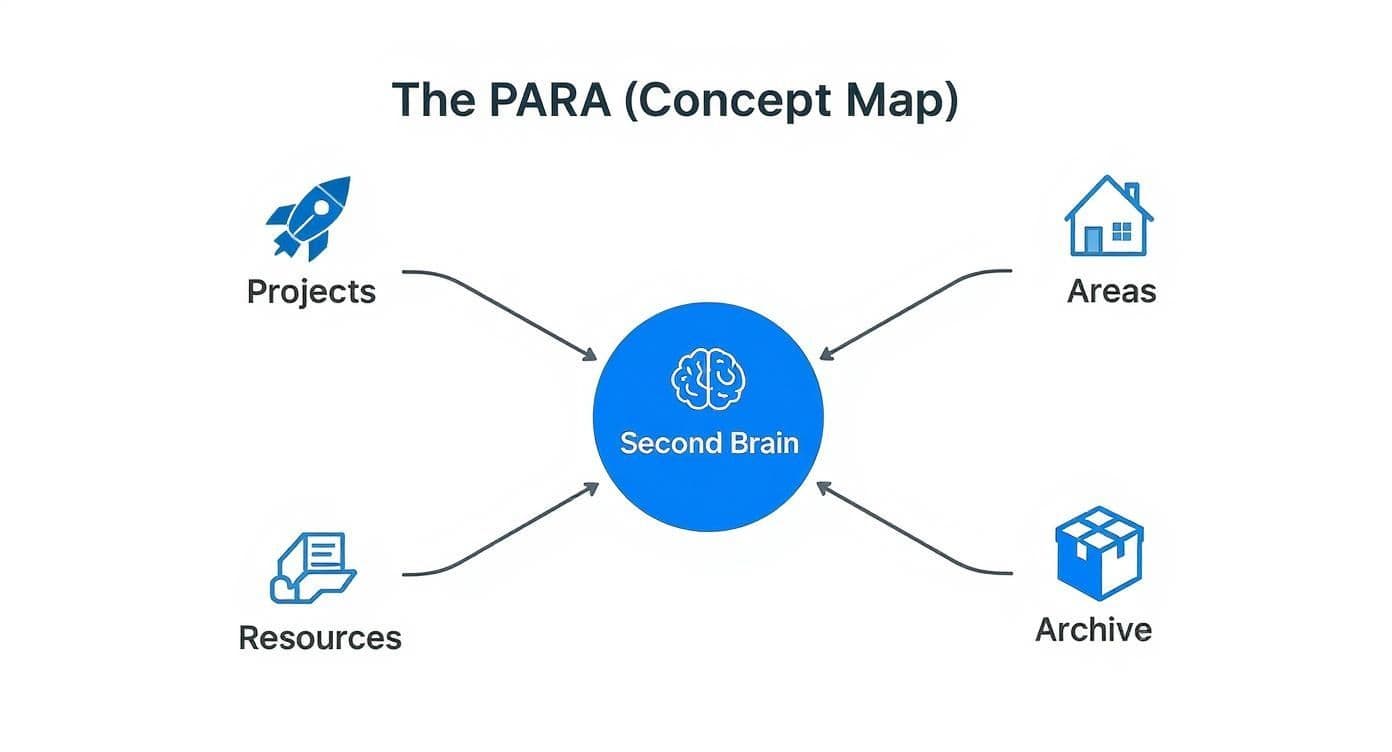
As you can see, each one serves a very specific job, making sure every piece of info you save has a clear and logical place to live.
Here are the five databases we’re about to create:
- Inbox: The digital front door. This is for capturing thoughts and links on the fly without having to organize them immediately.
- Projects: Home for all your active goals that have a clear finish line.
- Areas: For the ongoing responsibilities and standards you maintain in your life.
- Resources: Your personal library, full of notes, articles, and inspiration on topics that interest you.
- Archive: The cold storage. Anything completed or no longer relevant goes here.
Crafting Your Projects Database
The Projects database is where the action happens. Every entry here should be a concrete goal with a deadline, like "Launch Q3 Marketing Campaign" or "Finish Website Redesign." The key to success is keeping this database lean and focused only on what you're actively working on. This is how you maintain clarity and momentum.
To make it truly useful, we need to add a few properties to track everything. Don't just stick with the default "Name" property. Add these:
- Status (Select): This is non-negotiable for tracking where things stand. I like using
Not Started,In Progress,On Hold, andCompleted. - Due Date (Date): Every real project has a deadline. This keeps you honest.
- Priority (Select): A simple
High,Medium,Lowsystem is all you need to figure out where to put your energy each week.
By adding just these three properties, you’ve turned a simple to-do list into a real project management tool that fits your workflow.
Structuring Your Areas and Resources
Next up are your Areas and Resources databases. These can start out much simpler, since their primary job is to help categorize and connect information.
For your Areas database, each entry is simply one of the hats you wear in life. Think Personal Finance, Health & Wellness, or Client Management. The main goal here is to give your projects and resources a high-level home. A Status property with Active and Inactive can be useful for tidying up later.
The Resources database is your personal knowledge library. Every entry is a topic you're interested in, like AI Productivity, Web Design Trends, or Classic Literature. To make it work, add these properties:
- Type (Select): Helps you sort your library. Use tags like
Article,Book Notes,Video,Podcast, orCourse. - URL (URL): A dedicated spot for the source link.
- Status (Select): Perfect for managing what you plan to read or watch. I use
To Read,Reading, andFinished.
Don't get hung up on making these databases perfect from day one. They are living things. Start with these basics and add or remove properties as you figure out what you actually need. The goal is a useful tool, not a complex one.
The Magic: Tying It All Together with Relations
Okay, this is where your Second Brain truly comes alive. Right now, we have five separate, isolated databases. By using Notion's Relation property, we're about to weave them into a powerful, interconnected web of knowledge.
A Relation lets you link an entry in one database to an entry in another, creating a two-way connection that lets you jump between related info seamlessly.
Let's set up the most important connections:
-
Link Projects to Areas: Open your Projects database. Add a new property, choose "Relation," and select your Areas database. Now, for every project (e.g., "Plan Summer Vacation"), you can link it directly to its parent Area (e.g., "Family").
-
Link Resources to Projects: Do the same thing, but this time from your Projects database to your Resources database. When you're working on a project, you can now link all the articles, research, and notes you need right to the project page itself.
-
Link Resources to Areas: Finally, connect your Resources to your Areas. This lets you see all the knowledge you've gathered on a specific part of your life, even if it's not for a current project.
Think about it: a single article you saved on "Effective SEO Strategies" (Resource) can be linked to your "Q3 Content Marketing Plan" (Project), which is part of your "Marketing" Area. Suddenly, that one note has context and purpose. This is the very core of a functioning Notion Second Brain.
Once you have relations, you can use Rollups. A Rollup is a property that pulls information from a related database. For example, in your Areas database, you could create a Rollup that shows you the real-time status of every single project linked to that Area. This gives you an instant dashboard view of your life without having to click around. This is how you start to build true visibility across your entire system.
Making Capture Effortless
Your Second Brain is only as useful as the information you actually put into it. Let's be honest: if saving a great idea, a must-read article, or a critical email feels like a hassle, you just won't do it. The system breaks down the second it becomes a chore.
The whole point is to make getting information into your central Inbox so incredibly easy that you don't even have to think about it. It should become muscle memory. We're essentially building multiple, seamless on-ramps to your digital brain, so no matter where an idea strikes, you can capture it instantly.
Dialing in Your Capture Toolkit
To get to that zero-friction state, you need the right tools set up and ready to go. The great news is that you can send almost anything to your Notion Inbox without ever having to open the main app.
Here are the capture methods I rely on every single day:
- The Notion Web Clipper: This is non-negotiable for saving things from the web. Get the browser extension installed, and with a single click, you can zap an entire article, a simple link, or just a few highlighted sentences straight into your Inbox. Just be sure to configure it to save to your Inbox database by default.
- Mobile Share Sheet: This is your secret weapon for capturing on the move. When you find something interesting in a podcast app, your phone's browser, or on social media, just tap the "Share" button and pick Notion. A little window pops up, letting you send it right where it needs to go.
- Email Forwarding: Some of my most important tasks come from my email. Using a service that lets you forward emails directly into Notion is a game-changer. It’s perfect for turning client requests, important updates, or invoices into actionable items in your system.
Here's the real test for your setup: can you save a thought in less than 10 seconds? If not, figure out how to cut down the steps. Friction is the single biggest enemy of a well-maintained Second Brain.
The Weekly Inbox Triage
Getting things into your Inbox is just step one. An overflowing inbox is no better than a bunch of random sticky notes. To keep things from turning into a digital junk drawer, you absolutely must have a weekly ritual for processing everything you've captured.
This is the habit that makes the whole system click.
Block out 30 minutes once a week—Sunday evenings work well for a lot of people—to go through your Inbox. Remember, the goal isn't to do the tasks right then and there. It's to organize them for the week ahead.
Here's my simple process:
- Triage Everything: Open each item. Ask yourself, "What is this, and why did I think it was important enough to save?"
- Add Context: Now, make it useful for your future self. Give the page a clearer title. Add a quick note summarizing why that article is relevant or what you need to do with that idea.
- File it Away: This is where the magic happens. Move the item from the Inbox to its permanent home by linking it to the right Project, Area, or Resource.
- Act or Archive: If it’s a quick task—something that takes less than two minutes—just do it now and get it off your plate. If the item is no longer relevant, get rid of it. Be ruthless.
Sticking to this weekly review is what builds trust in your system, turning it into a reliable, up-to-date resource you can count on. Many people find it easier to build this habit when they start with a well-designed foundation. You can find some fantastic, highly-rated Second Brain templates on the Notion Marketplace that have helped users see a significant jump in their productivity.
Supercharge Your System with Templates and Automation
You’ve laid the foundation with your core databases. Now it’s time for the fun part: installing the engine that will make your Second Brain feel less like a filing cabinet and more like a personal assistant.
This is where templates and automation come in. Templates bring consistency and speed to your inputs, while automation builds bridges between Notion and the other apps you use every day. Together, they dramatically cut down on the manual work.
Standardize Your Inputs with Database Templates
Think about all the repetitive setup you do. Starting a new project, taking meeting notes, summarizing a book—each one likely follows a similar format. Doing that setup from scratch every single time is a quiet killer of momentum.
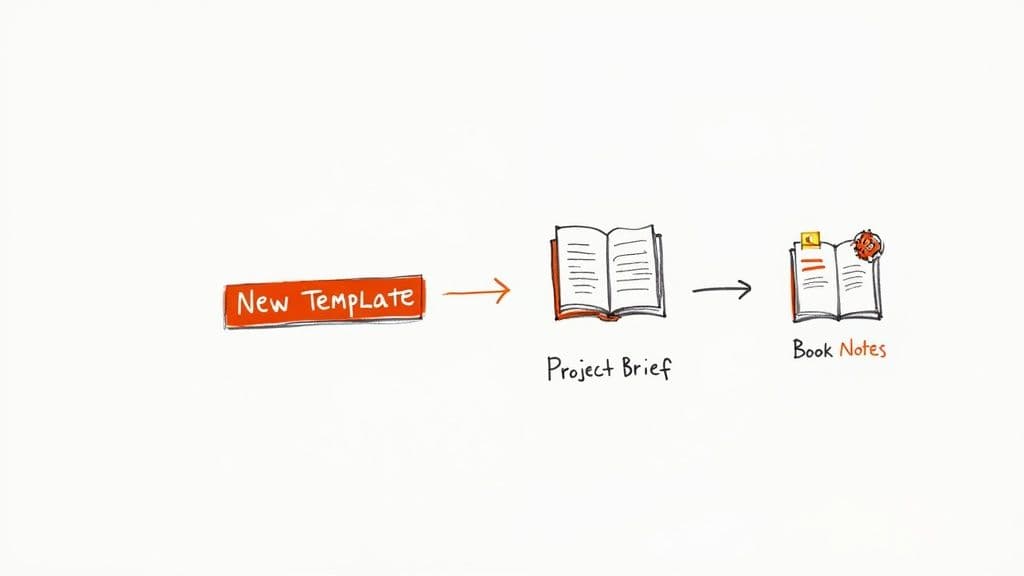
Notion’s database templates are the perfect fix. Within any database, you can design pre-built pages that you can summon with a single click.
Here are a few ideas to get you started:
- A "New Project" Template: Build one that automatically includes headers for
Goals,Key Deliverables, andTimeline, and maybe even a linked, filtered to-do list that only shows tasks for that project. - A "Book Notes" Template: I like to pre-populate mine with prompts like
Key Takeaways,Actionable Ideas, andQuotes to Remember. It guides my thinking and makes my notes far more useful later on. - A "Meeting Agenda" Template: Create a standard layout with fields for
Attendees,Discussion Points, andAction Items. You’ll never forget a critical detail again.
The real goal here is to systematize your thinking. When the structure is already handled, you can pour all your mental energy into the quality of the ideas, not the formatting.
Connect Your Digital World with Simple Automations
This is where your Second Brain starts to feel truly alive. Using tools like Zapier or Make.com, you can set up simple workflows that automatically send information into your Notion databases. Your workspace transforms from a place you have to constantly feed with information into a central hub that updates itself.
You can also use automation to push information out of Notion. For instance, you could build a workflow for scheduling LinkedIn posts from Notion, turning raw ideas directly into published content without ever leaving your workspace.
A few powerful automations to try first:
- Save Articles to Your Inbox: Connect a read-it-later app like Pocket to your Notion Inbox. Every article you save can automatically appear in your database, ready for processing.
- Turn Emails into Tasks: Create a rule where starring an important email in Gmail automatically generates a new task in your Projects database, with the email body copied right into the page.
- Auto-Create Meeting Notes: Link your Google Calendar so that any new event creates a corresponding meeting notes page in Notion, pre-linked to the correct project or area.
Build from Scratch or Use a Pre-built Template?
This is the big question: should you painstakingly build this system yourself, or grab a polished, pre-made template? There's no right answer, only what's right for you. Some of the most popular community templates have been adopted by tens of thousands of people, which shows just how effective a great starting point can be.
Deciding between building your own Second Brain and using a template is a classic trade-off between customization and speed. Here’s how I see it.
Build vs. Buy Comparing Second Brain Approaches
| Factor | Building from Scratch | Using a Pre-Made Template |
|---|---|---|
| Customization | Total control. The system is perfectly molded to your unique workflow and nothing more. | Less flexible. You may need to adapt your process to the template's structure. |
| Setup Time | Significant. Expect to spend hours, even days, building and refining your databases and relations. | Almost instant. You can duplicate a template and be up and running in minutes. |
| Learning Curve | Steep. You learn Notion's features deeply because you have to build everything yourself. | Shallow. The complex parts are already built, so you can focus on using the system. |
Honestly, there’s no shame in starting with a template. For many, it provides the best of both worlds—you get a powerful, road-tested system immediately, which you can then tweak and customize as you get more comfortable.
If you decide to go that route, our guide to the https://theflowtion.com/blog/notion-productivity-templates can help you find a great foundation to build upon.
Got Questions About Your Notion Second Brain?
Even with a solid plan, you're bound to have questions. Building a second brain in Notion isn't about setting it up once and forgetting it; it's a living system that grows and changes with you. Let's tackle some of the most common things people run into.
Think of these as tips from the trenches—practical advice to help you fix common problems, trust the system you've built, and make those small tweaks that keep everything running smoothly for years to come.
"How Do I Stop My System from Becoming a Total Mess?"
This is the big one. It's the number one fear I hear from people. You spend all this time creating a beautiful, organized workspace, and two weeks later, it feels like digital chaos. The fix isn't a more complicated system. It's a simpler, more consistent habit.
Your single best weapon against clutter is the weekly review. Block out time every single week to process your inbox, sort new notes, and tidy up. It’s the scheduled maintenance that prevents small messes from turning into an overwhelming disaster. Treat it as a non-negotiable meeting with yourself.
I like to think of a second brain as a garden. It needs regular weeding (archiving old stuff, deleting junk) and tending (processing new ideas). If you ignore it, you’ll come back to a jungle.
Also, get tough on what you allow into your system in the first place. Not every random thought or cool article you find needs to live there forever. If an idea isn't actionable or truly useful for a future project, it's okay to let it go.
"Is Notion Really the Best App for This?"
Honestly, plenty of apps can work as a second brain. Tools like Evernote, Obsidian, and Roam Research are all powerful in their own right. But Notion has a unique edge for this specific job because of how it blends databases, free-form pages, and visual layouts.
What makes Notion special is that it's an all-in-one workspace. You can have highly structured databases for your projects sitting right next to messy, unstructured pages for brainstorming—and they can all link together. That mix of structure and freedom is incredibly hard to find anywhere else.
- Obsidian and Roam: These are amazing for creating a web of interconnected notes (pure knowledge management). But they just don't have the robust project management features that let you turn Notion into a true "life OS."
- Evernote: It’s a classic for a reason and great for capturing notes quickly. But it feels more like a digital filing cabinet. You can't build the kind of dynamic, interactive dashboard in Evernote that you can in Notion.
At the end of the day, the best tool is the one you stick with. But if you need to manage active projects and a deep library of reference material, Notion’s flexibility is tough to beat.
"This Feels Way Too Complicated. Am I Doing It Wrong?"
Nope, you're not doing it wrong. It can absolutely feel rigid or overwhelming at first, especially if you fall into the trap of trying to build the "perfect" system from day one. I've seen people add dozens of database properties and complex formulas before they've even saved a single note.
The secret is to start small and let your system evolve naturally. Begin with just the core databases and only the properties you absolutely need, like "Status" and "Due Date." Then, actually use it for a few weeks. You'll quickly figure out what's missing. You might realize, "Hey, a 'Priority' tag would be really helpful here," or "I should probably create a database for my contacts and link it to my projects."
Let your real-world needs dictate how the system grows. The goal is a tool that serves you, not a complex machine that you have to serve. If any part of your setup feels like it's creating more work than it's solving, simplify it or just get rid of it. Your notion second brain should make your life easier, not add another layer of friction.
Ready to skip the setup and start organizing? Flowtion offers a complete suite of professionally designed templates that turn Notion into a powerful, intuitive workspace in just one click. Explore our battle-tested solutions at https://theflowtion.com and build your ultimate second brain today.