Master Your Notion Weekly Planning System
Build a powerful Notion weekly planning system from scratch. This guide covers databases, templates, and automations for ultimate productivity.
A proper Notion weekly planning system isn't just another checklist. Think of it as a dynamic framework, a command center that actively connects the small things you do every day to your biggest long-term goals. It’s what turns scattered, messy to-do lists into a focused, actionable plan.
Why a System Beats a Simple To-Do List
Does your weekly plan feel like an endless, disconnected list of chores? If so, you're not alone. The classic to-do list often falls short because it completely lacks context.
You might have "finish report" jotted down, but that single line item is totally isolated from the larger project it belongs to, its actual deadline, or how important it really is. This forces your brain to constantly re-evaluate what matters most, burning through valuable mental energy before you've even started.
A dedicated system, on the other hand, provides all that missing context. It’s the difference between a random pile of bricks and a detailed architectural blueprint. The blueprint shows you exactly how every single brick fits into the final structure. In the same way, a good Notion system links your daily tasks directly to your projects, goals, and timelines.
The Problem with Disconnected Tasks
The real weakness of a basic checklist is that it's completely static. Tasks don't just exist in a vacuum; they're part of a much larger workflow. Without a system to connect the dots, you lose sight of dependencies and the bigger picture, which makes it almost impossible to prioritize effectively.
Our blog has a ton of other guides on building powerful setups just like this one. You can find more inspiration on our Notion blog page. A well-designed planner solves this problem by making those connections visible.
Shifting from Reactive to Proactive Planning
A systematic approach finally lets you plan your week proactively instead of just reacting to whatever fire seems biggest at the moment. For anyone ready to graduate from basic task management, a Notion weekly planner is a foundational piece when you build your ultimate Notion Second Brain.
The data backs this up. While about 33% of people still rely on simple to-do lists, recent time management studies found that people using digital planners like Notion were a whopping 40% more likely to stick to their plans than those using pen and paper.
Here's a quick breakdown of how these two approaches really stack up:
Traditional To-Do List vs. Notion System
| Feature | Traditional To-Do List | Notion Weekly Planning System |
|---|---|---|
| Context | Low (Tasks are isolated) | High (Tasks link to projects, goals, notes) |
| Prioritization | Difficult (Relies on gut feeling) | Easy (Sort by priority, deadline, or project) |
| Flexibility | Rigid (Hard to reorder or reschedule) | Dynamic (Easily drag-and-drop, change views) |
| Visibility | Limited (Just a list of what's next) | Comprehensive (Calendar, timeline, and board views) |
| Integration | None (Stands alone) | Integrated (Connects with calendars, notes, etc.) |
As you can see, it's not just about listing tasks—it's about creating a living, breathing system that adapts to your needs and gives you a clear view of everything on your plate.
A great weekly plan doesn’t just list what you have to do; it provides a clear reason why you are doing it. It aligns your daily actions with your quarterly goals, turning small efforts into significant achievements over time.
Building Your Foundational Databases
The real secret to an effective Notion weekly planner isn't some fancy template or a single, magical page. It's the engine running under the hood: a set of interconnected databases. Think of them less like simple lists and more like powerful, structured containers for every commitment you have.
By building just a few core databases from scratch, you create a solid foundation that makes all the advanced planning possible. We're going to focus on three that work in harmony: a Tasks database, a Projects database, and a master Calendar. Each has its own job, but their true power is unlocked when you link them together. This is what separates a world-class system from a basic to-do list—it gives you context and clarity for every single action.
This process is all about moving from scattered thoughts and to-do lists into an organized, reliable system. You go from chaos to clarity.
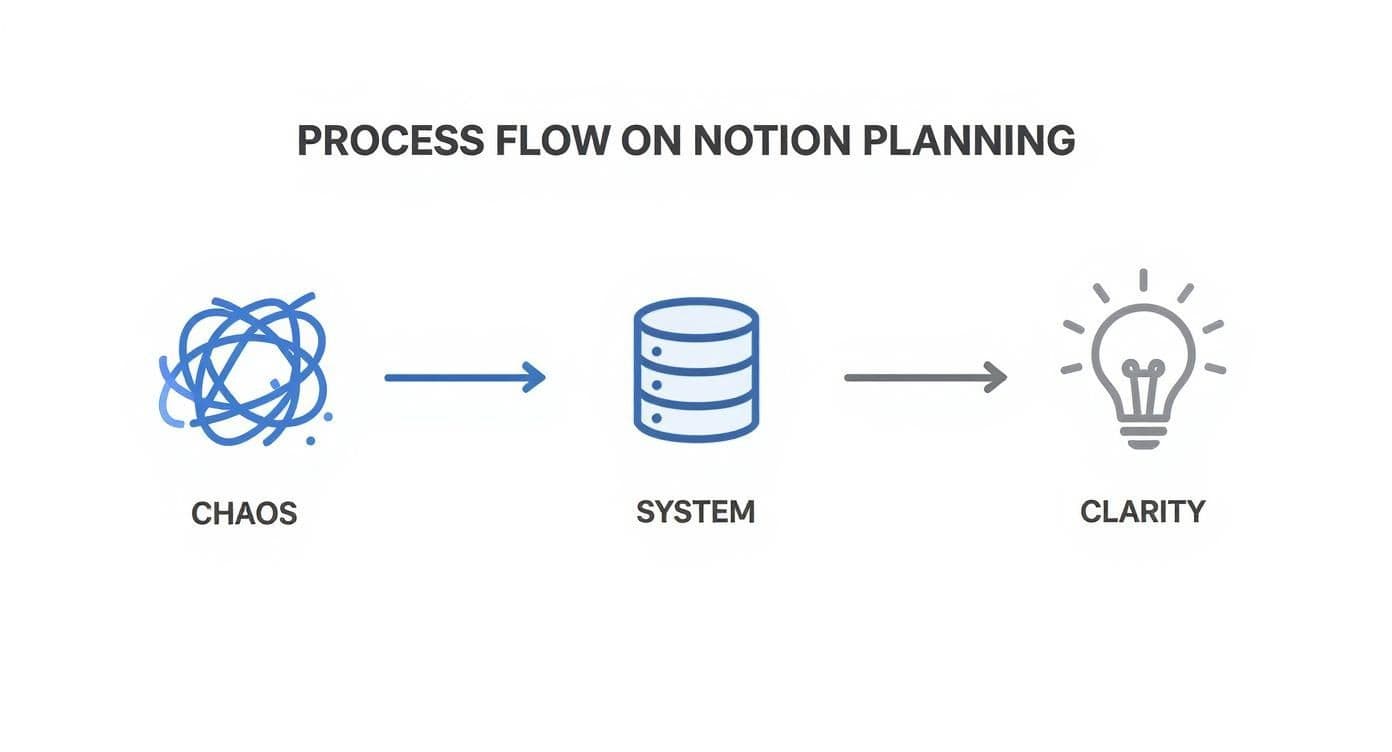
As you can see, the journey starts with tangled, disconnected tasks. From there, we build a structure that ultimately delivers clear, actionable insights for your week ahead.
Creating the Core Task Database
Your Task database is where the rubber meets the road. It’s the ground-level view of your system, housing every single action item. This will become the central hub for everything you need to get done.
To start, just create a new full-page database and call it "All Tasks."
Now for the important part: the properties. These are the columns that define each task. My advice? Don't go overboard at first. Start with the essentials that give you the most immediate control and clarity.
- Status (Select): This is for tracking progress. I stick with the basics:
Not Started,In Progress, andDone. - Due Date (Date): Absolutely critical. This property is what allows you to schedule your work and build your weekly view.
- Priority (Select): This helps you instantly see what matters most. Simple labels like
High,Medium, andLowwork perfectly. - Project (Relation): This is the game-changer. It’s the property that will connect this database to your Projects database, which we'll set up next.
With just these four properties, every task now has a clear status, a deadline, and a priority level. This alone makes your weekly review a hundred times faster.
Linking Tasks to a Projects Database
Next up, create another database and name it "All Projects." Projects are the big-picture initiatives that are made up of many smaller tasks. For a freelancer, a project might be "Website Redesign for Client X." If you're a student, it could be "History Term Paper."
The most crucial property here is a Relation that points back to your "All Tasks" database. When you add this property in your Projects database, Notion will prompt you to choose which database to connect to—just select "All Tasks."
This simple action creates a powerful two-way link. Now, from any project page, you can see every single task associated with it. And from any task, you can assign it to a larger project. To really get into the weeds on this, you can learn more about using Notion for project management in our detailed guide.
A task without a project is an orphan. Linking tasks to projects provides the 'why' behind the 'what,' ensuring your daily efforts are always contributing to a meaningful outcome.
Once these foundational databases are built and connected, you've officially constructed the backbone of your entire Notion planning system. You're no longer just making lists; you're building a relational network of your commitments.
Designing Your Weekly Command Center
Okay, you've done the hard work of building and connecting your core databases. Now for the fun part: creating the single most important page in your entire system—your weekly dashboard. This isn't just another page. Think of it as your personal command center, a single screen that pulls all the scattered pieces of your week into one clear, actionable view. The whole point is to see exactly what needs your attention without ever having to dig through those raw database tables again.
The magic that makes this possible is a feature called Linked Views. Instead of actually moving your data around, you’re creating live, filtered windows that peer into your core databases. This means your command center will always be perfectly up-to-date, automatically.
Assembling Your Dashboard Layout
Let’s start with a fresh page in Notion. Give it a simple title like "My Week." The key to a dashboard that you'll actually use is smart visual organization. I’ve found that a simple two or three-column layout works best. You can create columns by just dragging blocks next to each other until you see the blue vertical line appear. This structure prevents the dreaded "wall of text" and lets you see different parts of your week at a glance.
A good command center should provide answers, not just dump data on you. Think about the questions you’re constantly asking yourself:
- What are my most important tasks for today and this week?
- Which projects need my attention right now?
- What key deadlines or appointments are coming up?
We're going to build specific views that answer each of these questions directly.
Creating Your Weekly Task Board
This view is the absolute heart of your notion weekly planning. In one of the columns you just created, type /linked view and choose your "All Tasks" database. Notion will probably drop in a basic table view by default, but we're going to transform it into something way more useful.
First, change the view layout to a Board. Then, tell it to "Group by: Status." Instantly, you'll see your tasks neatly organized into columns like Not Started and In Progress. Now for the crucial step: applying filters to make it relevant for this week.
- Filter by Date: Add a filter where the
Due DateisThis week. This is a game-changer, as it immediately hides everything that isn't on your radar right now. - Filter by Status: Add a second filter where
Statusis notDone. This keeps your board clean and clutter-free by automatically tucking away completed tasks.
Just like that, you have a dynamic Kanban board showing only your active tasks for the current week. As you check things off, they'll vanish from this view, keeping your focus squarely on what's next.
A well-designed command center doesn’t show you everything; it shows you exactly what you need to see, right when you need to see it. It's about curation, not collection.
The impact of having a structured weekly view like this is pretty staggering. One analysis of Notion users found that those with weekly planner templates completed an average of 78% of their weekly tasks. That’s a massive jump from the 54% completion rate for users who didn't have a structured system. You can learn more about how structured planning boosts productivity from other Notion power users.
This is the real power of building a command center. It turns your raw data into a clear, motivating roadmap for your week and genuinely pushes you toward getting more done.
Automating Your Planning with Templates
A great system shouldn't feel like a chore. The whole point of building a Notion weekly planning setup is to make your life easier, not to give yourself another set of tasks. That’s where a little bit of automation makes a world of difference. By setting up templates and buttons, you can stop wasting time on repetitive setup and get right to the important stuff.
We're going to make your system work for you. We'll lean on two of Notion's most powerful features for this: Database Templates and Buttons. Think of them as pre-built structures and checklists you can launch with a single click, which is perfect for keeping your planning consistent and fast.
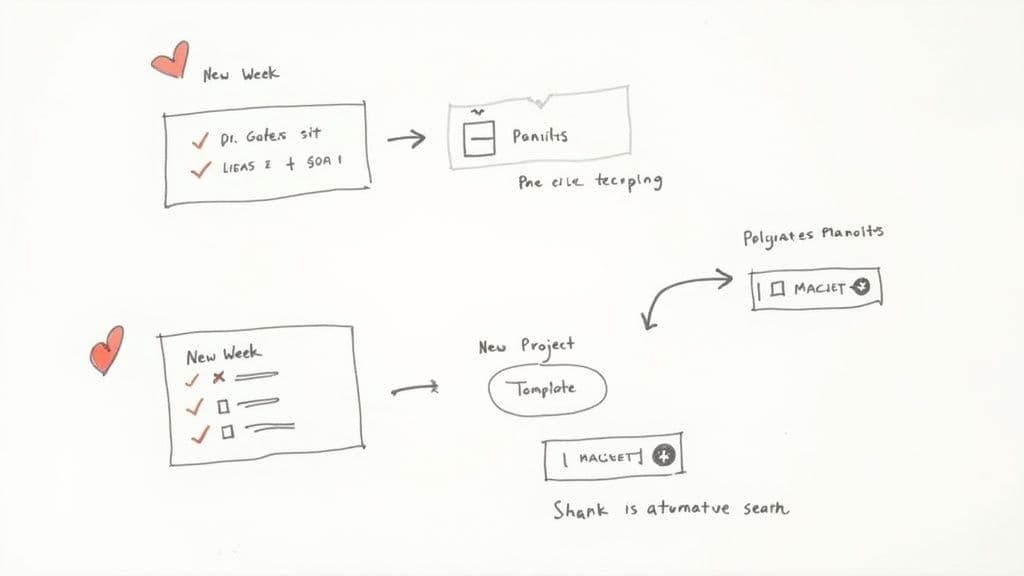
Creating Your New Week Template
Let's start with the automation that will probably save you the most time and mental energy: a "New Week" template. Imagine clicking a single button on Monday morning and having your entire weekly dashboard built for you, instead of staring at a blank page.
You can set this up using a template button right on your main dashboard.
Here’s what I recommend including inside the button's configuration so it generates a fresh page layout for you:
- A H3 for "Top 3 Priorities": This immediately forces you to decide what really matters for the week ahead.
- A bulleted list for "Weekly Goals": Perfect for capturing those secondary objectives or milestones you want to hit.
- A "Weekly Review" checklist: Pre-populate this with prompts like "What were last week's biggest wins?" and "What potential roadblocks should I look out for?"
Once that's saved, your Monday morning routine is transformed. One click generates the entire structure. You've just turned a 15-minute setup process into a 15-second action, kicking off your week with momentum.
Building Templates Inside Your Databases
The same template magic works inside your databases, too. Just think about any process you repeat often. If you're a freelancer, every new client project probably involves the same set of initial tasks: create a project folder, draft the contract, schedule a kickoff call, and so on.
You can build a "New Project" template directly inside your Projects database to handle this.
Create a new template within the database. Inside the body of that template page, add a checklist with all of your standard kickoff tasks. From now on, whenever you add a new project and pick this template, that checklist will be there waiting for you, making sure you never miss a step.
This is a game-changer for maintaining quality and consistency, especially when you're juggling multiple projects. For anyone who wants to bypass the setup, our Flowtion templates have these kinds of thoughtful workflows already built in.
Automating Daily Actions with Buttons
Finally, don't overlook Notion's Buttons for the small, everyday actions. You can create a button to perform a very specific task, like adding a new page to a database with certain properties already filled out.
For example, I have a button on my dashboard called "+ Daily Review Task." When I click it, it instantly adds a task to my "All Tasks" database. The task is automatically named "Review tomorrow's schedule," its priority is set to "Medium," and the due date is assigned to "Today."
It's a tiny automation, but it removes just enough friction to make sure I actually do it. These little time-savers add up, making your planning system feel less like a tool you have to manage and more like a natural part of how you work.
Integrating Rituals for Consistent Success
https://www.youtube.com/embed/8IeNyc1egnM
A powerful system is only as good as your commitment to actually using it. Now that we’ve got the technical setup handled, it’s time to shift our focus from databases and templates to the human habits that really drive progress. A consistent Notion weekly planning routine is what turns your system from a static tool into a dynamic partner in your productivity.
The trick is to build simple, repeatable rituals that don’t feel like a chore. I personally rely on a short daily shutdown and a more reflective weekly review. These two habits are the glue that holds my entire system together, making sure it stays relevant and pointed directly at my most important goals.
The 10-Minute Daily Shutdown
At the end of each workday, I take just ten minutes to close out. This isn't about squeezing in more work; it’s about creating a clean break so I can fully disconnect. During this brief window, I drag any completed tasks into my "Done" column, glance at my calendar for tomorrow, and pick out the single most important task to tackle first thing.
This tiny habit completely eliminates that frantic morning scramble where you waste your best energy just trying to figure out what to do. You’re building momentum for the next day before it even begins.
The 30-Minute Weekly Review Framework
Your most important ritual, without a doubt, will be the weekly review. This is a non-negotiable, 30-minute block of time—I like Friday afternoons, but Sunday evenings work too—dedicated to looking back and planning forward. The data on this is compelling. Research shows that people who stick with a weekly review see a 28% improvement in goal achievement over six months. What’s more, 61% of respondents in one study said that simply tracking their progress was the main thing that motivated them to stay on track. You can dig into more stats on how time management habits affect productivity.
I break my own review into three distinct phases to keep it focused and efficient.
Your Notion system is a living document of your intentions. The weekly review is your chance to have a conversation with your future self, ensuring your actions this week align with the person you want to be next week.
Here’s a simple structure you can easily build into a Notion template:
- Reflect: I start by opening a new page and answering a few simple prompts. What was my biggest win this week? What did I struggle with? What lesson did I learn? This qualitative check-in provides crucial context that pure data just can't capture.
- Review: Next, I look at all the tasks I moved to "Done" over the past week. Did I actually accomplish what I set out to? Then I check my project statuses. Are there any projects that are stalled or need a nudge? This is the quantitative check on my progress.
- Plan: Finally, I clear out any leftover tasks from the previous week and look ahead. I set my top three priorities for the upcoming week and drag any time-sensitive tasks directly onto my calendar.
This three-part process ensures you’re learning from the past while proactively shaping your future. It's also the perfect time to update any habit-tracking systems you've built. To explore that further, check out our guide on creating a Notion habit tracker template that plugs right into your weekly plan.
By making these rituals a non-negotiable part of your week, your system will consistently deliver the clarity and focus you need.
Common Questions About Notion Weekly Planning
Once you start using your new system, you're bound to run into a few questions. Building a great Notion weekly planning setup is one thing, but making it work in the real world is another. Let's tackle some of the most common snags people hit and give you some clear, practical ways to keep things running smoothly.
Getting these little details right is often the difference between a system you have to fight with and one that feels like a second brain.
How Should I Handle Recurring Tasks?
This is usually the first question people ask. What do you do with those tasks that pop up every single week, like "Submit weekly report" or "Prep for the team meeting"? Luckily, Notion has a slick feature just for this.
When you click on any date property in a task, you'll spot a "Repeat" option. You can tell it to repeat daily, weekly, monthly—whatever you need. As soon as you check off the current task, Notion automatically creates the next one for you with the new due date. It’s a simple way to keep your database from getting cluttered while making sure you never miss a beat.
Why Does My Weekly Planner Feel Slow?
If your dashboard is starting to lag, the problem is almost always the same: you're asking it to load too much data at once. A single Notion page pulling from dozens of database views with thousands of entries is going to feel sluggish.
The fix? Get aggressive with your filters.
- For your tasks: Set the view to only show items where the
Due DateisThis weekAND theStatusis notDone. - For your projects: Filter the view to only show projects where the
StatusisActive.
This one change can make a massive difference. It forces Notion to load just the handful of things you actually need to see, which keeps your dashboard feeling quick and responsive. Another pro tip: avoid embedding large files directly on your main planner page.
Can I Integrate My Google Calendar?
Yes, and you absolutely should. Notion’s direct integration with Google Calendar is a game-changer for building a truly unified weekly view. You can connect it by heading to "Settings & Members" and finding the "My Connections" tab.
After you link your Google account, you can drop a live, synced calendar block right onto your dashboard. This lets you see your scheduled meetings and personal appointments right next to your Notion tasks. Suddenly, you have a complete picture of your week without having to bounce between apps.
A truly effective weekly plan has to account for all your commitments, not just the tasks you've assigned yourself. Integrating your calendar turns your Notion dashboard into the single source of truth for where your time is actually going.
What Is the Best Way to Manage Task Notes?
Here's one of Notion's best-kept secrets: every single item in a database is also its own full-blown page. This is incredibly powerful.
When you open any task from your weekly view, you can go nuts. Add detailed notes, create checklists for sub-tasks, embed files, or drop in links to other pages. For instance, if you have a task for "Draft project proposal," you can write the entire draft inside that task's page. All the context stays right where you need it, connected to the action item.
For those of you still weighing your options, you might find it helpful to see how Notion stacks up against some of the best planning apps available today.
Tired of building from scratch? The team at Flowtion has already done the heavy lifting with professionally designed Notion templates to get you organized in a flash. Grab our Complete Bundle and you can have a full-blown productivity system up and running in minutes.