Build Your Perfect Notion To Do List Template
Go beyond basic checklists. Learn to build a powerful Notion to do list template that organizes your tasks, automates your workflow, and boosts productivity.
A Notion to-do list template isn't just another checklist. Think of it as a dynamic database where your tasks can be directly connected to your projects, notes, and overarching goals. This unique setup lets you build a powerful, all-in-one productivity hub that’s genuinely customized to how you work.
Why Notion Is a Game Changer for Task Management
If you're like most people, you've probably tried juggling tasks with a mix of spreadsheets, sticky notes, and maybe a few simple checklist apps. You know the feeling—it's disconnected and chaotic. A basic to-do list tells you what you need to do, but it rarely gives you the context of why it's important or how it fits into your larger goals.
This is where Notion completely flips the script.
Instead of treating your tasks as a static, isolated list, Notion handles each one as an entry in a smart database. This means your to-do list becomes a central command center, not just a forgotten memo. You can link, sort, filter, and view your tasks in an almost infinite number of ways.
Beyond the Basic Checklist
The real magic of a Notion to-do list lies in its flexibility. You're no longer stuck with a simple, linear list of items to check off. Instead, you can visualize your work in ways that actually provide clarity and drive you forward. It’s this structured adaptability that has made Notion an indispensable tool for so many.
- Create a Single Source of Truth: Ever spent ten minutes digging for a project brief or meeting notes related to a specific task? With Notion, you can link that task directly to the relevant documents. No more app-switching.
- Switch Up Your Views: See your tasks on a Kanban board to track their progress from "To-Do" to "Done." Pop them onto a calendar to get a clear visual of your deadlines. Or, create a filtered list showing only your high-priority items for today. It’s all the same data, just viewed differently.
- Use Properties to Get Organized: You can add custom tags—what Notion calls "properties"—for things like Priority, Status, Project, or Due Date. These aren't just labels; they're powerful data points you can use to sort, filter, and even automate your entire workflow.
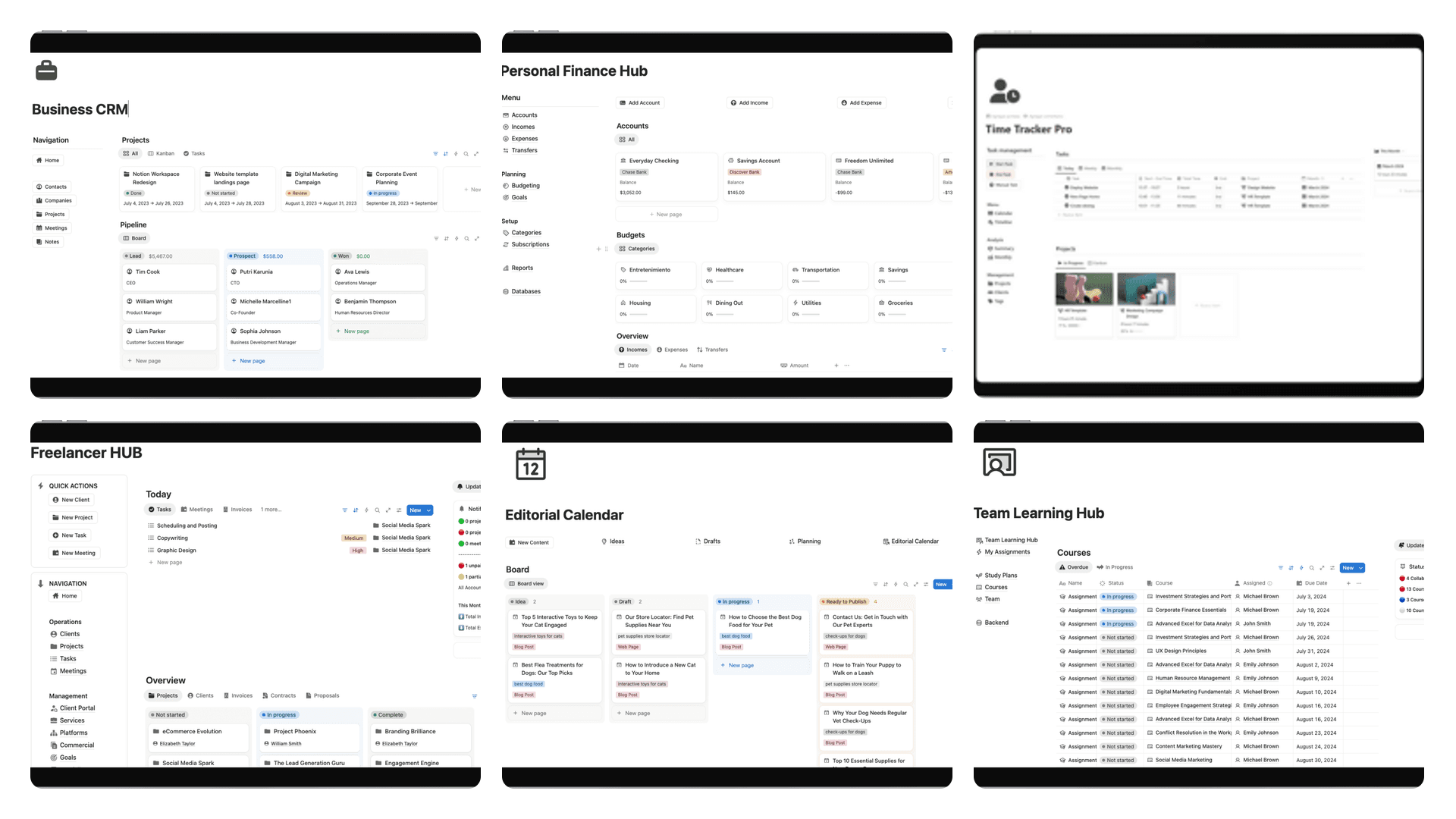
For a great real-world example of this in action, check out how a social media calendar template uses these principles to organize complex content schedules.
A Central Hub for All Your Work
By 2025, Notion's to-do list templates had become a core part of project management for countless users worldwide. For instance, the popular Universal Project Management V2.0 template shows just how powerful these integrated systems can be for both freelancers and entire businesses.
The real shift happens when you stop seeing your to-do list as a daily chore and start using it as the central nervous system for your personal and professional life. Every piece of information has a home, and every task has context.
Ultimately, Notion's database-first approach lets you build a system that grows and adapts right alongside you. As your projects get bigger and more complex, your workspace can evolve without falling apart. You can learn more about building these kinds of effective systems in our detailed guide to https://theflowtion.com/blog/notion. This fundamental difference is what makes a Notion template a far better choice for anyone who's serious about managing their tasks effectively.
How to Find and Install the Right Template
Choosing the right Notion to-do list template can save you hours of tinkering. Think of it as getting a solid foundation for your productivity system, letting you focus on the work itself instead of building from the ground up. But with a sea of options out there, how do you pick the right one?
You'll generally find templates in two main spots: Notion's own Template Gallery and independent creator marketplaces. The official gallery is a great first stop; it's full of well-vetted, often free, templates. For something more niche or powerful, though, you might check out platforms like Gumroad or individual creator sites, where you’ll find templates built for very specific, demanding workflows.
Evaluating a Notion Template Before You Commit
Hold off on hitting that "Duplicate" button just yet. It's worth spending a few minutes to vet a template and see if it actually fits how you work. A template can look amazing on the surface, but if the structure underneath is clunky, it'll just get in your way.
Here’s what I personally look for:
- Database Structure: Is everything built around one core task database? A single, unified database is a game-changer because it lets you create all sorts of views (lists, boards, calendars) from one source of truth. Multiple, disconnected databases are usually a red flag.
- Pre-built Views: A good template creator anticipates your needs. Look for practical, pre-configured views like a Kanban board for project stages, a calendar for deadlines, and a filtered "Today" list for daily focus.
- Property Setup: Pop open the database and check the properties. Does it have the essentials like
Priority,Status, andDue Date? More importantly, are they set up in a way that makes sense? - Relevance to Your Work: It sounds obvious, but make sure the template was built for someone like you. A student's task manager won't have the same features as one designed for a freelance developer.
A good Notion to-do list template should feel intuitive from the start. If you spend more than a few minutes trying to figure out how it works, it’s probably not the right fit for you.
Finding Your Perfect Match
Community feedback is your best friend here. User ratings and reviews offer a real-world glimpse into how a template actually performs. For example, the popular 'Weekly To-Do List 2025 Template' on Notion's marketplace has over a thousand reviews, and 85% of users rated it as highly helpful—that's a pretty strong signal that its simple approach works.
And while you might be looking for a personal task list, remember how versatile Notion is. You could find an effective content marketing planning template to manage an entire editorial calendar, all within the same ecosystem. If you want more ideas, we’ve put together a guide on powerful Notion productivity templates that explores a bunch of different systems.
Installing Your Chosen Template
Okay, so you've found the one. Getting it into your workspace is the easy part. The process is identical whether you got it from Notion's gallery or a third-party creator.
It’s just a couple of clicks:
- First, open the template link. It’ll open up as a public Notion page in your browser.
- Look for the "Duplicate" button in the top-right corner of the window.
- Click it. If you aren't already logged in, Notion will ask you to sign in to your account.
- Next, a dropdown menu will pop up. Just pick the workspace where you want to add the template.
- Notion takes it from there, copying the entire setup—pages, databases, and all—right into your workspace. It'll show up as a new private page in your sidebar, ready for you to make it your own.
Making the Template Your Own with Custom Properties
Grabbing a Notion to-do list template is easy. That’s just step one. The real magic happens when you start tweaking it to fit your brain and your workflow. This is all about customizing the database properties—the columns that hold all the juicy details about each task.
Most templates give you the basics: a task name, a due date, and a checkbox. But if you want a system that actually works for you long-term, you need to think beyond the defaults. These properties are the DNA of your productivity system, letting you slice, dice, and view your work in ways that make perfect sense to you.
Getting a template up and running is a quick, three-step dance: find one you like, see if it fits, and duplicate it into your workspace.
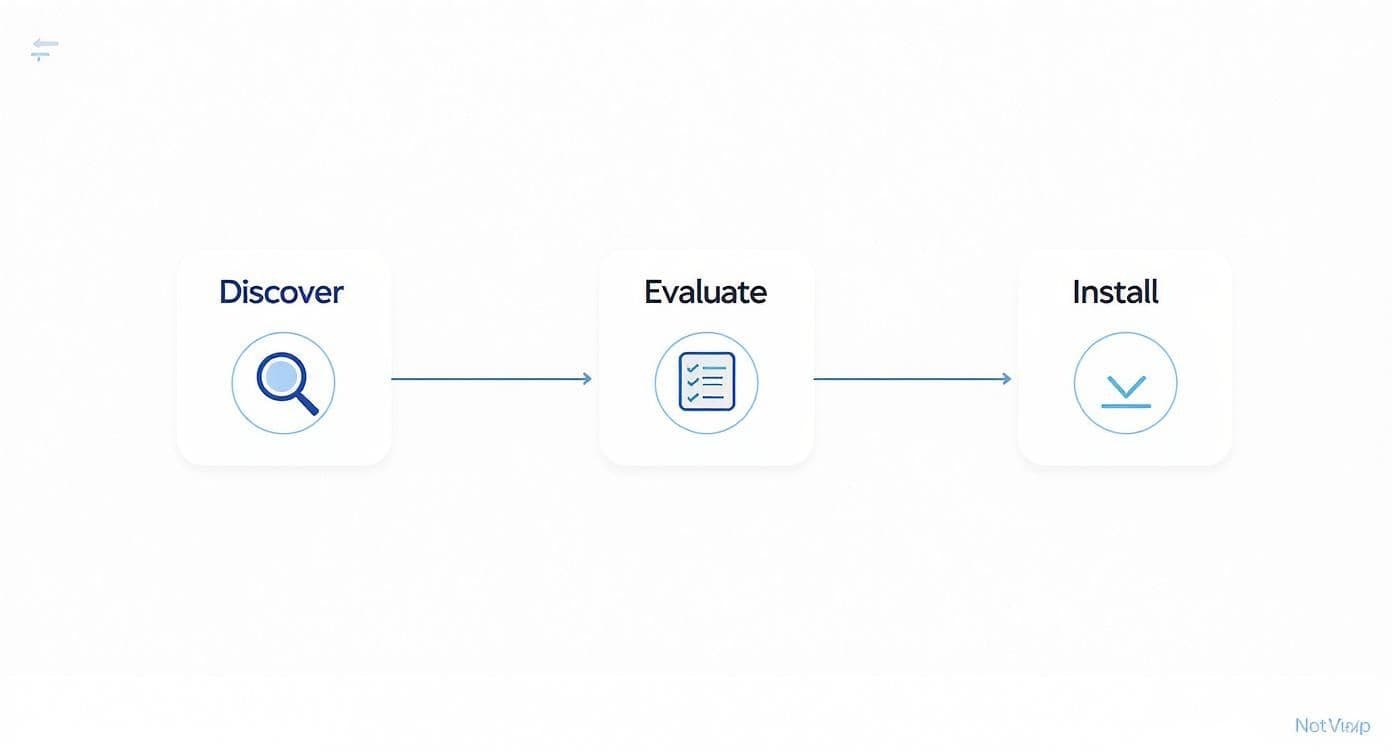
The point is, the setup should be fast. This frees you up to spend time on the most important part: tailoring the template so it feels like it was built just for you.
Start by Refining the Core Properties
Nearly every task template will come with Status and Priority properties, but don't feel locked into their default settings. A template is a starting point, not a straitjacket.
Take the Status property. "To Do," "In Progress," and "Done" is fine, but is that really how your work flows? Probably not. Get specific.
- A writer’s workflow: You might change the stages to "Idea," "Drafting," "Editing," and "Published."
- A designer’s process: Your statuses could be "Briefing," "Wireframing," "Client Review," and "Final."
To change them, just click the property header, hit "Edit property," and start adding, renaming, or deleting the options. It’s that simple.
The same goes for Priority. Instead of a vague "High," "Medium," "Low," why not adopt a system that forces a decision? You could use the Eisenhower Matrix method with tags like "Do First," "Schedule," "Delegate," and "Delete." This small tweak can completely change how you tackle your day.
Your properties should be signposts, not just labels. They should tell you exactly what needs your attention at a glance, without you having to dig through details or second-guess yourself.
Add Custom Properties That Match Your World
Now for the fun part. This is where you transform a generic template into a command center that speaks your language. Adding new properties lets you track information that's unique to your projects or profession.
Think about what you actually need to know about a task.
A freelance content creator could add:
- Platform (Select): To tag tasks for their "Blog," "YouTube," or "Newsletter."
- Client (Relation): To link tasks directly to a separate client database for easy tracking.
- Publish Date (Date): To keep an eye on when content goes live, which might be different from the internal deadline.
Meanwhile, a software developer might need:
- Sprint (Relation): To tie tasks to a specific sprint in their project plan.
- Ticket ID (Text): For a quick reference back to their main tracking system like Jira.
- Task Type (Select): To differentiate between a "Bug," "Feature," or "Chore."
To add a new property, just scroll to the far right of your database, click the + sign, and pick the property type you need.
How to Add and Set Up a New Property
Let's walk through a real example. Imagine you're a student trying to wrangle assignments for different classes. A "Course" property would be a lifesaver.
- Click the
+button at the very end of your database columns. - Choose the
Selectproperty type from the menu. It's perfect for creating a clean, predefined list of categories. - Name the new property "Course."
- That's it! Now, when you click inside the "Course" cell for any task, you can just type your class names—like "Biology 101" or "History 205." Notion saves each one as a neat, color-coded tag you can reuse.
With that one simple addition, you can now build filtered views that show you only the tasks for a single class. It’s this level of focused customization that makes a Notion to-do list so much more powerful than a basic checklist.
Choosing the right properties is crucial for building a system that's both simple to use and powerful enough to manage your life. Here’s a quick breakdown of the properties you'll encounter, split between the absolute essentials and the more advanced options for custom workflows.
Essential vs. Advanced Notion Database Properties
| Property Name | Property Type | Example Use Case | Workflow Level |
|---|---|---|---|
| Task Name | Title | The primary identifier for your to-do item. | Essential |
| Status | Status | Tracking progress (e.g., To Do, In Progress). | Essential |
| Due Date | Date | The deadline for the task. | Essential |
| Priority | Select | Assigning urgency (e.g., High, Medium, Low). | Essential |
| Project | Relation | Linking tasks to a larger project database. | Advanced |
| Assignee | Person | Delegating tasks to team members. | Advanced |
| URL | URL | Storing a link to a relevant resource or page. | Advanced |
| Sub-Tasks | Relation | Connecting to a separate database of sub-tasks. | Advanced |
The essential properties are your foundation—every to-do list needs them. The advanced properties are where you start building a system that truly scales, connecting different parts of your workspace and automating your processes. Start with the basics and add complexity only when you feel a clear need for it.
Designing Custom Views for Total Clarity
Okay, so you've set up all your properties. That's a great start, but it's only half the story. If your task database is still just one giant, overwhelming list, you haven't really moved far beyond a basic spreadsheet. The real magic in a Notion to-do list comes alive when you create custom views.
Think of views as different camera angles on the same set of data. Each one is designed for a specific purpose, turning a messy data dump into a clean, strategic dashboard. Instead of endlessly scrolling, you build specific windows that show you exactly what you need to see, right when you need to see it. It's how you bring order to the chaos.
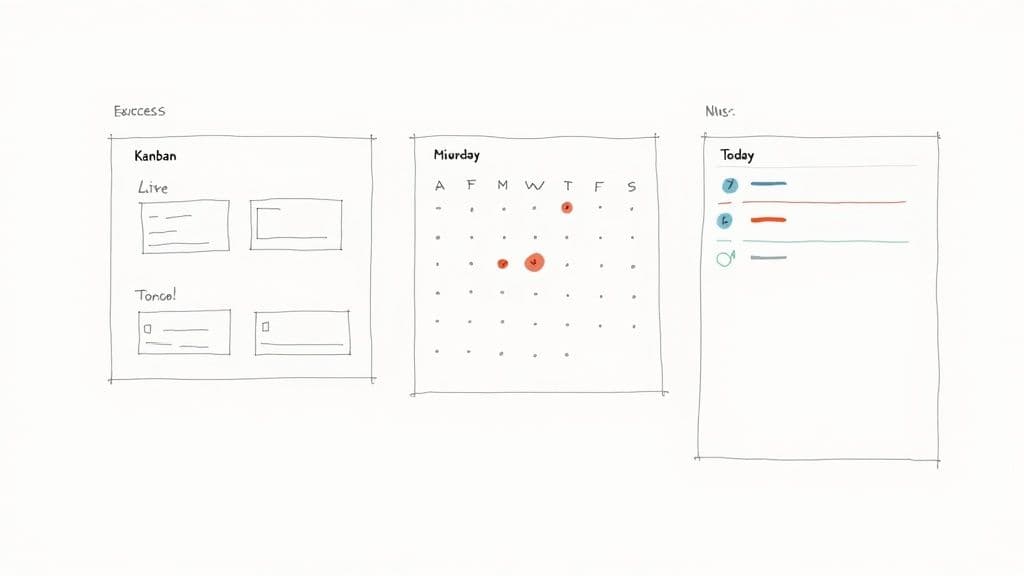
Building Your Essential Kanban Board
The Kanban board is a productivity classic for a reason. It gives you that satisfying, at-a-glance overview of your entire workflow, letting you track tasks as they move from left to right. It's the perfect way to monitor a project's momentum and spot bottlenecks before they turn into full-blown crises.
Getting one set up is dead simple:
- Next to your database's current views (like "Table"), click the
+icon to add a new one. - Choose the Board layout from the list of options.
- Give it a practical name, like "Project Status."
- Head into the view's settings (the
...menu), find the "Group by" option, and select your Status property.
That's it. Notion instantly rearranges all your tasks into columns based on their status—"To Do," "In Progress," "Done." Now you can physically drag and drop tasks between stages, and the property updates automatically in the background. It's a surprisingly dynamic way to manage your work.
Visualizing Deadlines with a Calendar View
While the Kanban is fantastic for tracking progress, it’s not so great for seeing what’s due next Tuesday. For that, you need a calendar. This perspective is priceless for weekly planning and making sure nothing important gets missed.
Just like before, hit the + to add a new view, but this time pick Calendar. Notion will prompt you to choose a date property to display. Just point it to your "Due Date" property, and boom—all your tasks populate the calendar on their respective deadlines.
This is a game-changer for anyone who thinks visually. You can immediately spot overbooked days or upcoming crunch times, giving you the chance to shift things around before you're swamped. Need to reschedule? Just drag a task to a different day on the calendar.
Creating a Focused "Today" View with Filters
Honestly, this might be the single most important view you create. Your "Today" view is your daily command center. It's a filtered list that ruthlessly cuts through the noise and shows you only what requires your attention right now. This is how you beat overwhelm.
Here's how to build it:
- Start by creating a new List or Table view. I like "List" for this, as it's clean and simple. Call it "Today's Focus."
- Click the Filter button at the top right of your database.
- Set up your first rule:
Due DateisToday. - Now, add a second rule using an "And" condition:
Statusis notDone.
This powerful one-two punch ensures you only see tasks that are due today and aren't already checked off. It becomes your daily action plan, completely free from the distraction of everything you have to do tomorrow or next week.
The goal with views is to create multiple strategic dashboards from one central database. You're not making more work for yourself; you're creating focused perspectives. One for daily execution, another for weekly planning, and one for high-level project tracking.
Combining Filters and Sorts for a Power View
Ready to take it up a notch? Let's combine these ideas into an even more strategic view. Imagine it's Monday morning, and you want to see all of your high-priority tasks for the week ahead, neatly sorted by the project they belong to.
Here’s the recipe for that "Weekly High-Priority" view:
- Layout: A List view works perfectly for a clean, scannable format.
- Filter 1:
PriorityisHigh. - Filter 2:
Due Dateis on or beforeOne week from now. - Sort: Add a sort rule to arrange the tasks by
Projectin ascending order.
This setup gives you an incredibly focused and organized action plan. You see every critical task for the week, already grouped by project, which makes planning your time and energy a breeze. Playing around with these filter and sort combinations is where you truly unlock the power of your Notion to-do list. You can build a custom view for virtually any scenario, ensuring you always have the right information right when you need it.
Automating Your Workflow with Formulas and Buttons
https://www.youtube.com/embed/MCgFRHCMEdA
Once you’ve got your properties and views dialed in, it’s time to make your Notion to-do list work for you. Automation is where a well-organized list becomes a smart assistant, handling all the tedious, repetitive bits so you don't have to. We're not talking about complex coding here; it’s about using Notion’s built-in tools to cut down on manual entry and keep you focused on what really matters.
The whole point is to eliminate friction. Every time you have to manually create the same task, fill out the same properties, or check a due date, you lose a little bit of momentum. By building small, simple automations, you get that time and energy back.
Master Recurring Tasks with Database Templates
Got tasks that pop up every single week or month? I'm talking about things like "Submit Weekly Report," "Prepare for Team Sync," or "Pay Monthly Invoices." Creating these from scratch every time is a total drain. This is the perfect job for database templates.
A database template lets you pre-configure a task with all its properties already filled out. You can set the priority, assign it to the right person, add tags, and even write instructions or checklists inside the page itself before it's even a "real" task.
Let’s walk through setting one up for a weekly report:
- Inside your tasks database, click the little down-arrow right next to the blue “New” button.
- Select + New template.
- Give it a name, like "Weekly Report Prep."
- Go ahead and set the
Priorityto "High" and theStatusto "To Do." - Inside the page body, you can add a checklist of the steps you always take:
Gather analytics,Draft key findings,Send for review.
Now, whenever that weekly task comes around, you just click the arrow and select your "Weekly Report Prep" template. Bam. A perfectly formatted task appears, ready to go. You can see a similar approach for organizing your entire week in our guide on creating a Notion weekly planning system.
Bring Your Data to Life with Simple Formulas
Formulas in Notion can seem a little intimidating, but you can get so much value from just a few simple ones. Think of them as tiny robots that automatically update information based on other properties in your database. One of the most practical formulas for any to-do list is one that flags overdue tasks.
This little addition gives you an immediate visual cue, making sure nothing slips through the cracks. It's a simple but powerful way to build accountability right into your workflow.
A great Notion setup doesn't just store information; it actively highlights what's most important. Formulas are your secret weapon for turning passive data into actionable insights.
Let's build that overdue flag. Just create a new Formula property and name it "Overdue?" Then, paste this simple formula into the editor:
if(prop("Due Date") < now() and prop("Status") != "Done", "🔴 Overdue", "✅ On Track")
All this formula does is check two things: is the due date in the past, AND is the task's status something other than "Done"? If both are true, it spits out a red "Overdue" flag. If not, you get a reassuring "On Track" message. Simple, right?
The best Notion to-do list templates use dynamic formulas like this to track progress. For instance, many tutorials show you how to build progress bars that calculate completion percentages by dividing completed tasks by the total, giving you a live look at how you're doing.
One-Click Actions with Notion Buttons
Buttons are the ultimate shortcut for your most common actions. You can place a button anywhere on a Notion page and program it to do something with a single click—like adding a pre-configured task directly to your database. This is a game-changer for capturing ideas or starting standardized projects without breaking your flow.
Imagine you're in a meeting and have a great idea. Instead of fumbling around to find your task list, you could have a "Log New Idea" button right on your meeting notes page.
Here’s how you’d set that up:
- On any page, type
/buttonand select the Button block. - Give it a clear name, like "+ Add a Task."
- Under "Do this," choose Add page to and select your main tasks database.
- You can even pre-fill some of the properties. A great one is to set the default
Statusto "To Do" so it lands in your inbox, ready to be processed later.
By combining database templates, formulas, and buttons, you build a system that feels responsive and intelligent. Your Notion to-do list stops being a passive bucket for your work and starts actively helping you manage it.
Got Questions? Let's Troubleshoot Your Notion Task List
Once you’ve tweaked your properties and set up your views, you'll really start to feel the power of your new Notion to-do list. But as you begin living and working in this system, some practical questions will almost certainly come up. Nailing these common sticking points is the last piece of the puzzle for creating a system that truly works for you.
Here are some quick, no-nonsense answers to the challenges and advanced setups people ask about most.
How Can I Set Up Recurring Tasks in My Notion Template?
I get this one a lot. While Notion doesn't have a built-in "repeat task" feature like you'd find in other apps, the workaround is actually more flexible. The secret is combining database templates with buttons.
First, you need to create a database template for the task you want to repeat. Let's imagine it's a "Weekly Team Sync Prep" task. In your tasks database, click the little dropdown arrow next to the blue "New" button and select "New template." Go ahead and pre-fill everything you'd normally have to—assignees, priority, even a checklist of talking points right inside the page.
Now for the magic. Go to whatever page you use as your main dashboard and add a Button block. You'll set its action to "Add page to" and then select your tasks database. When Notion asks, tell it to use the "Weekly Team Sync Prep" template you just made. Now, every Monday morning, you just click that button once, and your task is created perfectly. No more tedious setup.
What's the Best Way to Handle Sub-Tasks in Notion?
You've got two solid options here, and which one you choose really depends on how complex your projects are.
For quick and simple tasks, the easiest method is just adding a Checkbox property to your main database. This works great for straightforward to-dos where you just need to tick off a few minor steps.
But for more detailed projects, I always recommend creating a second, separate database just for "Sub-tasks." You then connect it back to your primary "Tasks" database using a Relation property. This is a game-changer because it lets every single sub-task have its own due date, assignee, and status.
The real power of this two-database method kicks in when you add a Rollup property to your main tasks database. You can configure the Rollup to watch the related sub-tasks and calculate what percentage of them are marked "Done," giving you an automatic progress bar for the parent task.
Can I Connect My Notion To-Do List to Google Calendar?
Absolutely. Syncing your Notion tasks with Google Calendar is a fantastic way to make sure your deadlines are always front and center. To pull this off, you'll need a third-party automation tool like Zapier or Make.com.
The setup is pretty straightforward. You build a simple workflow (often called a "Zap" or "Scenario") that triggers every time a new item is added to your Notion database. From there, you just map the information from Notion over to the fields in a new Google Calendar event.
For instance:
- The Notion Task Name becomes the Google Calendar Event Title.
- Your Notion Due Date populates the Google Calendar Event Date.
- Any notes in your task description can show up in the event details.
This completely eliminates double-entry and keeps your schedule consistent everywhere. It's a huge time-saver.
How Do I Share My To-Do List and Assign Tasks to My Team?
Notion was built for collaboration, so sharing tasks is one of its core strengths. First, you'll want to invite your team members to the page. Just click the "Share" button at the top-right corner and add their email addresses.
Once they're in, the next step is to add a Person property to your tasks database. This will add a field to every task where you can select one or more people from your workspace, officially assigning it to them.
Here's a pro tip to make it even cleaner: create a new database view and call it "My Tasks." Then, apply a filter to that view where the "Person" property "contains" "Me." Now, when each team member clicks on that view, they'll only see the tasks assigned specifically to them. It cuts through the noise and keeps everyone focused.
Ready to stop building from scratch? Flowtion provides professionally designed, battle-tested Notion templates that you can duplicate with a single click. Start managing your work and life with clarity today at https://theflowtion.com.