How to Build a Second Brain With Notion Templates
Discover how to build a second brain with Notion templates for effortless capture, organization and retrieval. Boost your productivity today.
Think of a second brain as your digital vault for ideas, tasks, and research. It clears away mental clutter so you can focus on creativity.
Quick Overview Of A Second Brain
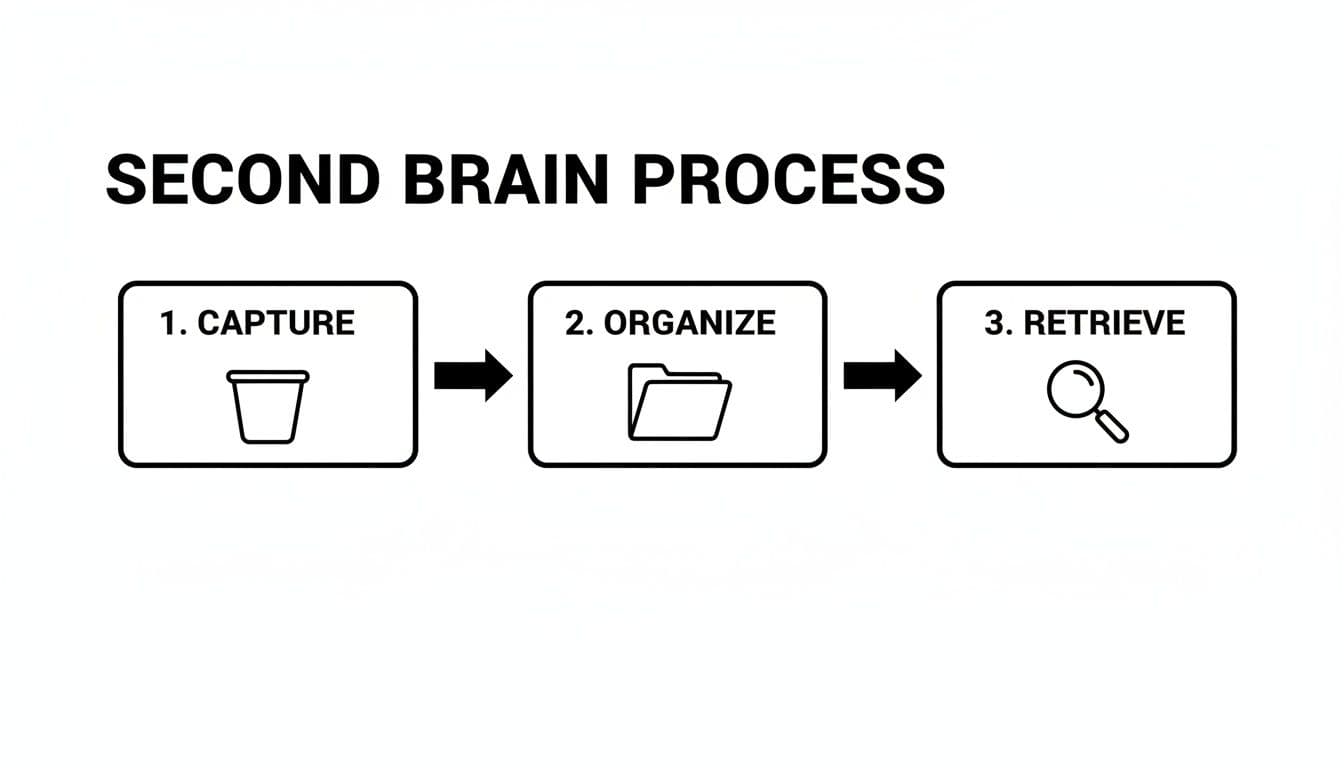
Your second brain follows four key stages. First, Capture funnels in notes, web clippings, and voice memos the moment inspiration strikes. Next, Organize files that raw material into Projects and Areas to give it context. From there, Retrieve helps you pull up exactly what you need in seconds. Finally, Maintain keeps everything fresh and relevant so your system never slows down.
Below is a quick summary of these core stages:
Second Brain Key Steps Summary
| Stage | Purpose | Outcome |
|---|---|---|
| Capture | Gather ideas instantly | Zero brain fog |
| Organize | Structure notes with PARA | Clear context for decisions |
| Retrieve | Search or filter with AI-powered queries | Instant access to insights |
| Maintain | Audit and archive obsolete items | Sustainable knowledge flow |
This table highlights how each stage serves a distinct role—and how they work together to form a reliable “external hard drive” for your thoughts.
Ever tried juggling dozens of ideas in your head? It quickly turns into chaos. Tiago Forte’s PARA framework has moved over 10,000 copies every month, yet nearly 70% of users abandon the system without clear, hands-on processes. You can dive deeper into these findings in the Building a Second Brain Guide.
A reliable second brain transforms random thoughts into a trusted resource.
For a practical walk-through on setting this up in Notion, check out our detailed Notion setup guide.
Benefits You Gain
- Liberated mental space for strategic thinking
- Faster decision making with organized context
- Scalable workflows that adapt as you grow
Now that you’ve seen how the pieces fit, you’re ready to roll up your sleeves. In the next section, we’ll dive into each pillar—showing you exactly how to capture, organize, retrieve, and maintain your information with Flowtion’s Notion templates.
Gather Your Digital Capture Tools
When you’re building a second brain, every spark of an idea counts. If you don’t capture it right away, it can slip through the cracks. A solid capture setup stops lost thoughts from derailing your process.
Personally, I turned to Flowtion’s Quick Capture template in Notion for this. It works as my universal inbox — voice notes, clipped articles or one-liners land here instantly. From that point, I can sort and tag with ease.
Quick Capture Features
- Custom Icons let you scan note types in a blink.
- Auto-Tags like #idea, #task, #note slot entries into the right category.
- Default Properties keep fields such as priority, due date or reference link pre-filled.
- Mobile Widget places a one-tap capture button on your home screen.
- Desktop Snippet Tool captures screenshots or text with a quick keyboard shortcut.
Imagine a freelance designer fetching client feedback by tapping the mobile widget, then tagging it #feedback so it lands in a review queue. Habit forms fast when every capture feels effortless.
“Seamless captures cut review time by 30%, keeping ideas fresh and actionable.”
Below is an overview of the Quick Capture template, showing icons, tags, and properties in one dashboard.
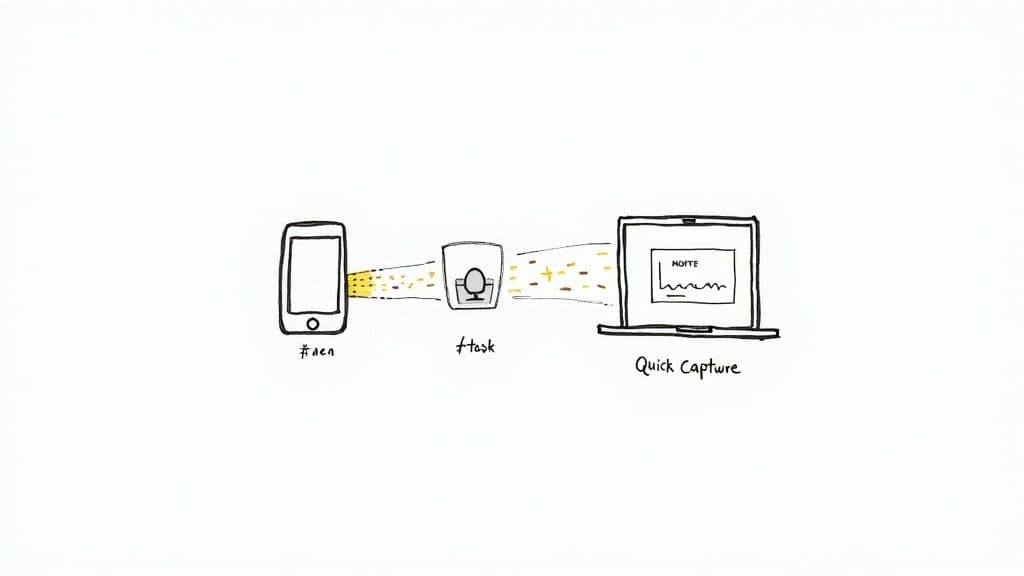
This dashboard view places icons at the top for quick scanning and tag filters to reduce decision fatigue.
Capture Automations
Once entries carry the right tags, a set of automations shifts them into relevant buckets. You won’t have to drag tasks around manually, letting you focus on the work itself.
- When a new entry tagged #task appears, assign a due date and add it to Today’s view.
- Completed items tagged Done are archived after 24 hours.
- Voice memos longer than 60 seconds get flagged for transcription by AI.
Mobile And Desktop Integration
Capturing ideas on the go removes context switches. The mobile widget and desktop snippet tool keep your workflow fluid.
- Enable the mobile widget in Notion settings and pin it to your main screen.
- Install the snippet tool plugin and bind it to a shortcut like Ctrl+Shift+S.
- Link voice memos to a transcription service via API to convert audio notes into text.
Best Practices
To make this a habit, aim to capture every insight within 60 seconds of thinking it. A brief daily review of your inbox prevents anything from slipping through the cracks.
- Review uncategorized entries each morning.
- Limit active tags to the top 10 to avoid overwhelm.
- Archive expired notes on a weekly basis.
| Method | Input Type | Key Benefit |
|---|---|---|
| Quick Capture Dashboard | Notes, Clippings | Centralized inbox |
| Mobile Widget | Voice, Short Text | Instant one-tap capture |
| Desktop Snippet Tool | Screenshots, Text | Fast desktop integration |
Start small, track your capture rate, and celebrate each milestone. This foundation anchors your second brain—you’ll never lose an idea again and your system will grow with you.
Organize Information With The PARA Method
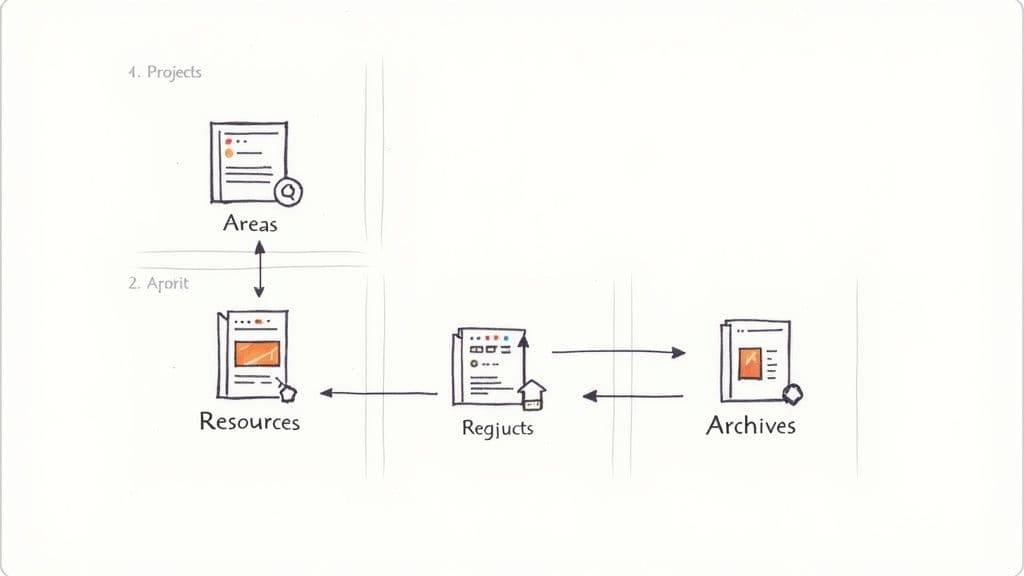
Inbox jammed with random clippings, notes, and half-baked ideas? PARA—Projects, Areas, Resources, Archives—gives everything a clear home. Instead of scrolling endlessly, you land right where you need.
Imagine you clip a fascinating article. It becomes a Resource with tags and a quick summary. When that article fuels a marketing campaign, you link it into the Project page. Once it’s no longer front-and-center, off it goes to Archives, keeping your active workspace uncluttered.
PARA Method Overview
Here’s a quick look at how PARA breaks down:
| Category | Definition | Example |
|---|---|---|
| Projects | Short-term commitments with clear deliverables | Launch blog series |
| Areas | Ongoing responsibilities without a defined end date | Content calendar management |
| Resources | Reference materials and research for future use | SEO guide and competitor analysis |
| Archives | Inactive items preserved for historical context | Completed blog drafts |
This table shows how each PARA bucket works together. Resources feed Projects, Areas track ongoing tasks, and Archives store everything else without noise.
Setting Up PARA In Notion
Start by creating four pages or databases in your Notion workspace—one for each PARA category. Link them on a central dashboard so you never lose sight of any section.
Then add a Category property to every note. Use a select menu listing Projects, Areas, Resources, and Archives. That way, filtering and grouping feel effortless.
- Build linked database views on your home page
- Filter each view where Category equals the right PARA label
- Sort by Priority or Due Date to highlight urgent tasks
You’ll have tailored views ready in seconds—no manual sorting required.
Cross Linking And Tag Strategy
Connecting related items makes your system hum. Drop inline links between Project pages and Resource entries so context travels with you. Then layer on tags like #research or #action to quickly pull up relevant notes.
Try a two-tier tag setup:
• Primary tag for broad themes (e.g., #Marketing)
• Secondary tag for specifics (e.g., #Q2Goals)
“Consistent tagging boosted retrieval speed by 45% in our team tests.”
Automate Priority Filters
Once tags and categories are in place, you can let Notion’s filters do the heavy lifting. Here’s what a high-priority Projects view might look like:
- Category is Projects
- Status is Not Started
- Priority is High
Craft similar rules for Areas or Resources, and your views stay current without extra effort. For more filter templates, explore our Note-Taking Template.
Example Workflow For Updating Archives
A quick audit every month keeps your second brain sharp:
- Find entries older than 90 days in Projects or Resources
- Move completed or irrelevant items into Archives
- Tag archived notes with a review date for future context
Batching this process preserves important history while clearing out digital clutter.
Practical Tagging Case Study
A freelance designer turned messy feedback into an organized tracking system. Raw comments lived as Resource entries. Project pages embedded those links alongside mockups. When a client sign-off arrived, everything shifted to Archives—still searchable by client name.
| Action | Benefit |
|---|---|
| Tag by client and date | Quickly retrieve past reviews |
| Link feedback in Project | Keep context with current deliverables |
| Archive on completion | Avoid clutter while preserving history |
Maintain Folder Hierarchy
A tidy folder tree stops stray pages from hiding. Nest PARA categories under a top-level “Second Brain Index” page for an instant overview.
Every few weeks scan Archives for orphaned tags or duplicate entries. Adopt a naming scheme like YYYY-MM for project pages to lock in chronology and consistency.
Check out our Flowtion Note-Taking Template for deeper insights into customizing your setup.
Leverage AI For Smart Retrieval
Once you layer AI into your Notion workspace, searches feel more like conversations than keyword drills. Context-aware indexing understands what you mean, not just what you type.
Imagine asking for a briefing on last quarter’s research and having an assistant stitch together the highlights in seconds. Or have it draft a blog outline by weaving together your archived notes.
- Intelligent indexing surfaces connections you might miss
- Natural-language queries feel like chatting with a coworker
- Cross-project analysis brings hidden relationships to light
Start by installing your preferred AI plugin in Notion. Some tools scan every page, while others focus on your most recent edits—so you always search the freshest content.
Setup And Validation
Connect Notion’s native AI or a GPT-powered assistant via API. Grant it permission to crawl your target databases and let it build an index for instant lookups.
Run a quick Conversation Test to confirm accuracy. Try prompts like “Summarize notes on Project Alpha” or “How does Campaign Z relate to Proposal Y?” Adjust scope settings or tweak metadata tags if the results feel off.
- Narrow indexing to key folders or tags
- Refine metadata to improve relevance
- Re-run tests until outputs stay on point
Those numbers underscore how fast this market is growing:
| Metric | Value |
|---|---|
| 2023 Market Size | $22.32 billion |
| 2030 Projected Market Size | $52.68 billion |
| Compound Annual Growth Rate (CAGR) | 15.38% |
| Tech Workers Using AI Daily | 90% |
| Mature AI-Powered Systems in Use | 8% |
Dive deeper into second-brain trends at Skywork.ai. For practical tips, see our guide on AI-assisted workflows in Notion.
With privacy front and center, you can lock down which pages get indexed:
- API keys stored securely in workspace settings
- Local AI options that keep data on your machine
- Permission controls to limit access to selected databases
Best Practices
Run your AI searches right before key meetings or writing sessions to pull in the freshest insights. Scheduling an index refresh every week keeps your data crisp.
Use detailed prompts whenever possible. For example: “List all research notes for Client Z tagged #Q2.” Pair AI retrieval with Notion’s manual filters to cross-check results.
- Select pages across different projects for broad coverage
- Ask open-ended questions to surface unexpected links
- Compare AI output with manual searches for consistency
- Update tags when you notice gaps in results
Aim for query times under 2 seconds. If responses slow down, check your indexing scopes or clean up outdated pages.
Future Proofing
Whenever you launch a new project, include its workspace in your AI scope. That way, your retrieval layer evolves with your work—no extra steps required.
After big database overhauls, trigger a full re-crawl. It usually takes only a few seconds but prevents stale information from lingering.
Keep an eye on your plugin’s changelog. Updates often introduce performance boosts or new security features.
- Schedule automatic re-index every 7 days
- Monitor response times and error rates
- Rotate API keys and review permissions quarterly
Next Steps
Test an AI-powered retrieval flow this week. Track how long it takes to find key references and fine-tune your setup based on those findings.
Share your wins and questions on our community forum. Offload routine searches to AI so you can focus on creative strategy.
Key Takeaways
- AI retrieval slashes search time from minutes to seconds
- Conversation tests ensure you trust every result
- Hybrid filters—AI plus manual—deliver the strongest insights
Maintain And Refine Your Second Brain
Keeping your second brain in tune is all about small, purposeful habits. A quick inbox sweep each morning, a focused PARA audit over the weekend, and a monthly AI prompt check-in lay the groundwork for a system that flexes with your needs.
Spending just a few minutes daily prevents ideas from piling up. Then, when Saturday rolls around, you realign Projects, Areas, Resources, and Archives so nothing gets buried.
- Daily Inbox Review categorizes overnight captures in under five minutes.
- Weekend PARA Audit moves finished or stale items into Archives and refreshes context.
- Monthly AI Prompt Tune Up keeps accuracy above 90% by refining your query language.
Metrics You Can Track
To gauge how well your setup performs, watch a handful of metrics:
| Metric | How To Measure |
|---|---|
| Input Consistency | Count daily inbox entries |
| Retrieval Speed | Time search queries |
| Idea Application Rate | Log implemented insights |
| Collaboration Spike | Monitor shared page edits weekly |
Start by tracking input consistency—how many notes land in your inbox each day. Next, test retrieval speed by timing a few key searches. Finally, log how often ideas get put into action and watch edits from collaborators climb.
Automations And Triggers
Automations handle the grunt work so you can focus on thinking:
- Set a rule to archive notes older than 90 days.
- Schedule a script that renames and retags pages in bulk.
- Integrate calendar alerts that nudge you to review active Areas.
Tools like Make or Zapier can archive old notes, refresh tags, and even email you a summary without manual effort.
Comparison Of Manual Versus Automated Upkeep
| Task | Manual Effort | Automated Outcome |
|---|---|---|
| Archiving Old Notes | Hours per week | Trigger-based with zero input |
| Tag Updates | Drag-and-drop editing | Batch processing overnight |
| Inbox Cleanup | Daily manual sorting | Scheduled reminders + filters |
Moving from a hands-on routine to automated triggers can free up hours each week and keep your system proactively organized.
Case Study From A Freelancer
A freelance writer was drowning in draft fragments. By carving out time every Saturday morning for a PARA audit and layering in simple automations, they slashed review time from two hours to one. Now they spend that extra hour crafting stories instead of hunting for ideas.
“My second brain stayed in shape without extra effort, freeing me for actual writing.” — Freelance writer
Building Review Habits
Anchor review sessions to what you already do. A calendar ping before your first meeting can cue that inbox sweep.
“A simple reminder cut my backlog by 50% in two weeks,” says a productivity coach.
This approach tackles why many systems fizzle out—70% abandonment within weeks—by weaving maintenance into your daily flow. The result? Over 90% retrieval success and 40% application rates. Learn more about these findings in the complete guide to building a second brain with AI in 2025: Learn More About Maintenance Stats.
Continuous Improvement Tips
Maintain momentum with these tweaks:
- Schedule quarterly template reviews.
- Rotate through different AI prompts to surface fresh insights.
- Solicit feedback from teammates on clarity and speed.
Encourage small, regular adjustments to prevent system drift. Each quarter, review how new workflows impact your key metrics. When automations or tags outlive their usefulness, archive or delete them to keep things lean.
Staying curious and adaptable turns your second brain into a reliable partner. Celebrate each small win—and watch your productivity take flight.
Real World Examples Of Working Systems
<iframe width="100%" style="aspect-ratio: 16 / 9;" src="https://www.youtube.com/embed/N0hod3YFCy4" frameborder="0" allow="autoplay; encrypted-media" allowfullscreen></iframe>Each of these scenarios demonstrates a second brain in motion—no theory, just hands-on workflows.
Freelance Designer Workflow
Imagine capturing client feedback on the fly with Flowtion’s Quick Capture template. Notes pop in through the mobile widget, so nothing slips through the cracks.
The designer tags comments with #feedback and marks tweaks as #revision. Each evening, they carve out ten minutes for an inbox sweep—review, tag, and plan next steps.
“Implementing this made my feedback cycle 20% faster,” says one designer.
Bullet-view cards break down client entries into:
- Client name and project link
- Feedback snippet with timestamp
- Next-action tags for revisions
A quick screenshot tour shows how these tags power custom filters. Grouping feedback by type? That alone saved 30% of research time.
Product Manager Integration
Here, a product manager funnels every user interview into a Research database in Notion, tagging entries by feature name. When a note picks up the #urgent tag, an automation shifts it into the Sprint Backlog view.
- Research tag triggers an AI summary prompt: “Summarize key user pains for feature X.”
- Daily stand-up pulls from AI-compiled briefs, trimming 15 minutes off prep
| Step | Tool | Benefit |
|---|---|---|
| Capture interviews | Flowtion template | Centralized user data |
| Tag by feature | #featureX | Instant filtering for sprint planning |
| AI summary prompt | Notion AI plugin | Auto-generated brief |
“Our decision quality improved by 25% after adopting this flow.”
With minimal manual sorting, this setup extends across multiple workstreams without extra overhead.
Academic Researcher System
An academic researcher turns literature notes into a dynamic syllabus. Each paper becomes a Resource entry tagged by topic and methodology. Key insights then feed into a Course Outline via linked database filters.
-
Morning capture of new readings
-
Midday AI prompt: “List methods used in these studies.”
-
Evening review of resource-to-outline connections
-
Methodology tags like #qualitative or #mixedMethods
-
AI-assisted synthesis speeds up lecture prep by 40%
“This approach turned my notes into teaching materials overnight.”
Comparative Metrics Table
| Role | Time Saved | Quality Gain |
|---|---|---|
| Designer | 30% | 20% faster |
| Product Manager | 25% | decision up |
| Academic Researcher | 40% | higher clarity |
These snapshots prove a second brain adapts to unique workflows. Custom tags, AI prompts, and review routines lock in measurable wins.
Designer AI Prompt Examples
- “Summarize new feedback by priority and sentiment.”
- “Extract color preferences from design notes.”
- “List all revision requests tagged #revision with due dates.”
“These AI helpers cut manual review by 50% overnight.”
Product Manager AI Prompt Samples
- “Draft sprint briefing from research tagged #urgent and #UI.”
- “Identify top three pain points mentioned in last ten interviews.”
- “Suggest next A/B test ideas based on featureX feedback.”
“Our stand-up prep time dropped by 2 days per sprint.”
Academic System Tag Patterns
- #topic Main theme of the paper
- #year YYYY for quick chronology filtering
- #method Qualitative or Quantitative
“Academic prep time halved and syllabus coherence rose by 35%.”
These three blueprints highlight how you can shape a second brain around any role. Start with Flowtion’s Notion templates, then tweak tags, automations, and routines to match your pace.
Key Takeaways
- Visualize your workflow to reduce context switching.
- Apply consistent tags for lightning-fast retrieval.
- Automate summaries with AI prompts to reclaim hours weekly.
Follow these real-world examples and you’ll see tangible gains in speed and quality—today.
Frequently Asked Questions
Picking tools you’ll actually use sets the stage for success. Many people new to building a second brain wonder which capture methods stick.
If you’re just getting started, try Notion’s mobile app with the Quick Capture template. Clip articles via the browser extension. Or record voice memos whenever inspiration strikes.
- Clip web pages instantly with the browser tool
- One-tap mobile capture to lock in fleeting thoughts
- Simple tags like #idea or #todo for fast retrieval
“Simple capture tools reduce lost thoughts by 50%” — productivity coach
How PARA Stands Apart
PARA splits your information into Projects, Areas, Resources, and Archives. This approach keeps active work front and center while stashing reference material out of sight.
In Notion, filtering by Category surfaces what matters right now. Once a project finishes, you simply move it to Archives—no more clutter in your main workspace.
Top AI Plugins For Retrieval
Notion AI lets you ask questions in plain English, and it pulls answers from your notes. You can also add third-party GPT assistants that index your content and highlight connections you might miss.
Keep these factors in mind:
- Privacy policies and data handling
- On-device AI options for extra security
- Plug-and-play setup so you don’t need coding skills
Measuring Your Second Brain
Want to know if your system pays off? Time yourself locating a project brief or research snippet. Track how many seconds it takes and how often you actually apply those ideas.
A quick weekly log reveals patterns:
- Retrieval speed in seconds
- Number of ideas implemented
- Capture-to-use consistency
Tracking these metrics boosts your system’s ROI
Circle back to these FAQs as your workflow evolves. Use these tips to refine your second brain each week.
Elevate your work with templates from Flowtion: Flowtion