Notion for Project Management: Setup Guide
Learn notion for project management: build efficient hubs, automate tasks, and streamline your entire workflow with this practical guide.
If you're looking for a single place to manage projects, track tasks, and keep all your documentation, Notion can be a game-changer. It’s designed as an all-in-one workspace, making it a fantastic choice for teams trying to escape the juggling act of using a dozen different apps.
Is Notion the Right PM Tool for Your Team?
The big question everyone asks is: can Notion really replace a dedicated tool like Jira or Asana? The honest answer is… it depends entirely on your team and how you work.
Notion isn't just another task manager; it's more like a set of digital LEGOs. You get to build the exact system you need. This incredible flexibility is its biggest selling point, but it can also be its biggest hurdle if you’re not prepared for it.
For teams at creative agencies, startups, or small to medium-sized companies, Notion often hits the sweet spot. These are the kinds of teams that benefit most from having mood boards, client portals, project roadmaps, and task lists all living together in one happy place. Think about it: no more bouncing between apps for brainstorming, planning, and getting work done. Everything is connected, which cuts down on subscription costs and the mental drag of constant context switching.
When Notion Excels
Notion truly comes alive in environments where customization and transparency are more important than rigid, pre-built structures.
Let's take a marketing team launching a new campaign as a real-world example. With Notion, they could:
- Build a Campaign Hub: Create a single page that holds the creative brief, audience personas, key messaging docs, and even a gallery of ad mockups. Everything is instantly accessible to everyone.
- Create a Content Calendar: Set up a database and view it as a calendar to map out blog posts, social media updates, and email newsletters by publish date.
- Manage Tasks Visually: Use a Kanban board view to drag and drop tasks from "Idea" to "In Progress" to "Published," with clear owners and due dates assigned to each card.
This power to shape the tool around the project—instead of cramming your project into a rigid tool—is what makes Notion so compelling. This kind of flexibility is a big reason why the productivity software market, valued at $54.8 billion in 2022, is projected to soar to $203.4 billion by 2032. Teams are actively seeking integrated platforms that can keep up with modern, agile ways of working.
For a deeper dive into the platform's capabilities and how to really make it sing, check out our other guides over at the Flowtion blog: https://theflowtion.com/blog/notion
Understanding the Limitations
But let's be realistic—Notion isn't the perfect solution for everyone.
If you’re a large enterprise or a software development team deeply ingrained in complex Agile sprints, you might find Notion's native features a bit thin. Traditional PM tools often come with more heavy-duty, out-of-the-box functionalities that these teams rely on.
We're talking about things like:
- Advanced sprint planning with velocity charts and burn-down reports.
- Highly granular user permissions and enterprise-grade security controls.
- Deep, native integrations with developer tools like GitHub or Bitbucket.
- Complex, automated reporting dashboards for leadership.
If your team lives and breathes these kinds of features, pulling them out of that ecosystem and into Notion could cause more headaches than it solves. It’s a trade-off you have to carefully consider.
Notion vs Traditional PM Tools A Quick Comparison
To help you visualize the trade-offs, here’s a quick breakdown of how Notion stacks up against the more traditional players in the project management space.
| Feature | Notion | Traditional PM Tools (e.g., Jira, Asana) |
|---|---|---|
| Customization | Extremely high; build any workflow you can imagine from scratch. | More structured; pre-defined templates and workflows for specific methodologies. |
| All-in-One Hub | Yes; combines docs, wikis, databases, and project management in one place. | Primarily focused on project and task management; requires other tools for docs. |
| Learning Curve | Can be steep due to its "blank canvas" nature. | Generally lower for core features, as the structure is already defined. |
| Reporting | Basic to intermediate; relies on database rollups and formulas. | Advanced; built-in dashboards, velocity charts, and complex reporting. |
| Best For | Creative teams, startups, SMBs, and anyone needing a flexible, integrated workspace. | Large engineering teams, enterprises, and teams with highly specific, rigid workflows. |
Ultimately, the choice comes down to what your team values most: the unbridled flexibility of Notion or the specialized, powerful structure of a traditional PM tool. Before making a final decision, it's always a good idea to explore some alternatives to Notion to see what else is out there and ensure you find the perfect fit.
Building Your Core Project Management Hub
Alright, you're sold on Notion. Now for the fun part: actually building the engine that will run your entire project management system. This isn't just theory; we're about to lay the foundational databases that will track every task, map out every project, and keep every deadline in sight.
The real magic happens when we connect these databases. We’ll start with two key components: a master Tasks database for all the nitty-gritty work and a high-level Projects database for the big picture. By linking them, you create a system where ticking off individual tasks automatically pushes the parent project forward. It's how you get that real-time, birds-eye view of your team's momentum.
Crafting the Master Tasks Database
Every project, no matter how complex, boils down to a collection of individual tasks. So, our first step is to create a single source of truth for every action item across the board. Think of this as the central nervous system for your entire workspace.
Go ahead and create a new full-page database. Let's call it "All Tasks." Now, we need to give it some structure by adding properties. These aren't just columns; they are the levers you'll pull to sort, filter, and organize everything later.
Here are the non-negotiables I recommend for any tasks database:
- Status (Select): This is for tracking where a task is at. I like to keep it simple with options like
Not Started,In Progress,In Review, andDone. This is the property that will power your Kanban boards. - Priority (Select): Let's be real, not all tasks are created equal. Use this to tag things as
High,Medium, orLow. It's a lifesaver for helping your team focus on what actually moves the needle. - Assignee (Person): This is all about accountability. Tag one or more team members so everyone knows who owns what. It also lets each person create their own personal "to-do list" view.
- Due Date (Date): A task without a deadline is just a wish. This one is essential for keeping projects from drifting and is the backbone of any calendar or timeline view.
Once you have these properties in place, you’ve turned a simple to-do list into a seriously powerful organizational tool.
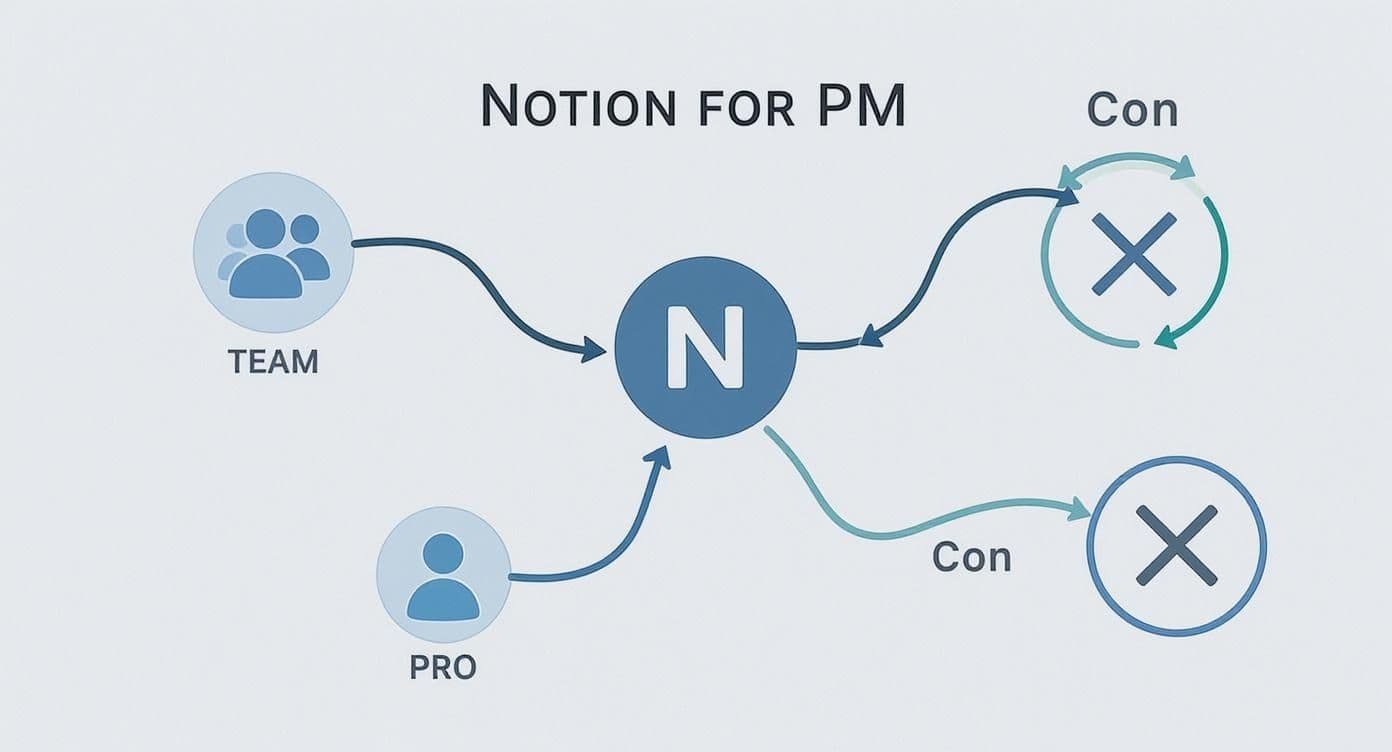
As you can see, Notion's real power comes from connecting all these different pieces—from team collaboration to the fine details of task management—into one cohesive system.
Establishing the Projects Database
With your tasks handled, it’s time to zoom out. We need a separate database for your high-level initiatives—the big-picture stuff. This lets you track overarching goals without drowning in the details of daily to-dos. This is where you’ll manage things like a "Q3 Product Launch" or a "New Website Redesign."
Create another new database and name it "All Projects." The properties here will be a bit different, focused more on oversight:
- Project Lead (Person): Who is ultimately responsible for getting this project over the finish line?
- Timeline (Date): Use a date range to set the project's official start and end dates.
- Status (Select): Similar to tasks, but with options tailored for projects, like
Planning,Active,On Hold, orCompleted.
This database becomes the high-level dashboard for stakeholders and leadership, keeping everyone aligned without getting them stuck in the weeds.
The key to a scalable Notion setup is separating high-level projects from granular, daily tasks. Trying to manage everything in a single database quickly becomes chaotic and unmanageable as your team grows.
Connecting Tasks to Projects with Relations
Here’s where it all clicks together. We’re going to make these two databases "talk" to each other using one of Notion’s most powerful features: the Relation property.
Hop back over to your "All Tasks" database. Add a new property, but this time, select "Relation" from the menu. When it asks you to pick a database, choose your "All Projects" database. I usually name this property simply "Project." Make sure you toggle on the option for "Show on All Projects"—this creates that crucial two-way link.
Now, whenever you create a task—like "Design new landing page mockups"—you can click its "Project" property and link it directly to the "Q3 Product Launch." That simple action instantly connects the day-to-day work to the broader company goal.
Once that relationship is established, you can do some pretty incredible things. For example, when you open the "Q3 Product Launch" page, you'll see a neat, automatically updated list of every single task associated with it. Instant project dashboard, zero extra effort.
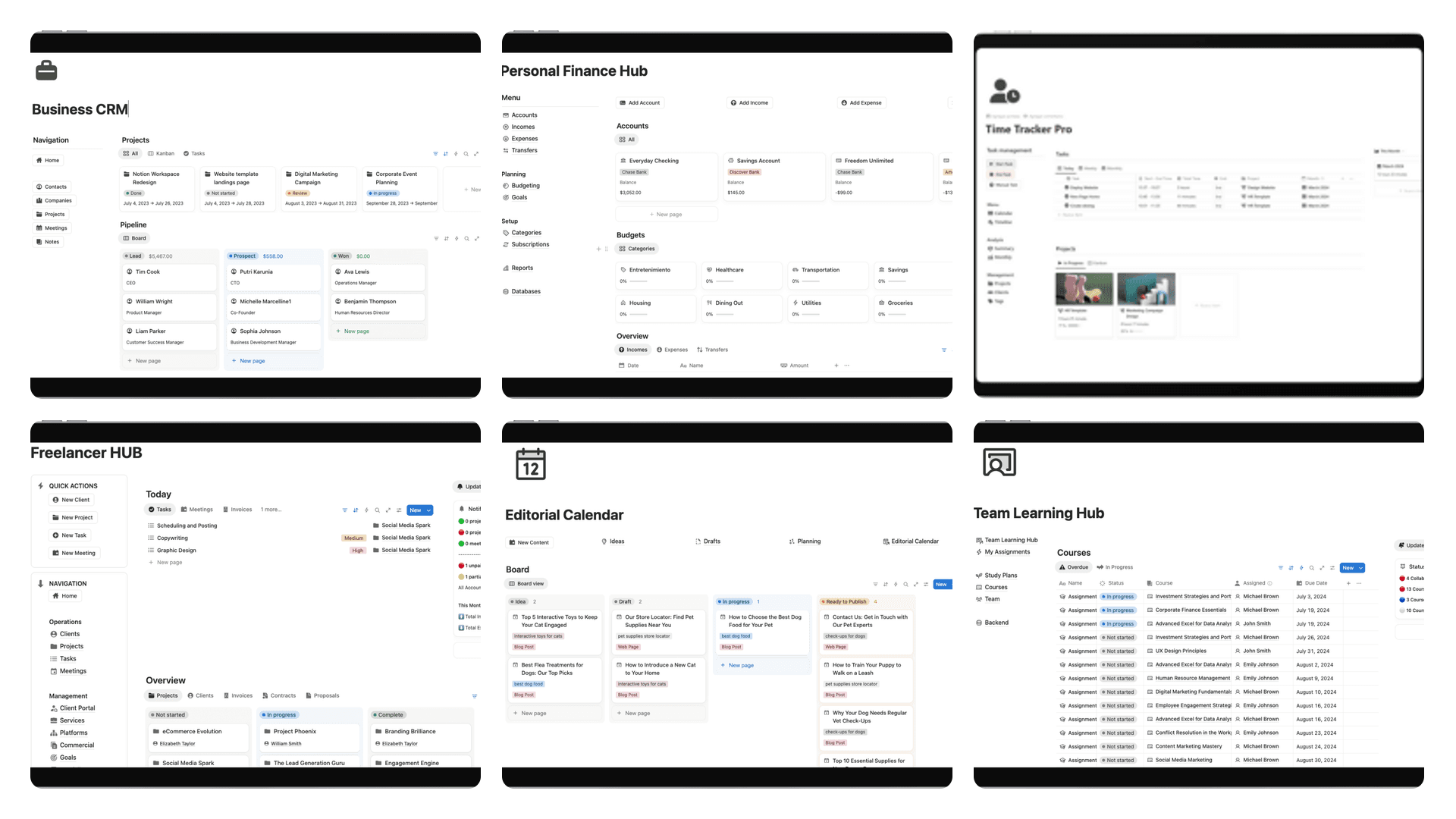
If building this from scratch sounds like a lot, you can get a massive head start with a professional Notion project management template. These templates come with all these connections pre-built, often with advanced features that can save you hours of setup time. Either way, getting this foundational structure right is the most important part. Nail this, and everything else falls into place.
Designing Dynamic Views for Total Clarity
Alright, you’ve built the foundational databases for your projects and tasks. That's a huge step. But right now, it's just a highly organized pile of data. It's not truly useful until you can see it in a way that makes sense for your day-to-day work. This is where Notion's real magic for project management kicks in: turning that raw data into dynamic, purposeful views.
Think about it: a project manager needs that 30,000-foot view to see what's on track, while a designer just needs to know what's on their plate for today. Instead of juggling different spreadsheets or reports (which are outdated the second you export them), Notion lets you create multiple windows into the same, single source of truth. No more conflicting information. Everyone sees what they need, and it’s always live.
The Everyday Power of a Kanban Board
For managing the daily flow of work, you just can't beat a Kanban board. It’s the bread and butter for agile teams for a reason—it gives you a quick, visual, drag-and-drop way to see tasks move from "to-do" to "done."
Let's build one right now from your "All Tasks" database, grouping everything by its status.
- Head over to your "All Tasks" database.
- Click the little
+icon next to your existing views and choose theBoardoption. - Let's call this new view "Team Kanban."
- Now, find the
...menu to open the view options, selectGroup by, and pick yourStatusproperty.
Boom. Instantly, all your tasks pop up as cards organized into columns like Not Started, In Progress, and Done. This view is perfect for daily stand-up meetings. You can literally drag a card from one column to the next as you discuss progress, making it incredibly easy to spot bottlenecks in real time.
Here’s a great example of what a clean, functional Kanban board looks like in Notion. It’s immediately obvious where the work is flowing and where it’s getting stuck.
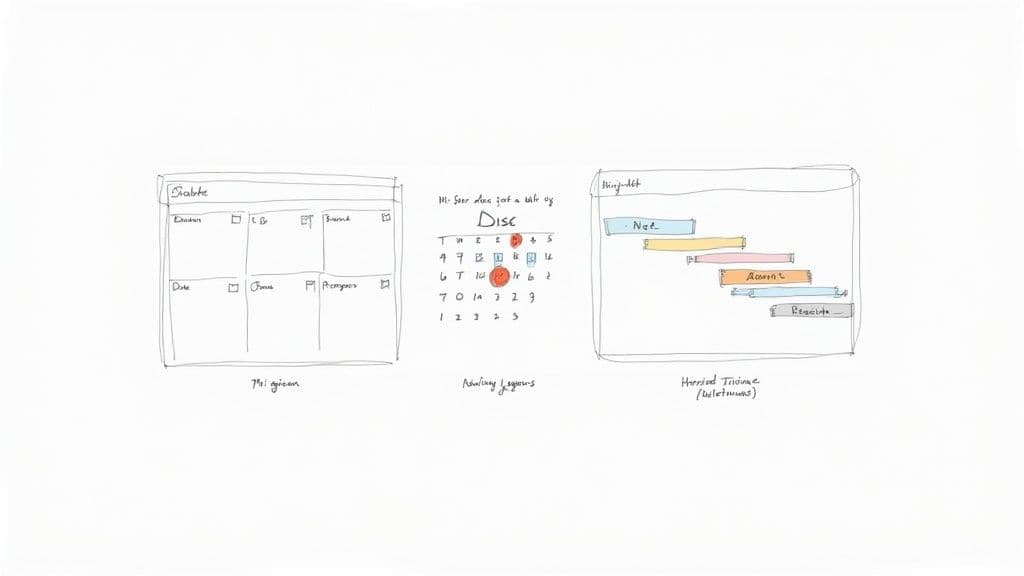
A quick glance at a layout like this can tell a project manager if they need to jump in and reallocate resources to keep things moving.
Mapping Deadlines with Calendar and Timeline Views
Kanban boards are fantastic for tracking the flow of work, but they don't do a great job of showing you when things are due. For deadlines and dependencies, we need a different perspective. That's where Calendar and Timeline views come in.
- Calendar View: Create another view, but this time select
Calendar. Tell it to display your tasks using theDue Dateproperty. This gives the whole team an at-a-glance look at what's coming up this week or month. It's perfect for planning and avoiding last-minute scrambles. - Timeline View: For a more strategic, Gantt-style perspective, you'll want a
Timelineview. This is a project manager's best friend for mapping out project phases, visualizing how tasks depend on one another, and sharing high-level roadmaps with stakeholders. Try grouping this view byProjectto see how different initiatives overlap and compete for resources.
This kind of flexibility is a big reason why Notion has carved out a solid niche in the project management world. It currently holds about 4.55% of the market, largely because it can be molded to fit almost any team's needs. While software development teams make up a large chunk of its user base (31.46%), it's just as common to see marketing, finance, and operations teams building out their own custom workflows. You can find out how it compares to other tools and see more detailed market data.
Creating Personalized "My Tasks" Views
This might be the single most impactful view you can create for your team. Nobody wants to wade through a massive to-do list just to find the two or three things they are responsible for. A filtered "My Tasks" view cuts through all that noise.
It's simple to set up. Create a new List or Board view and call it "My Tasks." Then, just add one simple filter:
- Click
Filterat the top of the database. - Choose the
Assigneeproperty. - Set the condition to
Contains. - And here's the key: select
Mefrom the dropdown list of people.
Now, this view will dynamically show only the tasks assigned to whoever is currently logged in. Encourage every person on your team to make this their default view. When they open Notion, they'll get a clean, focused dashboard of their personal responsibilities—nothing more, nothing less.
Pro Tip: Don't stop at one filter. You can stack them for even more focus. For example, a designer could create a "My High-Priority Tasks" view by filtering for
AssigneecontainsMeANDPriorityisHigh. This kind of customization helps everyone zero in on what truly matters most at any given moment.
By setting up these different views, you’re transforming your Notion workspace from a static database into an intelligent, interactive command center. Each person gets a custom-fit perspective for their role, all while working from the exact same up-to-the-minute data. This is the heart of what makes Notion for project management so effective: it creates clarity and focus for the entire team.
Automating Workflows and Integrating Tools
<iframe width="100%" style="aspect-ratio: 16 / 9;" src="https://www.youtube.com/embed/Cgn4Vdyo2H4" frameborder="0" allow="autoplay; encrypted-media" allowfullscreen></iframe>Okay, your core databases are built and the views look great. Now it's time for the fun part. This is where we elevate your Notion for project management setup from a simple organizational tool into a true command center for your team.
The real magic happens when you start cutting out the repetitive, manual tasks that eat up everyone's day. That’s where automations and integrations come in, and they’re more accessible than you might think.
You don't need a third-party service to start seeing benefits. Notion's built-in database automations are surprisingly robust for handling simple, everyday actions. I like to think of them as simple "if this, then that" recipes that trigger when a database property changes.
For instance, think about how cluttered an active task list can get with completed items. You can set up a simple rule: when a task's Status property is changed to Done, Notion automatically moves it into an "Archive" database. Just like that, your active views stay clean and focused, no manual cleanup required.
Getting Started with Native Notion Automations
Let's build a really practical automation right now. Say you want to make sure the project lead gets an immediate heads-up when a task is ready for their review. This simple ping can prevent work from getting stuck in limbo.
- Head over to your "All Tasks" database and look for the lightning bolt icon (⚡) in the top-right corner.
- Click
+ New automation. - First, you'll set the trigger. Choose
+ Add trigger, select theStatusproperty, and tell it to run whenever the status is changed toIn Review. - Next, you'll define the action. Click
+ Add actionand pickSend Slack notification. (You'll be prompted to connect your Slack workspace if you haven't already). - Finally, tell the automation who to notify. Configure it to send the message to the person listed in your
Project Leadrelation property.
That’s it. This two-step rule closes a common communication gap and keeps projects flowing. You can use this same logic to auto-assign tasks based on their type or to automatically update a Last Edited timestamp property.
Connecting Notion to Your Team's Favorite Tools
While the native features are a great start, Notion really hits its stride when you connect it to the other apps your team uses every single day—tools like Slack, GitHub, Google Calendar, or Figma.
The whole point is to eliminate context-switching. Instead of your team bouncing between five different tabs to get the full story, you bring the most important updates directly into your Notion workspace. This is fundamental when you want to learn how to streamline business processes in a meaningful way.
My Takeaway: An integrated workspace is a low-friction workspace. When your tools communicate, your team spends less time playing telephone and doing administrative busywork, and more time actually moving the needle.
Practical Integration Examples
The possibilities here are nearly endless, but here are a few real-world examples I've seen deliver huge value right away:
- Slack: Create a rule that automatically posts a message in your team's
#bugschannel whenever a new task is created in Notion with thePriorityset toHigh. This gets critical issues in front of your engineers instantly, without anyone having to remember to do it. - GitHub: By linking your tasks database with GitHub, a developer can associate a pull request directly with its corresponding Notion task. The task page will then show the live PR status, giving both technical and non-technical folks a single source of truth. No more "what's the status of this feature?" questions.
- Google Calendar: Sync your Notion
Due Dateproperty with a shared team calendar. This is a two-way street—update a deadline in Notion, and it changes on the calendar. Change it on the calendar, and it updates in Notion. It’s a simple way to prevent scheduling conflicts and keep everyone aligned.
These connections transform Notion from a passive place where you document work into an active participant in your workflow. To get a better sense of what's possible with your team's specific tech stack, it’s worth exploring all the available Notion integration options. Every small, repetitive task you automate frees up valuable mental energy for your entire team.
Going Deeper: Advanced Strategies and Common Pitfalls
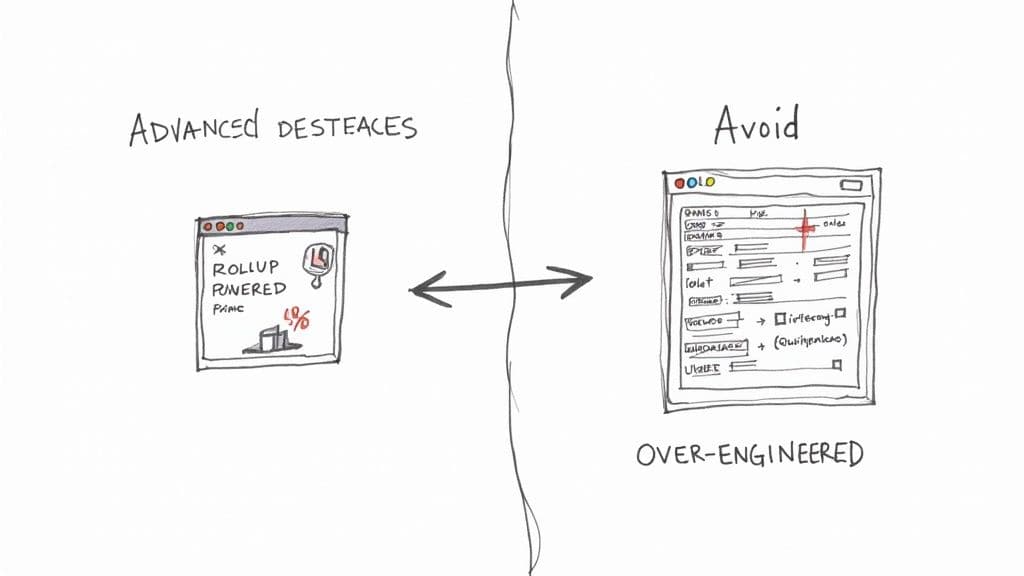
So, you've got your core databases and views running smoothly. It's tempting to call it a day, but the real magic of Notion happens when you move beyond basic organization. This is where you can make your workspace truly intelligent—a system that surfaces key insights for you, no manual tracking required.
The two features that get you there are Rollups and Formulas. Think of them as your secret weapons. Rollups pull information from related databases, and Formulas let you calculate and display that information in useful ways.
Creating an Automated Project Progress Bar
Let's walk through a practical example that I use in almost every project setup: a progress bar that automatically shows how close a project is to completion.
This is a perfect real-world use case for Rollups and Formulas. We're going to make it so when you look at your "All Projects" database, you can instantly see that the "Q3 Product Launch" is 75% complete because three of its four tasks are marked 'Done'.
Here’s how you build it inside your "All Projects" database:
- First, create a Rollup property. This will do the heavy lifting. Point it to your "All Tasks" database. For the property, grab the
Status, and for the calculation, choosePercent per groupand thenComplete. Just like that, you'll have a number showing the percentage of completed tasks for that project. - Next, add a Formula property. This is where we get visual. You can paste in a formula to turn that percentage into a progress bar. A great one I often use is:
slice("▓▓▓▓▓▓▓▓▓▓", 0, round(prop("Tasks Complete %") * 10)) + slice("░░░░░░░░░░", 0, 10 - round(prop("Tasks Complete %") * 10)) + " " + format(round(prop("Tasks Complete %") * 100)) + "%"
This simple two-step process creates an executive-level dashboard that updates in real time as your team completes their work. No more asking "how far along are we?"—the answer is always right there.
Common Mistakes and How to Sidestep Them
Notion's greatest strength—its incredible flexibility—can quickly become its biggest weakness. I've seen teams get so excited about the possibilities that they build systems so convoluted they just collapse. Knowing what not to do is just as important as mastering the advanced features.
The number one mistake is over-engineering. This is the temptation to add a property for everything, create a dozen interconnected databases that could have just been one, or build overly complex relations. The goal is always clarity, not complexity.
A good Notion workspace should feel intuitive. It should reduce friction, not create it. If your team needs a one-hour training session just to add a task, you’ve gone too far. Start simple and only add complexity when there's a clear, painful need for it.
Another pitfall that can derail everything is the lack of team-wide conventions. One person tags a task as "High" priority, another types "Urgent," and a third just bolds the task name in the title. This kind of inconsistency renders your data useless for filtering, sorting, and reporting.
To avoid this digital chaos, you absolutely must:
- Set a Naming Convention: Agree on a simple, clear structure for naming projects, tasks, and documents.
- Define Your Properties: Create a single page that explains what each status, priority, or tag means and when to use it.
- Appoint a Notion Champion: Pick one person who owns the workspace structure. They're not a gatekeeper, but a guide who ensures consistency and helps the system evolve thoughtfully.
This kind of structure is what separates a long-lasting project hub from a digital junk drawer. It's no wonder Notion has grown from 1 million users in 2019 to over 100 million users worldwide. When implemented thoughtfully, its power is undeniable, which is why it's been adopted by over half of the Fortune 500. You can learn more about Notion's rapid expansion and its impact on major enterprises to see just how far a well-structured system can take you.
Your Notion Project Management Questions, Answered
Once you start using Notion to actually run projects, you'll inevitably bump into a few practical questions. It's one thing to build the system, but another to live in it day-to-day. Let's tackle some of the most common hurdles I see teams face when they get started.
How Do I Give Clients Access Without Showing Them Everything?
This is a big one. You need to keep clients in the loop, but you definitely don't want them seeing your team's internal chatter or other projects. The best way to handle this in Notion is by creating a dedicated "Client Portal" page.
Think of this page as a dashboard built just for them. Instead of giving them access to your raw databases, you use Linked Databases to pull in specific, filtered views. For example, you can create a view on their portal page that only shows tasks from their project that are marked "Client-Facing."
Once you've set that up, you just share that one top-level page with your client as a guest. They get a clean, simple view of everything they need to see, and all your other work stays completely private and secure. It's the perfect balance of transparency and privacy.
What's the Best Way to Handle Recurring Tasks?
Ah, the classic Notion question. It's true—Notion doesn't have a built-in "repeat task" feature like you might find in tools like Asana. But don't worry, the community has come up with some pretty clever workarounds.
The most straightforward method relies on templates and a little manual trigger. Here’s how it works:
- First, create a master template for the recurring task. For instance, you could design a "Generate Weekly Report" page and pre-fill it with all the necessary sub-tasks and details.
- Then, create a Template Button. You can configure this button so that every time you click it, it creates a fresh copy of your "Generate Weekly Report" task right inside your main tasks database.
I usually put these buttons on a "Team Admin" or "Weekly Reset" page. That way, part of my Monday morning routine is to just click the buttons for the week's recurring tasks. It's not fully automated, but it takes about 10 seconds and ensures nothing slips through the cracks.
Can Notion Really Replace a Tool Like Jira or Asana?
The honest answer? It depends entirely on your team and your workflow.
Notion's magic lies in its flexibility. It's incredible for teams that want to weave their project management directly into their documentation, meeting notes, and company wiki. If you've ever felt frustrated juggling a dozen different apps, the "single source of truth" that Notion provides can feel like a superpower.
However, if you're a large engineering team running complex Agile sprints, you'll probably miss the specialized features of a tool like Jira. Its advanced reporting, velocity charts, and deep integrations with developer tools are hard to replicate. Similarly, Asana has more powerful out-of-the-box automations and goal-tracking features.
For most creative, marketing, operations, and startup teams, the trade-off is absolutely worth it. You might lose a few enterprise-grade features you never really used, but you gain a completely unified and customized workspace in return.
How Do I Stop My Notion Workspace from Becoming a Total Mess?
A clean workspace is a fast workspace. The key to avoiding "Notion chaos" is to establish good habits from day one.
- Appoint a "Notion Champion." It helps to have one person who is the designated owner of the workspace structure. They aren't a gatekeeper, but a guide who helps keep things consistent.
- Create a "How We Use Notion" Guide. A simple page that defines what each property means is a lifesaver. What's the difference between "P1" and "P2" priority? When should a task be "In Review" vs. "Done"? Writing it down eliminates confusion.
- Archive ruthlessly. As soon as a project is finished, move it to an "Archive" page or database. This keeps your active views feeling snappy and focused only on what's important right now.
Think of it like keeping a tidy workshop—when everything has a place, you can focus on doing your best work instead of searching for the right tool.
Ready to skip the setup and get a perfectly organized system right now? Flowtion provides professionally designed, battle-tested Notion templates that transform your workspace in one click. Find the perfect template to streamline your projects and boost your productivity today.