Essential Notion Project Management Templates
Discover the best Notion project management templates to streamline your workflow. Learn to choose, customize, and implement the perfect system for your team.
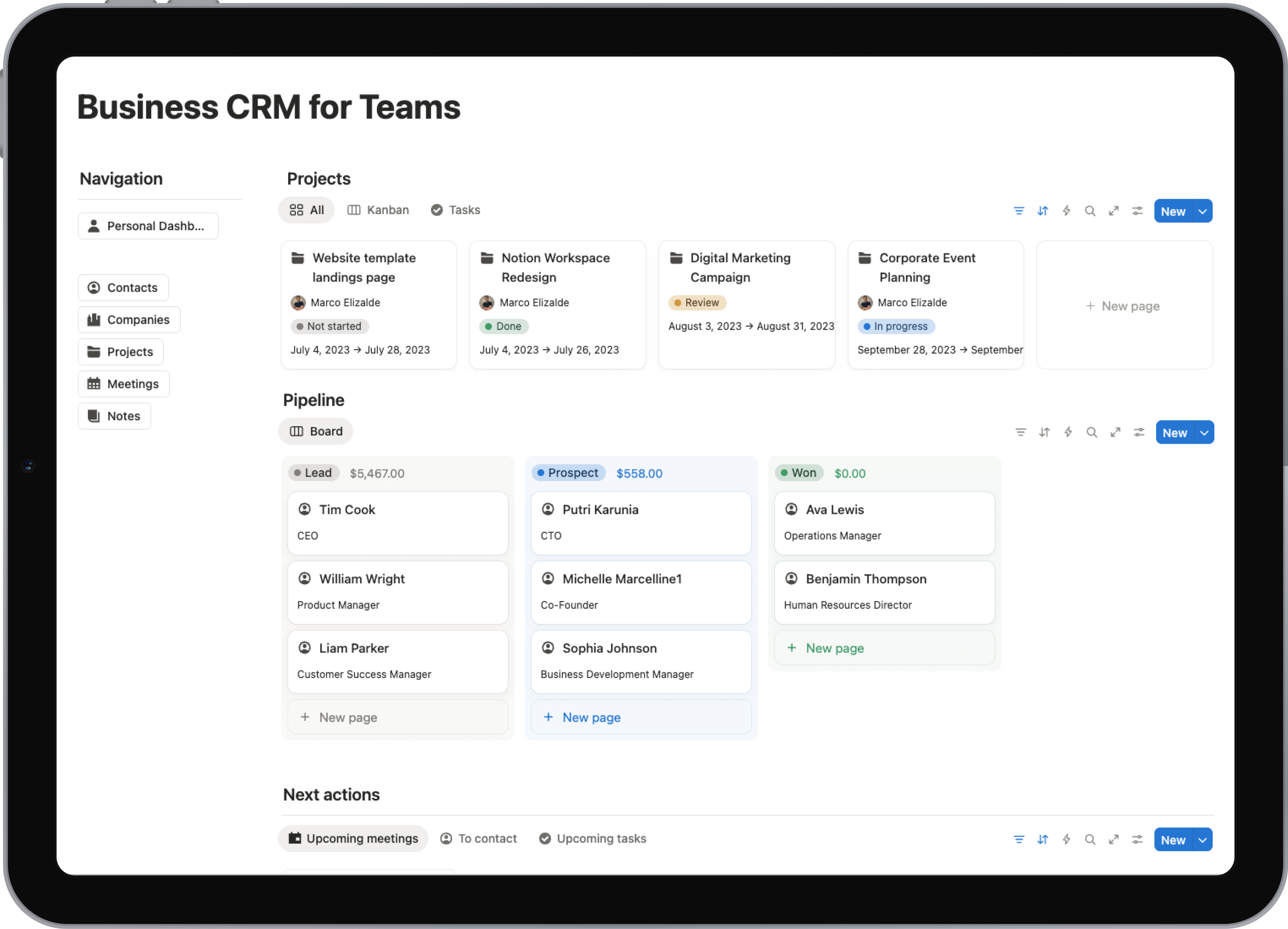
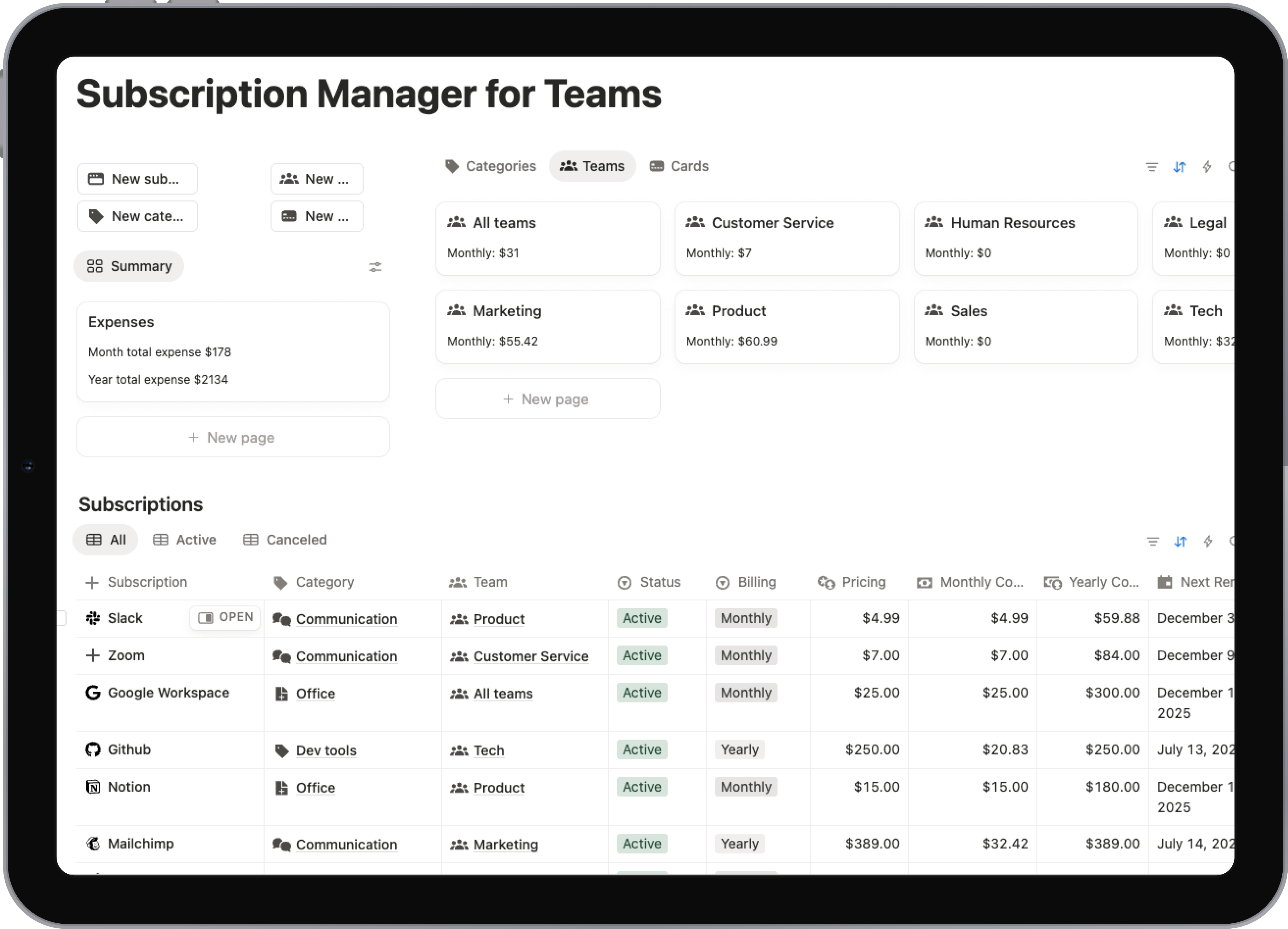
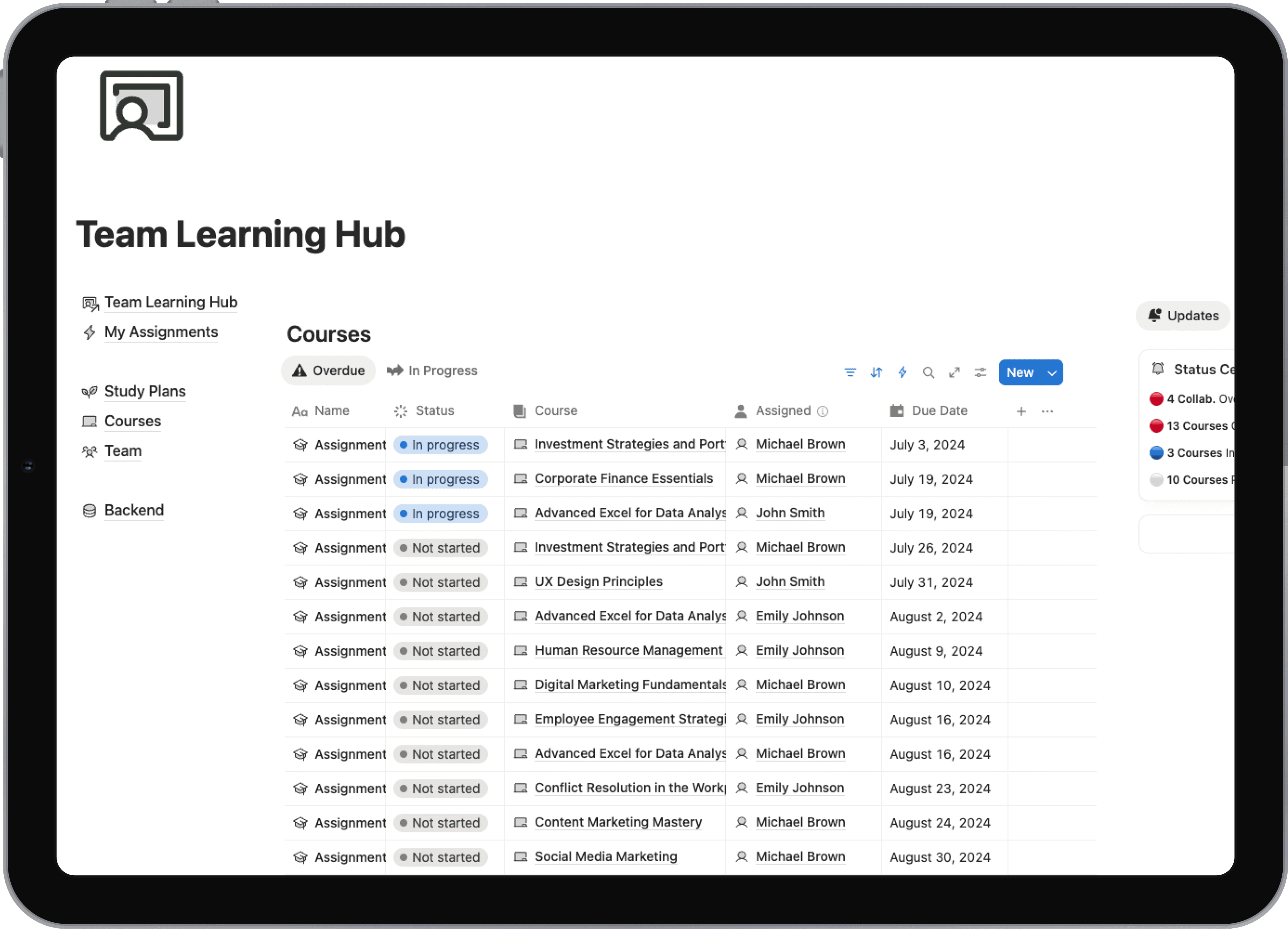
Feeling like you're constantly chasing down information and staring down the barrel of another missed deadline? We’ve all been there. This is where Notion project management templates come in. They aren't just another tool; they're a ready-made, all-in-one system that lets you skip the painful setup process and get straight to work. Think of them as battle-tested workflows you can plug into your team immediately.
Why Notion Is Your Team's Next Project Management Hub
If you've ever found yourself bouncing between a dozen different apps—one for tasks, another for docs, a third for client notes—you know how easily things get lost in the shuffle. Notion cuts through that chaos by bringing everything under one roof. It creates a single, flexible workspace where all your project information can live, preventing critical details from falling through the cracks.
This isn't just about convenience. It’s about creating a single source of truth. When everyone on the team is working from the same page, alignment happens naturally.
The real genius of Notion is its structure. It's a powerful combination of databases, customizable views, and collaborative features that work together seamlessly. Most project management software forces you into a rigid, one-size-fits-all box. Notion, on the other hand, is like a set of digital LEGOs, giving you the freedom to build a system that actually fits how your team works.
The Power of a Centralized System
Having one central hub for everything fundamentally changes how a team operates. When you can link project plans directly to meeting notes, tasks, and client feedback, you're not just storing information—you're building a web of interconnected knowledge. No more hunting through old email threads for that one attachment or bugging a colleague to find a specific document.
This setup also brings a new level of clarity and accountability. Project managers get a real-time, birds-eye view of progress without having to ask for constant updates. At the same time, individual team members can see exactly what they're responsible for and, just as importantly, how their work fits into the larger picture. To see this in action, check out our deep dive into using Notion for project management.
The diagram below gives you a simple visual of how a well-built Notion template ties everything—users, projects, tasks, and documentation—into a single, cohesive workflow.
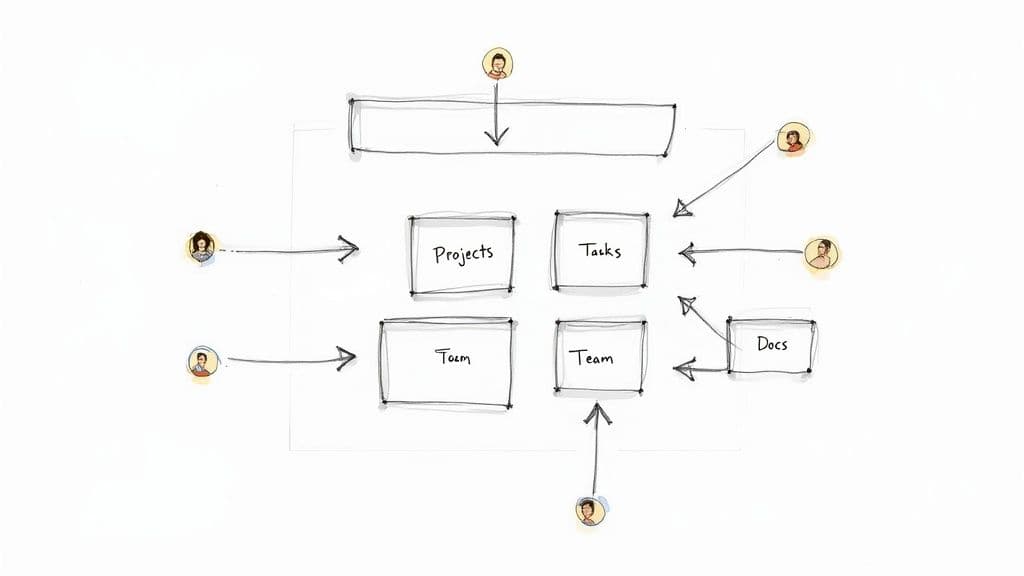
It’s this kind of interconnected structure that turns a chaotic process into a clear, manageable system.
To give you a clearer idea, here's a quick breakdown of the core project management functions that Notion templates are designed to handle.
Core Project Management Areas Covered by Notion Templates
| Project Area | How Notion Templates Help |
|---|---|
| Task Management | Create, assign, and track tasks with deadlines, priorities, and statuses. |
| Project Planning | Outline project timelines, milestones, and deliverables in one central place. |
| Resource Allocation | Assign team members to specific tasks and projects to manage workload. |
| Client & Stakeholder Communication | Share project updates and dashboards with external partners. |
| Document & Knowledge Management | Store all project-related documents, notes, and briefs together. |
| Progress Tracking & Reporting | Use dashboards and custom views to monitor progress and generate reports. |
This table just scratches the surface, but it shows how a good template can provide a solid foundation for nearly every aspect of your workflow.
A Template for Every Workflow
Notion project management templates have completely changed the game for how teams get organized. The platform's official template gallery is massive, now hosting over 7,400 project management options built for everyone from software developers to marketing agencies.
Whether your team uses Agile, Waterfall, or a completely custom methodology, there's almost certainly a template out there that fits your needs. This incredible versatility is one of Notion's biggest strengths. The sheer scale of available resources is a testament to how adaptable the platform truly is.
The biggest win with using a template is speed. Instead of losing weeks trying to build a perfect system from scratch, your team can deploy a proven workflow in minutes. That lets you get back to focusing on what actually matters—doing great work.
How to Choose the Right Notion Template
https://www.youtube.com/embed/l0P6SPZOI-U
Picking a Notion project management template isn't like grabbing a new notebook off the shelf. Think of it more like choosing a business partner. The right one will adapt to your workflow, anticipate your needs, and grow alongside you. The wrong one? It just creates friction, confusion, and eventually gets abandoned in a digital drawer.
The trick is to look inward at your own process before you get lost browsing the endless sea of options online. Start by getting crystal clear on what "project management" actually means for you and your team, because it's definitely not a one-size-fits-all deal.
Define Your Core Needs First
Before you get distracted by a beautifully designed template that’s way too complicated for your needs, take a moment to do a quick self-assessment. A simple audit of how you work now will point you in the right direction and stop you from adopting a system that doesn't solve your real problems.
Ask yourself a few fundamental questions:
- How big is my team? A solopreneur can get by with something simple and clean. But a ten-person agency? You'll need features for assigning tasks, setting permissions, and building out collaborative dashboards.
- How complex are my projects? Are you just managing a content calendar with a few moving parts, or are you mapping out a multi-phase software launch with complex dependencies? The first might only need a simple Kanban board, while the second demands a robust system with timelines and relational databases.
- What's our main workflow? An agency juggling dozens of clients absolutely needs a built-in client management component. A startup building a product needs a system designed around sprints and product roadmaps. Figure out the central pillar of your work, and find a template that supports it.
- What other tools do we use? If your team lives in Slack or needs to pull in designs from Figma, you should consider how well a template integrates with those tools, either natively or through automations.
Answering these questions turns a vague search for "a good template" into a focused hunt for "a template that supports a five-person marketing agency with client-facing timelines." The difference is night and day.
Free Community Templates vs. Premium Paid Options
Once you know what you’re looking for, you’ll hit a fork in the road: go with a free, community-made template or invest in a premium one? Both have their place, and the right answer really depends on your budget and how much time you're willing to spend on setup.
Free templates are a fantastic starting point, especially for individuals, small teams, or anyone just dipping their toes into Notion. They let you experiment with different layouts and workflows without any financial risk. The only catch is that quality can be all over the place. Some are brilliant, while others might lack instructions or never get updated.
Premium templates, on the other hand, are typically much more polished and comprehensive. They often come with detailed onboarding guides, video tutorials, and dedicated support from the creator. More importantly, they’re usually built by an expert for a specific professional use case and come with lifetime updates, so your system evolves as Notion adds new features.
A great premium template isn't just a pre-filled page; it's a complete, battle-tested system. You're not just paying for the design—you're investing in the strategic thinking and workflow optimization that went into its creation.
For example, a solid paid template might already have pre-built automations, integrated financial tracking, or a client portal ready to go—features that could take you hours or even days to build from scratch. If your time is valuable, the upfront cost often pays for itself very quickly.
Look for Proven Success and User Feedback
Finally, don't be swayed by pretty screenshots alone. Look for social proof that the template actually works for people in the real world. Many of the best templates have active communities, tons of reviews, and detailed case studies you can check out.
Take Notion's own Marketing Project Tracker template, for example. It’s one of the most popular project management templates on their marketplace for a reason. User feedback analysis from 2025 showed it earned an impressive average rating of 4.95 out of 5 from 62 ratings. Even more telling, 87% of reviewers specifically called out how well it works for marketing teams.
You can learn more about what makes this specific marketing project template so effective on Notion's official site. Look for that kind of specific, positive feedback.
4. Making the Template Your Own: The Customization Phase
So, you've picked a promising Notion project management template. First things first, you need to get it into your workspace. Just hit the Duplicate button, which you’ll almost always find in the top-right corner of the template's page. Notion instantly makes a copy in your private pages, giving you a fresh canvas to work with.
Think of it like getting the keys to a new house. The structure is there, but it doesn't feel like yours until you move in the furniture and hang some art. The raw template is just a starting point; the real value comes from tailoring it to fit exactly how you and your team operate.
This is a step people often skip. They try to bend their existing processes to fit the template's default layout, but that’s backward. The most effective Notion users know that the magic happens when you make the template work for you.
Dialing in Your Databases to Track What Actually Matters
The engine of any serious Notion PM system is its databases. This is where your projects, tasks, clients, and meeting notes all live and connect. The columns in these databases are called properties, and they dictate every piece of information you can track.
A stock template might have the basics covered: 'Status', 'Due Date', and 'Assignee'. Those are non-negotiable, but your team almost certainly tracks other unique metrics. This is your first—and most impactful—chance to customize.
Don't hesitate to add, delete, or rework properties to match your reality. Here are a few modifications I see teams make all the time that have a huge impact:
- Track the Money: Add a 'Budget' or 'Project Value' property. Use the Number property type and set the format to your local currency. Suddenly, your project dashboard gives you a financial overview at a glance.
- Clarify Approvals: For agencies or freelancers, create a 'Client Approval' status. A simple Select or Status property with options like 'Pending Review', 'Revisions Requested', and 'Approved' is a game-changer for tracking stakeholder sign-offs.
- Define Priority: Many templates have a priority system, but you can make it your own. I recommend a Select property with color-coded tags like 'P1 - Urgent', 'P2 - High', 'P3 - Medium', and 'P4 - Low'. The colors make it incredibly easy to scan and spot what needs immediate attention.
When you go to edit a database, you'll see a menu like this:
This little menu is your control panel for molding your data. Every property type, from simple text and numbers to powerful formulas and relations, unlocks a new way to slice and dice your work.
Before moving on, let's look at some key customizations that can make an immediate difference. The table below outlines a few essential tweaks to consider for any project management template you adopt.
Table: Essential Customizations for Your PM Template
| Customization | Purpose | Example |
|---|---|---|
| Project ID | Create a unique, human-readable identifier for each project. | Use a Formula property to combine a prefix with an auto-incrementing number (e.g., "PROJ-101"). |
| Team/Department Relation | Link projects and tasks to a separate "Teams" database. | Relate a "Website Redesign" project to the "Marketing" and "Dev" teams for easy filtering. |
| Last Updated Time | Automatically track when a task or project was last modified. | Add a "Last Edited Time" property to quickly see which items are stale or actively being worked on. |
| Progress Bar | Visually represent task completion for a project. | Use a Formula property to calculate the percentage of completed tasks related to a project. |
| Client/Stakeholder Relation | Connect projects to a central client or stakeholder database. | Link your main projects to a "Clients" database to pull in contact info, contracts, and notes. |
These small changes turn a generic template into a system that reflects your organization's unique structure and priorities, making it far more intuitive for your team to use day-to-day.
Crafting Custom Views and Dashboards for Clarity
Once your properties are set, the next level of customization is controlling how you see all that information. In Notion, we do this with database views. You can take a single, massive database of tasks and display it in a dozen different ways, each tailored for a specific person or purpose—all without duplicating a single piece of data.
Take a marketing team's central 'Campaigns' database. It could power several different views:
- A Content Calendar: Use a Calendar View to see all campaigns plotted by their launch dates. It’s perfect for spotting scheduling gaps or overlaps.
- A Kanban Workflow: A Board View grouped by the 'Status' property lets you visually drag campaigns from 'Idea' to 'In Progress' to 'Complete'.
- A Creative Showcase: A Gallery View can feature campaign visuals, making each card a mini-preview. This is great for creative reviews.
- A Strategic Timeline: The Timeline View is a Gantt-style chart that’s essential for mapping out dependencies and project phases over weeks or months.
The real expert move is using filters and sorts to build hyper-specific views. For example, you can create a "My Tasks Due This Week" view. It filters the master task list to show only items assigned to the current user with a due date in the next 7 days. This focused view cuts through all the noise. For a deeper dive, our guide on Notion tasks management walks through advanced strategies for building these personal dashboards.
Custom views transform a cluttered firehose of tasks into a clean, actionable dashboard. Instead of seeing everything, each person sees only what's relevant to them, right when they need it. This is the secret to getting your team to actually use the system.
Adapting Your Template for Niche Workflows
The true power of Notion is that it’s a blank slate, ready to be molded to any industry.
For a software team, a generic project template can become a powerful product roadmap template by adding properties for 'Target Persona', 'Key Metrics', and 'Sprint Cycle'. Suddenly, the entire system speaks the language of product development.
A content creation agency could do something similar. They might add properties like 'Content Format' (Blog, Video, Social), 'Publish Date', and 'Target Keyword'. Their calendar view becomes a dynamic content schedule, and a Kanban board grouped by 'Author' helps them balance workloads.
The possibilities are endless. The goal is always the same: make the template talk like your team talks.
Unlocking Advanced Notion Workflows
Once you’ve got the hang of tweaking a template, it's time to dig into the features that really make Notion shine. This is where you graduate from a static page to a living, breathing system that does the heavy lifting for you. We're moving beyond simple to-do lists to build a true command center for your entire operation.
The key is making your core databases—like projects, tasks, and clients—actually talk to each other. From there, we'll sprinkle in some automation to handle the mind-numbing admin work, letting you focus on the stuff that actually matters.
Building an Interconnected System with Relational Databases
The secret sauce in any sophisticated Notion setup is relational databases. It’s a fancy term for a simple concept: linking entries from one database to another. This creates a web of connected information, turning isolated lists into a system where every piece of data adds context to another.
Let's say you have separate databases for your:
- Projects (the big-picture goals)
- Tasks (the nitty-gritty to-dos)
- Clients (who you're doing the work for)
- Meeting Notes (all your call summaries and decisions)
Without relations, they’re just four disconnected lists. But once you link them, they become a powerhouse. For instance, you can create a relation between your 'Tasks' and 'Projects' databases. Now, when you open a project page, you’ll see every single task associated with it—no manual tracking required.
When your databases are linked, you kill the need to update information in five different places. Change a task's status in your master task list, and that update is instantly visible on the main project page. That's how you build a real single source of truth.
This diagram breaks down how a central template is just the starting point. The real magic happens when you connect properties, views, and filters to build a system that fits your specific needs.
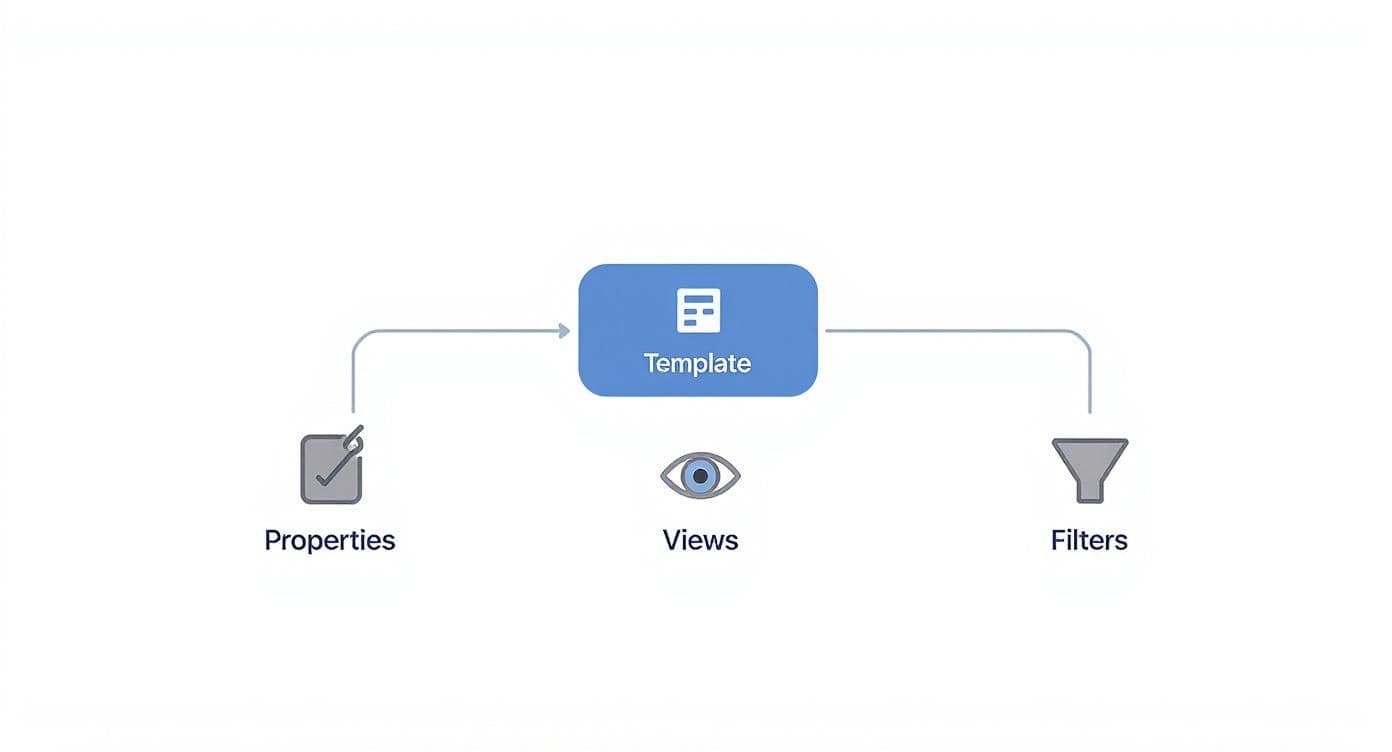
Think of the template as the chassis of a car. The properties, views, and relations are the engine, wheels, and steering—the parts you customize to make it perform exactly how you want.
Automating Your Workflow with Integrations
A well-linked system is great, but a proactive one is even better. This is where automation comes into play. Using Notion’s own API or third-party tools like Zapier or Make, you can connect Notion to all the other apps you're already using.
Suddenly, you can build simple "if this, then that" workflows that handle routine tasks automatically. The possibilities are huge, but here are a few real-world examples I've seen deliver massive time savings.
Practical Automation Scenarios
-
Slack Message to Notion Task: A client drops an urgent request in a Slack channel. You can set up an automation that watches for a specific emoji reaction (like a simple ✅). The moment you react to the message with that emoji, a new task is instantly created in your Notion 'Tasks' database, pulling in the message content and a direct link back to the Slack conversation. No more lost requests.
-
Google Calendar Event to Meeting Notes: A new client call pops up on your Google Calendar. An automation can immediately spin up a fresh page in your 'Meeting Notes' database using a pre-built template. It can even pre-populate the page by linking it to the right project and attendees, so you walk into the meeting completely prepared.
-
New Client Form to a Full Project Setup: When a new client fills out your onboarding form (built with something like Typeform or Google Forms), an integration can take that data and create a new entry in your 'Clients' database. Even better, it can then trigger a chain reaction: creating a new project page, populating it with starter tasks, and assigning them to the right people on your team. All from one form submission.
These automations transform Notion from a place where you just store information into an active partner in getting things done. If you're ready to go deeper and really get the most out of your setup, check out these 10 tips to maximize your Notion potential.
Getting Your Team on Board with Notion
Let's be honest: switching project management tools can feel like a massive undertaking. But moving your team over to a new Notion project management template doesn't have to be a painful process. With a bit of planning, you can make the transition surprisingly smooth and set everyone up for success right from the start.
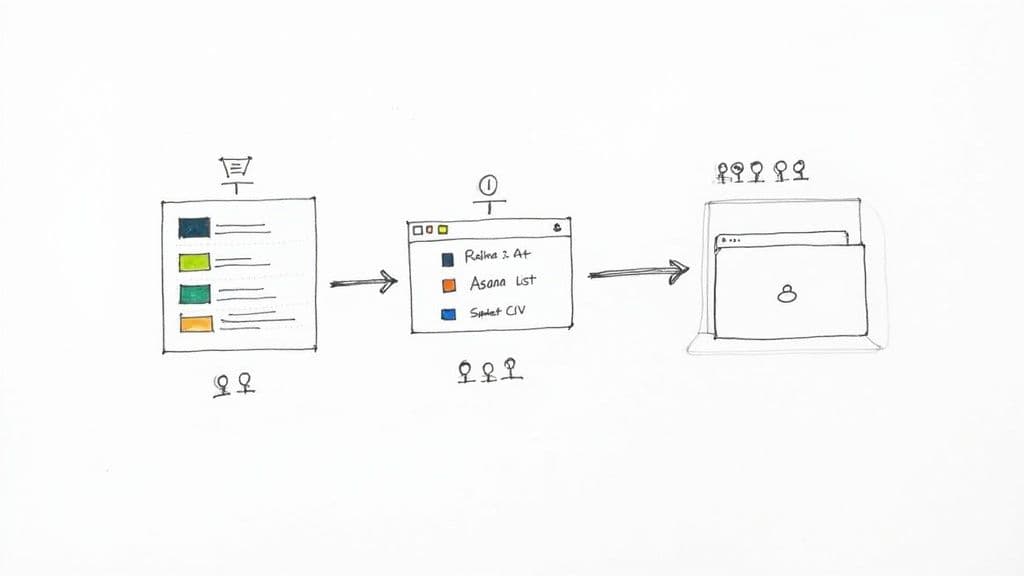
The first big question is always, "What about all our current stuff?" Most teams aren't starting with a blank slate. You've got projects, tasks, and notes scattered across tools like Trello, Asana, or a dozen different spreadsheets. Luckily, Notion's CSV import feature is your best friend here. You can export data from your old system and map it directly into your new Notion databases. It takes a little setup, but it’s far better than re-entering everything by hand.
Lay Down the Ground Rules First
A successful migration isn't just about moving data; it's about building good habits from day one. Before you even think about inviting your team into the new workspace, you need to establish some clear rules. If you don't, your pristine new system can turn into a digital junk drawer in a matter of weeks.
Start with something simple but incredibly powerful: a naming convention.
- For Projects: A consistent format like
[Client Name] - [Project Name] - [Year]works wonders. ThinkFlowtion - Q3 Marketing Campaign - 2024. - For Documents: Try a pattern like
[Document Type] - [Topic] - [Date]. For example,Meeting Notes - Project Kickoff - 2024-10-26.
These small habits make searching for information so much easier down the road. Consistency is what separates a functional workspace from a chaotic one. To get more ideas on structuring your workspace, you can dig deeper into how to set up Notion for project management.
Onboard Your Team for Real Adoption
Even the most perfect system is useless if nobody uses it right. This is where so many teams stumble. Don't just send out an invite and cross your fingers.
Set aside time for a dedicated onboarding session. Walk everyone through the template, show them the main databases, and explain the "why" behind your naming conventions. Demonstrate the core workflows, like how to create a task, log time, or update a project's status.
The real goal here is to connect the system to their daily work. Frame it in terms of benefits. Instead of just showing them a dashboard, say, "This view means you'll never have to ask me for a status update again."
After the training, create a "How We Use Notion" page right inside the workspace. This becomes your team's single source of truth for rules, property definitions, and best practices. It empowers people to find their own answers and reinforces good habits.
Keeping Your Workspace Clean and Effective
Once everyone is in and using the system, the work shifts to maintenance. A great Notion setup is never really "done"—it should grow and adapt with your team. Encourage the use of template buttons for repeatable things like weekly reports or project kickoffs. This builds standardization right into the workflow.
I also recommend doing a quick system audit every quarter. It’s a simple check-in to archive old projects, clean out unused pages, and tweak any workflows that just aren't clicking. Keeping things tidy ensures your workspace remains a powerful tool, not another source of digital clutter.
This kind of system hygiene is crucial for staying organized and competitive. In fact, many teams are now building competitive analysis right into their Notion workflows. By 2025, Notion is expected to offer around 90 different templates just for tracking market trends and competitor moves. You can explore some of these specialized project management tools on Notion's official website.
Answering Your Top Notion Project Management Questions
Even with the best template in hand, you're bound to have questions when you're rolling out a new system. Let's tackle some of the most common hurdles I see teams run into when they switch to Notion. My goal here is to help you clear those roadblocks and move forward with confidence.
Can Notion Really Replace a Tool Like Asana or Jira?
For a lot of folks—especially freelancers, startups, and creative agencies—the answer is a definite yes. The magic of Notion is its wild flexibility. You can weave together task management, wikis, and client portals into one cohesive space, which is something dedicated tools just can't do.
But it’s not a silver bullet for everyone. If you’re a massive company with deeply specific reporting requirements or heavy-duty developer integrations, a specialized platform like Jira might still have the edge. It really comes down to this: if you value an all-in-one, custom-built hub over rigid, specialized features, Notion is an absolute powerhouse.
What's the Biggest Mistake People Make with Notion Templates?
Easy. They go way too big, way too fast. I've seen it a hundred times: someone gets a new template and immediately tries to build a spaceship. They add dozens of database properties, intricate formulas, and all sorts of automations before anyone has even logged a single task.
The result? The system becomes a monster—so overwhelming that the team gives up before they even start.
The best advice I can give is to start simple and let the system grow with you. Pick a notion project management template that handles the bare essentials, get your team using it for a couple of weeks, and then start adding the cool stuff as you figure out what you actually need.
A simple system that people actually use will always beat a perfect, complex one that nobody touches.
How Can I Get My Team to Actually Use the New System?
Ah, the final boss: team adoption. This is where even the best-laid plans can fall apart. Forcing a new tool on people rarely works. You have to show them how it makes their jobs easier and give them a real sense of ownership.
Here are a few things that have worked for me and my clients:
- Bring them in early. Don't just drop a finished system in their laps. Ask key team members for input during the template selection and customization phase. When they help build it, they’re far more likely to want it to succeed.
- Do a proper onboarding session. Don't just click through features. Walk them through the exact workflows they’ll be using every day. Record it, too—it's a lifesaver for future hires.
- Make it dead simple. Use template buttons to automate repetitive stuff, like creating new project pages or weekly reports. The less friction they feel, the more they'll use it.
- Lead from the front. This is the big one. If you, the leader, are constantly using Notion for every update, task, and note, it becomes the single source of truth. Your team will follow your lead.
Ready to stop building from scratch and start managing projects with a proven system? Flowtion offers a curated collection of premium Notion templates designed to help you get organized and productive instantly. Find the perfect template for your workflow at Flowtion and transform the way you work today.