Notion Calendar Templates for Tasks & Projects
Discover notion calendar templates to organize tasks and projects efficiently. From setup to smart integrations for peak productivity.
Ever felt like your digital calendar is just a list of appointments with no real connection to the work you're actually doing? That’s the exact problem a Notion calendar template solves. It's not just a place to mark dates; it's a dynamic, database-powered system for managing your entire schedule, tasks, and projects in one interconnected space.
What Are Notion Calendar Templates
Think of your standard digital calendar, like Google Calendar, as a digital wall planner. You can pencil in appointments, set reminders, and see your week at a glance. It's great for knowing when something is happening, but that's pretty much where its job ends.
A Notion calendar template is a different beast entirely. It transforms that simple grid of dates into a command center for your life or business. Each entry on the calendar isn't just a static event—it's a clickable, expandable page living inside a powerful database.
This means every single task, meeting, or deadline can house its own world of information: detailed notes, to-do lists, attached files, and custom properties like "Priority," "Status," or "Client." You're no longer just scheduling an event; you're linking your schedule directly to the work itself.
This integrated approach is a huge reason for Notion's explosive popularity. The platform's organic website traffic rocketed from 1.5 million to 6.9 million monthly visits between June 2022 and June 2024, as documented in these Notion growth stats from Simple.ink. People are clearly hungry for tools that connect the dots.
Traditional Calendar vs Notion Calendar Template
To really see the difference, it helps to put them side-by-side. One is for passively viewing your schedule, while the other is for actively managing your work. The table below breaks down the core distinctions and shows why a database-driven approach is a game-changer for serious planners.
| Feature | Traditional Digital Calendar (e.g., Google Calendar) | Notion Calendar Template |
|---|---|---|
| Core Function | Static event scheduling | Dynamic database for tasks, events, and projects |
| Data Connection | Events are isolated entries | Events are linked to detailed pages and other databases |
| Customization | Limited to color-coding and event details | Fully customizable properties (status, tags, priority) |
| Views | Day, Week, Month, Year views | Calendar, Timeline, List, Board, and Gallery views |
| Integration | Syncs with other apps for notifications | Integrates with entire Notion workspace and databases |
Ultimately, this structure gives you incredible flexibility. You can see your content plan as a traditional calendar, then instantly flip to a Kanban board to drag posts from "Idea" to "Published." This ability to view the same information from different angles is what truly sets it apart. To learn more about the platform's unique features, check out our in-depth articles on the Flowtion blog.
Notion calendar templates are interactive dashboards, not just date grids. They link dates to tasks, notes, and project details so you can view your work from multiple angles.
What Makes a Notion Calendar Template Tick?
To really get why a Notion calendar template is so different from your average digital calendar, you have to peek behind the curtain. It's not just a grid of dates; it’s a dynamic system built from a few powerful, interconnected parts. Once you understand these core pieces, you can go way beyond basic scheduling and start building a system that actually fits how you work.
The heart of every Notion calendar is a database. Don't let that word scare you—just think of it as a super-powered spreadsheet. Each row in this spreadsheet is a single entry on your calendar, whether that's an event, a task, or a project deadline. This structure is what lets you add custom "properties" to everything, turning a simple appointment into a goldmine of useful information.
The infographic below really nails how a central calendar database can pull together all the different parts of your life—scheduling, tasks, projects—into one clean, organized hub.
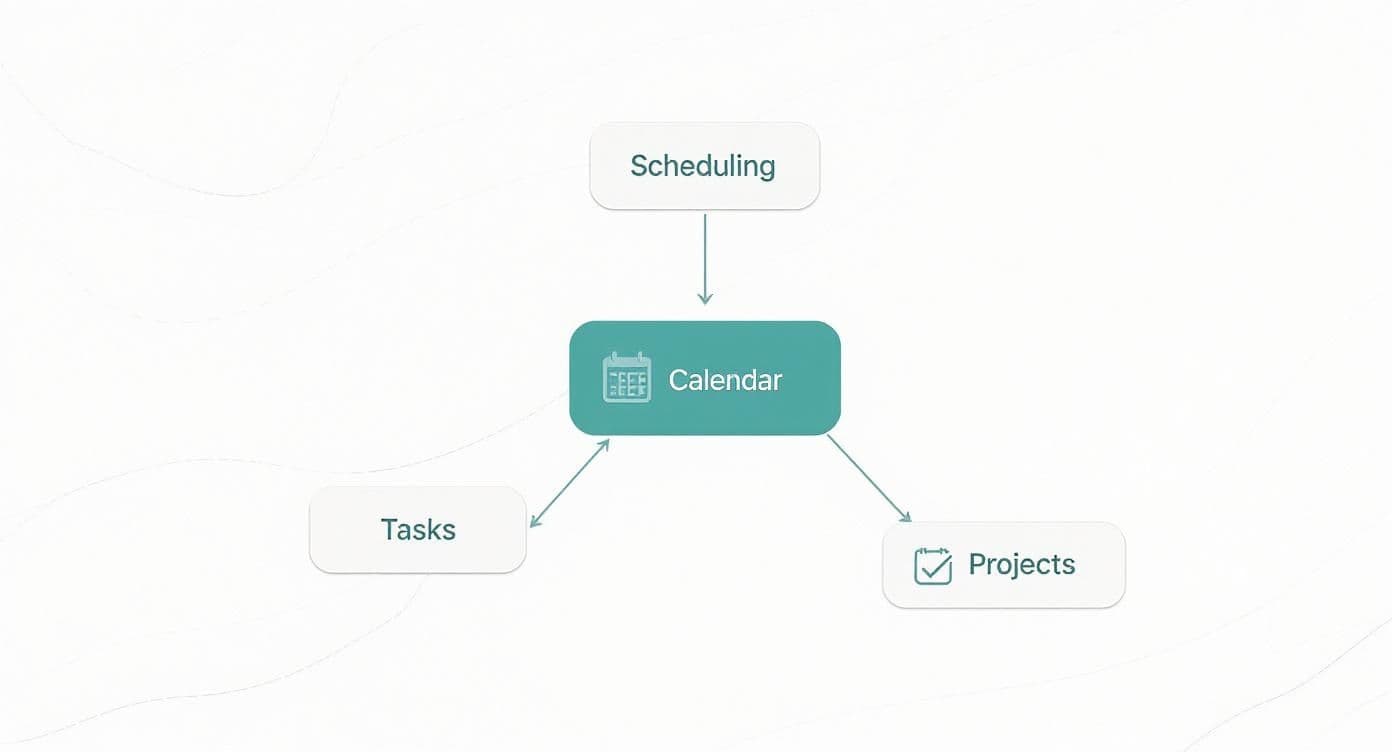
As you can see, the calendar isn’t just another tool. It's the command center that connects everything, making your entire workflow feel less chaotic and more cohesive.
Essential Database Properties
Database properties are the secret sauce in any good Notion calendar template. They're like customizable labels or data fields that you attach to each entry to give it context. You can create just about any property you can imagine, but most of the best templates are built on a solid foundation of these essentials:
- Date: This one's a no-brainer. It's the property that actually puts an item on the calendar at a specific day and time.
- Tags (Multi-select): Think of these as categories. You could create tags like "Marketing," "Client Meeting," or "Personal" to quickly see only what you need to.
- Status (Select): This is perfect for tracking progress. Common statuses like "Not Started," "In Progress," and "Completed" give you a clear, visual sense of where your work stands.
- Assignee (Person): If you're working in a team, this lets you assign tasks to specific people. No more confusion about who’s responsible for what.
With these properties set up, you can filter and sort your entire calendar with a couple of clicks. Imagine instantly seeing all "In Progress" tasks assigned to you for this week. That's the kind of clarity we're talking about.
A Notion calendar’s real power comes from its database views. A view is simply a unique way to look at the same data. You aren't changing the information, just the lens you're using to see it.
Powerful Calendar Views
Once your database is loaded up with properties, views are what bring it all to life. This is where Notion really leaves traditional calendars in the dust. You can flip between different perspectives on your data in a heartbeat, getting exactly the insights you need, when you need them.
- Calendar View: The classic. This is your standard monthly or weekly grid, perfect for scheduling appointments and getting a bird's-eye view of your commitments.
- Timeline View: A project manager's best friend. This view lays out your tasks over time, making it easy to spot potential bottlenecks, dependencies, and overlaps.
- Board (Kanban) View: This view turns your calendar into a workflow board. It organizes entries into columns based on a property (usually "Status"), letting you drag and drop tasks from "To-Do" to "Done."
- List View: Sometimes you just need a clean, simple list. This minimalist view is great for a daily to-do list or a quick, scannable overview of what's on your plate.
By combining a well-built database with these different views, a single Notion calendar template can act as your daily planner, project tracker, and content scheduler—all at the same time.
Common Use Cases for Notion Calendar Templates
<iframe width="100%" style="aspect-ratio: 16 / 9;" src="https://www.youtube.com/embed/B-Bynj6TzOk" frameborder="0" allow="autoplay; encrypted-media" allowfullscreen></iframe>When you start using a Notion calendar template, you’ll quickly see how it turns mixed-up schedules into clear, actionable plans. These templates thrive on flexibility, whether you’re juggling personal routines or steering complex projects. Below, we dive into four ways teams and individuals put them to work.
Personal Planning And Habit Tracking
A Notion calendar template can become your daily command center. Link your morning workout plan to a habit tracker, watch your progress bars fill up, and never miss a check-in.
- Sync meal plans and grocery lists, complete with timed reminders
- Add personal appointments alongside notes and motivational quotes
By keeping everything in one place, you’ll stop hopping between apps. Instead, your calendar transforms into a living log of habits, milestones, and plans.
Content Creation And Editorial Scheduling
Marketing pros often need a system that handles multiple channels and deadlines. With a Notion calendar template, you can draft posts, store images, and schedule publishing all in one spot.
- Assign content stages like “Idea,” “In Review,” and “Posted”
- Link directly to writing briefs and media assets
- Track performance notes right next to each entry
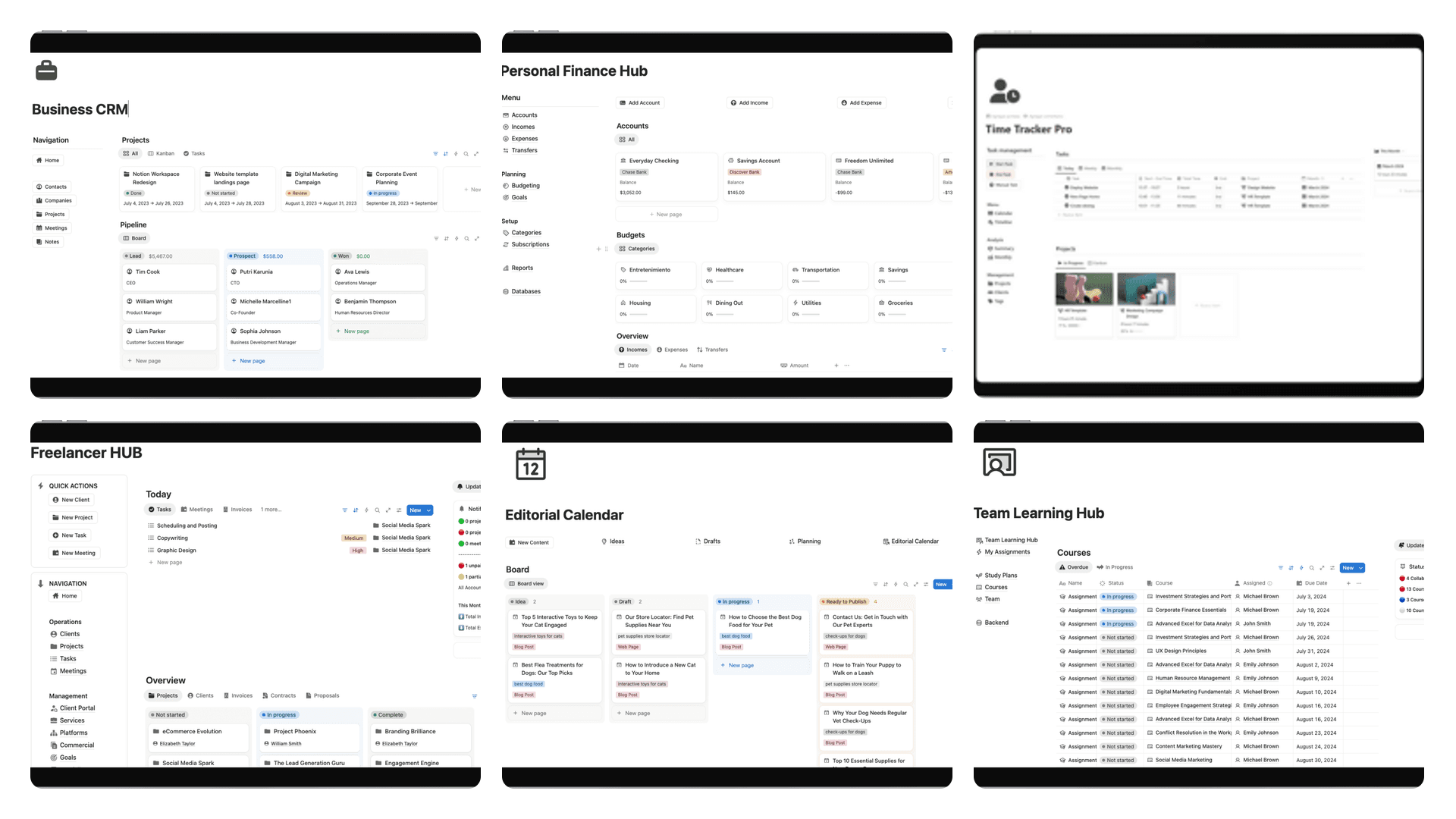
For an in-depth walkthrough, check our comprehensive guide to marketing content calendars. If you want to hit the ground running, try our Flowtion Editorial Calendar template: https://theflowtion.com/templates/editorial-calendar
Client Management And Service Delivery
Freelancers and agencies often need more than dates on a page—they need context. With Notion, every meeting or deadline connects to a client’s master file, keeping briefs, invoices, and chat logs within arm’s reach.
By linking deadlines, meeting notes, and deliverables as connected database entries, you transform a simple calendar into a powerful client relationship management (CRM) tool.
Filter your calendar by client to see exactly what’s due, when. Suddenly, you’re far less likely to overlook a follow-up or miss a payment.
Project Timelines And Milestone Visualization
Every project runs smoother when you can see its full arc. The Timeline view in a Notion calendar template lays out phases, highlights dependencies, and flags critical checkpoints.
- Create tasks with sub-tasks and assign them to teammates
- Color-code milestones for quick recognition
- Watch overlapping tasks and adjust resources before bottlenecks form
This bird’s-eye view keeps stakeholders informed while giving team members clear, step-by-step directions.
Getting Started With Your First Notion Calendar Template
Alright, ready to jump in and get your first calendar up and running? The good news is that you can go from zero to a fully functional calendar in just a few minutes.
First things first, head over to the Notion template gallery. You can poke around the categories or just use the search bar to find a calendar that looks like a good fit. When you find one you like, just click "Duplicate," and it'll pop right into your workspace.
As you can see above, the gallery lets you get a solid preview before committing. This is your chance to quickly see if a template has the right feel for what you need, whether it's a content calendar, project timeline, or a simple habit tracker.
The Initial Setup
Once duplicated, the template lands in your workspace as a new database, ready to be molded to your needs. This whole initial setup should take you about 5 minutes. Here's a quick rundown of what to do next:
- Rename It: Give the database a name that makes sense to you.
- Add a Priority Tag: I always recommend adding a "Priority" multi-select property right away. Create tags for High, Medium, and Low importance.
- Tweak the Date: Click on the Date property. You can edit it to include start and end times or set it up for all-day events.
- Make It Yours: Hop into the calendar view settings and play with the color scheme or fonts until it feels right.
Creating Your First Entry
The best way to see how it all works is to add something to it. Go ahead and create a test entry—an appointment, a task, whatever. You'll get to see how Notion's magic works, with every linked view updating in real-time.
Think of a test entry as the first domino. It shows you how the single database entry populates every connected view, turning your raw data into a useful visual, instantly.
To do this, just click the New button, which is usually in the top-right corner of the calendar. A new page will pop up. Give it a title, pick a date, and be sure to use that new Priority tag you just created to mark how urgent it is.
Now for the cool part. Click over to another view that came with the template, like a Timeline or a List, and you'll see your new entry is already there. No extra work needed.
This is how you start to really make the template your own. Don't just use it as-is; experiment with it. Switch to the Timeline view for a bird's-eye look at long-term projects, or try the Board view to drag and drop your tasks between statuses like you would with a Kanban board.
Remember, every view is just a different window looking at the same core database. Change something in one place, and it changes everywhere.
By following these simple steps, you've built a solid foundation. You've got a working calendar, and you're starting to get a feel for how to customize it. This is huge—it means less time bouncing between different apps and more time getting things done in one organized space.
From here, you're ready to explore the more advanced stuff, like setting up automations for reminders or connecting this calendar to your other project databases. Let's move on to those integrations and see how much smarter we can make your new calendar.
Advanced Integrations for Notion Calendar Templates
Once you've got the basics down, it’s time to really unlock the power of your Notion calendar. Think of this next step as turning a simple appointment book into the command center for your entire digital life. Advanced integrations are what allow your calendar to talk to other parts of your workspace, automate tedious tasks, and pull up exactly the information you need, right when you need it.
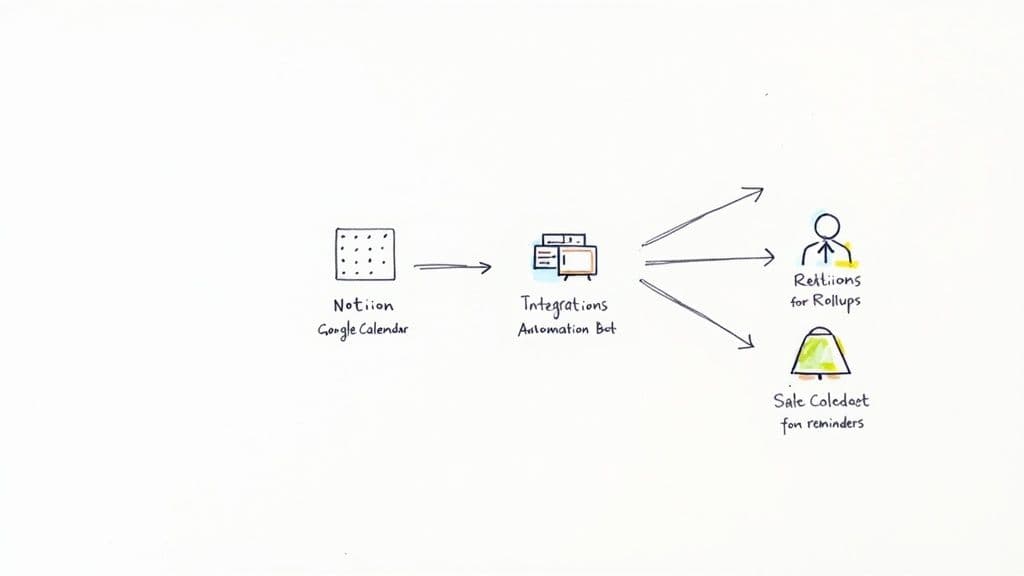
This is where Notion’s real magic, Relations and Rollups, comes into play. A Relation is just a fancy way of saying you can link a page in one database to a page in another. For instance, you could link a "Client Meeting" on your calendar directly to that client's dedicated page in your CRM database.
Once that link is made, you can use a Rollup to pull in specific details from the connected page. Suddenly, your calendar event isn't just a block of time. It’s a dynamic entry that can show you the client’s phone number, the current project status, or the date of your last conversation, all without ever leaving the calendar.
Automating Reminders and Notifications
Let's be honest, manually setting reminders for every single task is a drag. Notion's simple @remind feature is a good start—you can just type @remind tomorrow 9am inside any task and get a notification. Easy.
But for more sophisticated workflows, you’ll want to lean on Notion's built-in automations. These are basically simple "if-this-then-that" recipes you can create.
- Trigger: A task's status property is changed to "In Review."
- Action: Notion automatically assigns the task to your manager and pings them with a comment.
This kind of simple automation cuts out the manual back-and-forth completely, saving you time and making sure nothing gets missed. Your calendar stops being a passive record of what’s happening and becomes an active participant in getting the work done.
Integrations transform your template from a place where you log work to a place where you do work. Every event becomes an interactive gateway to deeper, connected information.
Connecting to External Tools and Services
As powerful as Notion is, it doesn't exist on an island. You probably live and breathe in other tools, especially Google Calendar. For users looking to connect their Notion calendars with other essential tools, a valuable resource is this comprehensive guide to Notion Google Calendar integration.
By using third-party automation services, you can set up a true two-way sync between your calendars. This means an event you add on your phone via Google Calendar can pop up in your Notion content calendar, automatically linked to the right project and pre-filled with the properties you need.
This is a game-changer. It bridges the gap between your internal, deep-planning system and your external, on-the-go scheduling tools. You get a seamless workflow that cuts down on administrative busywork, letting you focus on what actually matters.
How to Choose the Right Notion Calendar Template
With so many free and paid Notion calendar templates out there, picking the right one can feel a bit like Goldilocks trying to find the perfect bowl of porridge. The secret isn't finding a flawless, one-size-fits-all system. It’s about finding a solid foundation you can build on—one that truly clicks with your personal workflow.
So, where do you start? Begin with an honest look at what you actually need.
Are you a solo freelancer trying to juggle personal appointments and deadlines? Or are you part of a bustling team orchestrating a major product launch? A straightforward calendar view might be all you need for your own tasks, but a team will likely need something more robust, with dedicated properties for who’s responsible, the status of each task, and project milestones.
The best template doesn't force you into someone else's workflow; it simply clarifies and enhances your own. Look for a design that feels natural to you from the get-go, not one that demands you relearn how to work.
Your Quick Evaluation Checklist
Before you hit that "duplicate" button, it's worth taking a minute to run the template through a quick mental checklist. This little exercise helps you look past the slick design and focus on what really matters: how useful it will be day-to-day.
- Simplicity vs. Complexity: Is this template overloaded with features you'll never touch, or is it lean and focused on the essentials you need? More isn't always better.
- Fit for Purpose: Was this template actually built for what you do? A good content calendar is very different from a client booking system or a project timeline.
- Look and Feel: Is the layout clean and intuitive? If a template feels cluttered and confusing at first glance, it’s probably going to feel like a chore to use long-term.
- Support and Instructions: Does the creator provide any documentation or tutorials? Good support can be a real lifesaver when you get stuck trying to customize something down the line.
A content creator, for instance, would get a ton of value from a template like Flowtion's Editorial Calendar because it comes pre-built with a content pipeline and analytics tracking. If you're just looking for general organization, it can be helpful to explore a wide range of Notion productivity templates to see what catches your eye.
Free vs. Paid: What’s the Right Move?
Finally, there’s the question of free versus paid templates. Free templates are fantastic for getting your feet wet with basic scheduling and learning how Notion works. They can absolutely get the job done.
But if you find yourself needing more advanced features, dedicated support from the creator, and ongoing updates, a premium template is often a smart investment. It can save you dozens of hours you might otherwise spend building, troubleshooting, and patching together a system on your own.
Got Questions About Notion Calendar Templates? We've Got Answers.
As you start weaving a Notion calendar into your daily routine, you'll probably run into a few common questions. Let's tackle them head-on so you can get back to being productive.
Can I Sync My Notion Calendar With Google Calendar?
Yes, but there's a catch. Notion itself offers a basic, one-way sync. This means events from your Notion database can show up in your Google Calendar, which is perfect for a quick, at-a-glance view of your tasks and appointments in one place.
But what about a true two-way sync, where an event added to Google Calendar automatically appears in Notion? For that, you'll need to call in some backup. Automation tools like Zapier or Make.com can create that seamless connection, but be aware that they usually involve a paid plan and a little more initial setup.
What's the Real Difference Between a Calendar and a Timeline?
Think of it this way: a calendar is your daily planner, while a timeline is the blueprint for a whole project.
-
Calendar View: This is the classic grid you know and love. It’s perfect for pinpointing specific events—think meetings, appointments, or deadlines. It answers the question, "What's happening on this specific day?"
-
Timeline View: This is where you zoom out to see the bigger picture. It lays out tasks as horizontal bars, showing you not just when they start and end, but how long they'll take and how they overlap with other tasks. It’s the go-to for managing a project from kickoff to completion.
The core difference is focus. A Calendar is about when something happens. A Timeline is about an item's duration and its relationship to everything else in the project.
Are Notion Calendar Templates Actually Usable on a Phone?
They absolutely are. The Notion mobile app is surprisingly robust, and views like Calendar and List are especially easy to navigate on a smaller screen. That said, a complex, multi-column template designed for a wide desktop monitor can feel a little cramped on your phone.
The key to a great mobile experience is simplicity. I always recommend setting up a dedicated mobile-friendly view—often a simple List view filtered for "Today." By shortening property names and only showing the essentials, you can create a clean, fast interface for checking your schedule or adding a new task on the fly.
Ready to skip the setup and get straight to organizing? Flowtion offers expertly crafted Notion templates designed to be the backbone for your work, life, and home management. Just duplicate a template with a single click and watch your productivity take off.
Check out the full collection at https://theflowtion.com.