Build Your Ultimate Assignment Tracker Notion
Tired of missed deadlines? Learn to build a powerful assignment tracker Notion dashboard with proven steps, formulas, and real-world student workflows.
An assignment tracker in Notion is essentially a custom-built database designed to wrangle all your academic tasks, deadlines, and courses into one organized hub. Think of it as moving beyond a simple to-do list and creating a dynamic command center with custom properties, calendar views, and real-time progress tracking to keep you from ever feeling overwhelmed again.
Why Your Old Planner Is Failing You
If you're drowning in a sea of deadlines, scattered notes, and project details, you're not alone. It's a classic student struggle. That trusty paper planner or basic spreadsheet that got you through last semester suddenly feels clunky and insufficient. The hard truth is that these old-school methods often create more chaos than they control.
Paper planners are rigid. You can't just drag and drop a deadline when a professor grants an extension, link to your research documents, or get a bird's-eye view of your upcoming crunch weeks without a whole lot of scribbling and rewriting. Spreadsheets are a slight improvement, but they're visually uninspiring and lack the power to connect related information, quickly becoming a cluttered grid of text that’s impossible to decipher at a glance.
The Limits of Traditional Tools
Relying on these outdated systems can genuinely hurt your academic performance. You’ve probably felt the pain of:
- Scattered Information: Your syllabus is saved in one cloud folder, your class notes are in a different app, and all your research links are lost in your browser's bookmark jungle. Nothing is connected.
- Lack of Visibility: It’s nearly impossible to see how that history paper overlaps with your chemistry lab report, making it tough to spot your busiest weeks before they hit you.
- Manual Overload: Constantly rewriting to-do lists and manually updating a "Status" column is just tedious work that eats into precious study time.
The real problem is that traditional tools force you to operate in silos. A truly effective system needs to pull everything together, giving you a single source of truth for your entire academic life.
A Smarter Way to Track Assignments
This is where building a dedicated assignment tracker in Notion becomes a complete game-changer. Notion isn't just another app on your phone; it's a flexible workspace where you can build the exact tools you need. If your current system feels broken, it's time to see how a dedicated digital tool can completely reshape your workflow. It's no wonder tools like Notion are often ranked among the best productivity apps for students.
To give you a clearer picture, let's compare the old way with the Notion way.
Notion Tracker vs Traditional Methods
| Feature | Traditional Planner or Spreadsheet | Notion Assignment Tracker |
|---|---|---|
| Flexibility | Static and rigid. Changes require manual rewriting or complex formulas. | Dynamic and adaptable. Drag-and-drop deadlines and easily add new properties. |
| Connectivity | Isolated. Can't link to notes, files, or related tasks easily. | Integrated. Link assignments directly to course notes, research, and project pages. |
| Visualization | Limited to a single view (list or grid). | Multiple views like calendars, Kanban boards, and timelines for different perspectives. |
| Automation | None. All updates and progress tracking are manual. | Simple automations and formulas can auto-update status or calculate progress. |
| Accessibility | Limited to the physical planner or a single file. | Accessible and synced across all your devices (web, desktop, mobile). |
The difference is night and day. A well-built Notion system doesn't just list tasks; it creates a connected web of information that makes planning intuitive.
The platform's incredible flexibility is why its user base exploded from 1 million in 2019 to over 30 million by 2022. People are catching on. This massive growth signals a clear shift toward more powerful, integrated solutions for managing school and work. With a proper setup, you'll do more than just track deadlines—you'll build a more efficient and less stressful way to learn. For more on that, check out our guide on essential time management tips for students.
Building Your Core Assignment Database
Every great Notion system starts with a solid database. This isn't just a simple to-do list; it's the engine that will run your entire assignment tracking setup. We're going to build this from the ground up, focusing on the properties that give you real control over your academic or professional life.
To get started, just create a new page in Notion and choose the "Table" database option.
Don't get bogged down in making it look perfect right away. Our first priority is building a functional structure. Once the foundation is solid, creating those slick, insightful views you see online becomes much easier.
For most people, the typical workflow starts with a mess of scattered notes and ends in a last-minute panic over a forgotten deadline. A centralized system in Notion is designed to break that exact cycle.
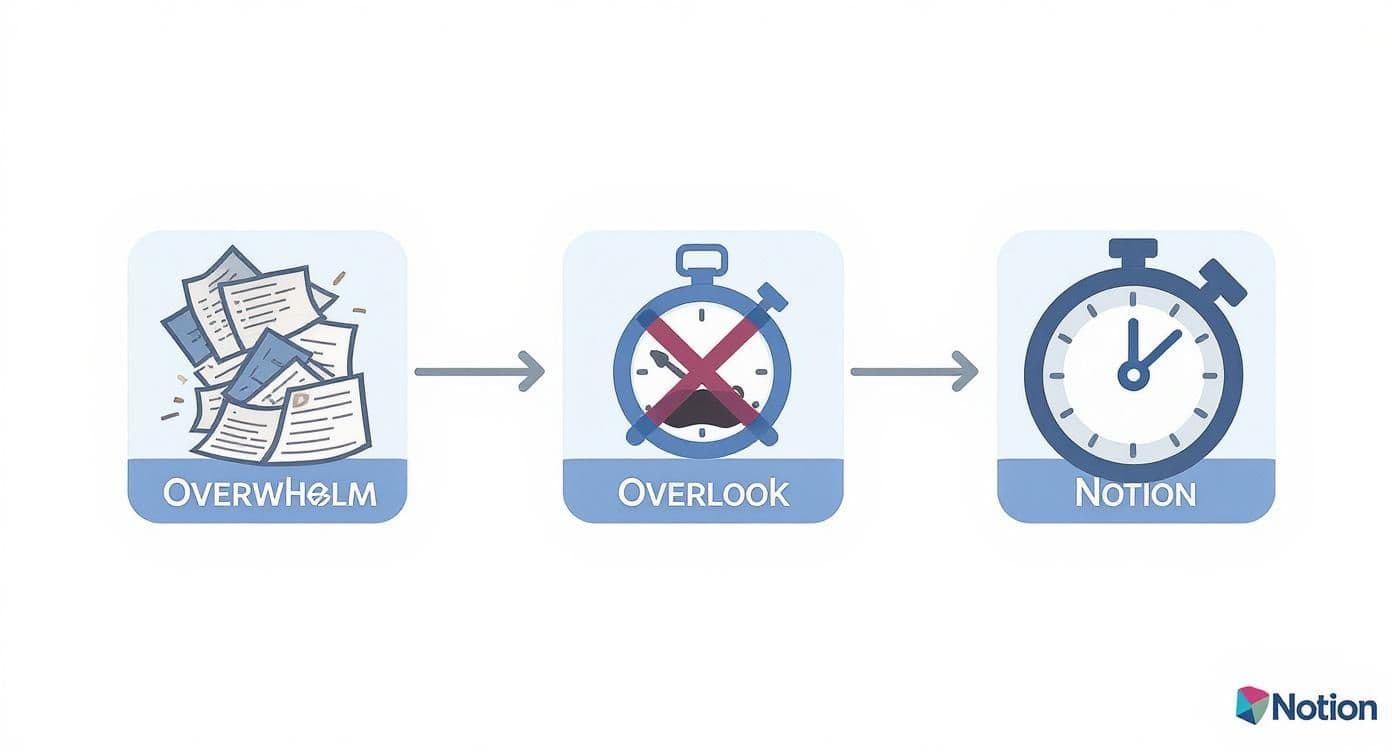
What you're seeing here is a shift from reactive chaos to proactive control. That's precisely what our database will help you achieve.
Setting Up Essential Properties
Think of properties as the columns in your database. Each one tracks a specific piece of information about your assignments. Let’s get the most important ones configured.
- Due Date: This one is absolutely essential. Change the property type to "Date." Doing this lets you set a specific deadline, which is the key to creating calendar views and sorting your tasks by what's due next.
- Status: I recommend using a "Select" or the built-in "Status" property for this. Create tags like
Not Started,In Progress,Submitted, andGraded. This visual progress indicator is perfect for Kanban boards, where you can literally drag tasks from one column to the next. - Priority: This is another great use for a "Select" property. Add your own priority levels, like
High,Medium, andLow. Be sure to color-code them—maybe red for high priority and yellow for medium—so the most urgent tasks immediately jump out. - Assignment Type: A "Select" or "Multi-select" property works well here. Populate it with the kinds of tasks you do often, such as
Essay,Reading,Exam,Project, orQuiz. This makes it super easy to filter your database later to see, for instance, only your upcoming exams.
With just these four properties, you've built the backbone of your system. They provide all the raw data you need to sort, filter, and view your work in dozens of useful ways, turning that simple list into a truly intelligent planner.
Here’s a pro tip: At the start of the semester, take 15 minutes to go through your syllabi and plug in all the major deadlines. That small investment of time upfront will save you hours of stress by giving you a bird's-eye view of your entire term from day one.
Connecting Your Courses with Relations
Okay, this next part is what really levels up your tracker from a basic to-do list to a connected academic command center. Instead of just typing a course name into a text field for each assignment, we’re going to link them to a separate "Courses" database. It’s easier than it sounds.
First, pop over to a new page and create a simple database called "Courses." All you really need here is the "Name" property for the course title (e.g., "HIST 101") and maybe another text property for the professor's name or a link to the syllabus.
Now, head back to your main assignment tracker. Add a new property, but this time, choose the "Relation" type from the menu. When Notion asks which database to connect to, just select your shiny new "Courses" database.
From now on, whenever you add an assignment, you can link it directly to the correct course. This simple connection is incredibly powerful. It means you can click on "HIST 101" from any assignment and instantly see every other task you have for that class. It keeps everything neat, consistent, and interconnected—which is the real magic of building a custom assignment tracker in Notion.
Designing Views That Give You Clarity
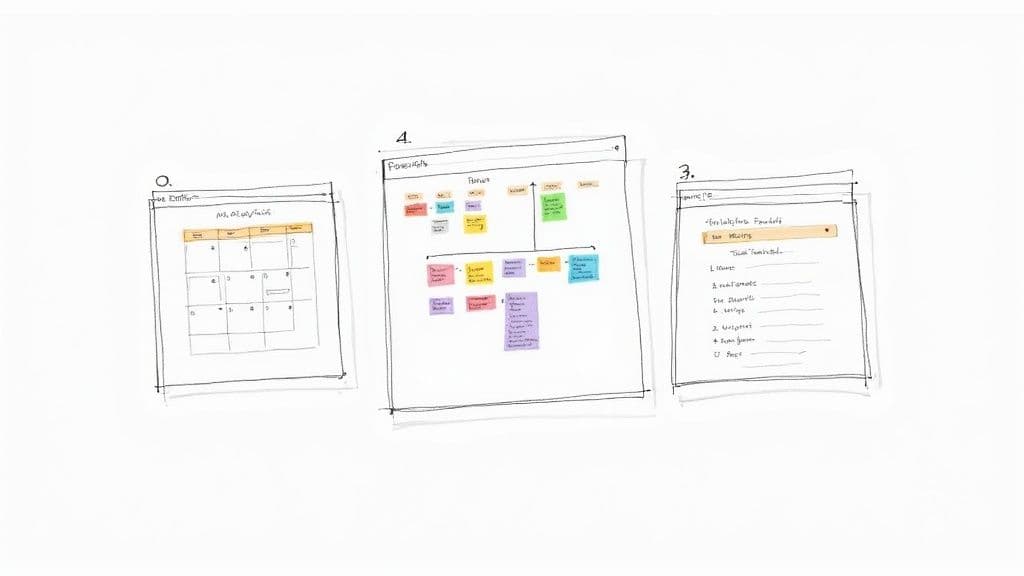
Having a well-structured database is only half the battle. Its real power comes alive when you transform that raw data into actionable dashboards. This is where Notion's views really shine, letting you slice, dice, and visualize your assignments for instant clarity. Let's build a few essential views to turn your tracker into a true command center.
The beauty of this system is its flexibility. Forget rigid spreadsheets or paper planners; here, you can create multiple perspectives of the same information without duplicating any work. Each view acts like a unique lens, focusing on what matters most at any given moment.
The Master Calendar View
First up, let’s build the Master Calendar. Think of this as your bird's-eye view of the entire semester. It’s perfect for spotting potential crunch weeks and seeing how deadlines for different courses stack up against each other.
To get started, just click the "+" next to your default table view and select "Calendar." Notion is smart enough to automatically use your "Due Date" property, plotting every single assignment on the calendar for you. Instantly, that long list of tasks becomes a visual roadmap of your academic term. We dive even deeper into this in our complete guide to building a Notion calendar template.
The Kanban Progress Board
Next, we need a way to track your progress visually. For this, nothing beats a Kanban board. This view is incredibly motivating because you get to physically move tasks through different stages of completion.
Create a new view and choose the "Board" layout. From there, head into the view options, select "Group by," and pick your "Status" property. This will immediately create columns for Not Started, In Progress, and Submitted. Now, when you start working on that research paper, you can just drag its card over. It's a small action, but it gives you a satisfying sense of momentum.
This visual approach is a game-changer. Seeing a task move from 'To-Do' to 'Done' provides a psychological boost that a simple checklist can't match, helping you stay motivated and focused on forward progress.
Today's Priority List
A master list is great for planning, but for daily focus, you need a view that cuts through the noise. We’ll set up a simple "List" view filtered to show only your most urgent tasks.
Add a new "List" view and call it something like "Today's Priority." Now for the magic: click the "Filter" button. We’re going to add two simple rules to make this view incredibly useful:
- Filter by Due Date: Set the rule to
Due Date is on or before today. - Filter by Status: Add a second rule where
Status is not Submitted.
This combination ensures you only see work that is currently due and hasn't been finished yet. It's the perfect dashboard to open first thing in the morning to know exactly what to tackle. It's these kinds of customizable views that show why so many students are moving to digital tools; assignment tracker templates in Notion really have changed the game for academic productivity.
Automating Your Tracker with Smart Formulas
A static list of assignments is fine, but let's be real—the magic happens when your tracker starts working for you. This is where we move beyond a simple database and build a dynamic system that flags what's important without you having to dig for it.
By adding a few smart formulas, you can teach Notion to surface urgent deadlines and give you a clear sense of what's on your plate. And don't worry, you don't need to be a programmer to do this. These are simple, copy-and-paste snippets that solve very real problems.
Formulas That Save You Time
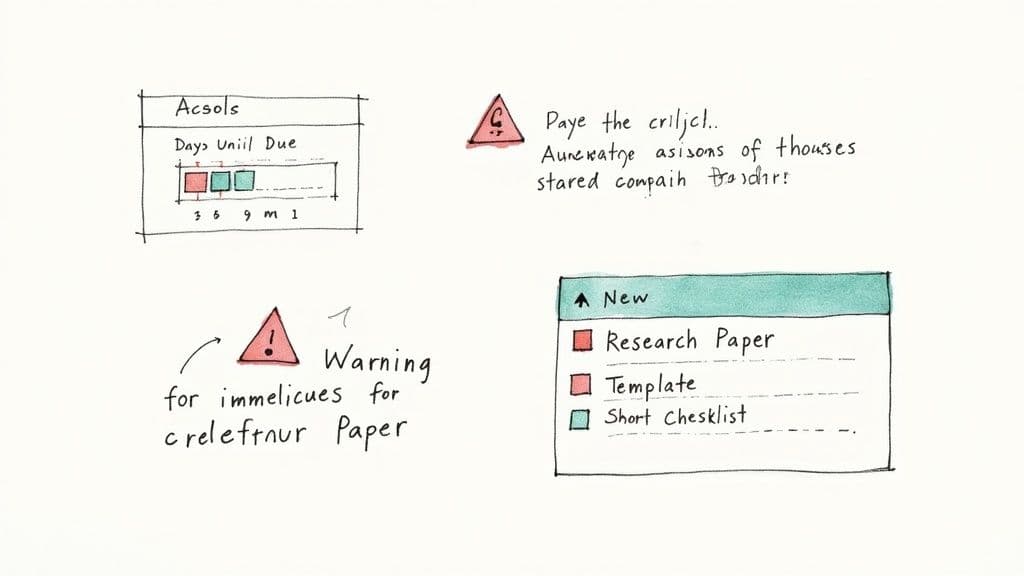
Let's dive into a couple of my favorite formulas that will immediately level up your assignment tracker notion setup. For each of these, just create a new "Formula" property in your database and paste the code.
1. Days Until Due Countdown
Nothing motivates like a deadline. This handy formula creates a simple countdown showing exactly how many days you have left.
if(prop("Status") == "Submitted", "✅ Done", format(dateBetween(prop("Due Date"), now(), "days")) + " days left")
Once you paste this in, it will show "✅ Done" for anything you've finished. For everything else, it provides a live countdown, which is a fantastic way to keep your priorities straight.
2. Urgent Task Alerts
Ever had a deadline sneak up on you? This formula puts an end to that. It adds a hard-to-miss warning emoji for any task due within the next 24 hours.
if(dateBetween(prop("Due Date"), now(), "days") < 1 and prop("Status") != "Submitted", "🔥 Due Now!", "")
My pro tip? Sort your database by this formula property. All your most critical assignments will immediately jump to the top of the list. It's a lifesaver.
Automate Your Workflow with Database Templates
Beyond formulas, Database Templates are your secret weapon for making your workflow faster and more consistent. If you find yourself doing the same type of assignments over and over—like weekly reports, research essays, or client project kickoffs—this is for you.
Let's say you're a student who frequently writes research papers. Instead of creating a new checklist from scratch every single time, you can build a "New Research Paper" template. Inside that template, you can preload your standard to-do list:
- Finalize topic and thesis statement
- Gather five academic sources
- Complete initial outline
- Write the first draft
- Revise and edit for clarity
- Submit final paper
Now, anytime a new paper is assigned, you just click a button, select your template, and boom—your entire checklist is instantly populated in the page. This simple trick saves time and ensures you never forget a critical step. This is really the foundation for building more advanced systems, which we explore in our guide on using Notion for project management.
The goal here is to reduce cognitive load. By automating the repetitive setup, you free up your brainpower to focus on what actually matters: the quality of your work.
More advanced users are even building trackers that calculate completion rates, giving them a progress bar for multi-step projects. This kind of real-time feedback is incredible for accountability and staying motivated.
Thinking about automation on a bigger scale can also pay huge dividends. Learning general strategies for automating repetitive tasks across all your digital tools is what truly separates a simple to-do list from a powerful, proactive productivity system.
Putting Your New System Into Practice
A beautifully designed assignment tracker in Notion is a great start, but it's only as powerful as the habits you build around it. Let's be honest, even the most perfect system is useless if you never open it. The real magic happens when you weave your tracker into the fabric of your weekly and daily routines.
https://www.youtube.com/embed/0Ayl-S-apeI
Consistency is what separates a tool you use from a tool you rely on. You want it to become second nature, just like checking your email. To get there, let's look at a couple of core workflows that will turn system maintenance into a simple habit instead of a weekly chore.
The Sunday Planning Routine
I can't recommend this enough: the "Sunday Planning Routine." Seriously, just carving out 20-30 minutes every Sunday evening to sit down with your Notion tracker will completely change how your week feels. It’s the best way to prevent that Monday morning panic and start the week with a clear sense of direction.
Your goal during this quick session is to get a realistic look at your upcoming deadlines and decide what really matters.
- Scan Your Calendar View: First, just get a bird's-eye view of the next seven days. See which days are packed and spot any big exams or project due dates sneaking up on you.
- Clean Up Your Board: Jump over to your Kanban view and drag last week’s completed assignments into the "Done" column. It's a small thing, but it gives you a nice little hit of accomplishment and clears out the clutter.
- Set Your Priorities: Look at everything due this week and assign
High,Medium, orLowpriority. Be real with yourself—what actually needs your immediate attention? - Block Out Your Time: Now for the most important part. Open your favorite calendar app and actually schedule dedicated blocks of time for those high-priority tasks. This is how you turn a simple to-do list into an actionable plan.
A routine like this is the difference between proactively owning your week and reactively putting out fires all day long. It ensures you start Monday morning with absolute clarity.
Think of your Notion tracker as your single source of truth. The Sunday routine is what keeps that truth accurate and useful, so you can always trust the system you’ve built.
The Project Breakdown Workflow
We've all been there—staring down a massive, intimidating project like a 15-page research paper. It's a classic source of stress, but your Notion tracker is the perfect tool for cutting it down to size. The trick is to break that one huge deadline into a series of smaller, much more manageable sub-tasks.
As soon as a big project gets assigned, create a new entry for it in your tracker. Then, open that assignment's page. If you've set up a "Research Paper" template like we discussed earlier, just click it to instantly generate a checklist. If not, no big deal—just manually create a simple to-do list of actionable steps.
Something like this works great:
- Define the Scope: Lock in your thesis statement and build a detailed outline.
- Conduct Research: Set aside a few specific time blocks for finding and organizing your sources.
- Draft in Sections: Don't try to write it all at once. Break it down into chunks like "Write Introduction," "Draft Body Paragraph 1," and so on.
- Edit and Revise: Schedule separate times for editing the actual content and then for a final proofread to catch typos.
By turning one giant deadline into a series of smaller, less scary steps, you kill the overwhelm and make it way easier to see your progress. This is how your tracker transforms from a simple list into a powerful project management tool that actually helps you get things done.
Answering Your Top Notion Tracker Questions
Once you start using your new assignment tracker in Notion, a few questions are bound to pop up. It's an incredibly flexible tool, but that same flexibility can sometimes be a bit overwhelming. Let's walk through some of the most common sticking points I see students and freelancers run into, so you can get back to being productive.
Should I Just Use a Template Instead of Building My Own?
This is probably the number one question people ask. And the answer is: absolutely, use a template if you want!
While building a tracker from the ground up is a fantastic way to learn the ins and outs of Notion, starting with a pre-made one can save you a ton of time and setup headaches. Many templates out there come with clever formulas and advanced features like progress bars already baked in.
The best part is that you’re not stuck with it as-is. You can grab a template and then tweak it to perfectly fit your own classes or project workflows. It’s the best of both worlds, really.
How Do I Handle Big Projects with Lots of Little Steps?
What about those massive projects? Think senior thesis or a multi-phase client deliverable. A simple to-do list inside the assignment page just isn’t going to cut it.
For complex work like this, my go-to method is creating a separate “Tasks” database. You can then use a “Relation” property to link all those smaller, individual tasks back to the main assignment. This way, you can manage the status and deadline of every single step while still seeing how it all connects to the big picture. It keeps things so much cleaner.
My Tracker Is Getting Slow. What Can I Do?
As your tracker fills up with hundreds of old assignments, you might notice your dashboard starts to feel a bit sluggish. This is a common growing pain, but it's an easy fix.
The key is to get strategic with your filters. Instead of trying to load your entire assignment history on your main dashboard, create specific linked views like "Due This Week" or "Currently In Progress." This tells Notion to only pull the relevant entries, which keeps your workspace feeling snappy and responsive.
Don’t try to load your entire database on your main dashboard. A heavily-filtered view showing only what's urgent is the secret to keeping Notion fast and functional.
What's the Best Way to Add Notes and Files?
This is where Notion truly shines. Every single entry in your database is its own full-fledged page.
When you open an assignment, you can just start typing notes, embed a PDF of a research paper, drop in links to sources, or even upload your presentation slides. All your materials live right there, attached to the task itself. It’s an incredibly simple but powerful feature that stops you from ever having to dig through random folders for a file again.
Ready to skip the setup and jump straight to productivity? Flowtion provides professionally designed, battle-tested Notion templates that turn your workspace into a powerhouse. Check out our complete collection and get organized in one click at https://theflowtion.com.