Notion Dashboard Templates Guide
Discover how notion dashboard templates can organize your life and business. Learn to customize and deploy the perfect dashboard to boost productivity.
So, what exactly is a Notion dashboard template? In short, it’s a pre-built system designed to transform a blank Notion page into a fully functional command center for your work or personal life. Instead of building everything from the ground up, you can duplicate a proven layout and get straight to work, saving hours of setup time.
Why a Notion Dashboard Is Your Productivity Command Center
Imagine a blank Notion page is like an empty room full of building materials. You have all the pieces you need—databases, text blocks, calendars—but you have to figure out how to put them all together to create a space that actually works. That process takes a lot of time and, let's be honest, often ends up being less than perfect.
A Notion dashboard template, however, is more like a professionally designed, fully furnished room. You get an immediate, battle-tested structure built for a specific purpose. It’s not just a blank page; it’s an entire operational system, complete with interconnected databases and logical workflows, ready to go from the moment you open it.
From Digital Chaos to Organized Clarity
If you're like most people, your digital life is probably scattered across a dozen different apps. You have a to-do list in one, a project tracker in another, and random notes saved everywhere in between. This kind of fragmentation makes it almost impossible to get a clear view of what needs to be done. A well-designed Notion dashboard fixes this by bringing everything together into one unified space.
This centralized hub offers some pretty powerful advantages:
- Instant Structure: You get a proven framework right away instead of staring at a blinking cursor on a blank page.
- Time Savings: Forget the complicated setup. You can jump right into the work that actually matters.
- Proven Workflows: These templates are usually created by experts who have already spent the time figuring out the best way to manage information.
- Reduced Overwhelm: When everything has a dedicated place, your chaotic digital workspace becomes a calm, organized hub.
A Foundation Built for You
The best part about using a template is that it’s not a rigid, one-size-fits-all solution. Think of it as a powerful starting point. You can tweak every single element to match your specific needs—add new properties to a database, rearrange the layout, or connect your favorite tools. This flexibility means the dashboard can grow and change right along with you. If you need some inspiration, check out these diverse Notion dashboard ideas to see what’s possible.
A great dashboard doesn't just store information; it presents it in a way that prompts action and drives progress. It’s your single source of truth for projects, goals, and daily tasks.
Creating a streamlined digital workspace with a Notion dashboard is a game-changer, but don't forget your physical environment. A clean desk is just as important for focus. For some great pointers, take a look at these quick desk decluttering tips. By tidying up both your digital and physical spaces, you build a comprehensive system for getting things done. Templates just give you a massive shortcut to achieving that digital clarity.
Finding the Right Dashboard for Your Goals
Think of choosing a Notion dashboard template like picking the right tool for a specific job. You wouldn't use a hammer to saw a plank of wood, right? In the same way, a freelancer's client tracker isn't going to cut it for a student juggling five different courses. The whole point is to find a template that fits your actual workflow and solves your problems, not create new ones.
Not all dashboards are built the same. Some are beautifully minimalist, designed to do one thing really well, like manage your daily tasks. Others are sprawling, all-in-one command centers meant to run an entire business. Knowing the main types helps you cut through the noise and find a template that feels like it was made just for you.
A great dashboard should be your personal command center, turning digital chaos into focused clarity.
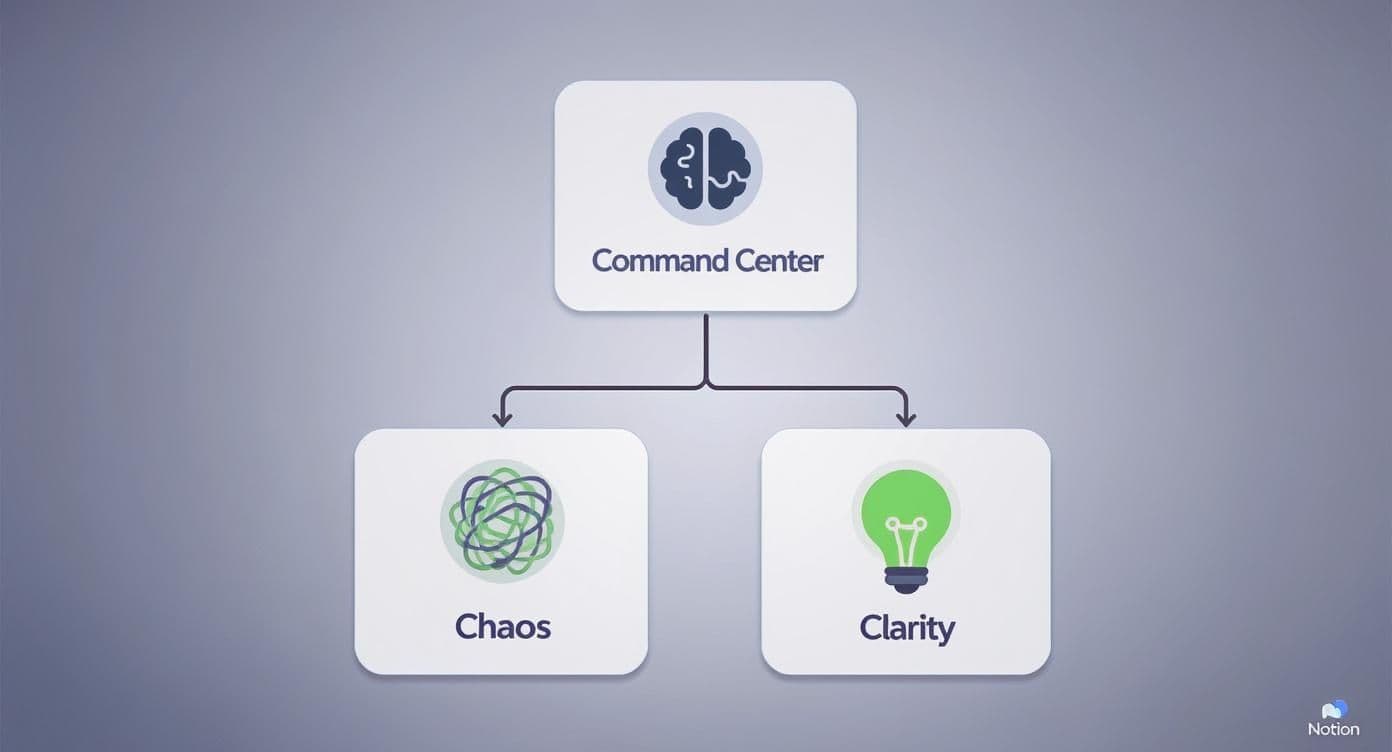
This is the core promise of any good template: transforming a mess of scattered information into a system you can actually use.
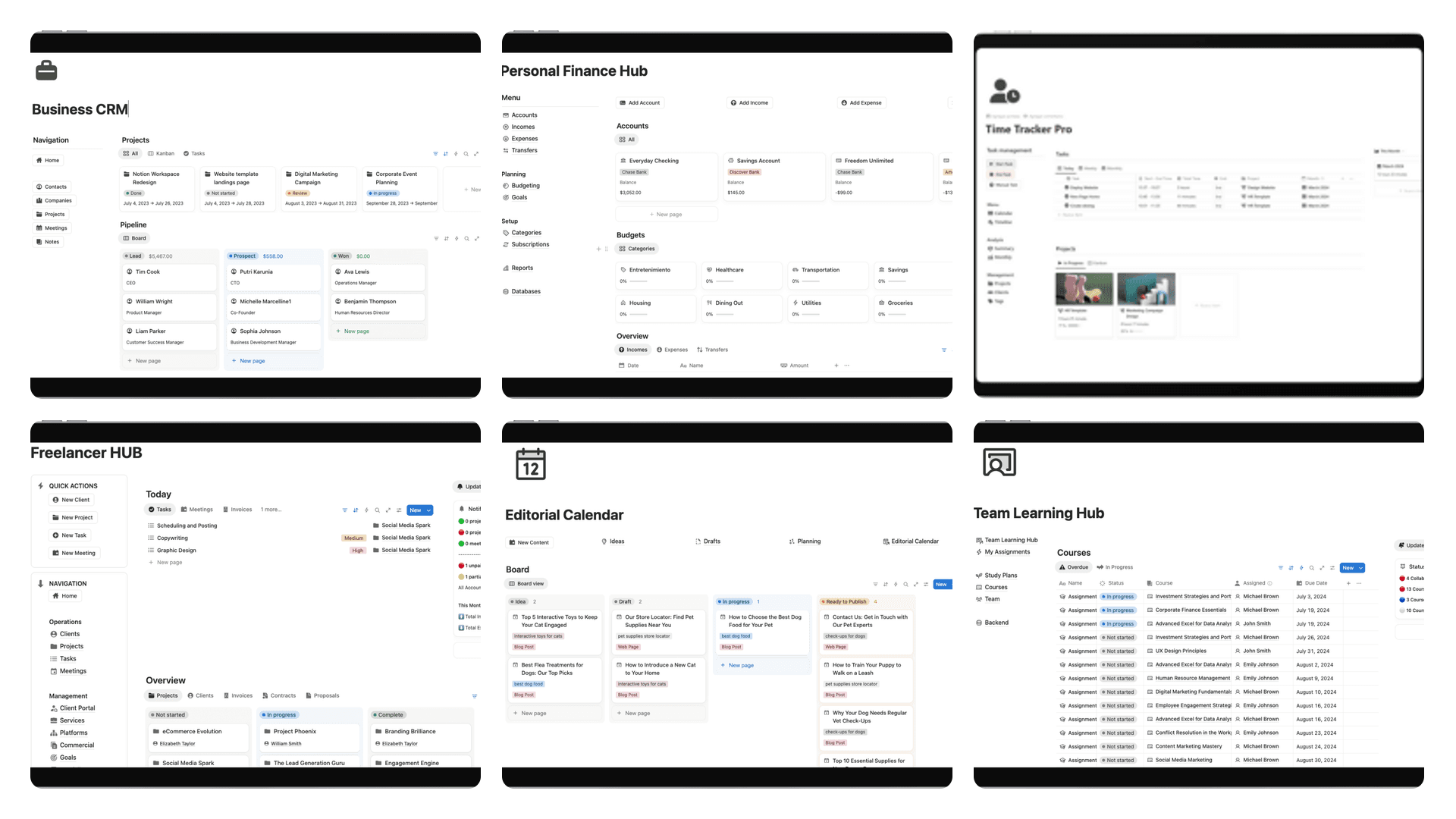
Dashboards for Freelancers and Solopreneurs
If you're an independent professional, a Notion dashboard is your business headquarters. The goal here is to bring client management, project tracking, and financials under one roof. Forget jumping between a spreadsheet for invoices, a separate CRM, and your project management app—a solid freelancer template brings it all together.
A purpose-built freelancer dashboard usually includes:
- Client & Project Hub: A central database to keep tabs on all your projects, past and present, neatly linked to each client.
- Task Management: A clear, at-a-glance view of your to-do list, which you can typically filter by project or deadline.
- Invoice Tracker: A simple system to log sent invoices, track payment status, and see who still owes you money.
- Time Logging: Built-in tools to track your billable hours, making invoicing a breeze and helping you see where your time really goes.
This kind of setup gives you a complete operational overview, helping you hit deadlines and, most importantly, get paid faster.
Dashboards for Teams and Agencies
When you're working with a team, the dashboard needs to be a shared source of truth. It's all about transparency and making sure everyone is on the same page. Team and agency templates are designed around communication, resource planning, and managing the entire lifecycle of a project. They make it clear who's responsible for what and how each person's work fits into the bigger picture.
Common features you'll find in team dashboards include:
- Collaborative Project Roadmaps: High-level timelines that map out project phases, key milestones, and critical dependencies.
- Team Task Boards: Kanban-style boards are perfect for this, letting you assign tasks and visually track them from "To Do" to "In Progress" and "Done."
- Shared Content Calendars: A single calendar for planning, creating, and scheduling content across different channels.
- Meeting Notes Database: A central place to keep all meeting agendas, notes, and action items so nothing gets lost in the shuffle.
We're seeing a huge rise in the use of Notion dashboards for small and medium-sized businesses for this very reason. The best templates often blend databases for Areas, Projects, and Tasks, offering over 30 preconfigured views like Kanban boards and timelines to handle complex team efforts. You can find examples of these powerful project management systems at NotionApps.com.
Dashboards for Students
Students are constantly juggling a wild mix of deadlines, research, and personal commitments. A good student dashboard acts as an academic command center, helping you organize coursework, track your grades, and map out a study schedule. It’s about turning the chaos of a semester into a manageable plan.
A student dashboard isn't just for organization; it's a tool for active learning. By visualizing progress and deadlines, it helps build better study habits and reduces last-minute stress.
Here are the key parts of a great student template:
- Course Manager: A database to track all your classes, professor info, and syllabi.
- Assignment Tracker: A system to log every single assignment, essay, and exam, complete with due dates and your current progress.
- Notes Library: An organized space to capture and review your lecture notes, often linked directly to the specific course they belong to.
- Grade Calculator: A handy tool to input your grades as you get them and monitor your academic performance throughout the semester.
Dashboards for Content Creators
For creators, consistency is king. A content creator's dashboard is basically a production pipeline, built to manage the entire journey of a piece of content from a fleeting idea to a published post. It helps you streamline brainstorming, writing, editing, and scheduling, ensuring you maintain a steady output of high-quality work.
A creator’s dashboard will almost always feature:
- Idea Funnel: A place to quickly dump ideas and move them through a validation process.
- Content Calendar: A visual planner to schedule your posts across different platforms like your blog, YouTube channel, and social media.
- Production Tracker: A status board to see where each piece of content is—whether it's being drafted, edited, or is already published.
- Sponsorship & Affiliate Manager: A simple CRM to keep track of brand partnerships and manage your affiliate links.
To help you decide, here’s a quick breakdown of which dashboard type might be the best fit for you.
Which Notion Dashboard Type Is Right for You?
This table breaks down the most common user types and the dashboards that are designed to meet their specific needs.
| User Type | Common Dashboard Template | Key Features |
|---|---|---|
| Freelancer / Solopreneur | Client & Project Manager | Invoice tracking, time logging, client database, project pipelines |
| Agency / Small Team | Collaborative Hub | Shared task boards, project roadmaps, content calendars, meeting notes |
| Student | Academic Planner | Course management, assignment tracking, grade calculation, notes library |
| Content Creator | Content Production Pipeline | Idea funnel, content calendar, production tracker, sponsorship manager |
Ultimately, the best dashboard is the one that simplifies your life and helps you focus on what really matters—whether that's landing your next client, acing an exam, or publishing your next viral video.
How to Choose a Template You Will Actually Use
It’s an all-too-common story: you dive into the world of Notion dashboards, full of hope, only to find yourself drowning in options. You scroll for hours, download a template that promises to organize your entire life, and then abandon it a week later because it's just too much.
The key to breaking this cycle is simple: stop looking for the "perfect" template and start looking for the one you will actually use. That means getting honest about your real-world needs before you even think about flashy designs.
Before browsing, just stop and ask yourself one question: What specific problem am I trying to solve? Are you a freelancer who can't keep track of client work? A student buried under a mountain of deadlines? Maybe you're a creator struggling to map out your content? Your answer is the only compass you need.
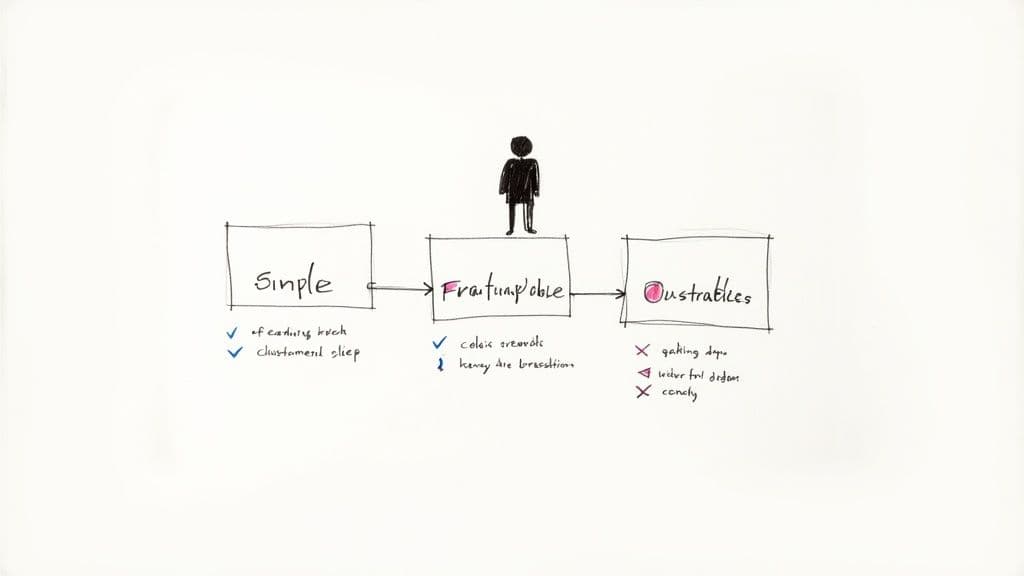
Find the Balance Between Features and Simplicity
It's tempting to grab the most feature-packed template you can find. These "all-in-one" systems often boast intricate databases, complex rollups, and a dozen different views. They look powerful, but they can be a nightmare to learn and maintain.
Remember, a complicated system you don't use is a lot less helpful than a simple one you open every single day.
Here’s a good rule of thumb:
- If you're new to Notion: Start with something minimal. Find a template that does one thing really well, like managing tasks or organizing notes.
- If you're a seasoned user: You can handle more integrated systems, but still, make sure every feature is there to solve a problem you actually have right now.
The whole point of a great dashboard is to make your life easier, not give you another chore.
Your ideal template should feel like a natural extension of how you already think and work. If you have to fundamentally change your entire workflow to fit the template, it's probably not the right one for you.
Prioritize Customization and Future Growth
The system you need today is not the system you'll need a year from now. Your projects, goals, and habits will change. That's why customizability is non-negotiable. A static template is a dead end.
When you're looking at a template, ask a few key questions:
- Can I mess with the databases? You need the freedom to add, remove, or tweak properties to track what actually matters to you.
- Is the layout flexible? Can you easily rearrange pages, add new views (like a calendar or Kanban board), or plug in other tools without wrecking the whole setup?
- Does the creator offer help? Good documentation or a support channel can be a lifesaver, especially when you start tailoring a more complex system.
Thinking about the future from the start saves you the massive headache of having to migrate everything to a new template later. For instance, our guide to Notion productivity templates breaks down systems built specifically to grow with you.
Look for Trusted Sources and Social Proof
Literally, anyone can cook up a Notion template and share it, which means the quality is all over the place. To avoid the duds, stick to trusted sources like the official Notion Template Gallery or marketplaces where creators have built a reputation with solid reviews.
Social proof is your best friend here. When you see a template with thousands of users and glowing reviews, it’s a strong signal that it actually works in the real world. For example, some of the most popular dashboards have attracted over 2,500 active users and maintain nearly perfect five-star ratings, with people raving about how intuitive and useful they are. You can check out some of these top-rated community templates on Notion's official site to see what I mean.
This same principle of learning from effective design applies elsewhere, too—like in these free landing page templates. Ultimately, picking a template is an investment in your own focus and efficiency. It pays to take your time and find one that truly fits.
Making Your New Dashboard Truly Your Own
A great Notion dashboard template is a lot like moving into a well-designed, furnished apartment. The essential structure is there—the rooms are laid out, the major furniture is in place—but it doesn’t truly feel like home until you add your personal touches. This is where the real magic happens, turning a generic system into a productivity engine built just for you.
Notion’s flexibility is exactly why it's so popular. Its unique, modular approach lets you reconfigure dashboards as your needs change, tailoring systems for any workflow without having to juggle a dozen different apps. To see this in action, check out these market research templates on Notion's official site.
Start With The Visuals
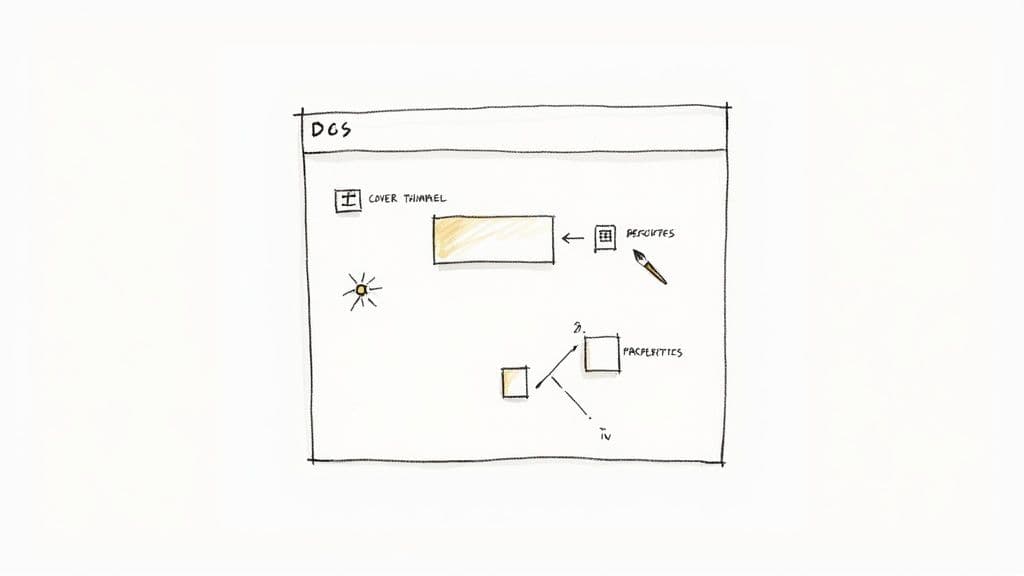
The first step is often the simplest: change how it looks. Adjusting the cover image and icon for each page is a quick win that immediately makes the dashboard feel more inviting and easier to navigate.
- Change the Cover Image: Find a high-quality, relevant image that reflects the dashboard's purpose. A clean, minimalist photo can bring a sense of calm, while a vibrant graphic might spark creativity.
- Update the Icon: Use emojis or upload custom icons to create a visual shortcut. Think a brain emoji 🧠 for your "Second Brain" or a rocket 🚀 for your "Launch Goals." It helps you find what you need in an instant.
These tweaks might seem purely cosmetic, but they have a real psychological impact. When your workspace is visually appealing, you're just more likely to want to use it every day.
A dashboard that feels like your own is one you'll return to daily. Customization isn't just about function; it's about building a connection to your workspace that encourages consistent use.
Modify Database Properties To Track What Matters
This is where you really start to bend the template’s core logic to fit your specific workflow. A pre-built project tracker might have status tags like "Not Started," "In Progress," and "Done." But what if your team uses terms like "Backlog," "In Review," and "Shipped"? Don't force your process into someone else's system—change it.
Here are a few essential database modifications to consider:
- Adjust 'Select' and 'Multi-Select' Properties: Dive into the database properties and edit the tags to match your specific categories, project stages, or priorities.
- Add New Properties: Need to track a project's budget, priority level, or assigned team member? Just add a new property (Number, Select, or Person) to start capturing that data right away.
- Hide Unnecessary Information: If a template includes properties you'll never use, hide them from your main view. This reduces clutter and keeps your focus squarely on the details that matter.
Customize Views For Your Workflow
Most powerful Notion templates come with several pre-configured database views, like a Kanban board, calendar, and list. The thing is, the default setup might not be exactly what you need. Customizing these views is key to creating a dashboard that shows you the right information at the right time.
For instance, a content calendar template might have a monthly view, but maybe you prefer planning week by week. You can easily duplicate the calendar view and just tweak its settings. Or on a Kanban board, you could change how tasks are grouped—instead of by status, maybe you want to group them by project or by assigned team member.
This level of control lets you build a system that perfectly mirrors how you think and work. It’s what turns a good template into an indispensable tool.
Building Habits to Keep Your Dashboard Thriving
<iframe width="100%" style="aspect-ratio: 16 / 9;" src="https://www.youtube.com/embed/0i1dExv-tqs" frameborder="0" allow="autoplay; encrypted-media" allowfullscreen></iframe>So you’ve found the perfect Notion dashboard template. You’ve spent hours customizing the icons, tweaking the databases, and making it look just right. But here’s the hard truth: a beautiful dashboard is useless if it just sits there collecting digital dust. The real work isn't the setup; it's building the habits that make it a non-negotiable part of your day.
The single biggest mistake I see people make is trying to boil the ocean. They jump from scattered sticky notes to a sprawling, all-in-one system overnight and get completely overwhelmed by the friction. Don't do that.
Instead, think of it as a phased rollout.
Start small. For the first week, commit to using just one piece of your new dashboard—maybe only the daily task list. Get comfortable with that, let it become second nature. Then, bring in the project tracker. This gradual approach makes the transition feel manageable instead of monumental.
The Power of a Simple Review Routine
Consistency is the name of the game, and it’s built on simple, repeatable actions. A daily or weekly review is the cornerstone habit that ensures your dashboard stays accurate and trustworthy. If the information is stale, you'll stop using it. Simple as that.
Your review doesn’t need to be a huge, complicated affair. In fact, it shouldn't be. Here’s a simple framework to get you started:
- The 5-Minute Morning Check-In: Before you dive into anything else, open your dashboard. What are your tasks for the day? What deadlines are creeping up on your calendar? Get a clear, instant snapshot of your priorities.
- The 15-Minute Weekly Reset: Set aside a little time once a week (Friday afternoons are great for this) to clean house. Drag completed tasks to your "Done" column, update the status of your projects, and sketch out your priorities for the week ahead.
This simple rhythm turns your dashboard into a reliable source of truth, making it a tool you actually want to use, not one you have to force yourself to open.
A dashboard is a living system. A consistent review habit is the heartbeat that keeps it alive and useful, preventing it from becoming a static archive of old plans.
Avoiding Common Momentum Killers
That initial rush of excitement for a new system can wear off fast, especially when you hit a snag. Two common pitfalls are almost guaranteed to derail your progress: over-complicating things and losing sight of your "why."
First, fight the urge to over-engineer your dashboard. It's incredibly easy to fall down the rabbit hole of adding complex formulas and endless database relations. If a feature isn’t solving a real, immediate problem for you, you probably don’t need it yet. Simplicity is sustainable.
Second, make sure your dashboard is clearly connected to your actual goals. If it just becomes another place to dump tasks, you’ll lose the motivation to maintain it. Your daily to-dos should be visibly linked to your bigger projects and objectives. That connection is what provides the purpose you need to stay engaged long-term. Building a dedicated system to monitor your progress can be a game-changer here. A purpose-built Notion habit tracker template is a fantastic place to start building these foundational routines.
Got Questions About Notion Dashboards? Let's Clear Things Up.
Diving into Notion dashboard templates for the first time usually sparks a few questions. You might be wondering about the cost, how to get your team on board, or if you even have the tech skills to pull it off. Let's walk through some of the most common questions and get you some straight answers.
Free vs. Paid Templates: What’s the Real Difference?
This is the big one: should you go for a free template or invest in a paid one? Both have their place, but they're built for very different purposes.
- Free Templates: These are great for dipping your toes in the water. They usually offer a simple, solid structure for one specific thing, like a basic task list or a stripped-down content calendar. Think of them as a perfect way to learn the ropes of Notion without spending a dime.
- Paid Templates: A premium template is a different beast entirely. It's usually a complete, interconnected system. You'll often find multiple databases, advanced formulas, and sophisticated workflows designed by an expert to solve a complex problem right out of the box. You aren't just paying for a pretty layout; you're buying a pre-built productivity engine that someone has already spent hours testing and perfecting.
Here's an analogy: a free template is like getting a detailed blueprint to build a house yourself. A paid template is like buying a professionally built, move-in-ready home where the plumbing works, the lights are on, and everything is already connected.
Do I Need to Be a Tech Guru to Use a Template?
Not at all. In fact, that's one of the biggest myths about Notion. Templates are designed to completely sidestep the steep learning curve. You don't need to understand complex database relations or write a single formula to get going.
That's the whole point—someone else did all the heavy lifting. All you have to do is duplicate the template into your Notion workspace and start plugging in your own information. Customizing it is a breeze. If you can write an email, you can change an icon, rename a page, or add a task to a list.
You don't need advanced skills to use a template; you just need a problem to solve. The template gives you the structure, and you bring the content. It’s a partnership that helps you get powerful results, fast.
How Do I Share My Dashboard With the Team?
Getting your team to collaborate on a Notion dashboard is surprisingly simple and secure. Notion gives you fine-grained control over who can see and do what, which makes it perfect for teamwork.
You have a few options for sharing:
- Invite Members to Your Workspace: If you have a core team you work with all the time, you can invite them as members. This gives them access to a whole collection of pages at once.
- Share a Single Page: For bringing in clients or freelancers, you can share just the dashboard page itself. Just hit the "Share" button at the top right and invite them by email.
- Set Specific Permissions: This is where the magic is. You can decide exactly what level of access each person gets. Their permissions can range from "Full access" (letting them edit and share) all the way down to "Can comment" or just "Can view." This is key to letting people contribute without accidentally messing up your core setup.
This kind of flexibility makes it easy to turn a single dashboard into the central source of truth for your entire team, keeping everyone on the same page without any clumsy workarounds.
If you're tired of building from scratch and just want a proven system that works right now, Flowtion has a whole catalog of battle-tested Notion templates. You can get organized in minutes, not months, and get back to focusing on the work that actually matters. Find your perfect workflow with Flowtion.