Build a Powerful Action Items Template in Notion
Stop losing tasks in the shuffle. Learn to build a powerful action items template in Notion that drives accountability and boosts team productivity.
An action items template is your team's secret weapon for turning meeting talk into tangible results. It’s a structured document designed specifically to capture, assign, and monitor the tasks that come out of your discussions. Unlike a simple to-do list, it adds essential context—like who’s responsible, when it's due, and where things stand. This turns vague conversations into accountable follow-ups and stops critical tasks from falling through the cracks.
Why Generic To-Do Lists Fail Your Team
Let's be real for a moment. Most follow-up tasks from meetings end up as forgotten relics in a cluttered inbox or scribbled on a sticky note that loses its stick. This chaos is a direct symptom of relying on generic to-do lists that just don't have the muscle for proper project management. A simple checklist can't tell you who is on the hook or when something is actually due, leaving the whole team in a state of confusion while projects grind to a halt.
This disorganization is more than just an annoyance; it's a massive productivity drain. There's a reason dedicated action item trackers are becoming standard practice. In fact, a staggering 85% of professionals now use digital tools to combat "meeting amnesia"—that all-too-common phenomenon where up to 60% of action items are forgotten because they were never properly documented.
Creating a Single Source of Truth
This is where a well-built action items template in a tool like Notion really shines. It helps you move beyond basic checklists and create a centralized, single source of truth for your team. Every task is visible, assigned, and tracked in one place. For remote and hybrid teams, where clear, asynchronous communication is everything, this is non-negotiable.
Here’s a perfect illustration of what I mean—the shift from chaos to clarity.
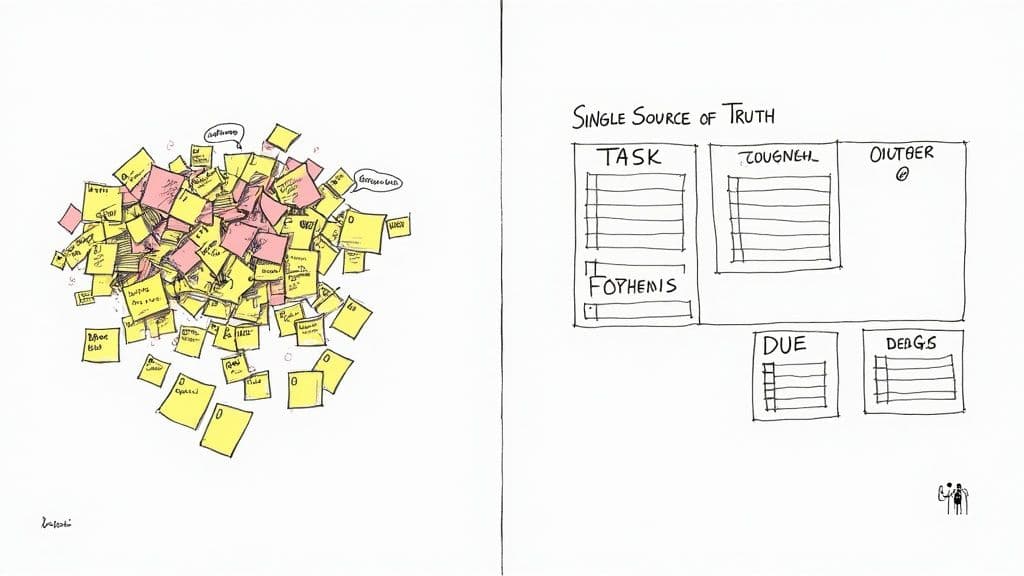
This visual contrast says it all. You're moving from a system that relies on memory and scattered notes to one that promotes complete transparency. When you centralize this information, you get rid of the "I thought you were doing that" ambiguity and get everyone aligned on what matters most.
A great template doesn't just list what needs to be done; it builds a framework for accountability. It's the bridge that connects abstract ideas from a meeting to the concrete steps that actually push projects forward.
Understanding where simple lists go wrong is the first step. The next is to put a better system in place. A dedicated Meeting Action Items Template is designed to ensure every decision made in a meeting results in a clear, documented, and trackable outcome. Nothing gets lost, and everyone knows exactly what's expected of them.
Core Components of an Effective Action Items Template
To make this practical, let's break down the essential fields you'll want to include in your Notion database. Each of these properties serves a specific purpose, turning a simple list into a powerful tracking system.
| Component | Purpose | Notion Property Type |
|---|---|---|
| Task Name | A clear, concise description of the action item. | Title |
| Owner | Assigns a single person to be accountable for the task. | Person |
| Due Date | Sets a clear deadline for when the task must be completed. | Date |
| Status | Tracks progress (e.g., Not Started, In Progress, Done). | Select or Status |
| Priority | Helps the team focus on the most critical tasks first. | Select |
| Meeting Source | Links the task back to the meeting where it originated. | Relation |
Building your template with these components from the start gives your team the clarity and structure they need to follow through effectively. It’s all about making accountability the default.
Alright, let's get into the bones of our action items template. This is where we build the engine that will keep everything running smoothly.
<iframe width="100%" style="aspect-ratio: 16 / 9;" src="https://www.youtube.com/embed/mAJOpO73d8Y" frameborder="0" allow="autoplay; encrypted-media" allowfullscreen></iframe>Building Your Database Foundation in Notion
First things first, we need a place for all our action items to live. This starts with a simple database inside a new Notion page. If you're just getting your feet wet with the platform, it might be helpful to learn more about Notion and what makes it so flexible before you jump in.
Ready to go? Just create a new page and choose the Table database option. This gives you a familiar spreadsheet-style layout that will hold all your tasks. Don't stress about getting it perfect right away. Our goal here is just to lay down a solid foundation we can build on.
Setting Up the Must-Have Properties
Now for the fun part: customizing the columns, or what Notion calls "properties." When you create a table, Notion gives you a Name (Title) and Tags (Multi-select) property by default. We're going to tweak these and add a couple more essentials to build a truly robust tracker.
- Task Name (Title): This one’s a keeper. It's the primary field where you'll describe the actual action item. Simple and clear.
- Owner (Person): Go ahead and delete the default 'Tags' property. In its place, add a
Personproperty and call it "Owner." This is a crucial step. Using thePersontype lets you @-mention team members, which triggers notifications and allows for creating personalized "My Tasks" views. You just can't get that with a plain text field. - Due Date (Date): Next, add a
Dateproperty. This is non-negotiable for setting deadlines and sorting your tasks by what needs to get done first. - Status (Select): Lastly, add a
Selectproperty and name it "Status." I like to create options like "Not Started," "In Progress," and "Completed." This gives everyone an immediate, at-a-glance understanding of where things stand.
Getting this basic setup right provides instant clarity. It's a proven approach, too. Industry data shows that templates with columns for owner, status, and priority are incredibly effective. In fact, Smartsheet's popular templates, which follow this model, are used in over 80% of enterprise projects tracked by Gartner, helping ensure 95% of action items get assigned a due date on the spot.
The real power of a Notion database isn't just the list itself; it's in the properties. Choosing the right property type—like 'Person' instead of 'Text'—is what turns a static to-do list into a dynamic, interactive system that drives accountability.
This structure is the backbone of your entire template. For a more detailed look at managing tasks on the platform, you can check out our guide on Notion tasks management.
With this foundation in place, you're now ready to start adding more advanced features and customizations.
Give Your Tasks Meaning with Smart Properties
Now that you have the basic structure down, it’s time for the fun part: making your action items template truly smart. This is where we go beyond a simple to-do list and start building a system that helps your team see what’s important and why. It all comes down to adding a few clever properties.
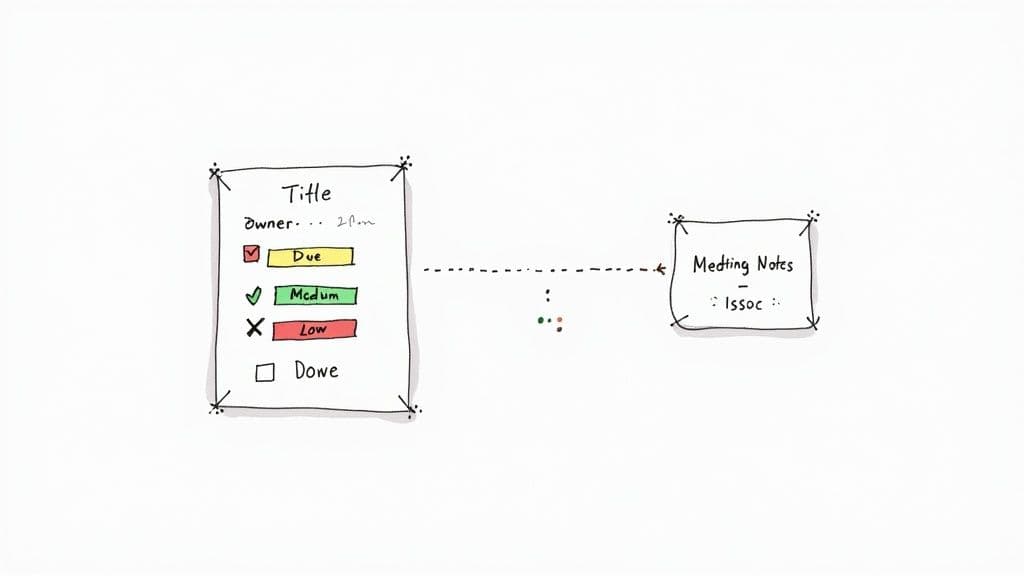
Let's start with the most crucial one: Priority. I always add a Select property with three simple, non-negotiable options: High, Medium, and Low. Resisting the urge to add more levels forces everyone to make a clear decision. A "High" priority task isn't just important; it’s something that's actively blocking progress or is tied to a critical, looming deadline.
Connect Tasks Back to Their Origin
This next one is a game-changer for context. Add a Relation property and call it something like "Source" or "Related Meeting." Link this property to your main database for projects or meeting notes. Suddenly, every action item is tethered to the exact conversation that spawned it. No more "Wait, why are we doing this again?" questions.
Finally, for that little hit of dopamine, add a Checkbox property and name it "Done." Yes, you already have a "Status" property to track progress, but there's nothing quite like the satisfaction of checking that final box. It’s a small psychological win that genuinely boosts team morale.
This isn't just about feeling organized; it has a real impact. A recent PMI study of 1,200 projects found that teams using templates with clear properties like these cut their overdue action items by an incredible 42%. The reason? Everyone had instant clarity on task status and priority.
The goal isn't just to list tasks but to create an interconnected system. When you can see an action item's priority and trace it back to its origin meeting with one click, you've built a truly intelligent workflow.
Manual vs Automated Prioritization Methods
For teams that need more nuance, you can even automate prioritization. A simple manual tag works for most, but a formula can create a dynamic score based on urgency and impact. Here’s a quick comparison to help you decide what fits your workflow.
| Feature | Manual Tagging (Select Property) | Automated Scoring (Formula Property) |
|---|---|---|
| Setup Complexity | Very Low: Create a Select property and add "High, Medium, Low." | Medium: Requires knowledge of Notion formulas to combine different properties (e.g., impact, urgency). |
| Team Effort | Manual: Someone must assign a priority to each new task. | Automatic: The score is calculated as soon as other properties (like due date) are filled in. |
| Consistency | Subjective: Depends on the person assigning the priority. | Objective: Based on predefined criteria, ensuring every task is scored the same way. |
| Best For | Small to medium-sized teams with a clear, shared understanding of what's important. | Larger teams or complex projects where an objective scoring system prevents bias and clarifies focus. |
Whether you stick with manual tags or build a formula, the key is to have a system. These properties transform your tracker from a passive list into an active guide, showing you not just what to do, but what to do next.
Building a Dashboard That Actually Works
An action items template is only as good as the information it shows you. Your master database holds everything, which is great for storage but terrible for day-to-day focus. The real magic happens when you create filtered views that turn that massive list into a clean, personal dashboard.
This is where you stop scrolling and start doing. We'll build a couple of specific views that cut through the noise and show each person exactly what they need to see, right when they need to see it. Think of it as creating custom lenses for your team's workload.
Your Personal To-Do List: The "My Action Items" View
Let's start with the most important view for individual productivity. Create a new Board view and call it "My Action Items." The goal is straightforward: anyone who opens this page should only see the tasks assigned directly to them.
To make this happen, you just need a filter with two simple rules:
- Owner
isMe (This is the dynamic part—it automatically knows who's logged in.) - Status
is notCompleted (This keeps things tidy by hiding what's already done.)
Suddenly, team members aren't staring at a giant, intimidating list of everyone's work. Instead, they get a clear, manageable board of their own responsibilities. It’s a game-changer for focus.
A great dashboard doesn't just show you information; it reduces the mental effort needed to figure out what's next. Filtering for the current user turns a cluttered, shared database into a personal, actionable agenda.
Getting a Handle on the Week Ahead
Now, let's zoom out just a bit for weekly planning. Add another Board view and name it "Due This Week." This gives everyone a snapshot of what’s on the horizon, helping the team anticipate deadlines and manage their time effectively.
The filters for this view are just as simple:
- Due Date
isThis Week - Status
is notCompleted
Make sure you group this board by the Status property. Now you’ve got a kanban-style layout where people can literally drag their tasks from "To Do" to "In Progress" as they work through their weekly commitments. Mastering views like this is the secret to creating truly effective Notion dashboard templates that your team will actually want to use.
Make It Effortless with Templates and Buttons
A system for tracking tasks is only as good as its adoption rate. If it's a pain to use, your team simply won't use it. The secret to getting everyone on board is to remove as much friction as possible. Instead of having to manually fill out every single field for a new task, we can use a couple of clever Notion features to automate the setup and keep things consistent.
First, let's create a reusable action items template right inside your database. Just click the little dropdown arrow next to the blue "New" button and hit "+ New template." Here, you can pre-set any properties you want. For example, you can have every new task automatically get the "Not Started" status. It's a small tweak that saves clicks and ensures every new item starts on the right foot.
Add a One-Click Action Item Button
Now for the real magic. We can create a "New Action Item" button that you can place directly inside your meeting notes or project pages. This is a game-changer for capturing tasks in the heat of the moment.
This is a perfect example of simple workflow automation. Instead of someone having to remember a task, navigate to the database, and create a new entry, they can just click a button right where the conversation is happening. To get a better handle on how this concept works, you can learn more about what is workflow automation and how it can supercharge your processes.
This kind of focused setup creates a clear, visual pipeline for every single task.
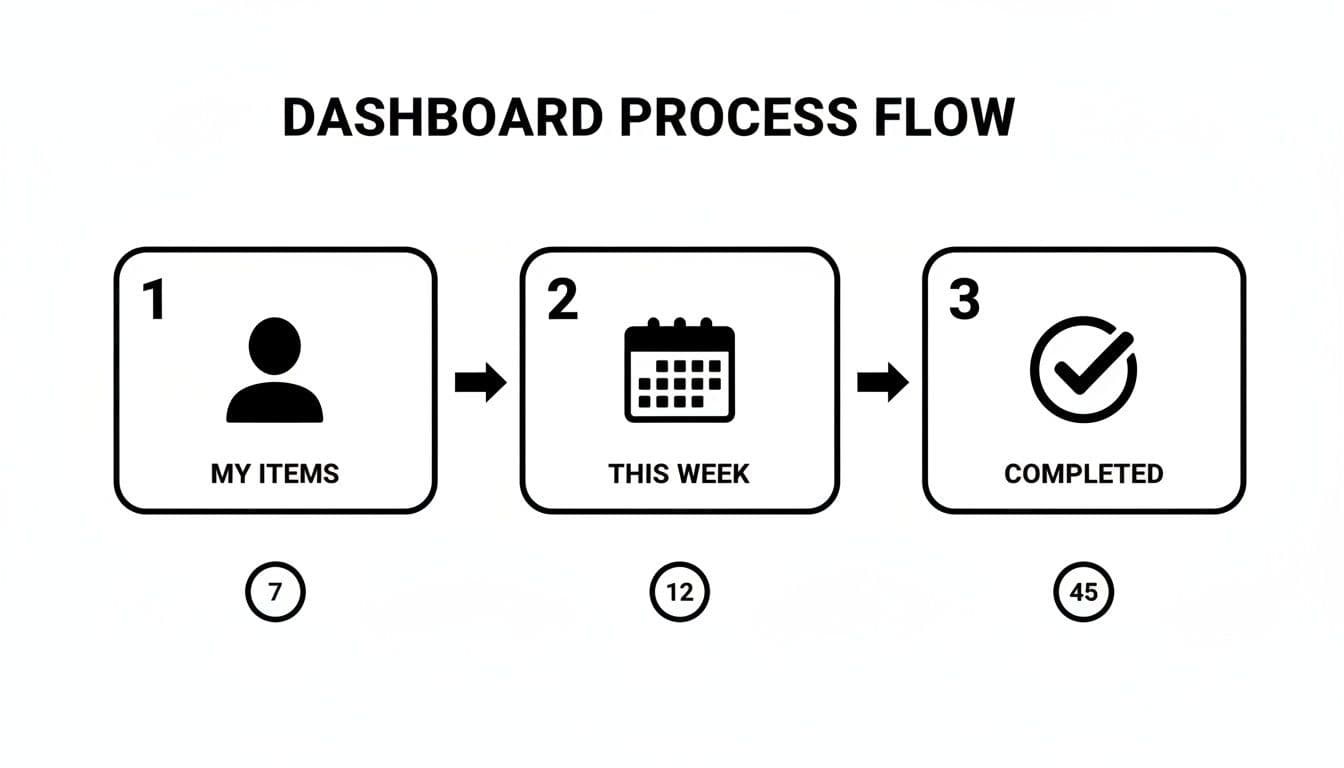
Moving tasks from "My Items" to "This Week" and then to "Completed" gives everyone a shared, unambiguous view of what's happening. This is what turns a simple list into a powerful, actionable dashboard.
Putting these automations in place isn't just about convenience; it delivers real results. I've seen teams that implement structured action item templates in an agile environment boost their task completion rates by 25-30% in just the first three months.
The goal is to make capturing a task easier than forgetting it. By embedding a button directly in your meeting notes, you remove the biggest barrier to consistent tracking and follow-up.
Even with the best template in hand, a few questions always pop up as you start putting it into practice. Let's walk through some of the most common ones I hear from teams, so you can get ahead of any bumps in the road.
What's the Best Way to Handle Recurring Tasks?
One of the first questions is almost always about recurring tasks—think weekly report deadlines or monthly team check-ins. It's a pain to manually create the same task over and over.
The trick here is to lean on Notion's recurring templates feature. Instead of adding a new entry each time, you can set up a database template to automatically create a fresh task for you on a set schedule. It’s a simple automation that saves a ton of time and makes sure nothing important gets forgotten.
How Does This Fit with Our Other Project Tools?
This is a big one. Your team likely already uses a primary project management tool like Trello or Asana, so how does this new action items list fit in without creating chaos?
My advice is to avoid trying to make them sync perfectly. Instead, treat your action items template as the single source of truth for what was decided in a specific meeting. It's for capturing immediate follow-ups.
Then, create a clear process. Once an action item from a meeting becomes a larger task or part of an official project, it gets formally moved into your main project management board. This keeps your meeting notes clean and your project board focused on execution.
A mistake I see all the time is trying to force one tool to do everything. Let your action items template capture the "what's next" from a meeting. Let your dedicated project board manage the long-term work. Keeping them separate is key to clarity.
Can We Actually Use This on Our Phones?
Mobile access is non-negotiable for most teams today. And yes, a well-built Notion template is perfectly usable on the go. The key is to keep the design clean and functional.
You'd be surprised how much of an impact a good mobile interface has. For instance, teams using Jotform's interactive tables, which can be customized with things like emojis and different views, saw a 300% usage spike in 2024 among sales teams in Asia. Why? Because solid mobile access cut their editing time by a whopping 55%.
Finally, getting your team on board is everything. Don't roll it out to the entire company at once. Start small. Introduce it in one team's weekly meeting and let them see the benefits firsthand. Their success will do more to convince everyone else than any presentation you could give.
Ready to stop building from scratch and start getting productive? Flowtion provides proven Notion templates that organize your work and life instantly.