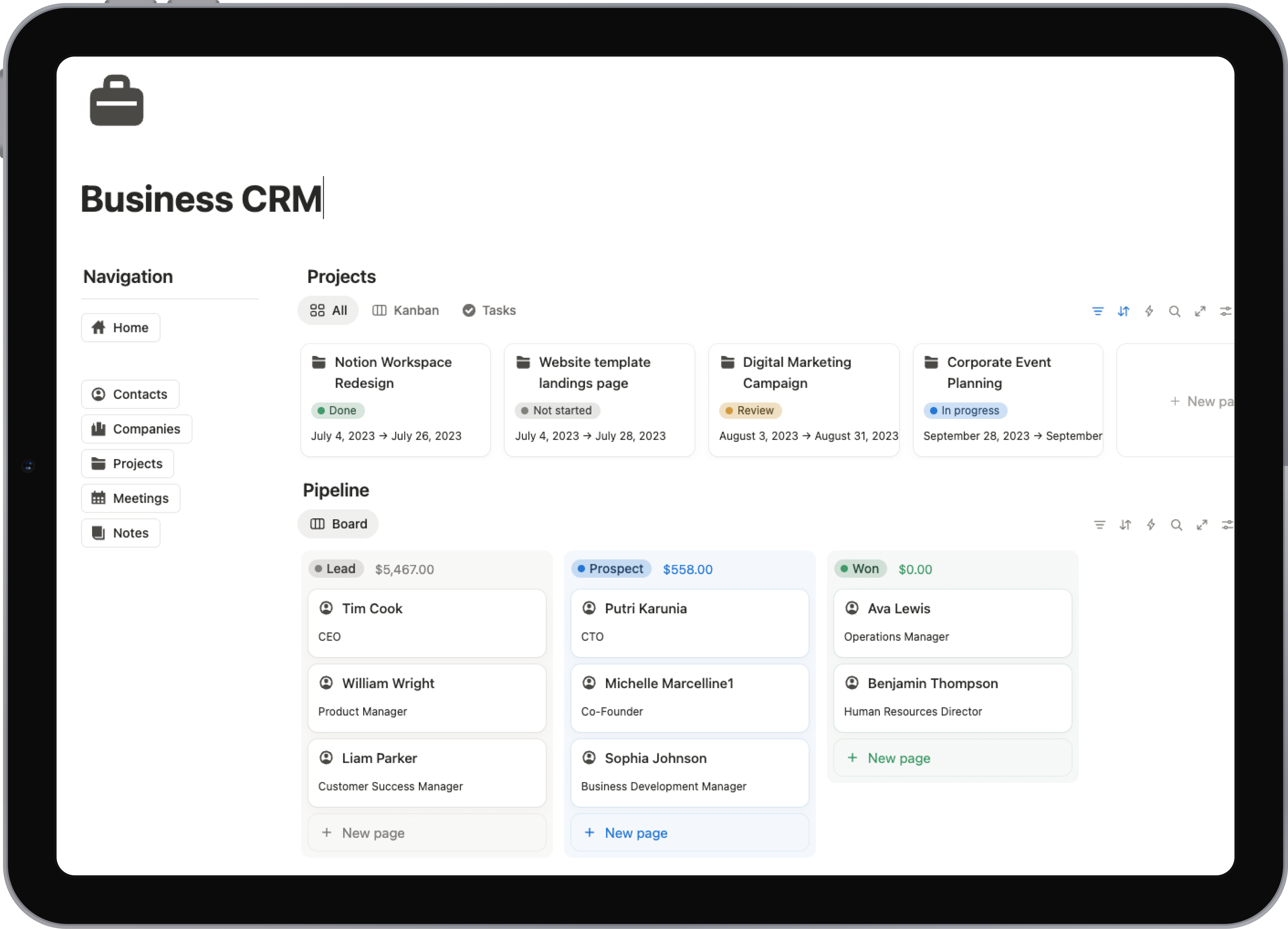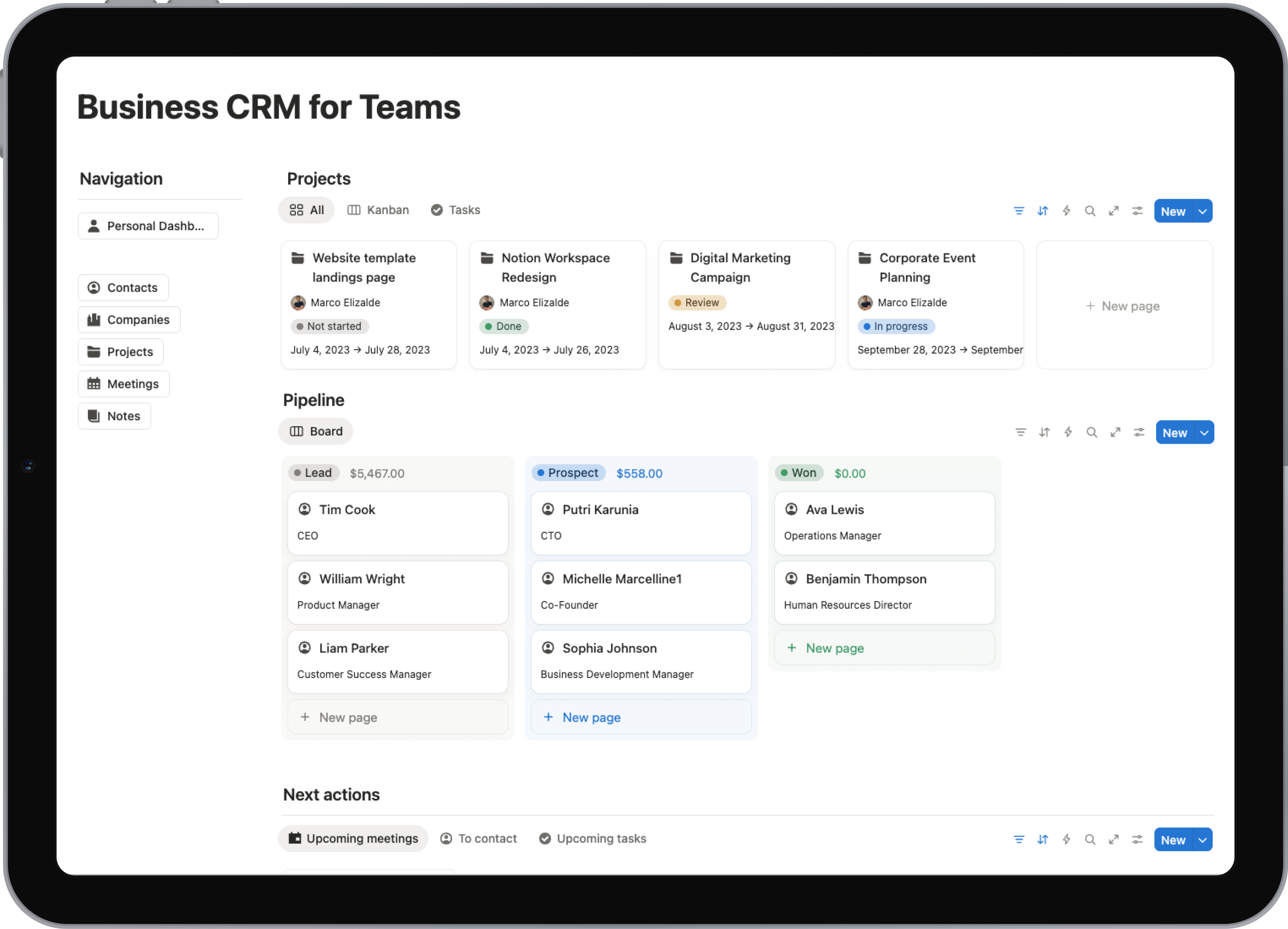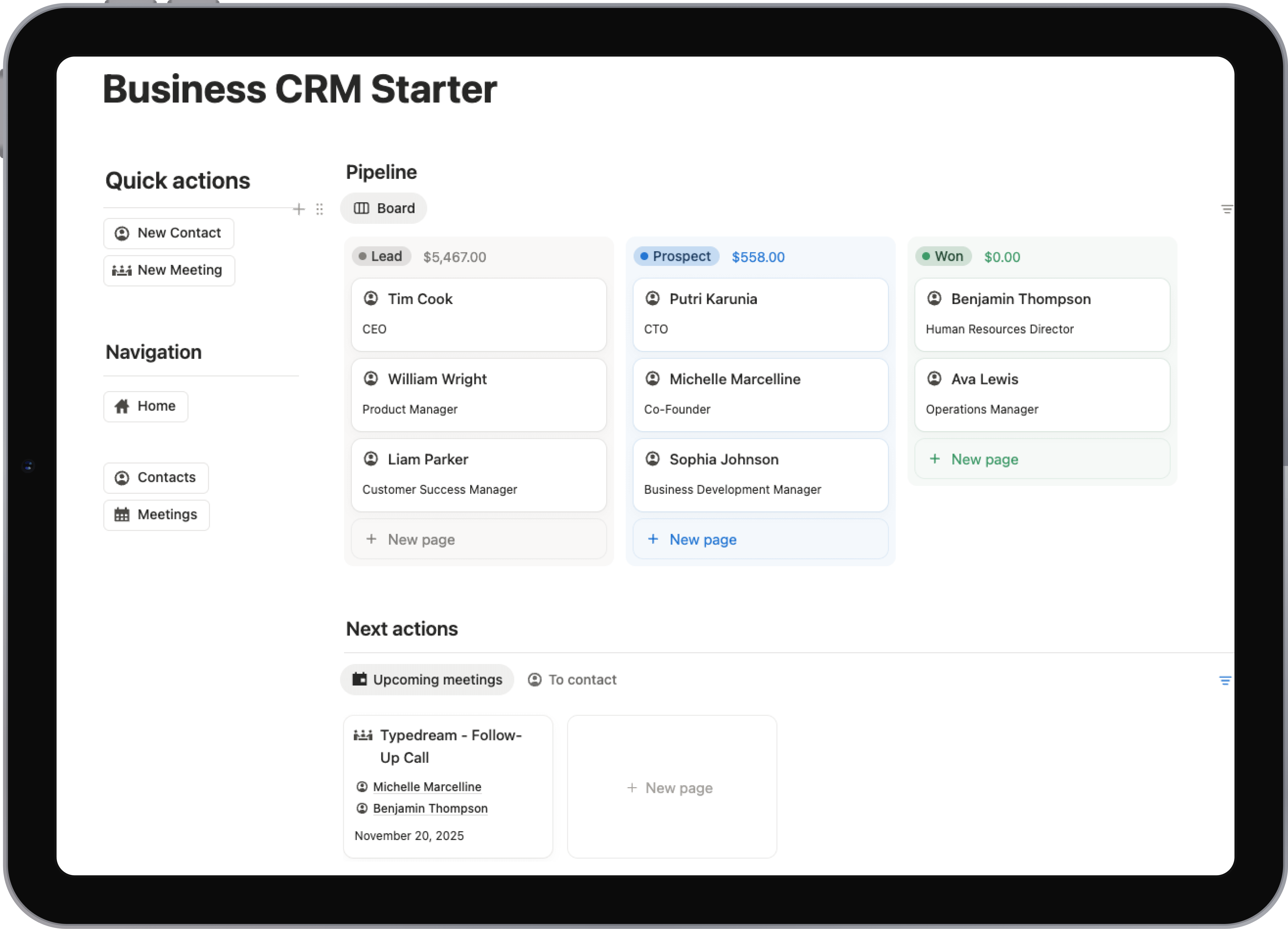
Your Ultimate Notion CRM Template Guide
Build a powerful, custom Notion CRM template from scratch. This guide offers actionable steps to organize contacts, manage deals, and automate your workflow.
A good Notion CRM template is more than just a contact list; it’s a living, breathing system for managing your client data, tracking sales, and keeping all your interactions organized right inside the workspace you already use every day. It’s a total game-changer for freelancers and small teams who are tired of being boxed in by expensive, rigid software. You finally get a system that bends to your workflow, not the other way around.
Why a Notion CRM Is a Game Changer for Your Business
Let’s be real for a second. Most traditional CRM software is clunky. It can be a serious drain on your budget, a headache to set up, and often forces you into a process that just doesn't feel natural for your business. This is exactly why so many people are now building their entire client management system inside Notion.
The biggest win here is unmatched flexibility. You’re not just using a piece of software; you're building a command center that actually mirrors how you think and work.
This move toward more adaptable tools isn’t just a passing trend. It directly solves one of the biggest reasons traditional systems fail: people just don't like using them. It's a well-known problem in the industry that between 20-70% of traditional CRM projects fail simply because teams don't adopt them. Notion's intuitive, all-in-one nature helps sidestep that issue entirely.
For anyone who’s ever felt trapped by a rigid system, the difference between a traditional CRM and a custom Notion setup is night and day.
Traditional CRM vs Notion CRM At a Glance
Here’s a quick breakdown of how they stack up against each other.
| Feature | Traditional CRM | Notion CRM Template |
|---|---|---|
| Customization | Limited to pre-set fields and layouts. | Fully customizable. Build what you need, hide what you don't. |
| Cost | Often expensive, with per-user monthly fees. | Typically a one-time template purchase or free to build. |
| Integration | Requires separate, often paid, integrations. | Natively connects to your notes, projects, and docs. |
| User Experience | Can be complex and require extensive training. | Intuitive and familiar if you already use Notion. |
| Flexibility | Rigid workflows defined by the software vendor. | Adaptable; your workflow defines the system's structure. |
The choice really comes down to whether you want an off-the-shelf tool that dictates your process or a flexible foundation you can build on.
Centralize Everything and Stop App-Switching
One of the best feelings is finally ditching the constant tab-switching. Instead of jumping between your CRM, your project manager, your notes app, and your document storage, everything lives together in one interconnected space.
You can create a central dashboard that pulls everything together, giving you a complete overview at a glance.
This image perfectly illustrates the core principle: bringing all your information—documents, databases, and team wikis—into a single, unified view. That’s the magic that makes a Notion CRM so effective.
The Power of True Customization
A Notion CRM template isn't a static tool; it’s a dynamic system that grows right alongside your business. As you scale, you can easily add new properties to track different metrics, build out more complex sales pipelines, or connect new databases without ever having to migrate to a new platform.
This is where you can really start to tailor things to your exact needs:
- Visual Pipelines: Drag and drop deals through your sales stages using a simple Kanban board view.
- Relational Databases: This is huge. You can link a contact to their company, every deal you've worked on with them, and all related projects. This creates a true 360-degree view of the entire relationship.
- Integrated Notes: Keep every meeting note, call log, and important email thread attached directly to the relevant contact or deal. No more hunting through separate apps.
Ultimately, setting up a solid notion crm template fundamentally changes how you approach relationship management, making it feel far more intuitive and a lot less like boring admin work. For more tips on getting the most out of the platform, you can find other useful guides on our Notion blog.
Building Your Core CRM Databases from Scratch
Before you even think about fancy dashboards or complex automations, the heart of any powerful Notion CRM template lies in its core databases. Get this part right, and everything else falls into place. Think of it like building a house—you pour the foundation long before you pick out paint colors. For our CRM, that foundation consists of three simple, interconnected databases: Contacts, Companies, and Deals.
This is where the real magic of Notion comes into play, giving you a system that is flexible, centralized, and incredibly cost-effective.
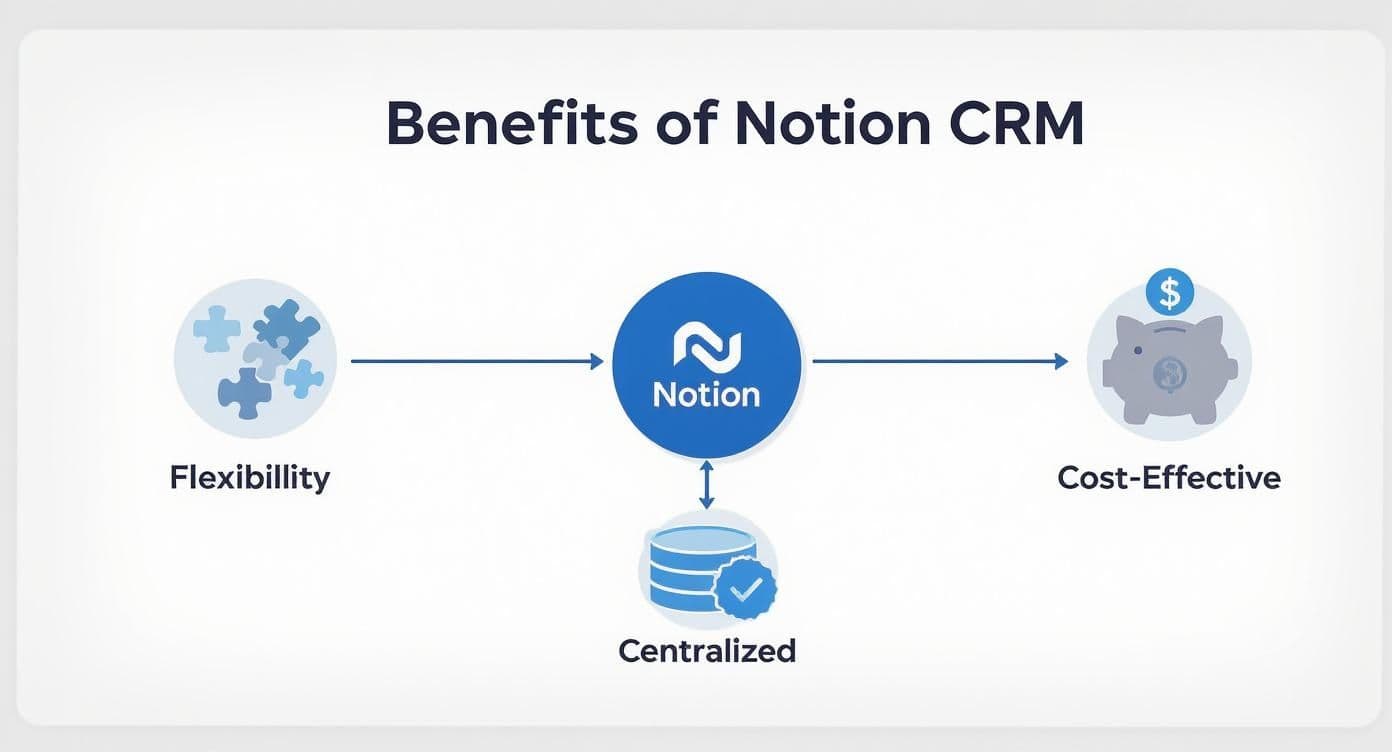
As you can see, these benefits aren't isolated; they feed into each other, creating a powerful ecosystem for managing your entire client world from one place.
The Three Pillars of Your CRM
Let’s start by actually building these. For each one, you'll create a new page and choose the "Database - Full page" option. We're just getting the basic structure down for now, so don't get bogged down in perfecting every single field.
-
Contacts Database: This is your digital rolodex, where every entry is a single person. You’ll want to start with the obvious stuff:
Name,Email,Phone Number, andRole. We'll spice it up with more dynamic properties later on. -
Companies Database: Here's where you'll store info on the organizations you work with. Since a single company can have multiple contacts, it’s crucial this lives in its own database. Start with properties like
Company Name,Industry, andWebsite. -
Deals (or Opportunities) Database: This is your pipeline tracker. Each entry will represent a potential project or sale. The must-haves here are
Deal Name,Value ($), andStatus(e.g., Lead, Proposal, Closed-Won).
Pro Tip: When you create that
Statusproperty, make sure to use the "Select" property type, not just plain text. This lets you color-code each stage of your pipeline, which is essential for creating a visual Kanban board view later. It’s a small thing that makes a huge difference.
Connecting the Dots with Relations
Now for the most important part. A Notion CRM is just a collection of lists until you connect everything. The Relation property is what turns those separate databases into a powerful, interconnected web of information.
Start by opening your Contacts database. Add a new property, choose Relation from the menu, and then select your Companies database when prompted. This creates a two-way link. Now, when you look at a contact's page, you can associate them with their employer, and if you look at the company page, you'll see a list of every contact who works there.
Do this again to connect:
- Contacts to Deals: This shows you every person involved in a specific deal.
- Companies to Deals: This links an entire organization to every opportunity you have with them.
With these relations in place, you suddenly have a 360-degree view. You can click on any company and instantly see every person you know there and every deal—past and present—you've ever had with them. This is what makes a custom-built CRM so powerful for managing complex relationships. Many people find this same relational structure is what makes Notion for project management so effective, too, allowing a seamless handoff from sales to delivery.
This shift toward flexible, DIY systems mirrors a massive industry trend. Back in 2008, a mere 12% of businesses were using cloud-based CRMs. Fast forward to today, and 91% of companies with over 11 employees use a CRM, with cloud adoption expected to hit nearly 87%. It’s clear that tools like Notion are at the forefront of this movement.
Designing Your Action-Oriented Master Dashboard
Alright, you've got your raw data neatly organized into databases. That's a great start, but the real magic happens when you bring it all together. A well-designed master dashboard is what turns those separate lists into a smart, focused command center for your entire operation.
Think of it as your home base. It’s the first thing you’ll open in the morning and the last thing you check at night, giving you a crystal-clear picture of what needs your attention without having to click through a dozen different pages.
The secret sauce here is Notion's Linked Database block. Instead of copy-pasting or duplicating anything, this feature creates a live, filtered window into your original databases—Contacts, Companies, and Deals. You can drop these windows anywhere you want, meaning you can build specific, purposeful views without ever messing with your source data.
Creating Your First Linked Views
Let’s get our hands dirty. Start by making a fresh page and call it something like "CRM Dashboard." On that blank page, type /linked and select your Deals database. Just like that, you have a mirror of your original database that you can now slice and dice however you see fit.
This is where you can start tailoring the dashboard to your actual workflow. For example, a Kanban board is absolutely perfect for visualizing a sales pipeline, letting you see everything at a glance. On the other hand, a simple list view is often better for a no-fuss, daily to-do list. The best part? You can have multiple linked views of the same database on one page, each with its own unique setup.
If you need some inspiration, the official Notion templates gallery is a great place to see what's possible.
You can see how others build everything from project trackers to content calendars. It really shows how different views can serve completely different needs, all within the same workspace.
A great dashboard doesn't just show you information; it tells you what to do next. The real goal is to design views that automatically surface a prioritized to-do list, taking all the guesswork out of your day.
Crafting Actionable Dashboard Sections
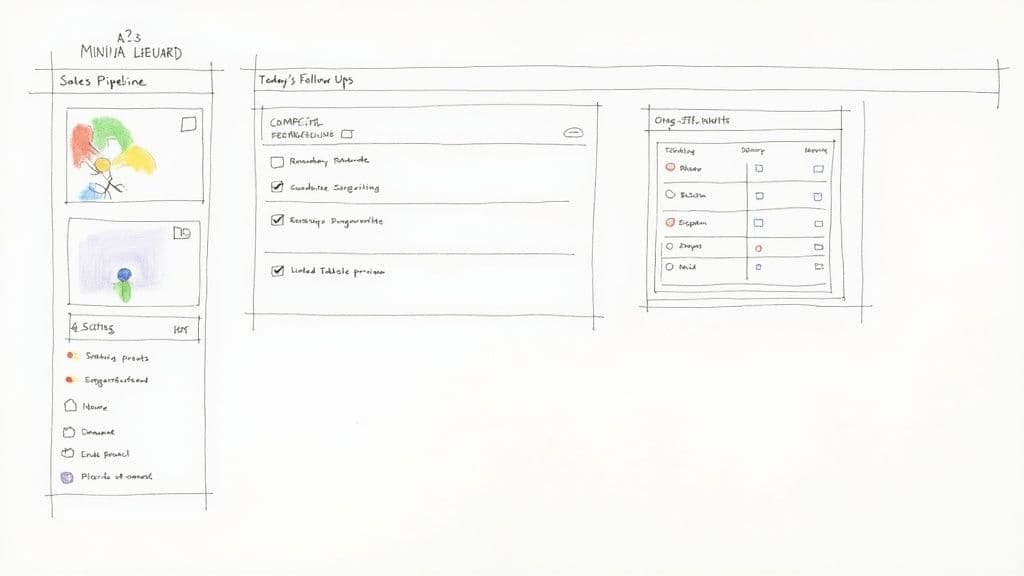
Your dashboard should give you instant answers to your most important questions. What follow-ups are due today? Which deals are in danger of going cold? Who are my newest leads? You can build out specific sections to answer each of these without a second thought.
Here are a few essential views I always recommend building with linked databases:
-
Today’s Follow-Ups: Pop in a linked view of your
Contactsdatabase. Now, set up a filter. You could show contacts where the "Last Contacted" date is more than 14 days ago, or even better, show anyone with a "Follow-Up Date" property that is set for today. I like to sort this one by priority. -
Hot Leads: Next, add a linked view of your
Dealsdatabase. Filter this one to only show deals where theStatusis something like "Lead" or "Initial Contact." Instantly, you have a focused list of new opportunities that need your attention. -
Active Pipeline (Kanban): This one is a non-negotiable for me. Create another linked view of your
Dealsdatabase, but this time, change the layout to "Board." Set it to group by yourStatusproperty. Now you can visually drag-and-drop deals between stages, giving you an immediate, satisfying overview of your pipeline's health.
By combining these customized views, your notion crm template goes from being a simple place to store information to a dynamic dashboard that actively guides what you should be working on right now.
Bringing Your CRM to Life with Formulas and Rollups
Let's be honest: manual data entry is a soul-crushing waste of time. Once you have your core databases and dashboard set up, the real magic begins. It's time to make your Notion CRM template actually work for you by automating the tedious stuff.
This is where Notion's Formulas and Rollups come in. They are the secret sauce that transforms a static database into a dynamic, intelligent system that surfaces critical information automatically. No more manual calculations or digging through pages.
Think of formulas as tiny, self-updating calculators living inside your database. They can crunch numbers, tweak text, and display dynamic statuses based on other data you’ve already entered. This is the leap from just storing information to actively using it to make smarter decisions.
Unlock Key Insights with Powerful Formulas
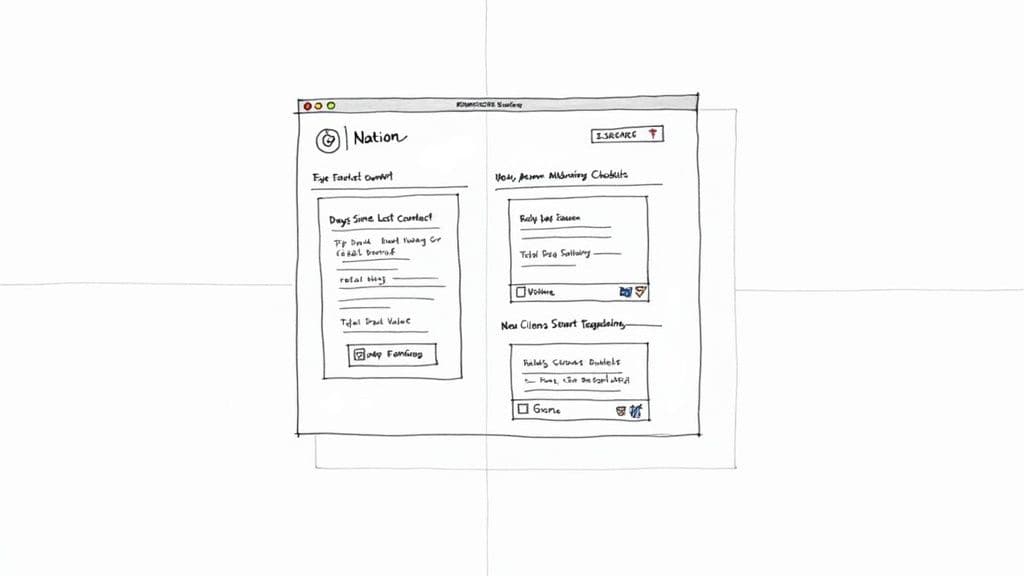
A classic problem for anyone managing relationships is knowing when to follow up. You could manually scan a "Last Contacted" date column, but that's a recipe for missing things. Instead, let's build a formula that tells us exactly who needs attention, instantly.
Jump into your Contacts database and create a new property, setting its type to Formula. We're going to create a simple but incredibly useful formula that shows how many days have passed since your last interaction.
You can copy and paste this right into the formula editor:
dateBetween(now(), prop("Last Contacted"), "days")This little snippet calculates the difference in days between today (
now()) and the date in your "Last Contacted" property. The result is a simple number that gives you an immediate, at-a-glance status for every single contact.
Now, you can create a special view on your dashboard that filters this list to only show contacts where "Days Since Last Contact" is greater than 14. Boom—an automatic follow-up list that requires zero manual effort to maintain.
This is just scratching the surface. As the best Notion CRM templates of 2025 prove, integrating sales pipelines, client histories, and deal values into a single interface is becoming the standard. The power comes from how you connect and automate that data.
Roll Up Data for a High-Level View
While formulas work their magic within a single database entry, Rollups are designed to pull in and summarize data from related databases. This is where all the hard work you did setting up relations really starts to pay off.
Imagine you're looking at a company's page in your CRM. Wouldn't it be great to see the total value of all active deals associated with that company right on the page? A rollup makes this happen in about 30 seconds.
Here’s the quick setup in your Companies database:
- Add a new property and choose the
Rolluptype. - Select the
Dealsrelation you created earlier. - For the property you want to pull from, pick
Value ($). - For the calculation, choose
Sum.
Just like that, every company page now shows the total combined value of every deal linked to it. This gives you immediate financial context without having to click away or run a report. If you're looking for more ways to supercharge your workspace, you can find similar ideas in other powerful Notion productivity templates.
The possibilities here are incredibly practical for getting a quick overview:
- See the total number of open deals a key contact is involved in.
- Display the date of the most recent meeting logged for a company.
- Create a progress bar showing the percentage of completed tasks for a related project.
The table below gives a few more simple but powerful formulas you can drop into your CRM to start automating things right away.
Useful Notion Formulas for Your CRM
A collection of simple but powerful formulas to automate calculations and status updates in your CRM.
| Formula Purpose | Notion Formula Example | What It Does |
|---|---|---|
| Calculate Days Since Last Contact | dateBetween(now(), prop("Last Contacted"), "days") | Shows the number of days that have passed since the date in the "Last Contacted" property. |
| Show Contact's Age | dateBetween(now(), prop("Birthday"), "years") | Calculates a person's current age based on their birthday. |
| Create a Quick Follow-Up Status | if(prop("Days Since Last Contact") > 30, "🔴 Follow-Up Needed", "✅ Up to Date") | Displays a visual status indicator based on how long it's been since you last spoke. |
| Calculate Commission | prop("Deal Value") * 0.1 | Automatically calculates a 10% commission from a deal's value. |
| Format a Full Name | prop("First Name") + " " + prop("Last Name") | Combines separate "First Name" and "Last Name" properties into a single, clean "Full Name" field. |
By combining smart formulas and insightful rollups, you elevate your Notion CRM from a simple digital filing cabinet to a true analytical partner. You're automating the busywork so you can focus on what actually matters: building stronger relationships and closing more deals.
Real-World CRM Setups for Different Professionals
A Notion CRM template is really just a starting point. Its true power comes alive when you start bending it to fit your specific day-to-day work. It's one thing to have the tools, but seeing how other pros actually set up their CRMs can give you some brilliant ideas for your own system.
<iframe width="100%" style="aspect-ratio: 16 / 9;" src="https://www.youtube.com/embed/aLsW4WkuAuk" frameborder="0" allow="autoplay; encrypted-media" allowfullscreen></iframe>Let's break down a couple of distinct scenarios. Each one uses the same core databases—Contacts, Companies, and Deals—but the way they customize the properties and views makes all the difference.
The Freelance Designer’s Visual Pipeline
For a freelance designer, everything is visual and project-focused. You're constantly juggling inquiries, sending quotes, and tracking project progress. A simple list of deals just doesn't cut it. What you need is a dynamic pipeline that tells you the story of your projects at a glance.
The go-to setup here is a Kanban board view for the "Deals" database, organized by a custom Project Status property.
- Stages: Think in terms of your actual workflow:
Inquiry,Quote Sent,Deposit Paid,In Progress, andCompleted. - Card Covers: This is a game-changer. By setting the card cover to "Page Cover," you can add a mood board image or a client's logo to the Kanban card. It gives you an immediate visual handle on each project.
- Key Property: A
Next Action Dateproperty is essential. It lets you set reminders so you never forget to follow up on a quote or check in with a potential client.
This approach lets you see your entire project landscape on one screen. You can literally drag and drop clients from one stage to the next, making it incredibly easy to prioritize your creative energy.
The B2B Consulting Firm’s Deep Dive
A small consulting firm plays a different game entirely. Sales cycles are often long, spanning months and involving multiple people at the same company. Here, the focus shifts from a visual pipeline to managing deep, complex relationships.
For consultants, the dashboard is all about a souped-up Companies database view. By using rollups, you can pull in critical information from related databases without having to click into every single page.
This approach transforms a simple company list into a strategic command center. At a glance, they can see the total potential deal value, the number of active contacts, and the date of the last logged meeting for every single account.
When you need to share progress with clients, building a Notion client portal is a fantastic next step. It lets you share project updates and key documents securely, bringing the client right into your workflow. The entire system is built for tracking those long-term relationships and spotting high-value opportunities based on the data you've gathered over time.
Got Questions About Using Notion as a CRM?
Jumping into a Notion CRM is a great move, but it’s totally normal to have a few questions. Any time you’re migrating a core part of your business—especially one that handles client relationships—you want to be sure you’re making the right choice.
Let's tackle some of the most common things people ask.
The big one I hear all the time is: can this really replace a dedicated CRM tool? For most freelancers, small agencies, and solopreneurs, the answer is a confident yes. The magic of a Notion CRM is its incredible flexibility and how neatly it plugs into the rest of your Notion workspace. A solid template gives you everything you need for contact management, deal tracking, and even light project management.
But it’s also important to be realistic about its limitations. If you're running a massive enterprise sales team, you'll probably miss the heavy-duty automation, intricate reporting, and specific compliance features baked into platforms like Salesforce. Notion isn't built to be a direct clone of those systems. For simpler needs, it's also smart to see what else is out there; this list of the best free CRM for small business is a great starting point for comparison.
How Secure Is My Client Data in Notion?
This is non-negotiable, and rightly so. Notion takes security seriously, encrypting your data both when it's stored (at rest) and when it's being transferred (in transit).
The key thing to know is that they are SOC 2 Type 2 compliant. That’s a fancy way of saying they meet a high industry standard for securely managing customer data. It provides a solid foundation of trust for most business needs.
That said, good security is a partnership. You absolutely should enable two-factor authentication on your account. Also, be super careful with your page-sharing permissions to make sure only the right people have access. If you handle particularly sensitive data, like detailed financial records, it's always a good idea to dig into Notion's own security docs to ensure it meets your specific compliance rules.
Can I Connect Notion to My Other Tools?
Out of the box, Notion's native integrations are still evolving. But its real superpower for connectivity lies with automation platforms like Zapier, Make, and Pipedream. Think of these tools as the universal adapters that connect Notion to thousands of other apps.
For instance, you could quickly set up a workflow that does things like:
- Add a new contact to your Notion CRM the instant someone submits a form on your website.
- Create a new deal in your pipeline whenever a specific type of email lands in your Gmail.
- Sync project deadlines from your CRM directly to your Google Calendar so everything stays in lockstep.
By using these third-party tools, you can build a powerful, interconnected hub around your Notion CRM. It’s the key to automating tedious data entry and keeping information flowing smoothly between all the apps you use every day.
Ready to stop building from scratch? Flowtion offers a library of battle-tested templates to turn your Notion into a productivity powerhouse. Check out the complete collection at https://theflowtion.com and get your systems running in minutes.