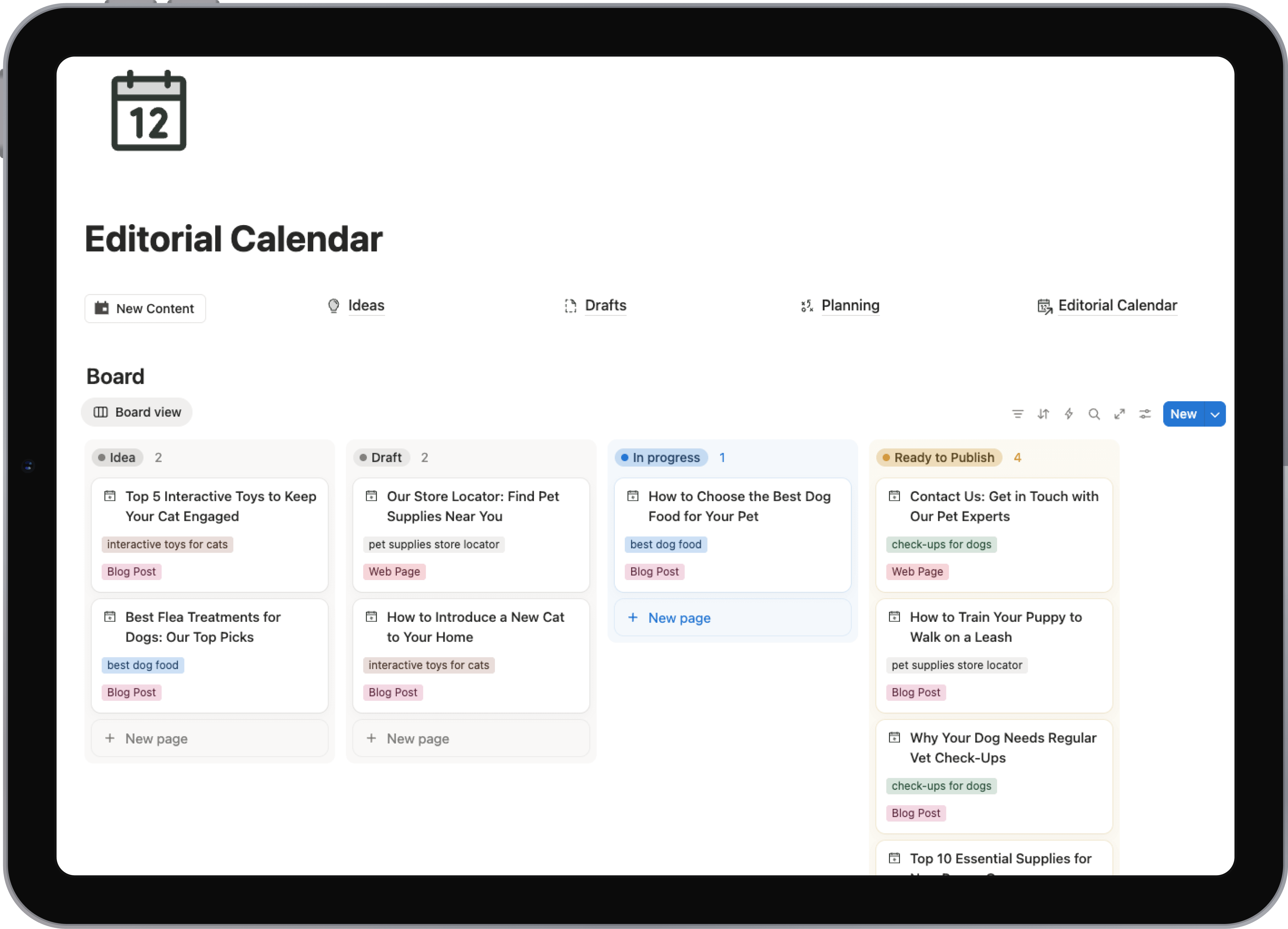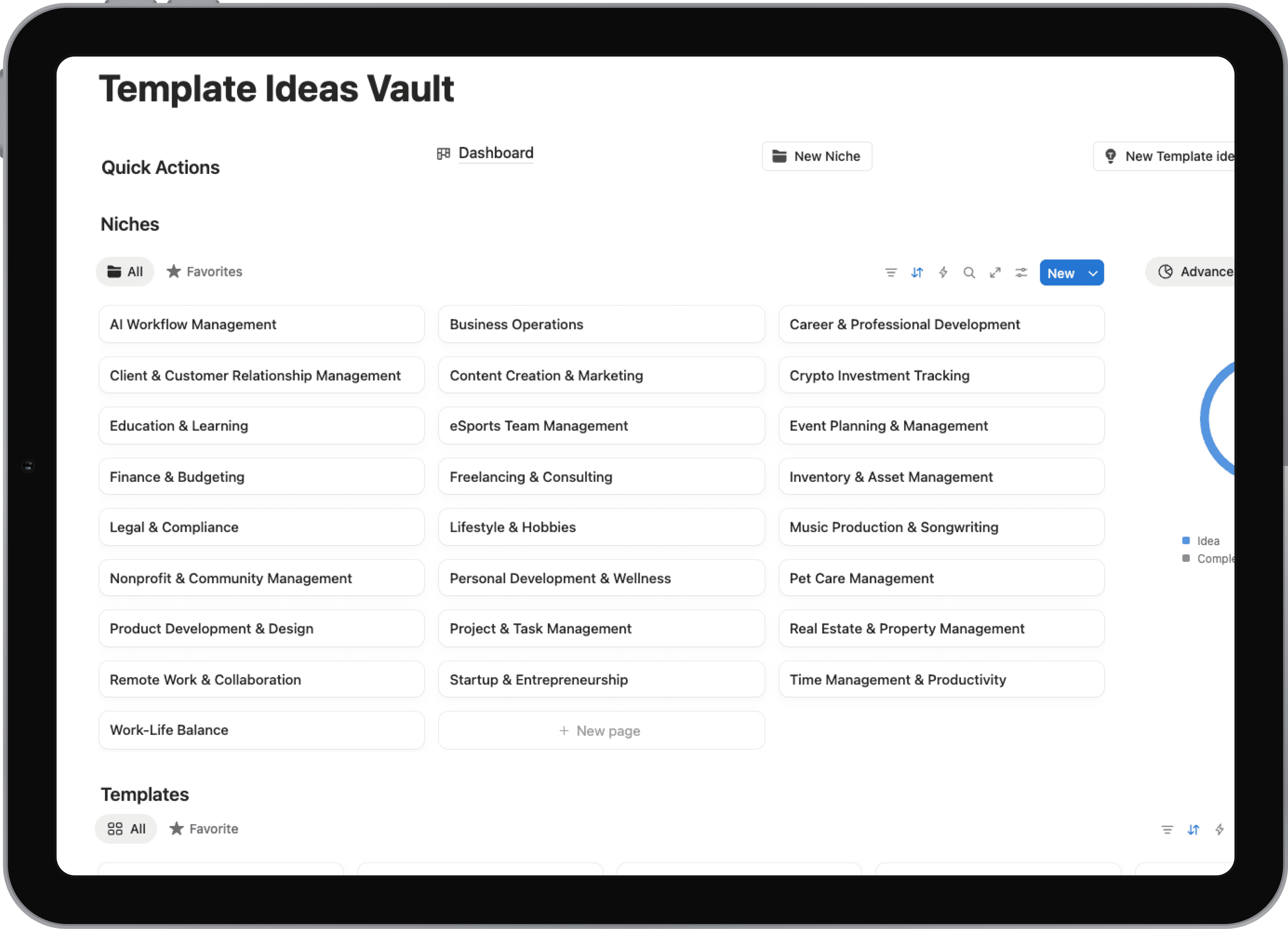
Notion Content Calendar Template Guide
Discover how to power your content strategy with a notion content calendar template—organize, customize, and automate your entire workflow.
A Notion content calendar template is essentially a pre-built, customizable database designed to help you plan, track, and manage your entire content workflow. Think of it as your command center, replacing scattered spreadsheets and documents with one integrated system for scheduling, assigning tasks, and seeing everything at a glance.
Why Notion Is Your Content Command Center
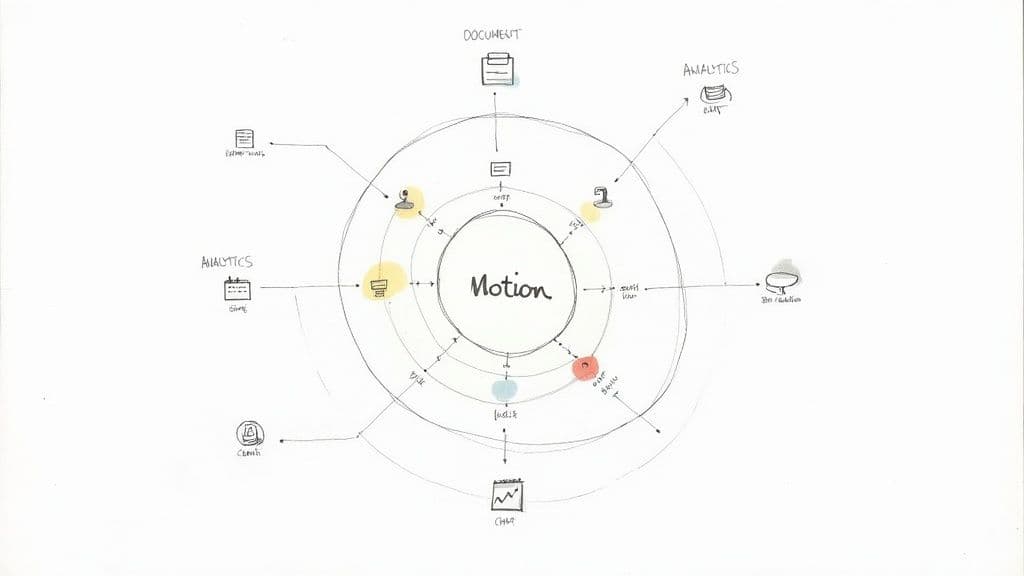
Does your content planning feel chaotic? If you're juggling Google Docs for drafts, Trello for tasks, and a separate spreadsheet just for scheduling, you're not alone. This fragmented approach is a recipe for disaster—it creates information silos, wastes time on endless status updates, and makes it impossible to see the big picture.
The usual results are missed deadlines and inconsistent messaging. This is where a Notion content calendar template changes the game by creating a single source of truth for your entire team. It’s so much more than a place to plug in dates; it’s an operational hub where strategy, creation, and collaboration all happen in one unified space.
Centralize Every Aspect of Content Production
The biggest win here is centralization. Instead of bouncing between different apps, your team operates from one dashboard. This immediately clarifies who is responsible for what, which tasks are in progress, and when every piece of content is set to go live.
This consolidated approach brings some serious advantages:
- Total Visibility: Get a bird's-eye view of your entire publishing pipeline, from high-level monthly themes down to daily social media posts.
- Reduced Friction: Stop switching between apps for drafting, feedback, and scheduling. This cuts down on context switching and helps everyone stay focused.
- Consistent Workflows: You can finally standardize your content creation process, making sure every piece goes through the same quality checks and approval stages.
- Improved Collaboration: Team members see updates in real-time, leave comments directly on content cards, and tag colleagues for feedback without ever leaving Notion.
Go Beyond Basic Scheduling
A simple calendar just shows dates. A Notion system connects those dates to everything else. Each calendar entry isn't just a placeholder; it's a dynamic container holding the draft, research notes, SEO keywords, assigned writer, and approval status. This is what turns your calendar from a static document into an active project management tool.
Of course, before building your system in Notion, it's smart to grasp the fundamentals of how to create an effective editorial calendar. That foundational knowledge ensures the system you build actually supports your strategy.
A great Notion setup doesn’t just organize your content; it operationalizes your strategy. It turns abstract goals into actionable tasks and provides a clear, visual roadmap from ideation to publication and analysis.
Because Notion lets you link databases, you can even connect your content calendar to other critical parts of your business. Imagine linking a blog post directly to a specific marketing campaign, a product launch, or a client project. This gives you a powerful, 360-degree view of how your content drives bigger goals.
For more ideas on how to use Notion for productivity, you can find a ton of inspiration over at the Flowtion blog about Notion. This is how you move from just making content to publishing with a clear, strategic purpose.
Building Your Core Content Database
The calendar view gets all the attention, but the real engine of a powerful Notion content calendar is the database working behind the scenes. This is where every single piece of content will live—from a half-baked idea jotted down at midnight to a fully published blog post. Getting this foundation right from the get-go is the single most important thing you'll do.
Think of it as the command center for your entire content operation. Each entry is a specific project, and the properties we're about to set up are the vital stats: what it is, where it's going, and when it needs to be done. Without them, you've just got a messy list. With them, you have a searchable, organized system that can actually tell you something.
Defining Your Essential Properties
Every piece of content has a few core details you absolutely need to track. In Notion, these are called properties. Adding the right ones is what turns a simple table into a dynamic project management tool. While you can go wild with customization later, there are a few non-negotiable properties every solid content calendar needs.
Here are the must-haves I always start with:
- Status (Select): This is the most crucial one. It tracks where each piece of content is in your editorial pipeline, from "Idea" to "Published."
- Content Type (Select): Is it a blog post, a YouTube video, a newsletter, or an Instagram story? This helps you see if you're creating a balanced mix of formats.
- Channel (Select): Where is this content actually being published? This is different from the type. For instance, a 'Video' type could go to 'YouTube' or 'Instagram Reels'.
- Publish Date (Date): This is the magic property that actually makes your calendar view work. It’s the key to all your scheduling.
- Topic Pillar (Select): This connects your day-to-day work back to your big-picture strategy, ensuring everything you create serves a purpose.
Adding these is simple. When you set up a new database, you just add them one by one from the properties menu.
This is what it looks like when you're just getting started—a blank slate ready for you to build out the structure.
My Go-To Setup for the Status Property
If there's one property I obsess over, it's 'Status'. A generic "To-Do, In Progress, Done" workflow just doesn't cut it for the realities of content creation. You need more granular stages to really understand what's going on.
Over the years, I've landed on a color-coded Select property that works for almost any team. Here's my setup:
- Idea (Gray): A raw concept, not yet vetted or planned.
- To Research (Yellow): The idea has legs and is ready for keyword research and outlining.
- Writing (Blue): The first draft is officially in motion.
- Editing (Orange): The draft is done and waiting for a second pair of eyes.
- Ready for Graphics (Pink): The text is final, and it's time for visuals like blog headers or video thumbnails.
- Scheduled (Green): All assets are complete, uploaded, and scheduled to go live.
- Published (Purple): It’s out in the world!
This detailed flow makes your pipeline instantly scannable, especially when you switch to a Kanban board view. The colors give you an immediate visual read on where things stand.
A well-structured 'Status' property does more than just track progress—it shines a spotlight on bottlenecks. If you see a dozen items stuck in 'Editing,' you know exactly where your workflow is grinding to a halt.
It’s no surprise that this kind of detailed database structure is becoming the standard. By 2025, the Notion content calendar template has become an indispensable tool for creators and marketers, precisely because of this flexibility. The ability to use properties for status, channel, and dates is what enables the powerful calendar and Kanban views that make it so effective. You can find more insights on how these templates are transforming workflows on Stackby.com.
Why Each of These Properties Is a Game-Changer
It might feel like a bit of administrative work upfront, but trust me, every property you add pays for itself tenfold down the line. This isn't just about logging data; it's about building a system that can answer your most important questions.
- Status tells you what you and your team need to work on today.
- Publish Date gives you a clear view of what’s coming up this week or this month.
- Content Type helps you analyze your output. Are you ignoring video? Posting too many articles? The data doesn't lie.
- Channel ensures you're maintaining a consistent presence across all your platforms.
- Topic Pillar keeps your daily tasks tethered to your quarterly goals. At a glance, you can see if you're giving enough attention to each of your strategic themes.
Without these properties, all you have is a glorified to-do list. With them, you have a strategic dashboard. This is the solid foundation we’ll now use to build out custom views, workflows, and even automations.
Designing Custom Views for Total Clarity
Your Notion content calendar is built on a powerful database, but let's be honest—a raw table of data isn't exactly inspiring. The real magic happens when you start shaping that data into dynamic, useful views. Think of views as different lenses for looking at the same information, each one tailored for a specific job.
This is the step that turns your calendar from a static list into a living, breathing command center for your content. By creating the right views, you bring clarity to everyone on the team, from the strategist looking at the big picture to the writer focused on today's draft. A great view should instantly answer a question like, "What's going live this week?" or "Which articles are stuck in editing?"
The Must-Have Calendar View for Big-Picture Planning
The most intuitive and, frankly, essential place to start is the Calendar View. This is your classic monthly or weekly layout, giving you a bird's-eye view of your entire publishing schedule. I find it’s the best way to spot content gaps, avoid publishing two similar pieces too close together, and just make sure you’re maintaining a steady, consistent rhythm.
Setting one up is incredibly simple. In your database, just add a new view and pick 'Calendar' as the layout. Notion will ask which date property to use—this is exactly why we created that 'Publish Date' property earlier.
To make it even more powerful, customize the information shown on each calendar card. From my experience, these are the properties worth showing:
- Content Type: See at a glance if you're leaning too heavily on blog posts and neglecting video.
- Status: The color-coding gives you an instant feel for whether a scheduled piece is on track or falling behind.
- Topic Pillar: This ensures you're hitting all your strategic themes throughout the month.
Once this is set up, you can drag and drop content cards to reschedule posts on the fly. It makes strategic planning incredibly fluid and adaptable.
The Kanban Board for Daily Workflow Management
If the calendar is for high-level planning, the Kanban Board View is your tool for managing the day-to-day grind. This view organizes your content into columns based on its status, turning your editorial process into a visual workflow.
It's fantastic for spotting bottlenecks. When a writer finishes a draft, they simply drag the card from 'Writing' to 'Editing.' That simple action keeps the entire team aligned without needing a single status meeting. This is the kind of flow we're aiming for:
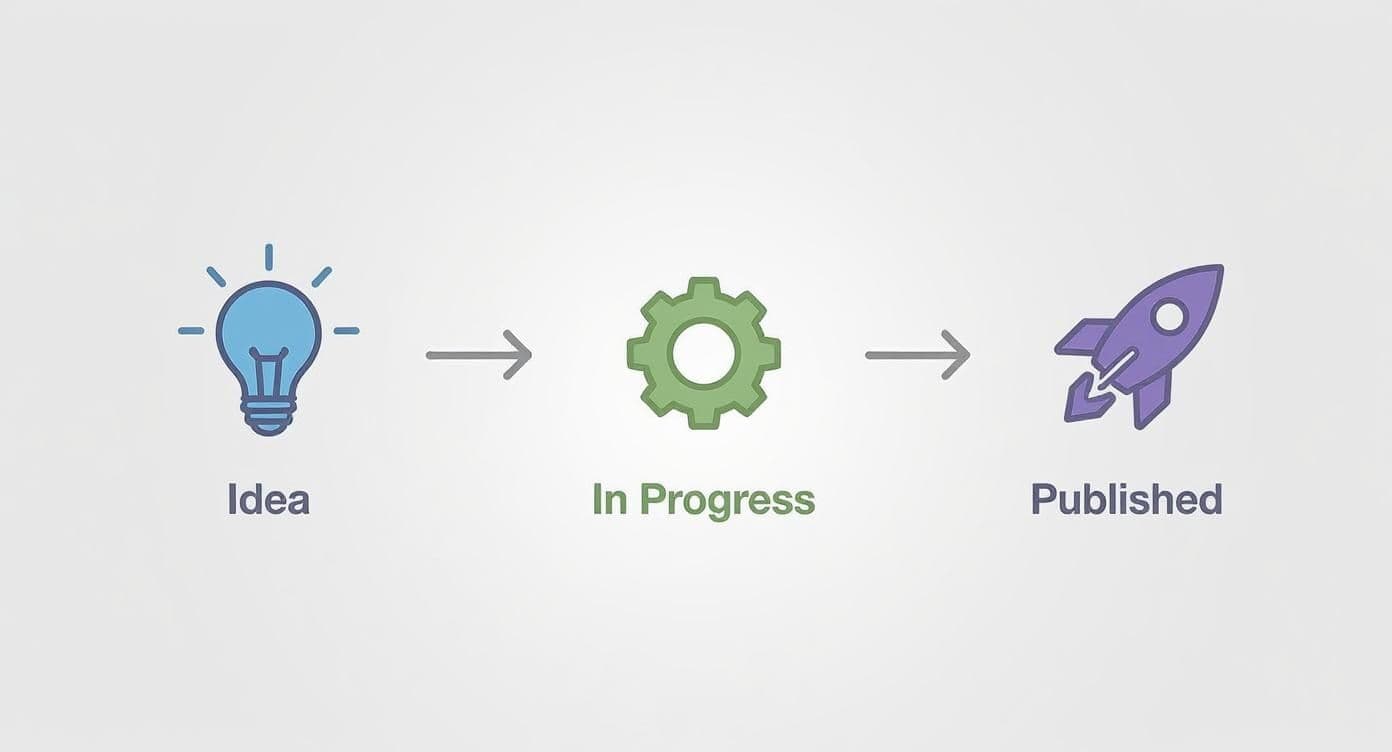
This clear progression makes sure every piece of content moves through the necessary checks and balances before it ever goes live.
The beauty of a Kanban board is its brutal honesty. If you see ten cards piling up in the 'Editing' column, you don't just have a busy editor—you have a process problem that needs to be fixed.
To build it, create a new view, select 'Board', and then group it by your 'Status' property. A pro tip: hide the 'Idea' and 'Published' columns in your daily view. This focuses the screen on active work only, making it perfect for quick team check-ins. This kind of focused workspace is why so many people hunt for great Notion dashboard ideas—it’s all about creating clarity.
Advanced Views for Personalized and Campaign-Specific Focus
Once you're comfortable with the basics, you can start creating highly specific views for different people or projects. This is where a shared database starts to feel like a custom-built tool for everyone on the team.
A content writer, for instance, doesn't need to see the entire content pipeline. You can build a filtered 'My Assignments' view just for them.
- Create a new view (a List or Table works well).
- Add a Filter.
- Set the filter to show entries where 'Assignee' contains their name.
- Add a second filter where 'Status' is not 'Published'.
Voilà. They now have a clean, personal to-do list without any of the noise.
You can apply the same logic to specific marketing initiatives. Let's say you're running a big Q3 product launch. By adding a 'Campaign' property to your database, you can create a dedicated 'Q3 Launch Content' view. It becomes an isolated dashboard to track every related asset—from teaser videos to launch-day blog posts—without getting distracted by your evergreen content. It's these custom views that elevate a simple Notion content calendar template into a purpose-built machine for getting things done right.
Using Templates to Standardize and Accelerate
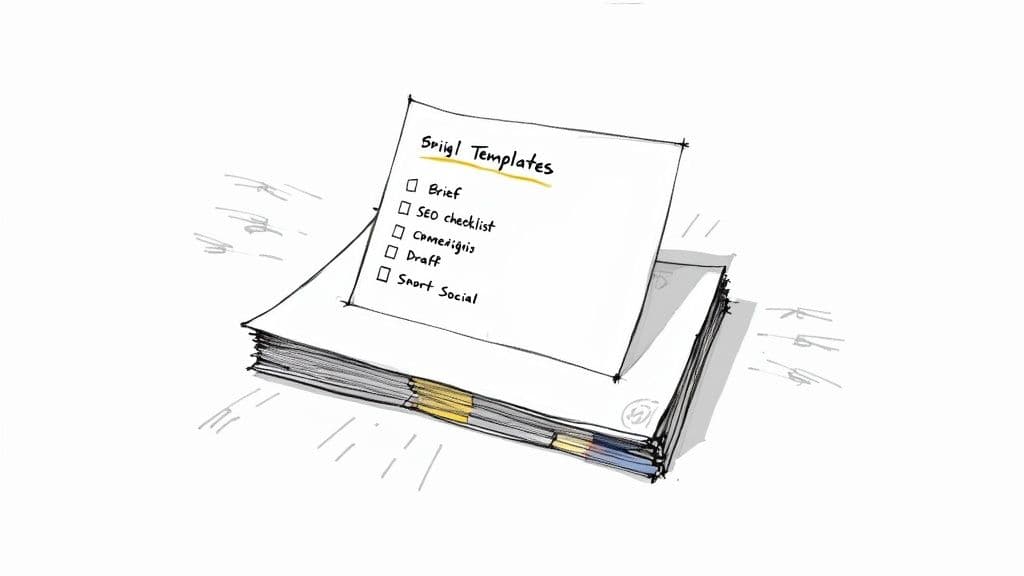
While database views are great for organizing what you already have, Notion’s templates are your secret weapon for creating new content—faster and more consistently.
Think about all the little, repetitive tasks that go into kicking off a new blog post. You create the same headings, add the same pre-publication checklists, and type out the same creative brief every single time. Database templates put an end to that manual grind for good.
A template isn't just a document; it's a pre-built, structured page you can summon with a single click. When you hit ‘New’ in your content database, instead of facing a blank slate, you can pick a template that instantly populates the page with your entire starting framework. This is how you standardize quality and win back hours of your week.
Building Your First Content Template
Let's walk through creating a practical template for a blog post. The idea is to build a structure that guides the writer from initial research all the way to the final draft, ensuring no critical steps are ever missed. It makes the entire process smoother and the final article more consistent, no matter who on the team is behind the keyboard.
To get started, head into your content database. Click the little dropdown arrow next to the blue ‘New’ button and select ‘+ New template’. Give it a descriptive name like "Blog Post Draft" and then you can start building out the page.
Here’s a structure I’ve used that works wonders:
- Creative Brief: I like to use a simple table here to nail down the core purpose. Have rows for Target Audience, Primary Keyword, and Key Takeaway.
- Research & Resources: This is just a dedicated section with a bulleted list for dropping in links, important stats, or notes from a competitor analysis.
- SEO Checklist: A simple to-do list is perfect. Include items like "Incorporate keyword in the title," "Add 3-5 internal links," and "Optimize meta description."
- Drafting Area: I even pre-populate H2 headings for 'Introduction,' 'Main Body,' and 'Conclusion' to give the writer a clear path forward.
Now, whenever anyone starts a new blog post using this template, that whole framework appears instantly. The mental energy of starting from scratch is completely gone.
Setting Up the Essential Properties
When you're building out your content database, the properties you choose are the foundation of your entire system. They're what allow you to sort, filter, and view your content in all those useful ways we talked about earlier. Here’s a look at the properties that are absolutely essential for a high-functioning content calendar.
Essential Properties for Your Notion Content Database
| Property Name | Notion Property Type | Purpose in Workflow |
|---|---|---|
| Content Title | Title | The primary name of the content piece (e.g., blog post title). |
| Status | Select / Status | Tracks the content's progress from 'Idea' to 'Published'. |
| Content Type | Select | Categorizes the format (e.g., Blog Post, Video, Newsletter). |
| Publish Date | Date | The target date for when the content goes live. Essential for the calendar view. |
| Author / Assignee | Person | Assigns responsibility to a team member. |
| Platform | Multi-Select | Specifies where the content will be published (e.g., Blog, YouTube, LinkedIn). |
| Campaign / Pillar | Relation | Links the content to a broader marketing campaign or content pillar. |
These properties turn a simple list of ideas into a dynamic, filterable, and genuinely useful content engine.
Tailoring Templates for Different Content Formats
The real magic happens when you create a unique template for each type of content you produce. A YouTube video script needs a totally different structure than a blog post, and a quick social media update is another beast entirely.
- For a YouTube Video: Your template could have dedicated sections for 'Hook,' 'Main Talking Points,' 'Call to Action,' and a 'B-Roll Shot List.'
- For an Instagram Post: This might be much simpler, with fields for 'Caption Copy,' 'Hashtag Group,' and an 'Image/Video Asset Link.'
- For a Newsletter: Create a template with spots for 'Subject Line Ideas,' the 'Main Story,' and a list of 'Featured Links.'
By standardizing the inputs for each content type, you guarantee a higher quality output. You're no longer just hoping a writer remembers to add a call to action; you're building it directly into their workflow.
While our Notion template gives you a solid foundation, you might also want to explore general strategies to build your own social media calendar template for more specialized needs.
Setting these up takes a little time upfront, but the long-term payoff is huge. If you want to see these principles in action without starting from scratch, our complete editorial calendar template includes these kinds of thoughtful workflows right out of the box. This approach transforms your Notion calendar from a simple scheduler into an intelligent system that actively improves your entire content operation.
Automating Your Workflow with Integrations
<iframe width="100%" style="aspect-ratio: 16 / 9;" src="https://www.youtube.com/embed/Ymn2u1hzuPQ" frameborder="0" allow="autoplay; encrypted-media" allowfullscreen></iframe>Your Notion content calendar is powerful on its own, but it becomes a true command center when you connect it to the other tools you use every day. Automation is the secret sauce that transforms your calendar from a simple planning board into a proactive system—one that saves you time, cuts down on manual mistakes, and keeps everyone on the same page.
It all starts with the tools already built into Notion. A simple @-mention to ping a team member for feedback can kick off a whole review cycle right inside the content brief. You can also set reminders on any database page to make sure deadlines for editing or graphic design never get missed.
Think of these native features as your first layer of automation. They create a more dynamic workflow without needing any external tools, ensuring handoffs are crystal clear and nothing falls through the cracks.
Connecting Your Tech Stack with Zapier and Make
While Notion’s built-in features are a great start, the real magic happens when you connect Notion to your other apps. This is where automation platforms like Zapier or Make (which you might remember as Integromat) come into play. These tools are the bridges that let you build "if this, then that" workflows between Notion and thousands of other applications.
The possibilities are practically endless. You can design custom automations that perfectly match how your team actually works, getting rid of all those tedious, repetitive admin tasks.
For instance, one of the biggest headaches for any team is manually transferring content ideas into Notion. You can set up a simple workflow to fix this for good:
- The Trigger: Someone submits a brilliant new idea through a Google Form or Typeform.
- The Action: Zapier or Make instantly creates a new entry in your Notion content calendar. The idea, title, and description are all pulled directly from the form submission.
This little automation ensures no great idea gets lost in a random spreadsheet ever again. It lands right in your content pipeline, ready for you to review and assign.
Practical Automation Recipes for Your Content Calendar
Let's get practical. Here are a few high-impact automations you can build right now—real-world examples that content teams rely on to keep things moving smoothly.
Think about what happens the moment a blog post goes live. Instead of you having to remember to tell everyone, you can automate the celebration.
Automation Idea 1: The "Published" Announcement Set up a workflow so that when you change a content item's status to 'Published' in Notion, it automatically sends a message to a specific Slack channel. This keeps the whole team in the loop and motivated, celebrating every single win without any extra effort.
This is a fantastic way to keep your marketing, sales, and leadership teams aware of what’s happening in real-time.
Another incredibly useful automation is syncing your Notion calendar with other calendar apps.
- Automation Idea 2: Google Calendar Sync Create an integration that automatically adds an event to a shared Google Calendar whenever a piece of content in Notion gets a 'Publish Date'. This is perfect for stakeholders who live in their calendar and just need to see the key dates without having to navigate Notion.
This simple connection gives everyone visibility into the publishing schedule, no matter which tool they prefer.
Streamlining Team Collaboration and Handoffs
Automation is also a game-changer for managing the handoffs between different roles in your content process. Clear communication at these transition points is absolutely critical for keeping momentum and hitting deadlines.
Take the handoff from writer to designer. The manual way involves the writer messaging the designer, sending over links, and explaining what they need. An automated workflow makes this whole exchange seamless.
You can create a trigger so that when a writer changes a status to 'Ready for Graphics,' the system springs into action:
- Assign the Task: The database item is automatically reassigned from the writer to the graphic designer using the 'Assignee' property.
- Send a Notification: A message is instantly posted in a design-specific Slack channel, tagging the designer with a direct link to the Notion page.
- Create a Task: A new task pops up in the designer’s go-to project management tool (like Asana or Trello) with the due date and requirements already filled out.
This kind of multi-step automation turns a manual, error-prone handoff into a flawless, instant process. By integrating your tools this way, your notion content calendar template becomes the single source of truth that powers and directs work across your entire tech stack.
Common Questions About Notion Content Calendars
Once you start using your Notion content calendar day-to-day, you’ll inevitably run into a few hurdles. These are the little sticking points that can make a system feel clunky instead of intuitive. Let's walk through some of the most common questions I hear and how to solve them.
How Do I Manage Content For Multiple Platforms?
This is probably the first challenge everyone hits. You've got a blog, Instagram, a newsletter, and maybe a podcast. Suddenly, your calendar looks like a chaotic mess. How do you keep it all organized without feeling overwhelmed?
The answer is to lean heavily on filtered views. Instead of staring at one giant calendar with everything on it, create separate, focused views for each channel. For example, you can build a "Blog Pipeline" view that only shows entries where the 'Channel' property is set to 'Blog'. Do the same for 'Instagram', 'Newsletter', etc. This simple trick cleans up your workspace instantly and lets you focus on one platform at a time.
What’s The Best Way To Archive Old Content?
After a few months, your calendar will be packed with hundreds of published posts. This can really slow down Notion and make it harder to find what you're working on now. Archiving is crucial, but you don't want to just delete that valuable content history.
Here’s a clean and simple way to handle it: create a dedicated "Archive" database.
- Duplicate your main database: Make an identical copy and call it something like "Content Archive."
- Set a schedule: Once a month, filter your main calendar to show everything with a 'Status' of 'Published' and a 'Publish Date' older than 90 days.
- Move the old posts: Select all those filtered entries and use Notion's "Move to" feature to send them over to your new "Content Archive" database.
This keeps your active calendar snappy and focused on what's next, while all your published work is safely stored and searchable for future analysis. It's a clean break without losing any data.
Can I Use One Calendar For Multiple Clients or Brands?
Absolutely. This is a massive one for freelancers and agencies. Juggling separate calendars for every client is a recipe for burnout. The goal is a single, centralized system where you can manage everything without client work overlapping.
Your secret weapon here is a Relation property. Add a new property to your content database and call it "Client" or "Brand." Then, create a separate, simple database that just lists your clients. Now you can link every single piece of content to a specific client.
With a 'Client' relation set up, you can build dedicated dashboard pages for each client. By filtering a linked view of the calendar to show only their content, you give them a private, professional portal. They see their projects, and nothing else.
This turns your Notion workspace into a powerful command center for managing multiple content streams efficiently. This kind of flexibility is why these systems are so popular. As of late 2025, a top notion content calendar template holds an average rating of 4.85 out of 5 from over 500 users, and 86% of them specifically praised how easy it was to adapt for different workflows. You can see just how many options are out there by exploring the 30,000+ templates available in the Notion Marketplace. This feedback proves that when you set them up right, these adaptable systems really work.
Ready to stop building from scratch and start organizing your content today? The templates from Flowtion are designed with these best practices built-in, giving you a powerful, pre-configured system in a single click.