Build the Ultimate Notion Content Calendar
Transform your content planning with our guide to building a Notion content calendar. Learn to create a dynamic system for your entire workflow.
At its core, a Notion content calendar is a supercharged database you build right inside Notion to map out, manage, and keep tabs on every single piece of your content workflow. It’s designed to replace those clunky, static spreadsheets with a single, powerful hub that runs your entire editorial process.
Why Your Content Workflow Needs a Central Hub
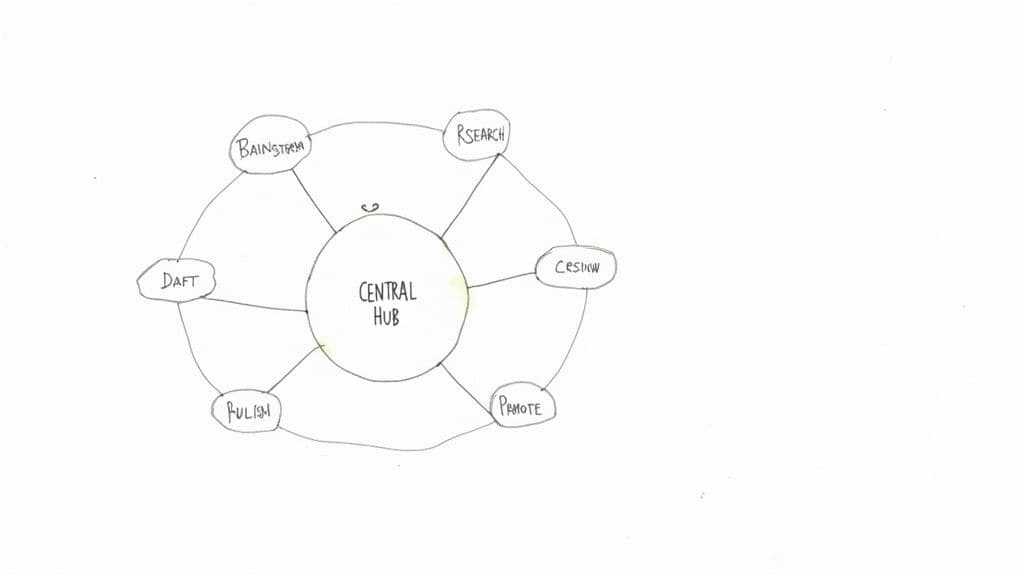
Does your content process feel like a tangled mess of spreadsheets, scattered documents, and a handful of different apps? If so, you're definitely not alone. This kind of fragmented setup creates frustrating information silos, kills productivity, and turns collaboration into a chore.
Moving everything into one unified workspace is more than just a nice-to-have upgrade—it's a strategic shift that creates a single source of truth for your entire team. A Notion content calendar links every part of your workflow together, from the first spark of an idea all the way to the final promotion. It’s worth taking a moment to see what a content calendar template looks like at its foundation to really understand how Notion elevates the concept.
From Static Schedules to a Dynamic System
Let’s be honest, traditional spreadsheets are rigid. They can show you a date and a topic, but they fall apart when you try to manage the intricate web of tasks, creative assets, and team handoffs involved in content creation. This is precisely where a Notion content calendar shines.
Think of Notion as the central nervous system for your content operation. It connects ideas, drafts, assets, and even performance data into one interconnected space, cutting out the confusion and helping your team move in sync.
The platform's incredible flexibility is a huge part of why it's caught on so quickly. Notion now has over 100 million users worldwide—a massive five-fold jump in just two years. It's especially popular with companies in the software and internet space.
Key Advantages of a Centralized Hub
Bringing everything under one roof delivers some massive benefits for any content team, big or small.
Here’s what you stand to gain:
- Total Visibility: Everyone, from writers to managers, can see the real-time status of any content piece with a single click. No more "just checking in" emails or meetings.
- Improved Collaboration: Team members can drop comments, assign tasks, and share feedback directly on the content card. All communication stays organized and right where you need it.
- Streamlined Processes: By building out this central database, you’re creating an efficient, scalable system that just works. This idea is a core part of building a Notion Second Brain, a concept we explore in our detailed guide here: https://theflowtion.com/blog/notion-second-brain.
Building Your Core Content Database
The heart of any great Notion content calendar isn't actually the calendar view you look at every day. The real magic happens in the database that powers it from behind the scenes. This is where you lay the groundwork, defining the entire structure that will hold every last detail about your content.
Think of it like building the frame of a house. Before you can even think about paint colors or furniture, you need a solid, well-planned structure. Your Notion database is that frame.
To get started, create a new page in Notion and choose the "Table" database option. I always recommend a full-page view for this initial setup, as it gives you a wide-open canvas to start adding the properties that will eventually track your content from a rough idea all the way to a published piece.
Setting Up the Essential Properties
Okay, this is where the strategy comes in. Don't just start adding columns because they seem useful. Every single property needs to have a job—a clear purpose that helps you sort, filter, and understand what's happening with your content at a quick glance.
Let's walk through the absolute must-haves, the non-negotiables that make a content calendar actually work.
-
Status: This is easily the most important property for tracking progress. I highly recommend using Notion's dedicated
Statusproperty, which comes with "To-do," "In progress," and "Complete" groups already built-in. From there, you can customize the stages to mirror how your team actually works. Common ones I use are "Idea," "Drafting," "In Review," "Scheduled," and "Published." -
Publish Date: Simple, but crucial. This is a
Dateproperty, and it’s the key that unlocks the calendar and timeline views. Without it, you just have a list of tasks. This date is the anchor for your entire publishing schedule. -
Content Type: Is this a blog post, a YouTube video, an Instagram story, or a newsletter? Using a
SelectorMulti-selectproperty here makes it incredibly easy to filter your calendar later on. Need to see only your video content for next month? A single click, and you're there. -
Assignee: If you're working with a team, the
Personproperty is a game-changer. It lets you assign each piece of content to a specific person, which immediately creates ownership and clarifies who is responsible for what. No more "who's handling this?" questions.
Get these four properties dialed in, and you've already built the core engine of a clean, organized, and effective system.
Expanding with Strategic Properties
Once that foundation is solid, you can start layering in more detail. These next properties are what elevate your calendar from a simple schedule into a strategic command center, connecting your day-to-day work with your bigger business goals.
Proper task management is what brings your content plan to life. For a deeper dive, you can explore some advanced techniques for managing tasks effectively in Notion to see how these different systems can feed into each other.
A well-structured database doesn't just store information; it actively answers questions for you. Who is working on what? When is it due? What's the next step? Your properties should make finding these answers effortless.
Here are a few more powerful properties I always recommend adding to get more out of your setup.
Essential Notion Properties for Your Content Calendar
This table breaks down some of the most useful properties you can add, what type they are in Notion, and why they matter for building a truly effective content calendar.
| Property Name | Notion Property Type | Purpose and Best Practices |
|---|---|---|
| Topic/Pillar | Select | Connects individual content pieces to your broader strategic themes. This helps you instantly see if you're creating a balanced mix of content across all your key pillars. |
| Reviewer | Person | If your workflow has an approval stage, this property makes it crystal clear who needs to give the final sign-off. It eliminates bottlenecks. |
| Target Keyword | Text | Absolutely essential for any SEO-focused content. This keeps the primary keyword front and center for the writer and anyone else involved in the piece. |
| URL | URL | Once a piece is published, drop the live link here. Over time, this turns your content calendar into a powerful, searchable archive of everything you've ever produced. |
By being thoughtful and deliberate with these properties, you’re creating much more than a schedule. You're building a dynamic, insightful database that becomes the single source of truth for your entire content operation. This is the bedrock on which all your custom views and powerful dashboards will be built.
Designing Custom Views for Your Team
Alright, you've built the foundation of your content database. That's a huge step, but let's be honest—a raw table of data isn't exactly motivating. The real magic happens when you start creating custom views that turn that data into targeted, actionable dashboards for everyone on your team.
Think of views as different lenses for the same camera. The core information never changes, which means no more duplicating tasks or wondering if you're looking at the latest version. Instead, you create different layouts—Kanban boards, calendars, filtered lists—all pulling from that single source of truth. Everyone gets the exact information they need, in the format that works best for them.
The key is to leverage the properties you just set up, like Status, Publish Date, and Content Type, to slice and dice your data in meaningful ways.
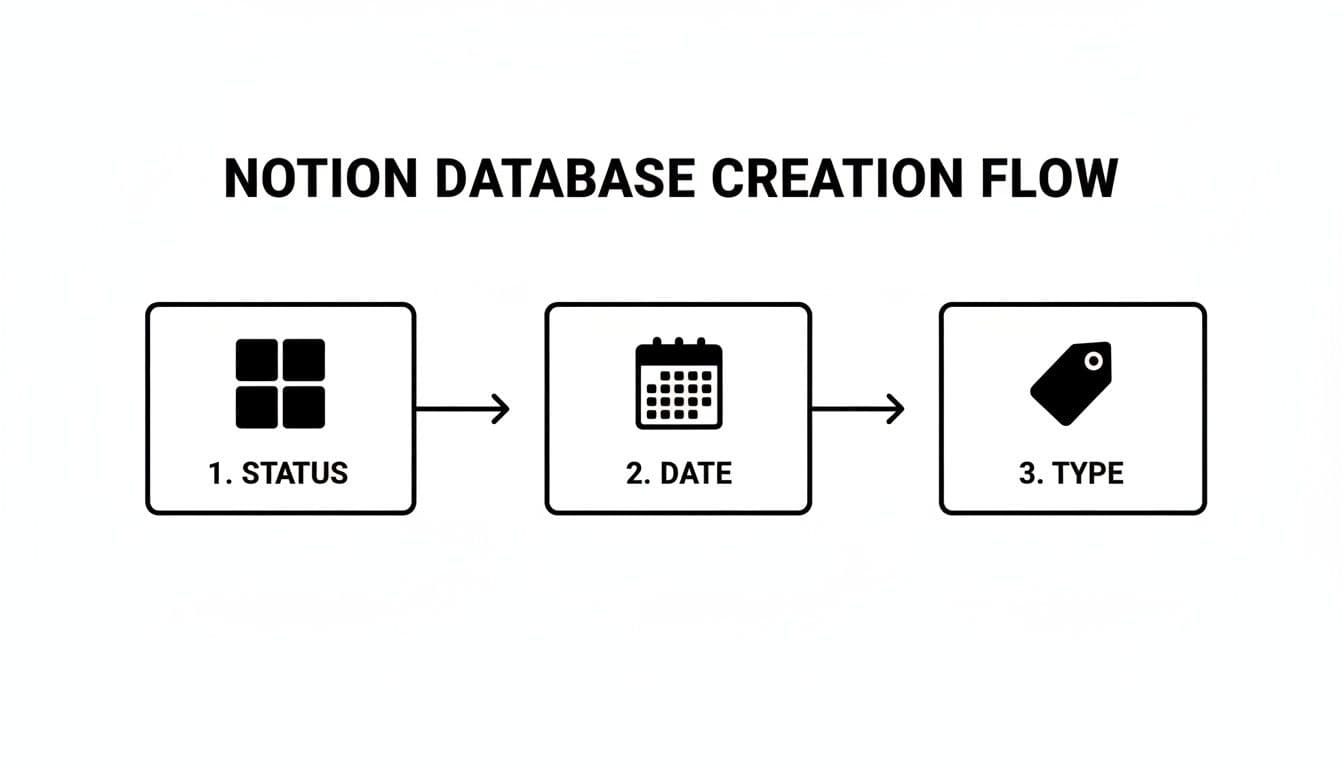
As you can see, those properties aren't just labels. They're the engines that will power your visual workflows. By filtering, sorting, and grouping based on them, you can build the specialized views we're about to dive into.
The Kanban Board for Visual Progress Tracking
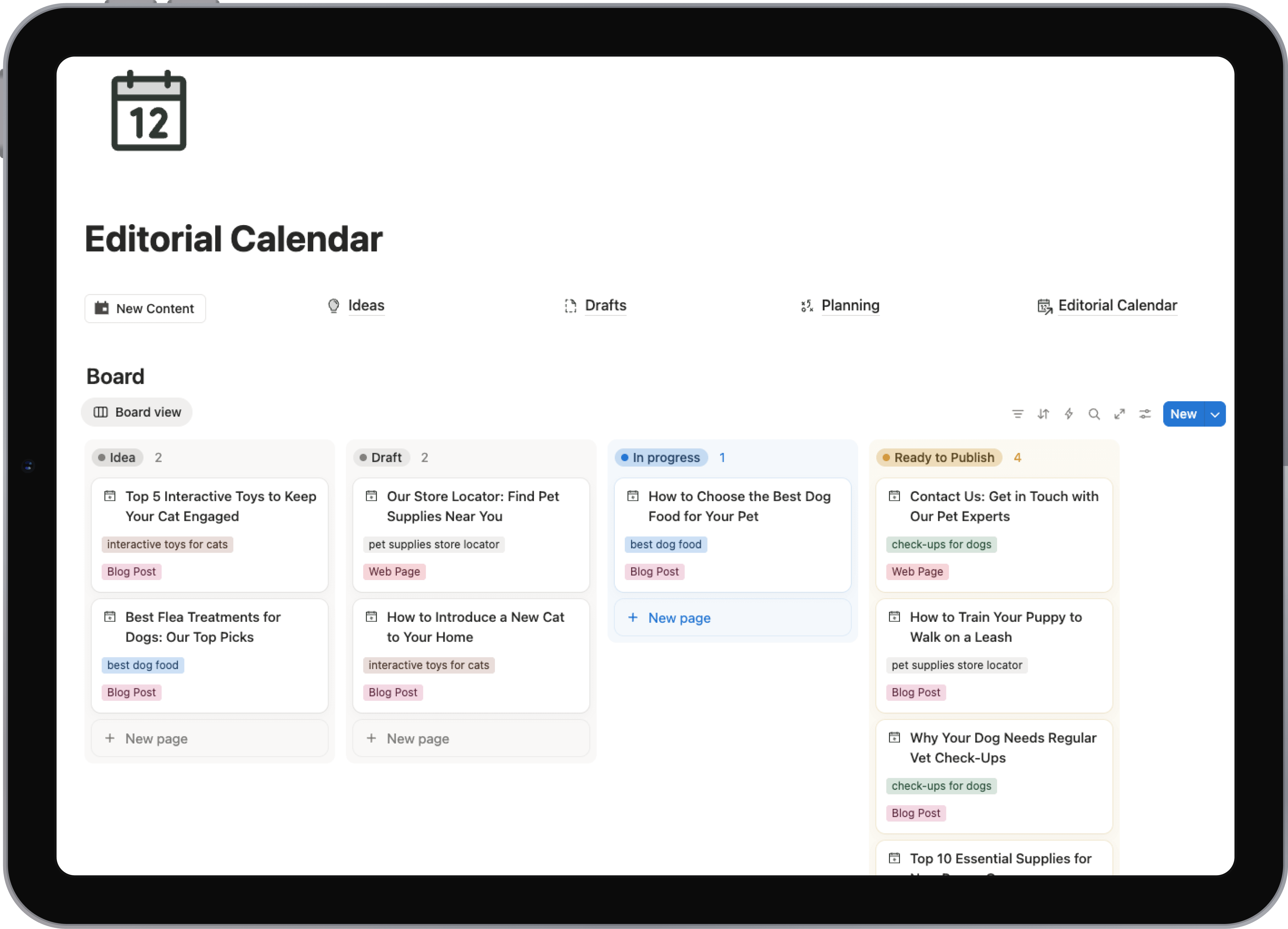
There's a reason the Kanban board is a universal favorite: it makes progress feel real. By creating a board view grouped by your Status property, you can literally watch content cards move from the "Idea" column all the way to "Published." It's incredibly satisfying and perfect for daily check-ins or spotting where things are getting stuck.
To get this going, create a new linked view of your database and pick the Board layout. In the "Group by" options, just select your Status property. Boom. Your content will instantly snap into columns representing your workflow. I often hide the "Published" column on my team's board to keep it laser-focused on what's actively in flight.
A Personalized View for Every Contributor
Want to instantly reduce overwhelm for your team? Give them a view that shows only what's on their plate. A personal "My Assignments" view is an absolute game-changer for focus. It's just a simple list or board, but it’s powered by one killer filter.
Create another linked view and add this simple rule:
- Filter:
AssigneecontainsMe
This is a dynamic filter, which means Notion automatically shows anyone who's logged in their own assigned tasks. Writers see their articles, designers see their graphics, and nobody has to dig through a mountain of tasks to find their to-do list. It’s a small tweak with a massive impact on individual productivity.
By creating tailored views, you're not just organizing data; you're designing a more focused and less stressful work environment for your entire team. It's about delivering clarity by default.
The Manager's Content Pipeline View
While individual contributors thrive on a focused view, managers need the 30,000-foot perspective. A master "Content Pipeline" view gives you just that. I usually set this up as a table or timeline so I can see the entire operation at a glance, sorted by what's coming up next.
Here’s my go-to setup for a manager’s dashboard:
- Layout: A Table or Timeline view works best for seeing the big picture.
- Sort: Always sort by
Publish Datein ascending order. This puts the most urgent content right at the top. - Properties: Make sure key details like
Status,Assignee, andContent Typeare visible. This lets you spot-check progress without having to click into every single page.
This view makes it easy to see who’s working on what, check the status of next week's blog post, and make sure you have a healthy mix of content going out. These principles are vital for any powerful workspace, and you can get even more inspiration from our guide to Notion dashboard ideas to customize things further.
A Gallery View for Social Media Creatives
If your team is cranking out visual content for platforms like Instagram or Pinterest, a gallery view is non-negotiable. This layout transforms your database from a list of text into a beautiful, scannable mood board.
Just create a new view and select the Gallery layout. Then, in the "Card preview" settings, tell it to show the "Page cover." This is a lifesaver for social media managers who need to quickly review upcoming posts to check for visual consistency and overall brand aesthetic. It’s all about seeing the content the way your audience will.
Making Your Workflow Hum with Advanced Features
Okay, so your views are set up and looking sharp. Now for the fun part: getting rid of the mind-numbing, repetitive tasks that clog up your content pipeline. This is where your Notion content calendar truly comes alive, shifting from a simple planner into a full-blown workflow machine. The real aim here is to cut down on admin time so you can pour that energy back into creating fantastic content.
The single most powerful way to start is with database templates. Seriously. Forget starting from a blank page every time a new idea pops up. With templates, you can design pre-built launchpads for every single content type you produce. It’s a small change with a massive payoff in both speed and consistency.
Standardize Quality with Database Templates
Think about your process for a new blog post. With a template, a single click can instantly generate a new page complete with your standard creative brief, a pre-flight SEO checklist, a basic outline structure, and even a placeholder for image assets. Boom. Just like that, every piece of content starts on the right foot, following the same quality guidelines from the get-go.
You can set up unique templates for each Content Type in your database, which is where things get really slick.
- Blog Post Template: Load this up with H2 and H3 placeholders, a pre-written call-to-action block, and a quick reminder to add internal links.
- Video Script Template: Build this with dedicated sections for the hook, key talking points, b-roll shot ideas, and the final end-screen CTA.
- Social Media Post Template: This could include a simple checklist for tailoring copy to each platform (LinkedIn vs. X, for example) and a prompt for researching relevant hashtags.
By setting these up, you’re doing more than just saving a few minutes. You're building a repeatable system that makes it incredibly easy for anyone on your team—new or old—to jump in and create content that hits the mark.
Automation in Notion isn't about writing complicated code. It's about building smart, repeatable systems. Database templates are your first and most impactful step, turning a blank page into a guided workflow.
For those who want to take it even further, you can automate content creation for SEO success by integrating other tools and techniques. The insights you gain from that can loop right back into how you structure your Notion templates and properties.
Connecting the Dots with Relations and Rollups
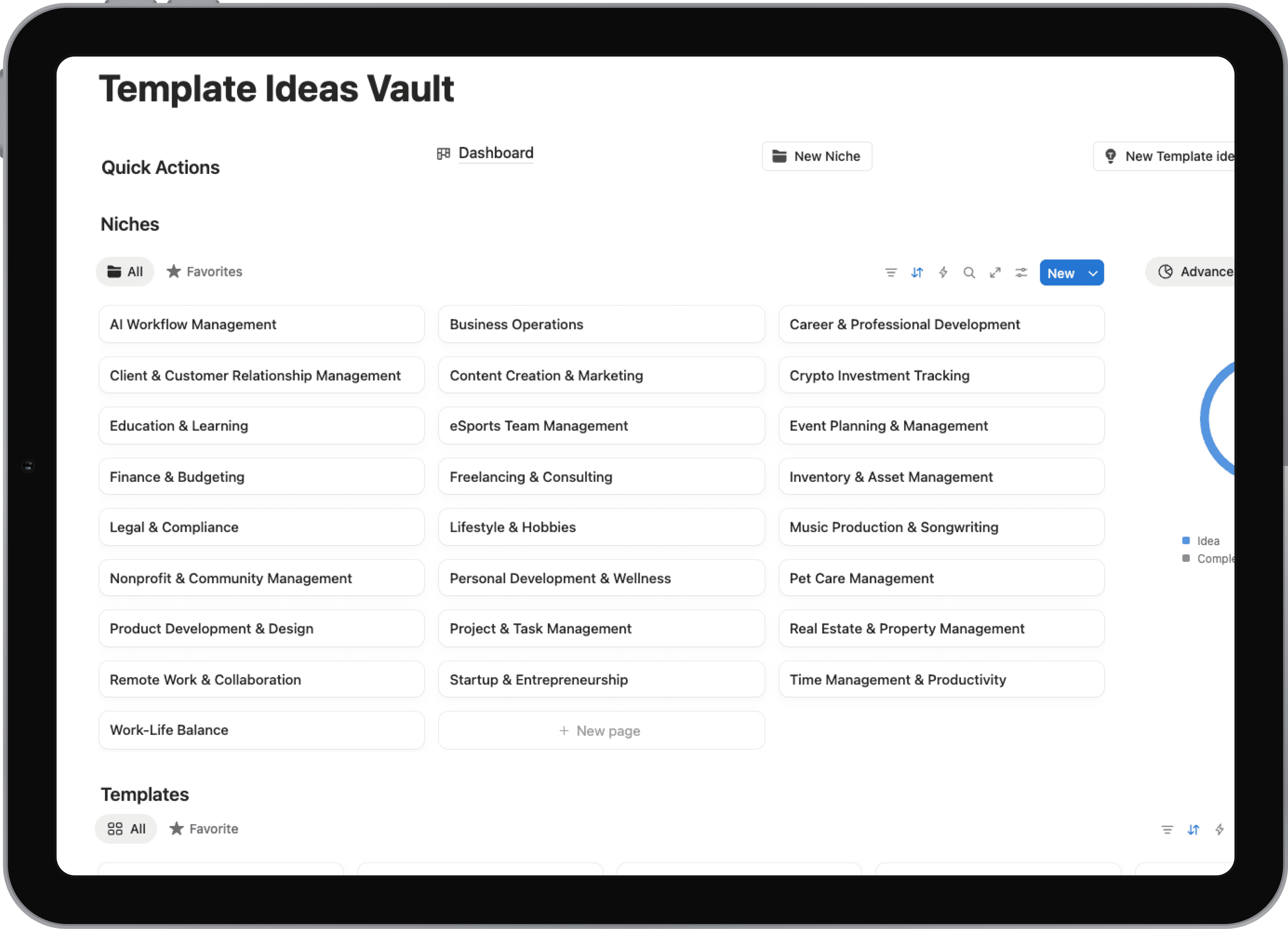
Let's be real—your content doesn't exist in a silo. Each piece supports a larger campaign, pushes a strategic goal forward, and fits into a much bigger picture. This is where Notion’s Relation and Rollup properties become your best friends, letting you build powerful connections between your content calendar and other critical databases.
A Relation property is exactly what it sounds like: it lets you link an item in one database to an item in another. For example, you can link a handful of blog posts directly to the "Q3 Product Launch" campaign in your marketing database.
This creates a live, two-way link. Now, when you look at that campaign, you can see every single piece of content associated with it. It makes strategic alignment and reporting a breeze.
Once you've established that link, the Rollup property lets you pull specific information across. Imagine creating a rollup that shows the status of the main campaign right there on the individual blog post card. This gives your entire team crucial context without them ever having to click away from the content calendar.
How to Maintain and Scale Your Content System
<iframe width="100%" style="aspect-ratio: 16 / 9;" src="https://www.youtube.com/embed/VCZ4ATFieIs" frameborder="0" allow="autoplay; encrypted-media" allowfullscreen></iframe>Building a killer content calendar in Notion is a huge first step, but it’s not a one-and-done project. Think of it as a living system. If you just leave it alone, it'll get cluttered and slow, and your team will eventually stop using it.
To keep it running smoothly as your team grows and your strategy shifts, you need a simple maintenance routine. These aren't huge, time-consuming tasks—just small, consistent tweaks that prevent major headaches later on.
Conduct a Quarterly System Checkup
Get your core content team together for 30 minutes once a quarter. This isn't about reviewing content performance; it's about checking the health of the system itself. The goal is to figure out what’s working and what’s just getting in the way.
During this quick huddle, take a hard look at your database properties. Does your Status property still map to your actual workflow, or have you added new, unofficial steps? Are there a couple of properties that seemed like a good idea at the time but that nobody ever fills out? Ditching unused fields is the fastest way to clean up your workspace.
Then, turn your attention to the views. Ask everyone which dashboards they actually use daily and which ones they never touch. This is gold. It tells you exactly what’s valuable so you can refine what works and delete the rest.
Your content system should adapt to your team, not the other way around. A regular checkup ensures your Notion workspace evolves with your process, preventing it from becoming a digital graveyard of outdated fields and irrelevant views.
Archiving Content to Keep Things Fast
Ever notice your Notion workspace getting a bit sluggish? As you add hundreds (or thousands) of published posts to your database, it’s bound to slow down. The fix is surprisingly simple: archiving.
Don't just delete old content—you’ll lose a ton of valuable historical data. Instead, create a separate database called "Content Archive" and copy the exact same properties over to it.
Once a month, run a filter to find everything published more than six months ago and move it to the archive. This keeps your main calendar lean and fast while ensuring you can always find old content when you need it.
Here’s a quick recipe for the filter:
- Filter 1:
StatusisPublished - AND
- Filter 2:
Publish Dateis on or before6 months ago
Once the filter is applied, just select all the pages and use the Move to function to send them on their way to the archive. Easy.
Onboarding and Ensuring Consistency
As your team expands, keeping everyone on the same page is the secret to a scalable system. The last thing you want is for three different people to use three different date formats or status tags.
Create a simple "How We Use Notion for Content" guide right inside your team's workspace. This document doesn't need to be a novel. Just briefly explain what each property is for and point new hires to the most important team views.
This little guide is your secret weapon for data integrity. It makes sure everyone enters information the same way, which means your filters, views, and automations will always work as intended. It's the final piece of the puzzle for a system that truly lasts.
Answering Your Top Notion Content Calendar Questions
When teams start moving their content process into Notion, the same handful of questions always seem to surface. It's totally normal. Getting these sorted out from the get-go makes the whole transition much smoother and helps everyone feel comfortable with the new setup.
Let's dive into some of the most common ones we hear.
Can My Notion Calendar Talk to Other Apps?
Absolutely. You can definitely link your Notion content calendar to other tools your team relies on, like Slack or Google Calendar. The trick is that Notion doesn't always do this on its own; you'll likely need a little help from a third-party automation tool.
Think of services like Zapier or Make.com as the translators between Notion and your other software. They let you build some really powerful workflows without any code.
For example, you could set up a rule that pings your #content-review Slack channel the moment a writer changes a post's status to "Ready for Review." No more manual DMs or waiting around. You can even sync your "Publish Date" property over to a shared Google Calendar, giving folks outside the content team a clear view of what’s coming up.
This isn't just about making things easier. It's about turning your Notion calendar into a true command center that pushes and pulls information across the tools your team already lives in every day.
Should I Build From Scratch or Just Use a Template?
This is the big one. Do you start with a blank slate or grab a pre-built template? Honestly, there’s no wrong answer, but one path is usually better depending on your situation.
Using a template is all about speed. You get the essential properties, views, and dashboards right out of the box, letting you start organizing your content in minutes. If you're new to Notion or just need a solid system right now, a template is your best friend.
Building from scratch, on the other hand, is about ultimate control. You get to design every single property, filter, and view to perfectly mirror how your team actually works. It takes more time upfront, sure, but the result is often a system that feels completely intuitive and purpose-built for you in the long run. The good news is, our guide gives you the fundamentals to do either—tweak a template or build your own with confidence.
How Do I Manage Recurring Content?
What about the weekly newsletter or the monthly performance report? This is a classic content calendar problem, and Notion has a fantastic solution: recurring database templates.
You can create a perfect template for, say, your newsletter. Pre-load it with your standard checklist, a content outline, and even assign it to the right person.
Then, you just tell Notion to create a copy of that template automatically on a schedule you choose—like every Monday at 9 AM. A fresh, pre-filled task will pop right into your Notion content calendar, ready to go. You'll never forget a recurring task again.
Ready to skip the setup and get a professional-grade system instantly? Flowtion provides battle-tested Notion templates that turn your workspace into a powerhouse. Duplicate our expertly designed content calendar and start streamlining your workflow today. Find the perfect template for your needs at https://theflowtion.com.