Email Inbox Management Guide
Tired of email chaos? This guide to email inbox management provides actionable systems for triage, automation, and organization to finally reach inbox zero.
Email inbox management is simply the way you handle the constant flow of incoming messages. It’s about creating a solid system for deleting, delegating, replying to, putting off, and filing emails so you can keep your inbox clean and focus on what actually needs your attention.
Why Your Current Email Inbox Management Is Failing You
We’ve all been there—that sinking feeling when you open your email and see a wall of unread messages. It’s not just a minor annoyance; a messy inbox actively works against you, leading to missed deadlines, fractured focus, and a constant, low-level hum of stress. Too many of us spend our days reacting to an endless stream of pings and requests instead of driving our own work forward.
This isn't a personal failing; it's a numbers game you're set up to lose. By 2025, the world is expected to be sending and receiving a mind-boggling 392 billion emails every single day. For the average professional, that breaks down to about 121 emails hitting their inbox daily. It's no wonder it feels like a constant battle. You can find more details on these trends in the latest email statistics reports.
The Hidden Costs of a Disorganized Inbox
When your inbox is a disaster zone, the fallout affects your entire workday. It’s not just the visual clutter you see; it's the invisible tax on your mental energy and effectiveness. Think about the last time you had to frantically search for a crucial attachment buried under a week's worth of newsletters and notifications. That's a clear sign your system is broken.
The problems usually boil down to a few common culprits:
- Constant Interruptions: Every new email notification yanks you out of deep work, making it almost impossible to get into a state of flow.
- Decision Fatigue: Just sorting through dozens of messages to figure out what's urgent and what's junk drains your mental battery before you even start on your most important tasks.
- Lost Opportunities: When a key client email or an important internal request gets lost in the noise, it can lead to frustrating delays and even damaged relationships.
- Increased Stress: An overflowing inbox is a constant, nagging visual reminder of everything you haven't done, which is a fast track to burnout.
The real goal here isn't just to get to "inbox zero." It's to build a sustainable system that shields your time, focus, and sanity from the non-stop demands of digital communication.
Shifting from a Reactive to Proactive Approach
The only way to win is to change the game. You need to transform your inbox from a reactive to-do list that other people control into a streamlined hub for communication. This starts with a mindset shift. Before jumping into specific tactics, it helps to understand the core principles of effective email management and see why so many common habits just don't work.
A truly proactive system is one that anticipates the flow of information and automatically sorts it for you, leaving only the important stuff for your review.
By establishing clear rules for how you process email, you drastically cut down the time you spend in your inbox. That frees you up to focus on the work that actually moves the needle. Getting this right is a huge part of being productive, and we cover more strategies in our guide on how to improve work efficiency.
Putting an Effective Email Triage Routine into Practice
If you want to take back control of your day, you have to start with how you process your email. The goal is to get away from that endless cycle of scrolling and re-reading messages. Instead, adopt a simple "touch it once" philosophy. It’s a game-changer for effective email inbox management. Every time you open an email, you make a decision on it right then and there—no more letting it sit and fester.
This isn’t about magically finding more hours to answer emails. It's about spending far less time deciding what to do with them. By building a decisive, repeatable process, you break the habit of opening, reading, closing, and then reopening the same message over and over.
The Four Core Actions of Email Triage
Your new routine is built on four straightforward, powerful actions. For every single email that hits your inbox, you have to pick one of these paths. That's it. No other options. This clarity cuts through decision fatigue and helps you build momentum.
- Delete: Be absolutely ruthless here. Is it a junk promotion you’ll never read? A notification from a tool you don't care about? If it doesn’t require an action or need to be saved for your records, just delete it. Don’t hesitate.
- Delegate: You aren't the right person for every single task. If an email is a sales lead for a colleague or a support ticket for another department, forward it to the right person immediately. Once it's sent, archive the original.
- Do: This is for any task that you can knock out in two minutes or less. Think of things like answering a quick question or confirming a meeting time. Just do it right away and get that email out of your inbox for good.
- Defer: This is your bucket for emails that require more than two minutes of your time—like a detailed project update or a request that involves pulling a report. These tasks do not belong in your inbox. Move the task to your project management tool, a specific "To-Do" folder, or even block out time on your calendar. Then, archive the email.
This flowchart gives you a simple decision tree for sorting through your inbox, especially when you're trying to figure out what's truly urgent.
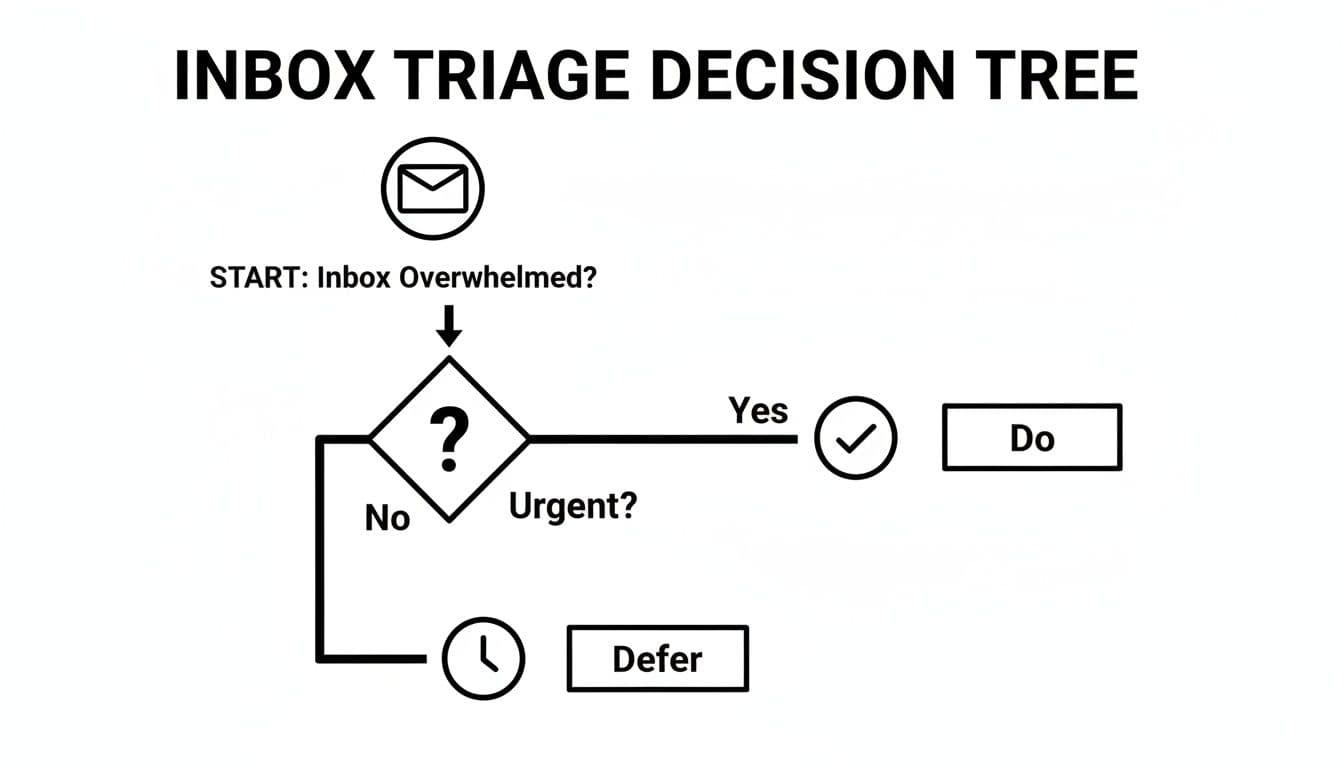
As the visual shows, the first question you need to ask is whether an action is urgent. That single decision point determines if you should 'Do' it now or 'Defer' it for later.
Reclaim Your Focus by Batching Your Email
The final, crucial piece of this triage system is to stop letting email run your schedule. Those constant notifications are absolute productivity killers. In fact, a study by Atlassian found it takes an average of 16 minutes to get your focus back after handling emails.
Instead of reacting to every new message as it arrives, schedule two or three specific times each day to process your inbox in batches. Good starting points could be 10 AM, 1 PM, and 4 PM.
During these focused blocks, your only job is to apply the four actions—Delete, Delegate, Do, Defer—to every email that's come in since your last check-in. Outside of those times? Keep your email client closed. This simple habit shatters the cycle of constant interruptions and can give you back hours of focused time every week, completely changing your approach to email inbox management.
Designing a Simple and Scalable Folder System
Even the most ruthless triage routine falls apart if you don’t have a logical place to put things. Without a good filing system, your "archive" just becomes a digital junk drawer. Finding anything later? Good luck. The key to truly effective email inbox management is a simple, scalable folder (or label) system that actually mirrors how you work.
The goal here isn't to create a complex library of 50 different folders you’ll never use. That’s just digital hoarding. Instead, we want a clean structure that makes filing an email a two-second, instinctual habit.
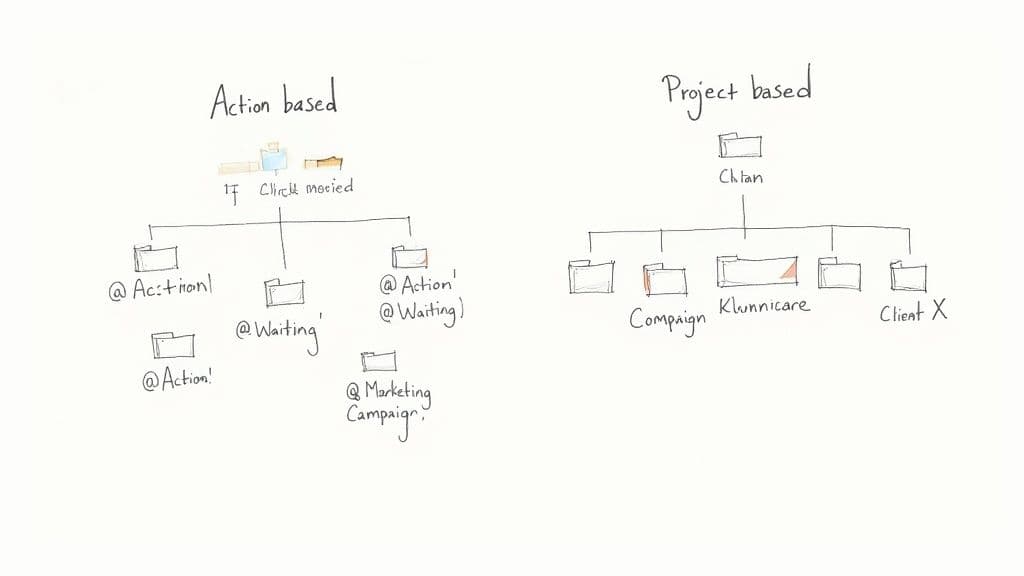
Let's look at two of the most effective blueprints I've seen work time and time again: the action-based system and the project-based system. One of them will almost certainly feel right for you.
The Action-Based Folder System
Think of this system as organizing your emails by the very next step you need to take. It essentially turns your email client into a lightweight to-do list, which is perfect if your day is filled with a high volume of small, transactional requests that aren't necessarily tied to massive, long-term projects.
A simple setup looks like this:
- @Action Required: This is your "do later" pile. Any email you deferred during triage that requires your personal attention goes right in here.
- @Waiting For: For anything you’ve delegated or when you’re waiting on someone else to get back to you. It's an instant "follow-up" list.
- @Read Later: A holding pen for newsletters, interesting articles, and company updates you want to catch up on during a coffee break.
- @Receipts & Invoices: A dedicated spot for all things financial. Your future self will thank you come tax time or when filing expense reports.
Pro-tip: The "@" symbol is a classic hack. Most email clients will sort folders alphabetically, so using "@" forces these critical folders to the very top of your list, keeping them front and center.
The Project-Based Folder System
If your work revolves around specific clients, campaigns, or initiatives, then a project-based system will feel much more natural. This approach groups every single conversation related to a particular workstream into one tidy place, creating a complete, self-contained record.
This is my go-to recommendation for managers, freelancers, and anyone juggling multiple big-picture responsibilities.
A typical structure might look something like this:
- Project Phoenix
- Q4 Marketing Campaign
- Client Alpha
- Website Redesign
You can easily add sub-folders for more detail, like nesting "Contracts" or "Invoices" under the main "Client Alpha" folder. The trick is to keep the main, top-level structure clean. This method is a lifesaver when you need to quickly pull up the entire communication history for a specific project.
To help you decide, here’s a quick breakdown of how these two systems compare.
Action-Based vs Project-Based Folder Systems
| Attribute | Action-Based System (e.g., @Action, @Waiting) | Project-Based System (e.g., Project X, Client Y) |
|---|---|---|
| Best For | Individuals with varied, transactional tasks (e.g., support, admin). | Professionals managing multiple clients or long-term initiatives (e.g., project managers, consultants). |
| Primary Goal | Managing immediate workflow and next actions. | Creating a complete, historical record for specific workstreams. |
| Filing Logic | "What do I need to do with this?" | "What project or client does this belong to?" |
| Pros | Keeps your immediate to-dos visible; simple and flat structure. | Excellent for reference; easy to find all related conversations. |
| Cons | Can make it harder to find all emails related to a single project. | Can become cluttered if you have too many small or temporary projects. |
Ultimately, picking a system isn't about finding the "perfect" one, but the one that feels the most intuitive for your brain.
The best system is the one you will actually use. Don't over-engineer it. Pick the model that clicks with how you think and run with it.
And remember, this isn't a permanent, binding contract. Many people I know use a hybrid approach. You might have project folders for all your core work, but you also keep a universal "@Waiting For" folder to track critical replies across all of those projects.
The beauty of good email inbox management is that the system serves you, not the other way around.
Automating Your Inbox with Smart Filters and Rules
It’s time to stop manually sorting every single email. A truly effective email inbox management system isn't just about discipline; it's about making your email client do the heavy lifting for you. By setting up smart filters and rules, you can create an intelligent system that automatically surfaces what’s important and files the rest away before it ever has a chance to distract you.
<iframe width="100%" style="aspect-ratio: 16 / 9;" src="https://www.youtube.com/embed/S9Uhr7RhyiM" frameborder="0" allow="autoplay; encrypted-media" allowfullscreen></iframe>This goes way beyond just marking spam. We're talking about building a personalized workflow that understands your priorities. Think of it as teaching your inbox to pre-triage messages, so you only have to deal with the stuff that genuinely needs your brainpower.
Building Your First High-Impact Rules
The best place to begin is by tackling the biggest sources of inbox noise. I'm talking about all those low-value, high-volume emails that clutter your view and sap your focus. With just a few simple rules, you can honestly eliminate 80% of this digital chatter.
Here are a few powerful examples you can set up in Gmail or Outlook in the next ten minutes:
- Silence the Notifications: Create a filter for emails from addresses like
notifications@asana.comorupdates@trello.com. The rule? "Mark as Read" and "Archive" immediately. The information is still there if you need to search for it, but it never hits your main inbox. - Create a Reading Pile: Identify your favorite newsletters or industry updates. Set up a rule that catches emails from those senders, applies a "Read Later" label, and archives them. This bundles all your reading material in one spot, ready for when you actually have time for it.
- Prioritize Your VIPs: Your direct reports, your boss, or your most important clients should never get lost in the shuffle. Create a filter just for their email addresses and have it automatically "Apply a Star" or "Flag as Important." Their messages will instantly stand out.
The goal of automation is to eliminate repetitive manual sorting. Every time you find yourself dragging the same type of email to the same folder, you've identified a perfect candidate for a new rule.
Advanced Automation for Maximum Efficiency
Once you've cleared out the basic clutter, you can create more sophisticated rules that actively support your workflow. This is where you elevate your inbox from a simple mailbox into a dynamic command center. Real email inbox management connects your communications directly to your daily tasks.
For instance, you could set up a rule that spots any email with "invoice" or "receipt" in the subject line. That rule could then automatically forward the message straight to your accounting software's dedicated email address or to your bookkeeper. No more manual forwarding.
Another powerful technique is to combine keywords with sender information. Let's say you manage a project codenamed "Project Apollo." You can build a rule that looks for any email containing "Project Apollo," applies the right project label, and even forwards it to a specific channel in your team's communication tool. This creates a real-time, hands-off archive of all project-related communication. These methods are a core part of building smart business processes, a topic you can learn more about by understanding what is workflow automation.
Want to take it even further? You can look into specialized AI tools for small business that can intelligently summarize long email threads or suggest draft replies, pushing automation beyond simple filters. The possibilities are vast, but the principle is simple: make your tools work for you, so you can focus on the work that actually matters.
Connecting Your Inbox to Your Productivity Tools
Let's be honest: your inbox is one of the worst places to keep a to-do list. It's a space built for communication, not for managing complex projects. Yet, for so many of us, countless actionable tasks get trapped there, slowly buried under an avalanche of new arrivals. Truly effective email inbox management isn't about getting better at working from your inbox; it's about getting things out of it and into the tools actually built for the job.
This simple shift creates a powerful separation between communication and action. When an email lands with a task—whether it's "review this draft" or "prepare a quote"—it needs a new home. Trying to juggle your work directly from your email is a surefire recipe for missed deadlines and constant, nagging distraction.
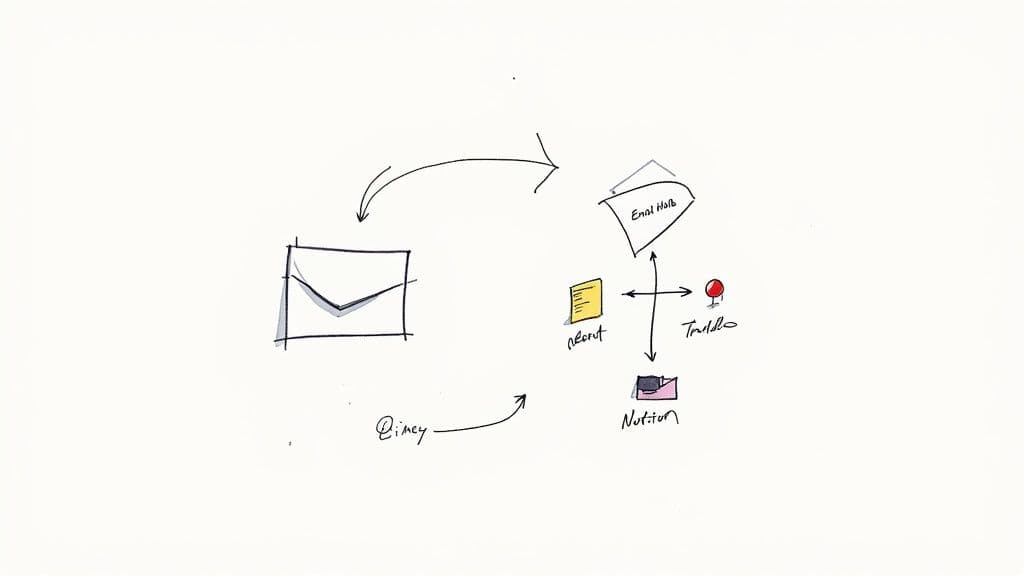
The goal is to build a seamless bridge from your email to your dedicated productivity apps. This way, you can be confident that every important action item is captured in a system you trust, finally giving you permission to hit "Archive" on the original email and clear your mind.
Turning Emails into Actionable Tasks
Most modern task management tools I've used have integrations that let you turn an email into a task with a single click or a quick forward. It sounds simple, but this one action can completely change your workflow for the better.
Imagine you get a client request for a new feature. Instead of starring it and hoping you remember to come back to it, you can instantly forward it to your project board in a tool like Trello, Asana, or Todoist. Just like that, the email’s subject becomes the task title, and the body becomes the description.
This is a game-changer for a few reasons:
- It creates a single source of truth. No more hunting for tasks. Everything you need to do lives in one place, not scattered across your inbox, sticky notes, and a separate to-do list.
- It preserves all the context. The original email content, complete with attachments and important details, is attached directly to the task. No more digging through your archive to find out what you were supposed to do.
- It makes collaboration easy. Once the task is in your project management tool, you can assign it, slap a due date on it, and start collaborating with your team immediately.
Don't let your inbox dictate your priorities. By moving tasks out, you reclaim control over your workflow and decide what to work on and when.
Building a Centralized Email Hub in Notion
But what about information that isn't a simple task? Things like project documentation, critical client conversations, or valuable resources need a home, too. For this, I love to create a centralized "Email Hub" in Notion. Think of it as a searchable, organized database for crucial information you'll need to reference later.
Setting this up is surprisingly easy using Notion’s unique email forwarding feature. Every database can have its own private email address. When you forward an email to that address, Notion automatically creates a new, neatly organized page with the email's content.
This is a fantastic way to build a personal knowledge base. The whole idea aligns perfectly with creating a digital "second brain"—a system for organizing your digital life so you never lose an important idea again. If that sounds interesting, you can go deeper in our guide to building a second brain in Notion. With a system like this, you ensure nothing important ever gets lost, turning your chaotic email archive into a powerful, organized information pipeline.
Got Questions About Taming Your Inbox? We've Got Answers
Even with the best system, new questions and challenges will pop up. Let's tackle some of the most common hurdles people face when getting their email under control.
Is It Actually Possible to Hit Inbox Zero Every Single Day?
Honestly, for most of us, no—and that’s completely fine. Chasing a literal "zero" every day can be more stressful than helpful.
The real spirit behind inbox zero isn't about an empty screen; it's about having a trusted system to process everything. The win is ending your day with clarity, knowing exactly what's done, what's delegated, and what's on your plate for tomorrow. It's about control, not a number.
How Often Should I Really Be Checking My Email?
Fight the urge to keep that email tab open all day. For most roles, checking your email in batches 2-3 times per day is the sweet spot. Think of it as scheduled tasks: once in the morning, maybe after lunch, and a final sweep before you wrap up your day.
This keeps email from constantly breaking your concentration on important, deep work. It turns a persistent distraction into a managed task.
This discipline is more crucial than ever, especially with our phones always in hand. In 2025, a staggering 68% of users check their email primarily on mobile devices. People open their email apps on their phones an average of six times a day, double the rate of desktop checks. Plus, 82% say they reply faster on mobile. You can dig into more stats about how mobile usage impacts email habits to see just how much our phones have changed the game.
Should I Be Deleting Emails or Archiving Them?
Archive, don't delete. The only exceptions are obvious spam or junk mail. Archiving simply moves an email out of your inbox, keeping your main view clean while ensuring the message is still searchable if you need it later. Storage is cheap and plentiful these days, so there’s little benefit to permanently deleting something you might need to reference down the road. Treat your archive like a massive, powerful digital filing cabinet.
Ready to take this level of organization beyond your inbox? Flowtion builds powerful Notion templates that are ready to go right out of the box. Stop wasting time building systems from scratch and get a battle-tested workspace designed for peak productivity.